How DevStride manages the When: Perpetual vs. Cycle-based Boards
Boards answer the "when"
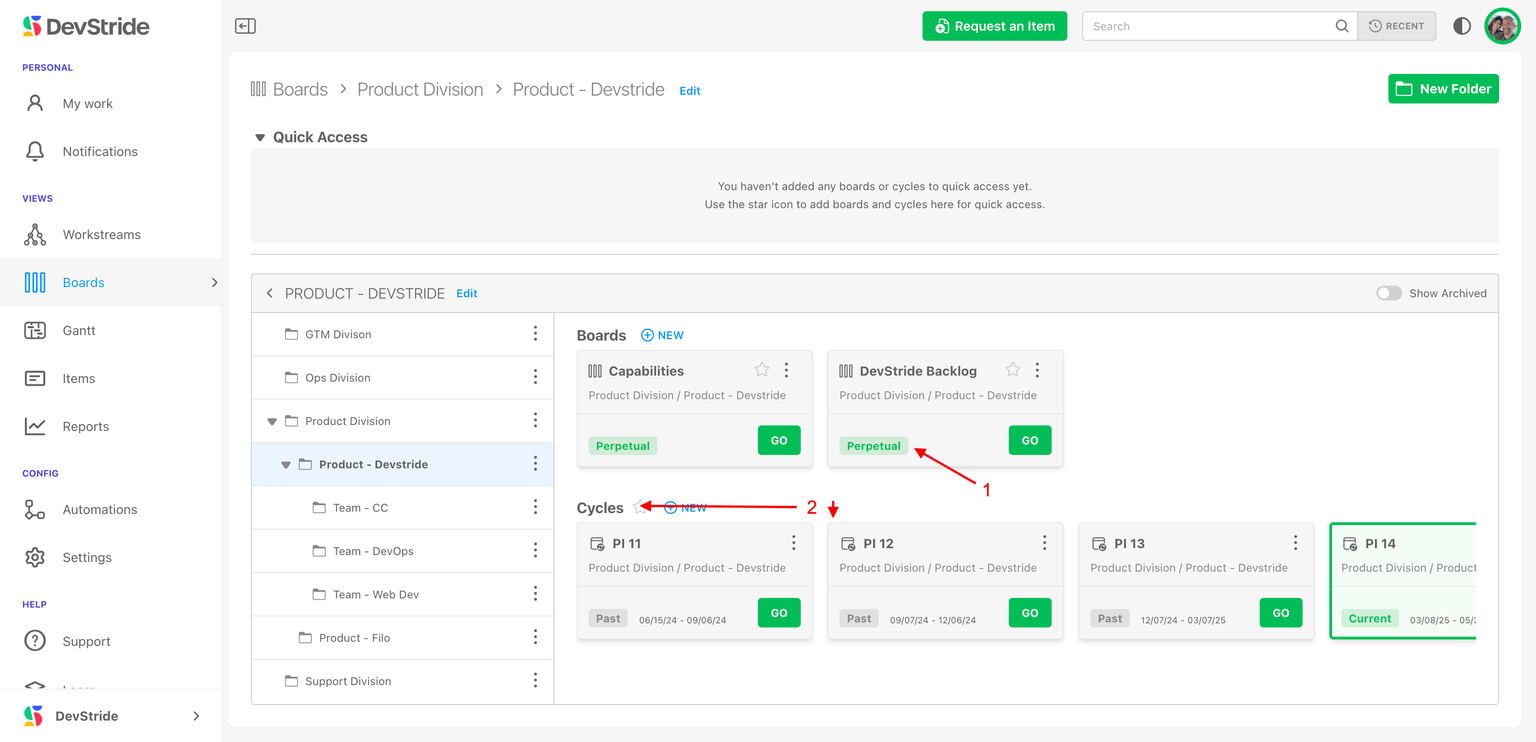
Workstreams in Map Value describe what the work is. Boards in Plan Delivery answer who is doing it and when. Every board lives in a folder (a working group), and every board is one of two kinds:
| Perpetual board | Cycle board | |
|---|---|---|
| What it is | An evergreen board with no start or end date. Work flows in, moves across statuses, and flows out. | A board that exists for one timebox (for example Sprint 12, 6–19 Oct). One cycle board is created per timebox, automatically. |
| You create it by | Clicking New under Perpetual Boards in a folder. | Nothing — DevStride creates it when the folder has a cadence and that cadence gets a new timebox. |
| Dates | Items keep whatever due dates you give them. | Items take the cycle's start and end dates when you add them (see below). |
| Good for | Backlogs, support queues, operations to-do lists, anything "always on". | Sprints, monthly plans, quarterly objectives, program increments. |
| Card badge | Perpetual | Past, Current or Future, plus the date range |
Most organizations use both: a perpetual backlog board that feeds work into the team's cycle boards.
The four words you need
- Cadence — a rhythm, defined once in Configure Settings → Cadences: "a new timebox every 2 weeks, labelled
Sprint ${counter}". A cadence has no dates of its own. - Timebox — one concrete period on that cadence, with a label, a start date and an end date: Sprint 12, 6–19 Oct. You add timeboxes to a cadence (DevStride pre-fills the next dates for you).
- Folder — a working group in Plan Delivery. A folder that can contain cycles is bound to exactly one cadence and one status collection.
- Cycle board (or just cycle) — the board DevStride creates for a folder for each of its cadence's timeboxes. Its name is the timebox label; its dates are the timebox dates.
You create a cadence Sprints: every 2 Weeks, template Sprint ${counter}. You then add three timeboxes to it — Sprint 1 (6–19 Oct), Sprint 2 (20 Oct–2 Nov), Sprint 3 (3–16 Nov).
Two folders use that cadence: Platform Team and Mobile Team. DevStride creates six cycle boards — a Sprint 1, Sprint 2 and Sprint 3 under each folder. When you add a fourth timebox next month, both folders get a Sprint 4 automatically. Each team plans its own items on its own cycle boards, but both run on the same heartbeat, so a report can compare their Sprint 2s directly.
Nested cadences work the same way one level up: a 12-week Program Increment cadence can be the parent of the Sprints cadence, so each PI timebox holds six sprint timeboxes and the label template can read Sprint ${ancestor.1.counter}.${timeboxCounter} → Sprint 3.1 … 3.6. See Cadences for the settings screen.
What a cadence changes downstream
- Items inherit the cycle's dates. An item created on a cycle board starts on the cycle's start date and is due on its end date. An item moved onto a cycle board is re-dated to the cycle as long as the organization setting Sync work item dates with their cycles (Configure Settings → Admin → Global Automations) is on — it is on by default. With it off, only empty dates are filled in. Dates are never changed when an item leaves a cycle.
- Track Progress (Gantt) places items by those dates, so a team's committed work lands in the right fortnight without anyone typing a date.
- Filters, automations and reports understand current, past and future cycles — for example the Cycle Carry-Forward report shows what each cycle completed and what rolled forward.
- Cycle boards are not editable the way perpetual boards are. Their name and dates come from the timebox; change the timebox in Cadences and the cycle board follows.
Choosing for a team
Ask one question per working group: is this work committed to a period, or does it just keep flowing?
- Flowing (tickets, backlog, operations) → one or more perpetual boards.
- Committed to periods (sprints, monthly or quarterly plans) → a folder with a cadence, which gives you cycle boards.
- Both → a perpetual backlog board plus cycle boards in the same folder. Pull items from the backlog into the current cycle during planning.
Reading order
The rest of this section follows the order you set things up in:
- Working group folders — the containers, and how to navigate them.
- Adding a folder and creating subfolders — the New Folder dialog.
- Setting up and using perpetual boards and Using cycle boards.
- Import stories and epics into boards — getting work onto a board.
- Understanding board views and Track and move work with board views — Card, Table and 2D.
- Manage and edit dependencies, Boards and WIP limiters, Board and folder permissions.
Search & Recent Places
The one search at the top of every screen: open it with a click or Cmd/Ctrl + K, pick up where you left off from your recent places, jump to an item by number, narrow with # filters, and find pages, work items, workstreams, board folders, boards, cycles and Gantts.
Working Group Folders: Organizing the Who of the work
Folders in Plan Delivery are the working groups that own boards. Learn how to structure them, find your way around the folder browser, and archive or permanently delete what you no longer need.