Global Automations
Global Automations holds four organization-wide switches that move dates, statuses and placement for you, so people do not have to keep related items in step by hand.
Where to find it
Configure Settings → Admin → Global Automations. The page needs the Manage Org Configuration permission (MANAGE_ORG_CONFIGURATION), the same one that opens Organization Profile. The default Owner and Admin roles hold it.
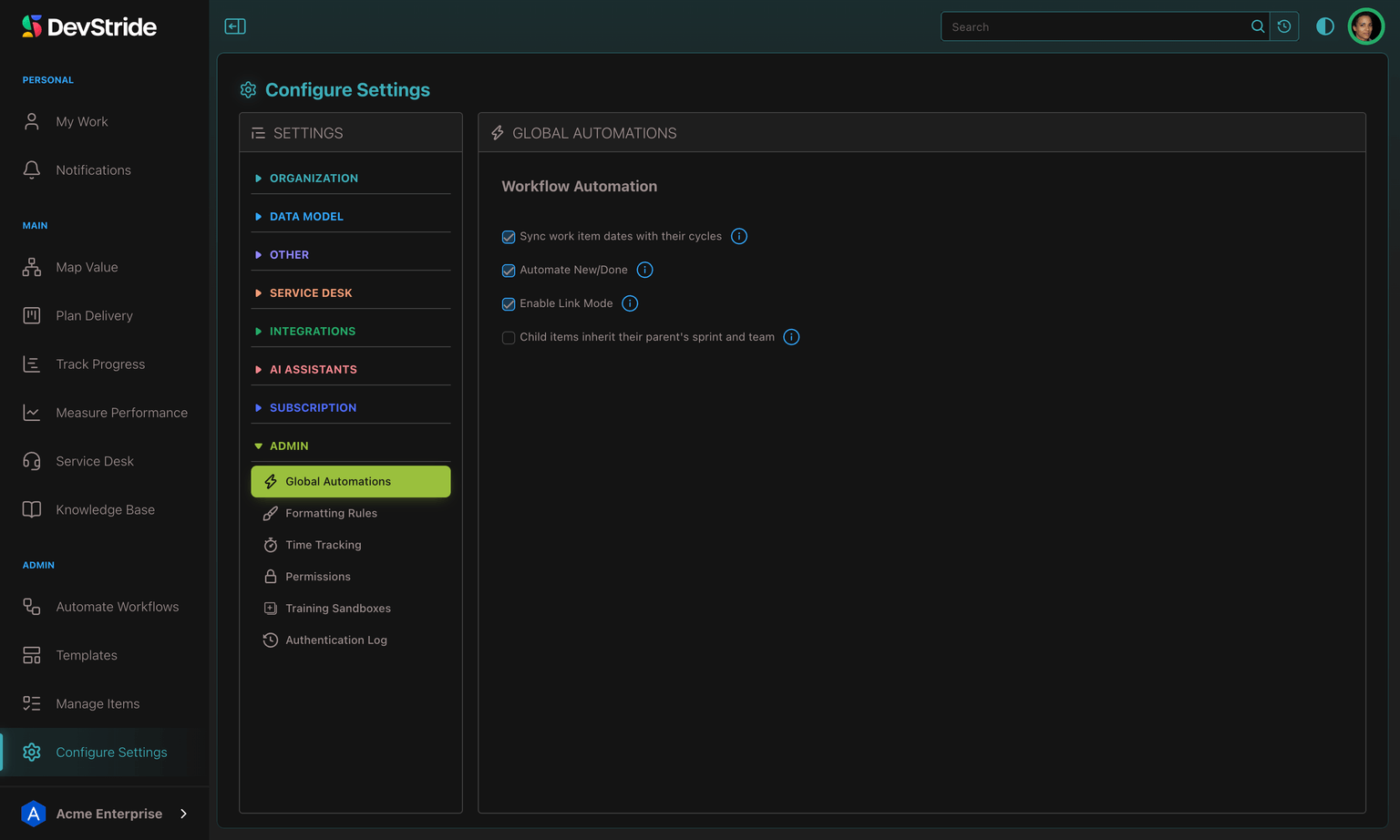
The four automations
The checkboxes sit under the Workflow Automation heading. Each one saves the moment you tick or untick it, and the i beside it explains it in a sentence. A change applies to what happens from then on; none of them sweeps existing items.
| Checkbox | What it does when on |
|---|---|
| Sync work item dates with their cycles | Moving an item into a cycle sets the item's start and due dates to the cycle's dates. On by default. |
| Automate New/Done | A parent moves to Done when all of its child items and subtasks are Done, continuing up the hierarchy, and back to New if a child reopens. Marking a parent Done also completes its unfinished subtasks; reopening a parent leaves completed subtasks as they are. |
| Enable Link Mode | Item actions propagate down the dependency chain. See Link Mode. |
| Child items inherit their parent's sprint and team | Off by default. A child item added under a work item without a chosen sprint or team starts on the parent's sprint (or board) and team. See below. |
Starting in the parent's sprint and team
With Child items inherit their parent's sprint and team on, a new child item takes its parent's placement for anything the person creating it leaves unset:
- Sprint or board — the child goes on the parent's board, as long as that board is still in use and accepts the child's item type. Otherwise it is created off every board, as it would be with the setting off.
- Team — the child gets the parent's team, as long as that team is not archived and the assignee you chose is a member of it. In the Create an Item dialog the team is left blank for you when you add an item under a work item, so the parent's team can apply.
A sprint or team you choose yourself always wins. The setting applies only to items created under another work item (not directly under a workstream) and only to items people add — imports, integrations, copies and automations place items themselves. Leave it off if parents and children live on different boards, for example Epics on a Program board and Stories on Sprint boards.
Related
- Organization Profile — your organization's name, domain, logo and timezone.
- Using cycle boards — how items take their dates from a cycle.
- Setting up automations — rules you build yourself in Automate Workflows, beyond these four switches.
Subscription & Billing
See your plan and who it counts, set up monthly card payments before your free trial ends, manage cards and billing details, download receipts and invoices, and know what happens if payment lapses.
Formatting Rules
Make items in chosen statuses stand out everywhere: a red, struck-through title and an X on the item icon, so cancelled work reads as cancelled on every screen.