Cadences
A cadence is a repeating planning rhythm: "a sprint every 2 weeks", "a program increment every quarter". Each cadence produces timeboxes, the dated slots in that rhythm (Sprint 14: 6–19 Oct). Cycle boards attach to a cadence and get one cycle per timebox, which is how a board knows what "this sprint" and "next sprint" mean. Set cadences up once; the boards built on them stay in step.
An analogy: the cadence is the calendar template, the timeboxes are the printed pages, and a cycle board is one team's copy of the calendar with their work written on it. Nest cadences the way the real rhythm nests — sprints inside program increments inside years — and each timebox knows its parent, so a sprint can be labelled "PI 3 — Sprint 2" automatically.
For the concepts, see Understanding planning cadences; for how boards use them, see Using cycle boards.
Where to find it
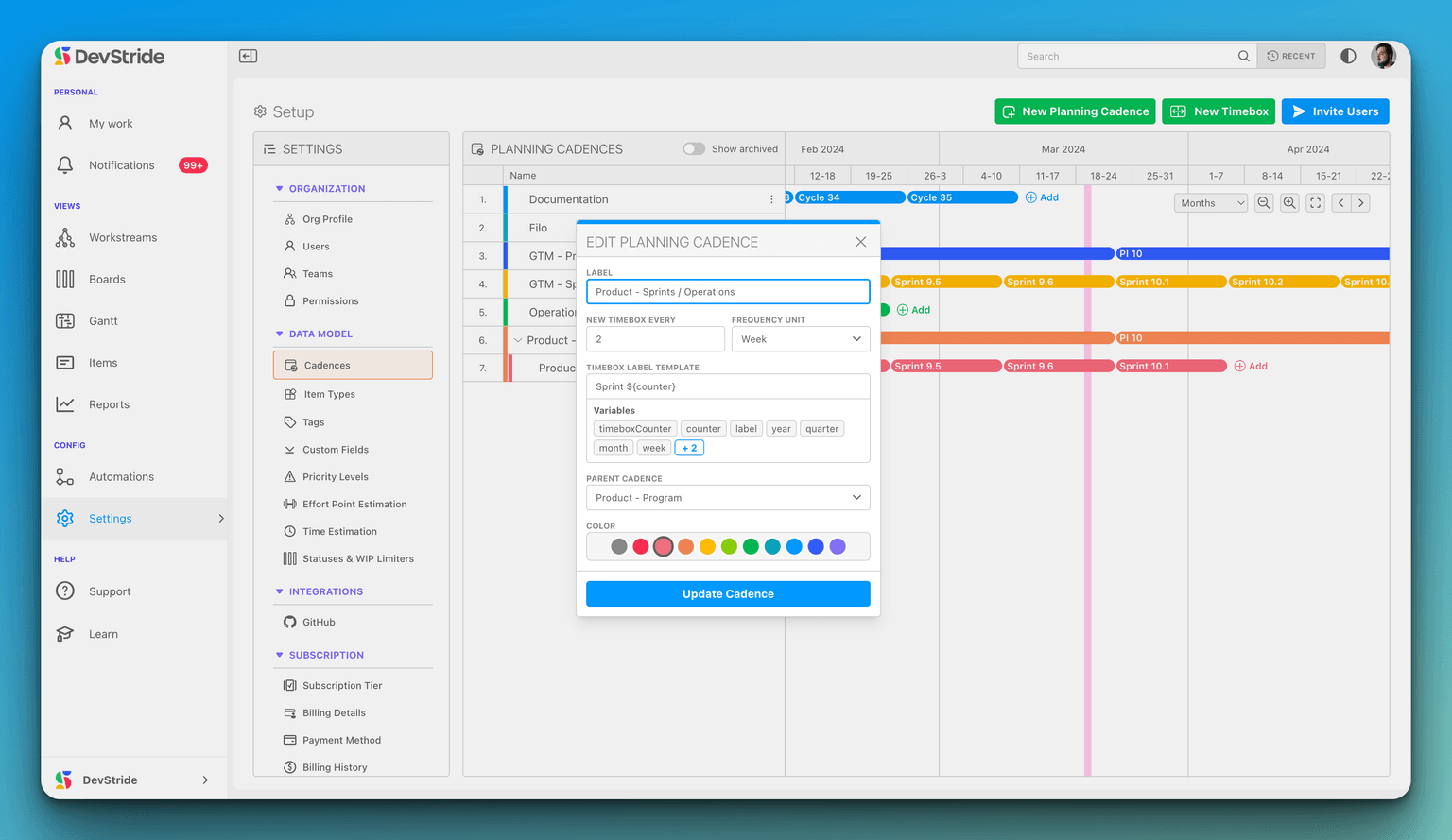
Configure Settings → Other → Cadences. The page needs the Manage cadences permission (default Owner and Admin roles). The Planning Cadences area shows your cadences and their timeboxes on a Gantt-style timeline; scroll it with the arrows at either end, and turn on Show archived to include archived cadences. Drag the edge of the Name column header to widen or narrow it, or double-click the edge to reset it.
Creating a cadence
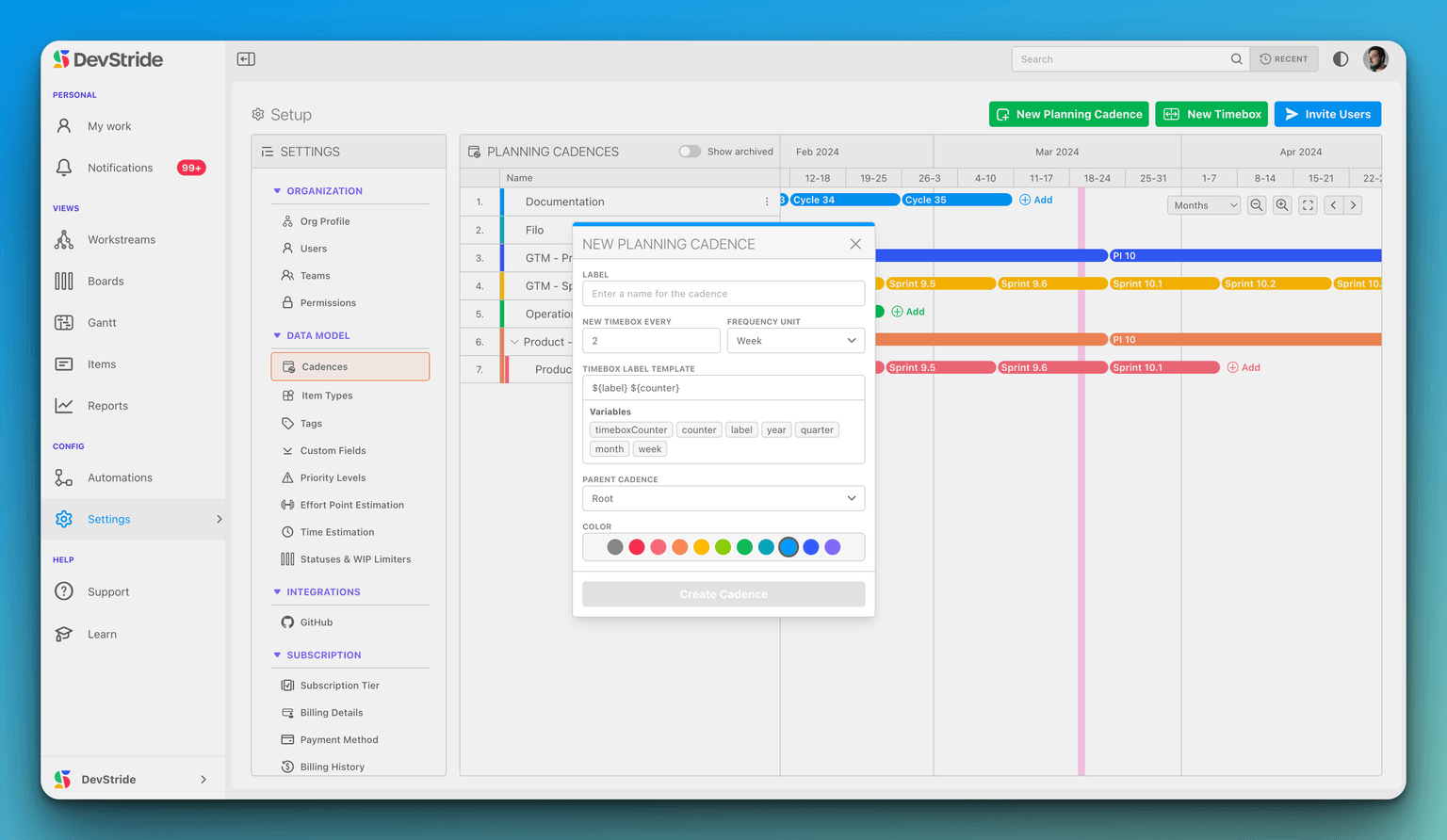
- Click New Planning Cadence.
- Fill in the New Planning Cadence dialog:
| Field | What to enter |
|---|---|
| Label | The cadence's name, for example Sprint or Program Increment. |
| New Timebox Every / Frequency Unit | The interval: a number plus day, week, month, quarter or year. 2 week gives two-week sprints. |
| Timebox Label Template | How each timebox is named. Default ${label} ${counter} gives Sprint 1, Sprint 2… Click Variables to insert the tokens below. |
| Parent Cadence | Optional. Pick the larger rhythm this one nests inside (Sprint under Program Increment). Leave it as Root for a top-level cadence. |
| Color | The colour its timeboxes show in on the timeline and on boards. |
- Click Create Cadence.
Label template variables
| Variable | Produces |
|---|---|
${label} | The cadence's label |
${counter} | The timebox's running number across the whole cadence |
${timeboxCounter} | Its number within its parent timebox (restarts for each parent) |
${year}, ${quarter}, ${month}, ${monthNumber}, ${week} | Taken from the timebox's start date |
${ancestor.1.counter}, ${ancestor.1.timeboxCounter} (and .2., .3.…) | The same counters for the parent, grandparent and so on — only offered when the cadence has a parent |
For example, a Sprint cadence under a Program Increment cadence with the template PI ${ancestor.1.counter} - Sprint ${timeboxCounter} names its timeboxes PI 3 - Sprint 1, PI 3 - Sprint 2, and starts again at PI 4 - Sprint 1.
Adding timeboxes
A cadence is only a rule; timeboxes are the dated slots boards actually use. Click New Timebox (or Add timebox in a cadence's … menu) and fill in:
| Field | Notes |
|---|---|
| Cadence | Which cadence the timebox belongs to. |
| Label | Pre-filled from the cadence's template; edit it if you like (at least 3 characters). |
| Start date, End date, Length (days) | Enter any two; the third follows. |
| Recursively create child timeboxes | Also creates the child cadence's timeboxes inside this one — a quarter's six sprints in one go. |
View Context shows the parent timebox and the sibling timeboxes around the one you are editing, so you can check for gaps and overlaps.
Editing and moving timeboxes
Click a timebox on the timeline to open Edit Timebox. Besides its dates, the dialog offers Move dates by N days / weeks / months / quarters / years, which shifts the timebox (and lets you shift its children) without retyping dates.
Deleting a timebox asks what to do with the items in the cycles created from it: Clear the cycle field on all of them, or Move to another timebox, in which case the items move to that timebox's corresponding cycle on each board. A timebox with child timeboxes cannot be deleted until its children are.
Editing, archiving and deleting cadences
Open the … menu on a cadence for Add timebox, Edit cadence, and either Delete cadence (when the cadence and its children have no timeboxes yet) or Archive cadence. Changing the label template only affects timeboxes created afterwards. Archived cadences keep their timeboxes and history; Show archived reveals them and Unarchive cadence brings one back.