Working Group Folders: Organizing the Who of the work
What a folder is for
Workstreams in Map Value hold the what. A folder in Plan Delivery is a working group — a team, department, program or temporary squad — and it holds that group's boards. Every board lives in exactly one folder, and the folder decides three things for everything inside it:
- Who can see and edit it. Boards and subfolders inherit the folder's permissions (see Board and folder permissions).
- Whether it holds perpetual boards, cycle boards, or both (the Can contain boards / Can contain cycles toggles).
- For cycle boards: the cadence, status collection and default team. Every cycle in the folder shares them.
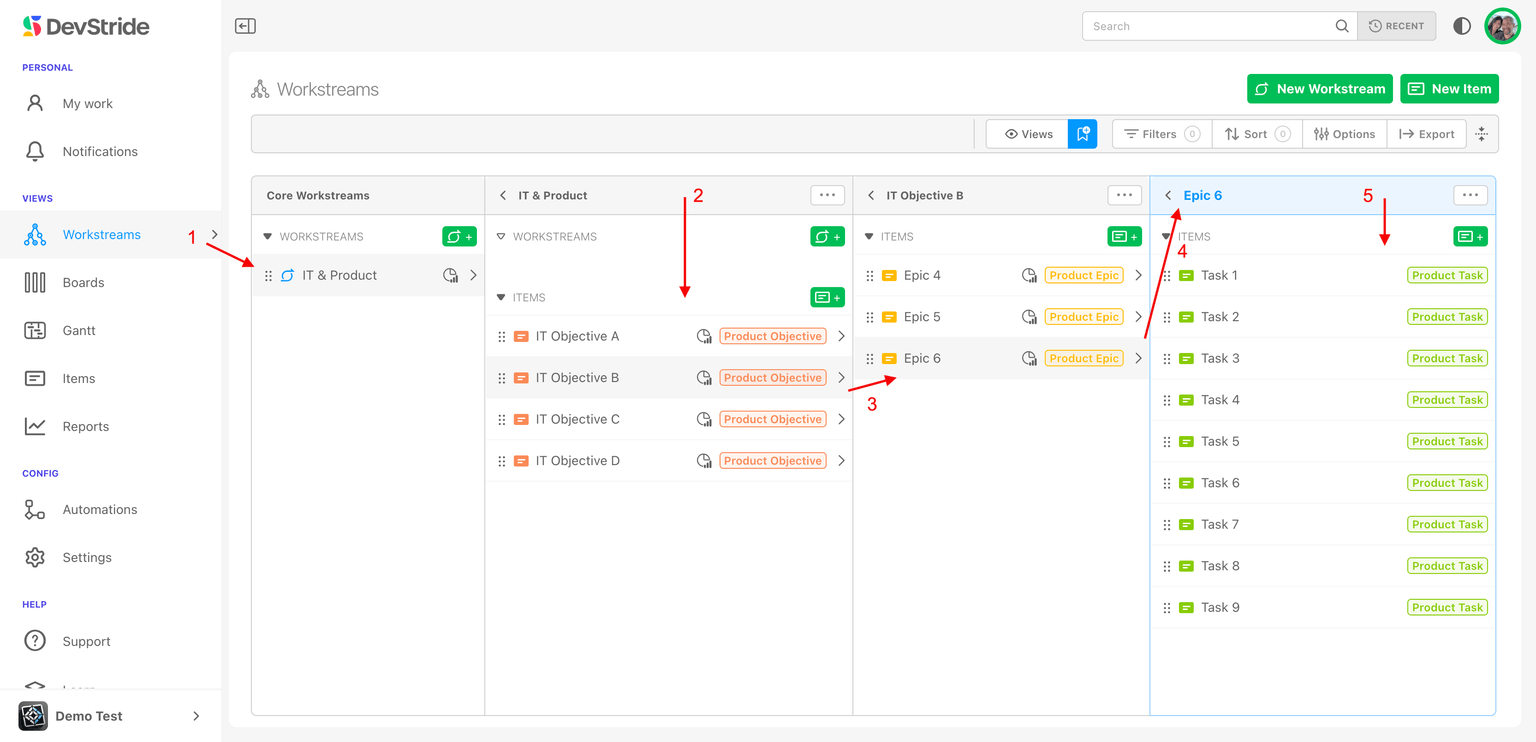
Structuring folders
One folder per working group. Nest them when smaller groups report into a larger one, so a program lead can browse down to any team's boards and a team sees only its own:
- IT & Technology (the whole enterprise)
- ACH Processing (a working group)
- Product Team 4 (a team inside that group)
- ACH Processing (a working group)
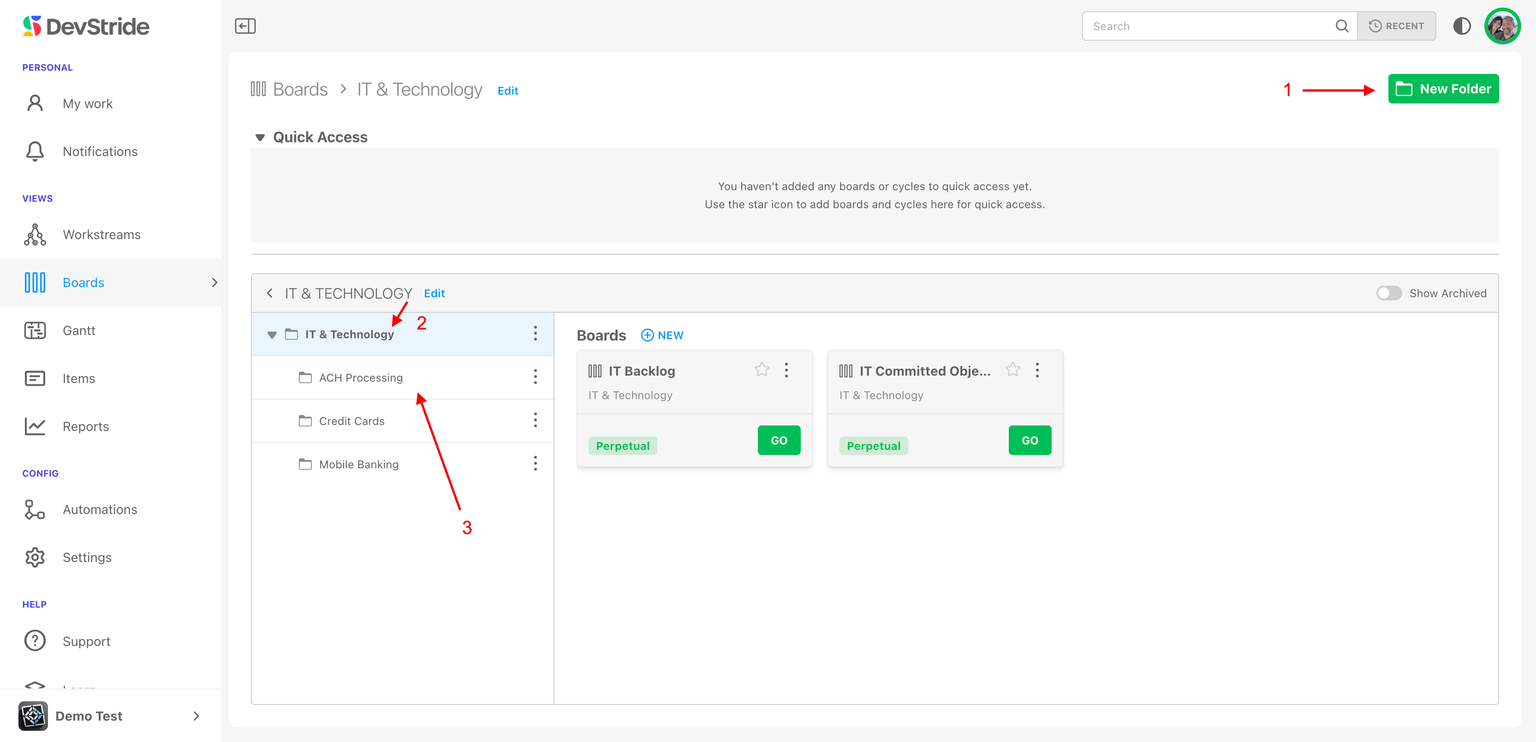
Folders do not have to mirror the org chart. Model the groups that actually plan work together, and nest as deep or as shallow as you like.
Navigating folders
Open Plan Delivery in the left navigation. It reopens the last folder or board you visited; the first time, it opens the first root folder. The page has two panes.
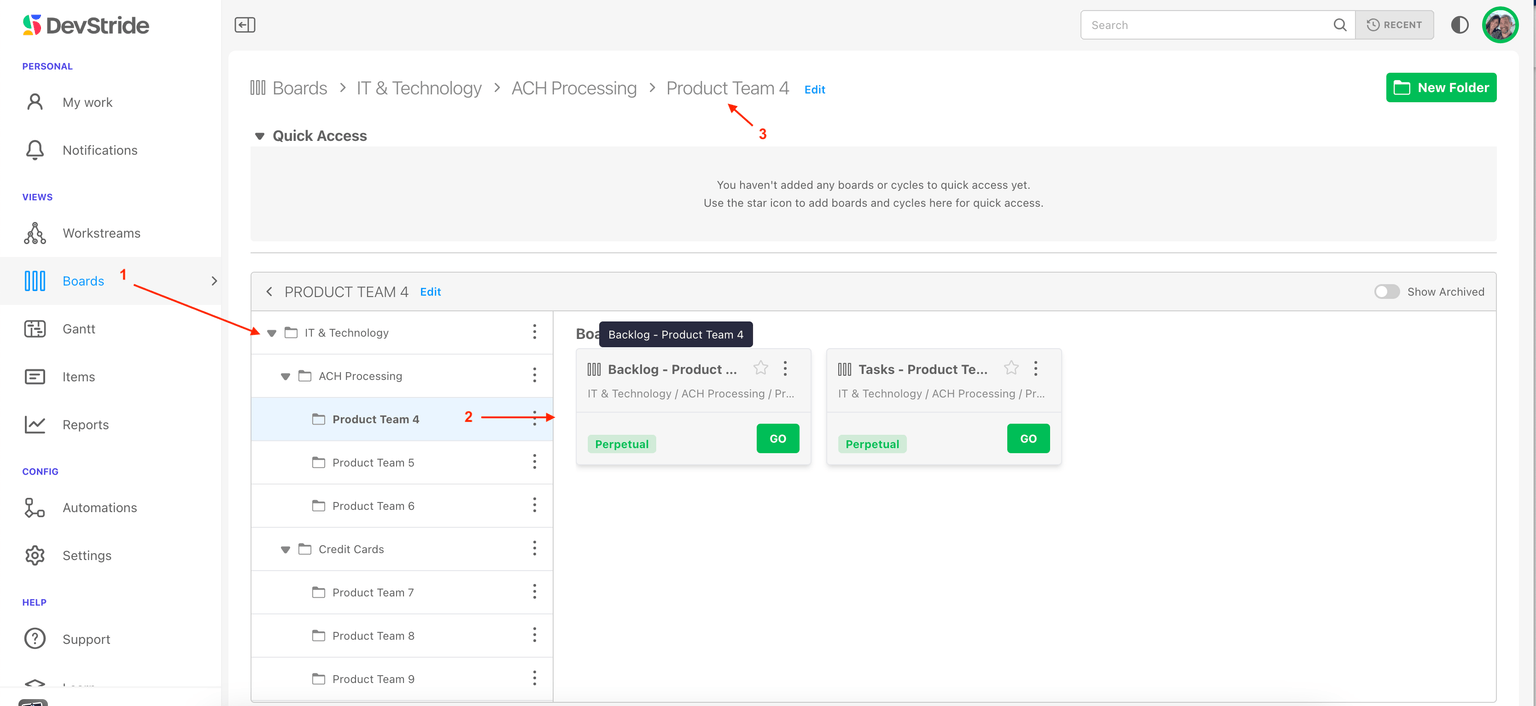
The folder browser (left pane)
- Expand or collapse a folder with the caret. Children load as you open each level.
- Click a folder to show its contents on the right.
- A lock icon on a dimmed row means you cannot open that folder itself, but something inside it is shared with you — expand it to reach what you can see.
- Right-click a row (or use its kebab, Folder options) for the folder menu: New Folder, Move, Edit, Archive / Unarchive, Permanently delete (archived folders only) and Permissions. Items you lack permission for are disabled.
- Move a folder by choosing a new Parent Folder in the Move dialog — clear the parent to make it a root folder. Folders are not dragged in the tree.
- Resize the browser by dragging the divider; double-click it to reset. The width is remembered.
Quick Access
Quick Access sits at the top of the page. Click the star on a board or folder to pin it here. A pinned folder shows a Select a cycle dropdown (defaulting to the current cycle) and a GO button, so your team's current sprint is one click away. The section collapses, and your choice is remembered.
The content pane (right pane)
The header shows the folder name, an Edit link (if you can edit the folder), the + Folder button for a new root folder, and a Show Archived toggle that reveals archived folders and boards in both panes.
Below it, the folder's boards appear under two headers:
- Perpetual Boards — ongoing boards. New opens the New Board dialog.
- Cycle Boards — one card per timebox of the folder's cadence, newest first, with a Past, Current or Future badge and the date range. The list scrolls to the current cycle. New here does not open a board dialog: it takes you to Configure Settings → Cadences to add a timebox, which then generates the cycle for every folder on that cadence (see Using cycle boards).
Each card has a GO button and a kebab menu with Edit, Permissions and Archive.
The breadcrumb trail
The breadcrumb starts at Plan Delivery and follows the folder path to where you are. Every crumb is clickable. Paths deeper than six levels collapse their middle into a ... menu. Folders you cannot open appear with a lock.
Creating folders
- Root folder: click + Folder in the content pane header. Any role that can manage boards may do this — the default Member role included.
- Subfolder: right-click the parent and choose New Folder. You need Editor access on the parent.
The dialog is the same in both cases; it is described field by field in Adding a folder and, for nested folders, Creating subfolders.
Archiving a folder
Archive on a folder hides it and everything inside it from the active lists. Items keep their board assignments; nothing is removed from them. Turn on Show Archived to see it again, and choose Unarchive to restore it. A subfolder that is archived only because its parent is cannot be unarchived on its own — unarchive the parent.
Archiving a board is different: DevStride asks what to do with the board's items (Remove their board or Move to another board), because items never stay on an archived board. An archived board can be unarchived from its own menu, but not while its folder is archived. See Setting up and using perpetual boards.
A folder synced from Azure DevOps or Jira offers only Archive and Unarchive; see Boards and folders synced from Azure DevOps or Jira.
Permanently deleting an archived board or folder
Archiving hides; Permanently delete removes for good. The option appears only on an archived perpetual board (its card's kebab, with Show Archived on) or an archived folder (its context menu), and only when you can delete everything inside it. Type the name to confirm.
- Your work items are kept. Items and subtasks stay in their workstreams; only their board placement is cleared.
- Cycle boards go with their folder. Individual cycles cannot be permanently deleted — delete the archived folder that holds them.
- Deletion runs in the background. You can close the dialog and watch the job notification in the bottom-right corner. If it stops, reopen the menu (Deletion progress / retry) and click Retry deletion to continue from the last saved step.
- It cannot be undone.
Next: Adding a folder.
How DevStride manages the When: Perpetual vs. Cycle-based Boards
Perpetual boards, cadences, timeboxes and cycle boards — what each one is, how they fit together, and how to pick the right kind of board for a team.
Understanding Board Views
The three ways to look at any board — Card, Table and 2D — what each one shows, when to pick it, and how DevStride remembers your choice.