Import Stories and Epics into Boards
When to use Import
Your work is already defined in Map Value and you want some of it on a board — a sprint's worth of stories onto this cycle, or a set of epics onto a program board. Import does not copy anything: it assigns the items you pick to this board. An item is on at most one board, so importing it here takes it off any other board.
You need permission to edit the items you import (the Import button is disabled otherwise).
Steps
Step 1: Open the board
In Plan Delivery, open the folder and click GO on the board or cycle.
Step 2: Click Import
The green Import button is at the top right of the board header.
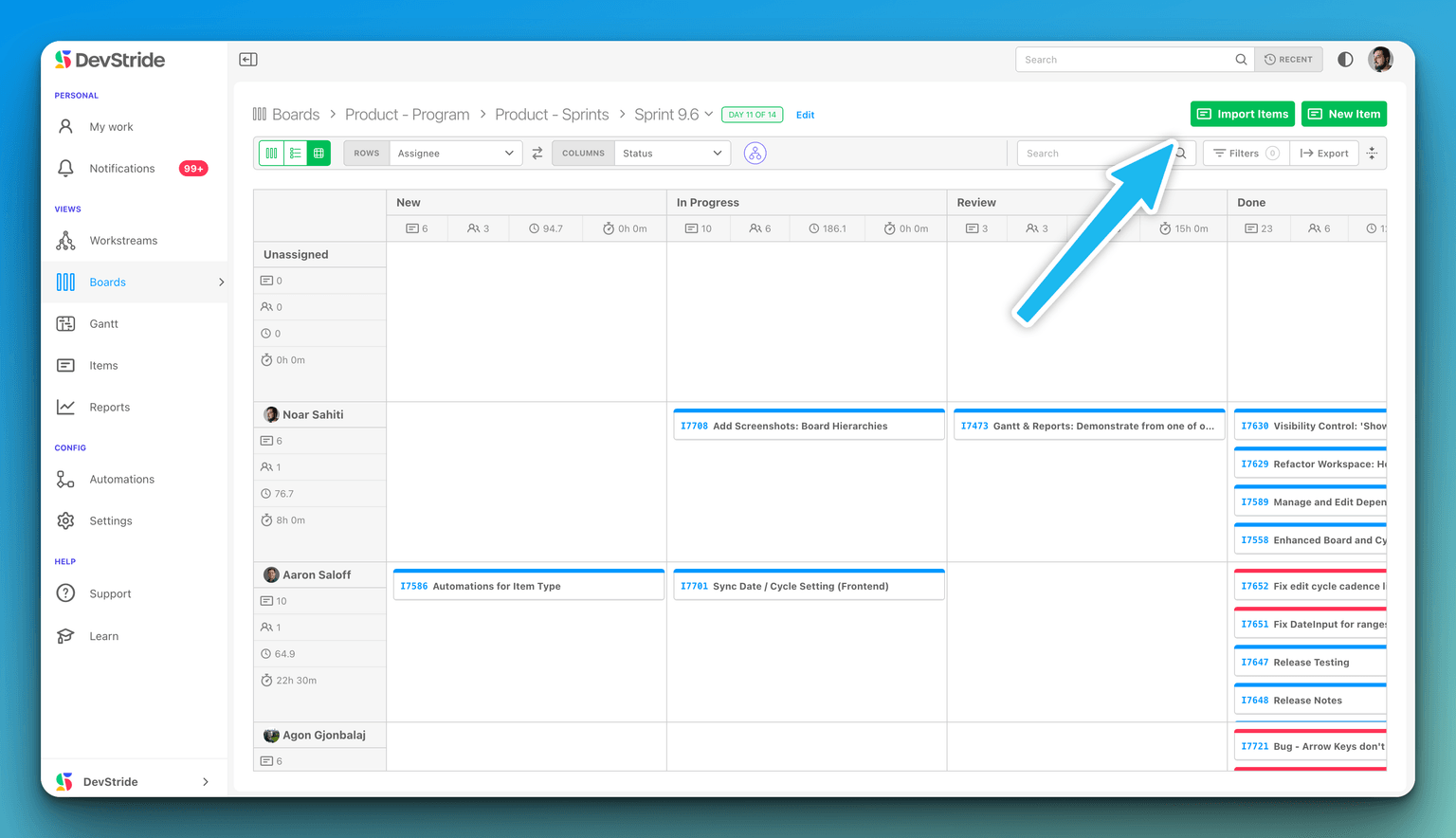
Step 3: Find the items
The Import Items to Board dialog has two panes: browse on the left, Selected on the right.
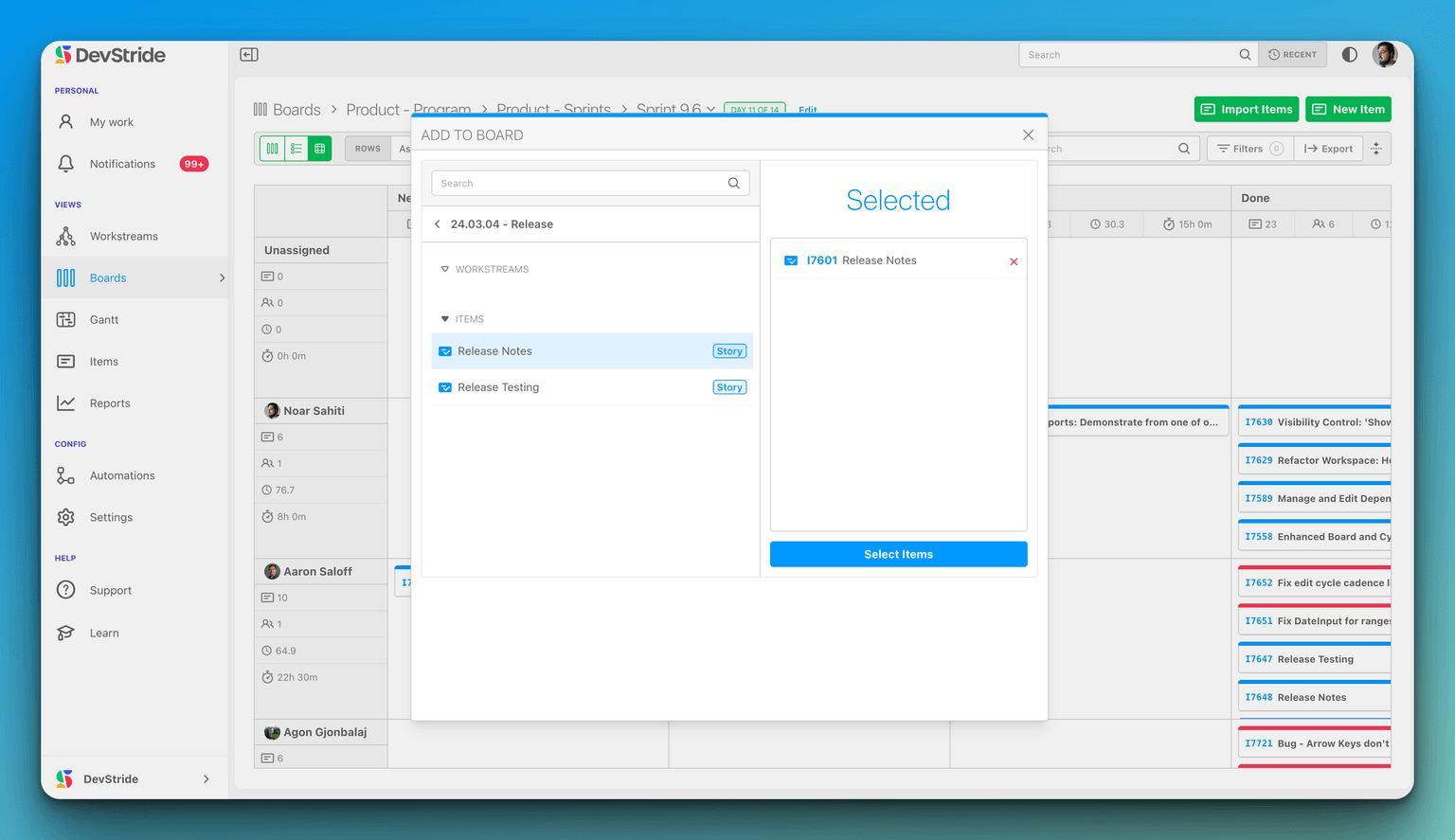
- Browse Items (folder icon) drills through your workstream hierarchy with breadcrumbs — click a workstream or parent item to open it.
- Recently Used Items (clock icon) lists items you have worked with lately.
- Find items... searches by text.
- Filters narrows the list by Assignee, Persona, Board, Creator, Item Type, Priority, Status, Tag, Team or Watchers. Filter Board to your backlog board to pull directly from the backlog.
- The Archived toggle in the footer includes archived items.
Step 4: Select
Tick the items you want. They collect in the Selected pane with their number, title and path; click the x on one to drop it. You can keep browsing other parts of the map and add more before importing.
Two rules:
- Only work items can be selected. Clicking a workstream opens it rather than selecting it.
- A parent and its child cannot both be selected, and importing a parent does not import its children. Pick the level you plan at — epics for a program board, stories for a sprint.
Step 5: Import
Click Import Items (or Ctrl/Cmd + Enter). The items appear on the board:
- in the column matching their current status where the board's status collection has it, otherwise in the collection's first status;
- on a cycle board, dated to the cycle (see Using cycle boards).
Large selections are added in the background: Adding N items to this board in the background. Refresh the board once the job finishes to see them. There is a per-import limit; if you exceed it nothing is added and the message tells you the limit.
Other ways to put an item on a board
| From | Do this |
|---|---|
| An open item | Set the Cycle / Board field in the right sidebar (Select a board or cycle). Clear removes it; Go opens the board. |
| Manage Items, My Work, Map Value, a board's Table view, the Gantt | Select items → Edit → Cycle/Board → Choose Board. Clearing asks you to confirm Clear Board. The Cycle / Board column in any table also opens the picker. |
| A new item | Item on a board creates it on that board (see Setting up and using perpetual boards). |
| An automation | The Change Cycle/Board action sets, moves or removes a board, including the current cycle or N cycles from now in a folder. |
| A child of a planned parent | With the organization setting Child items inherit their parent's sprint and team on, new children land on the parent's board. |
Items cannot be dragged from the Map Value map onto a board.
Understanding Board Views
The three ways to look at any board — Card, Table and 2D — what each one shows, when to pick it, and how DevStride remembers your choice.
Adding a Folder
Create a working group folder in Plan Delivery: every field in the New Folder dialog, the Visibility choice, what you can and cannot change later.