Weekly Logs
Logging
Enter hours, add notes, and remove time entries in Weekly Logs.
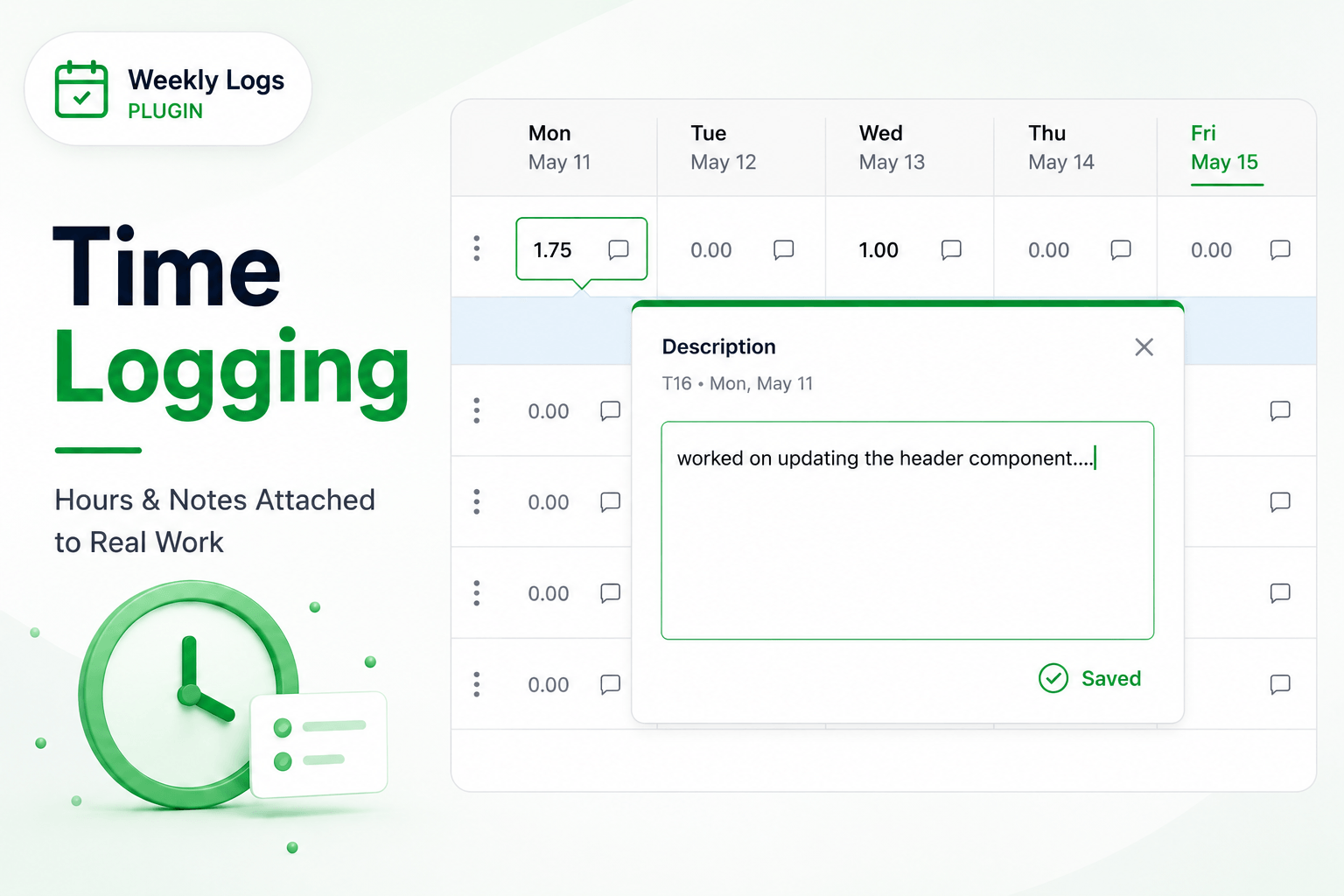
This is where time tracking actually happens. Each row in the grid is a task. Each column is a day of the week.
Enter time
- Find the task row — added from Search or Proposed items.
- Click the cell for the day you want to log against.
- Enter your hours. Decimals are supported — 1.5 for 1 hour 30 minutes, 2.25 for 2 hours 15 minutes, and so on.
- Move to the next cell. You do not need to hit Save — entries are saved automatically.
Hours are rounded to the nearest quarter automatically. You can log against multiple days for the same task by entering hours in each day's cell independently.
Maximum hours
A single entry cannot exceed 24 hours per day. Values outside this range will not be accepted.
Add notes
Every time entry can have a note attached to it.
- Hover over a filled cell — a notes icon appears.
- Click the notes icon, or press Space Bar while the cell is active.
- In the popup, add a description alongside the hours and save.
The note stays attached to that specific entry on that specific day. If a note exists, the icon remains visible on the cell so you can identify entries with context at a glance.
Remove time
- To remove a single entry, clear the cell or set it to 0. Weekly Logs will ask you to confirm before deleting.
- To delete all entries for a task across the entire week, click the delete icon in the task's total cell and confirm the deletion.
Notes are cleared on delete
When a time entry is deleted, any note attached to it is removed as well.