Team Logs
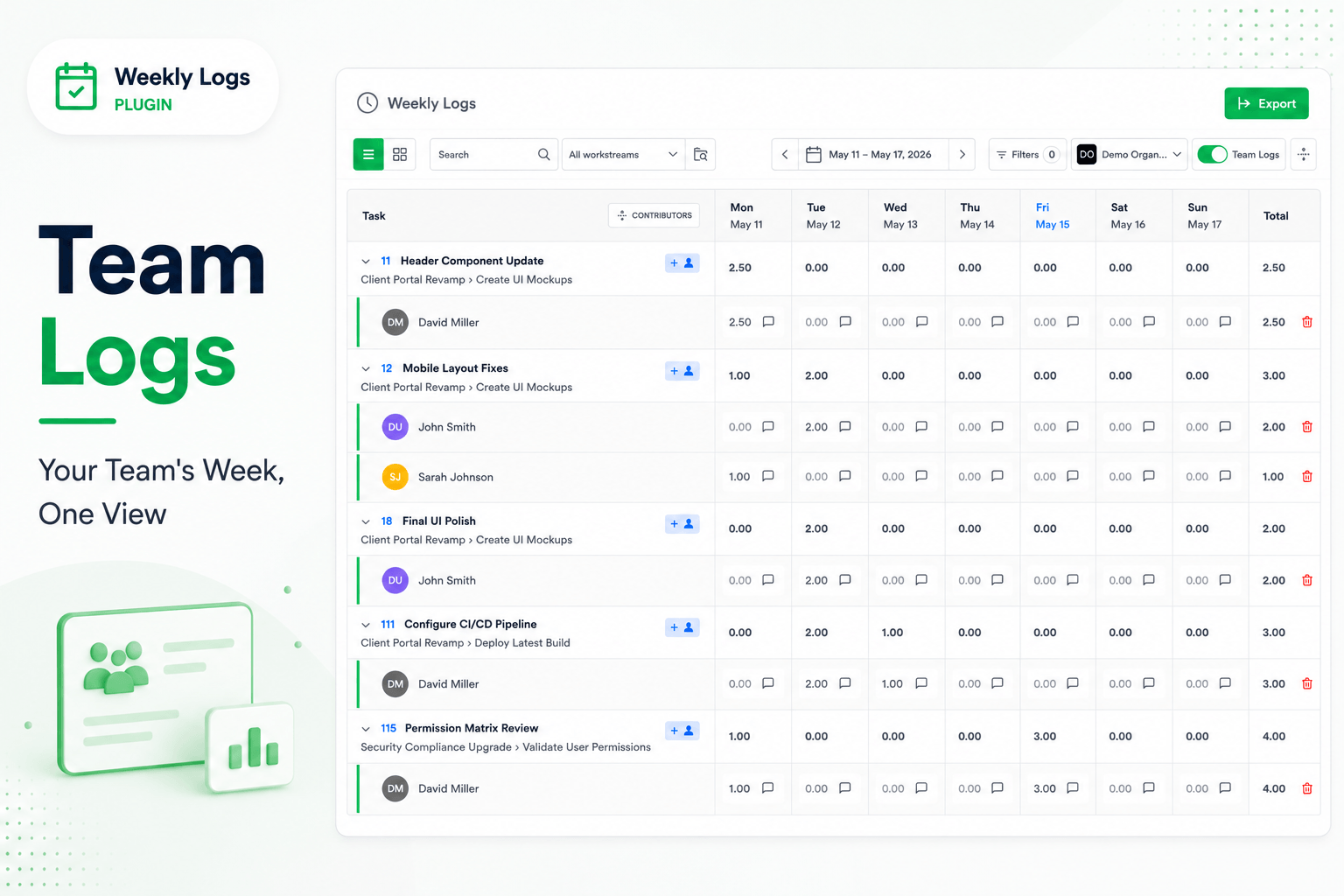
Managing a team means knowing where time is going — without having to ask.
Team Logs gives admins a view of the entire team's time entries for the week — not just their own. Non-admin members can switch to Team Logs and view the grid in read-only mode.
Turn On Team Logs
- In the toolbar, toggle the Team Logs switch on.
- The grid updates immediately to multi-user mode.
To return to your own timesheet, toggle Team Logs off.
Expandable Task Rows
In Team Logs, tasks are still rows — but each task is expandable.
- Click the chevron on a task row to reveal every team member who has logged time against it.
- Each person gets their own row showing their hours per day and their weekly total.
- The task row itself shows the combined total across all users for that task.
Use Expand All and Collapse All in the grid header to open or close every task at once.
Edit Entries
As an admin, you can edit any team member's entries directly.
- Expand the task to reveal the user rows.
- Click the cell for the user and day you want to edit.
- Enter the hours. The entry saves automatically.
Add a Team Member to a Task
If a team member is not yet listed under a task, you can add them manually.
- Click the + button on the task row.
- Select a user from the list.
- Their row is added under the task and is ready for time entry.
Assignee Filter
Use the Assignee filter to focus on one or more specific team members.
- Click Filters in the toolbar, then select Assignee.
- Choose one or more team members from the list.
- Click Apply.
The grid narrows to show only those users and the tasks they have logged time on. For how filters combine with other options, see Filtering.
Permissions
| Action | Admin | Non-admin |
|---|---|---|
| View Team Logs | Yes | Yes (read-only) |
| Edit Time Entries | Yes | No |
| Add Users to Tasks | Yes | No |