Grid
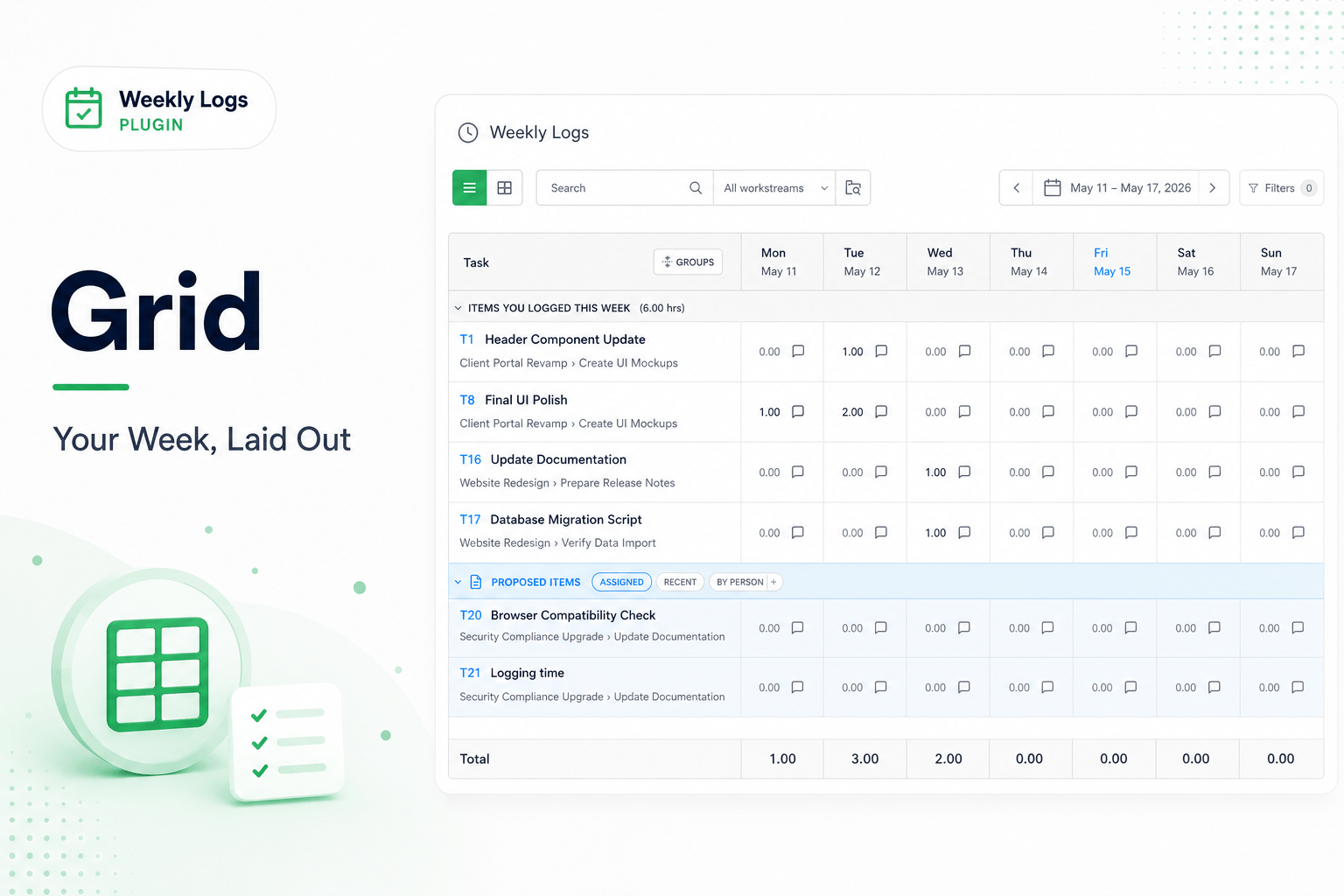
The grid is the core of Weekly Logs. Every task you are tracking sits as a row, and every day of the week is a column — Monday through Sunday, with a Total on the right. At the bottom, a pinned Total row shows the sum of every day and your full week at a glance.
Header
The header sits above the toolbar and contains:
- The plugin title — Weekly Logs
- A status indicator that shows the current save state — Draft saved, Auto-Saving, or Saved
- The Export button
Toolbar
The main controls sit in a bordered toolbar strip below the header. The toolbar contains the view toggle, week navigation, search, filters, and the Team Logs switch.
- Collapse the toolbar to save space using the collapse control on the right, or press Ctrl+Shift+F / Cmd+Shift+F.
- When collapsed, a Toolbar button appears next to Export in the header so you can expand it again.
- When filters are active, filter chips appear above the grid below the toolbar.
View mode, search, week navigation, filters, Team Logs, and Export are each covered in their own sections.
Grid sections
The grid is divided into two sections. Each section can be collapsed independently so you can focus on what matters at any point.
Items You Logged This Week
Everything you have already entered hours against this week. Tasks appear here once you have logged at least one entry against them.
Proposed items
Work that has been suggested for you — tasks currently in progress and assigned to you, items carried over from last week, or items referenced from a teammate's timesheet. See Proposed items for a full breakdown.
Cells
Each cell in the grid represents one day on one task.
- Today is highlighted in the column header.
- Click a cell to enter hours.
- A notes icon appears on the cell on hover — click it, or press Space Bar, to add a description to that entry.
- Every hour you enter stays attached to the exact task it belongs to.
Task rows
Each task row shows:
- The item number and task name
- A breadcrumb showing the workstream path the task belongs to
- A notes icon on cells that have a description attached
- A delete icon in the total cell to remove all entries for that task across the week
Auto-save
You do not need to manually save. Weekly Logs saves automatically as you work.
- Changes are saved to a local draft immediately as you type.
- Every few seconds, the draft is synced to the server in the background.
- The status indicator in the header reflects the current state — Draft saved first, then Auto-Saving, then Saved.
- If you close the tab mid-entry, your draft is restored when you return.