Proposed Items
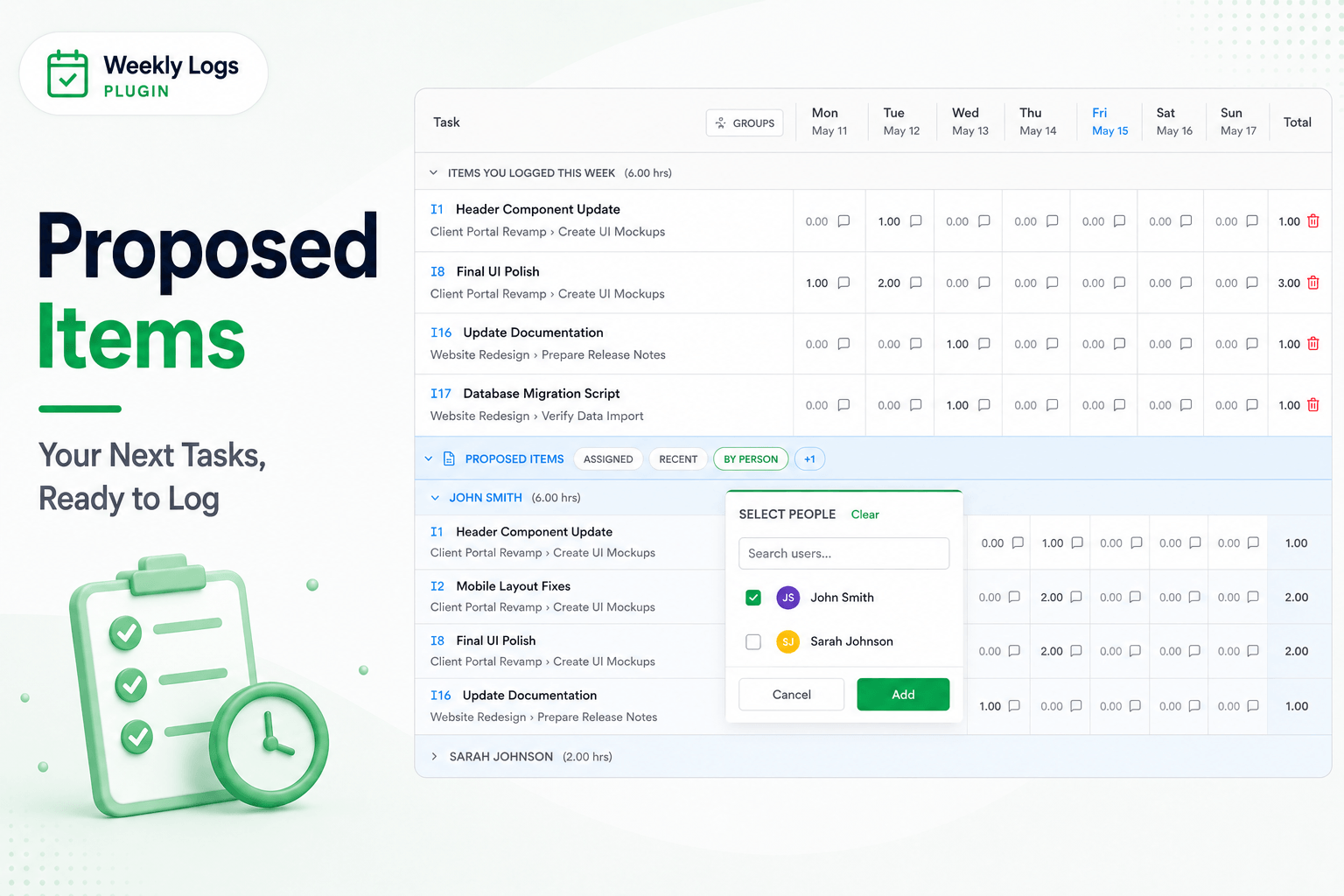
You do not have to add every task yourself. Weekly Logs can suggest them for you.
At the bottom of the grid, below Items You Logged This Week, sits the Proposed Items section. It has three tabs — Assigned, Recent, and By Person — each pulling in tasks from a different source.
Use the tabs on the Proposed Items header to switch what is shown. The section itself can be collapsed like any other grid group.
Assigned
Assigned shows work items that are currently in progress and assigned to you — tasks the system already knows you are working on this week.
- Open the Assigned tab in Proposed Items.
- Review the suggested in-progress rows.
- Click an item to move it into your timesheet.
- Enter hours and notes on the row the same way as any other task.
Recent
Recent shows items you logged time on last week. If you are working on the same tasks across multiple weeks — which most people are — this tab surfaces them so you do not have to find them again.
- Open the Recent tab in Proposed Items.
- Review items carried over from the previous week.
- Click an item to add it to this week's timesheet.
- Log your hours on the row.
By Person
By Person is for when you need to mirror or reference a teammate's timesheet — useful for shared tasks, pairing sessions, or coordinating entries across a team.
- Open the By Person tab in Proposed Items.
- Click the + button on the tab to open the user selector.
- Pick one or more teammates. Their logged items for the week load underneath, grouped by person.
- Click any item to add it to your own timesheet and log time against it.
Disabled Tabs
If a tab appears dimmed, there are no items available in that bucket for the current week. For example, Assigned will be dimmed if you have no in-progress items, and Recent will be dimmed if nothing was logged last week.