Filters
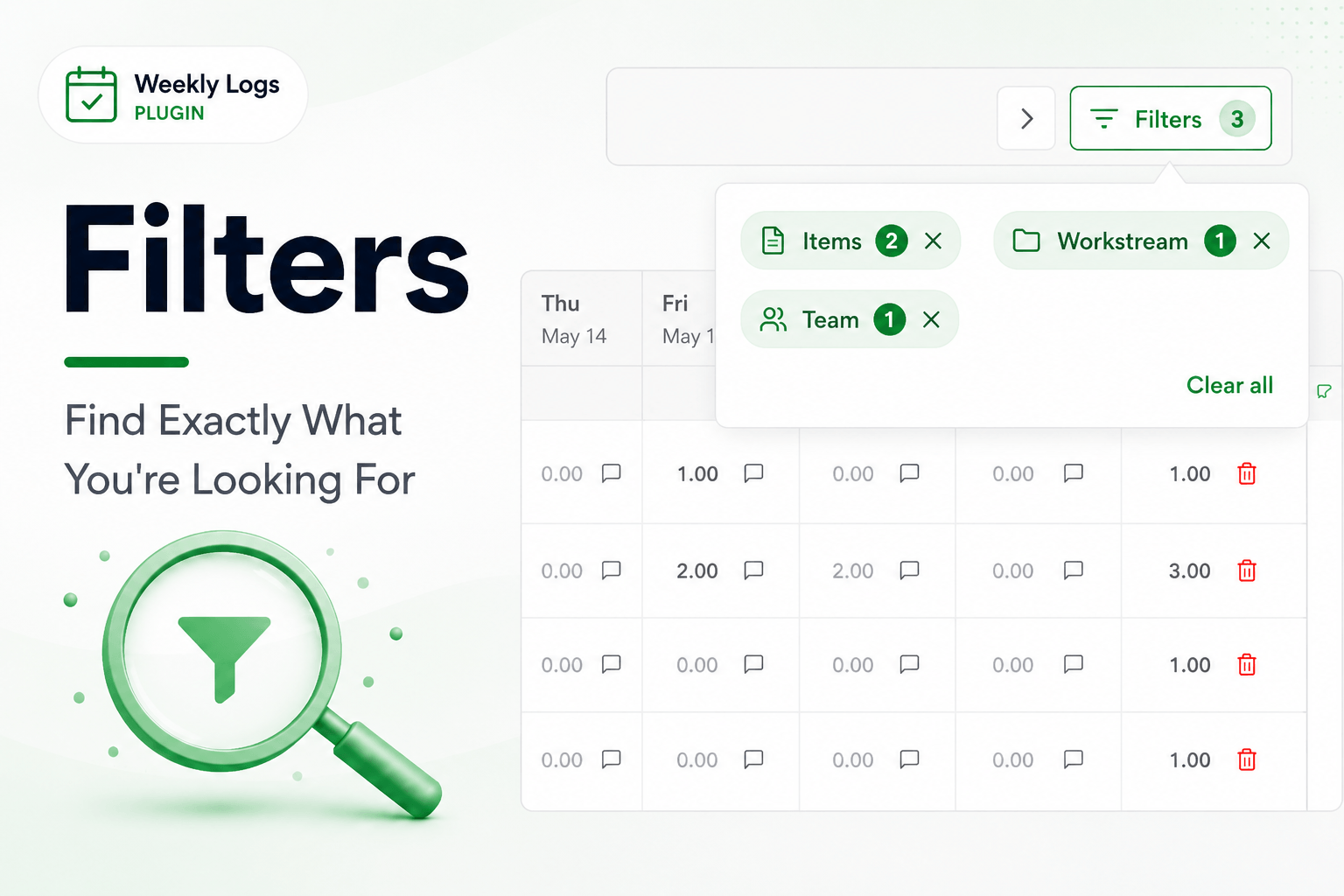
Your timesheet can grow long quickly. Filters let you cut through the noise and focus on what matters right now.
- Click Filters in the toolbar to open the filter panel.
- A panel opens with the available filter types.
- Select a filter type to open its selector, make your selections, and click Apply.
- The grid immediately narrows to show only matching rows.
Items
Filter by item number or name.
- Click Items in the filter panel.
- Type a keyword or item number and press Enter to add it as a chip.
- Add as many items as needed, then click Apply.
Rows that do not match any of the selected items are hidden. Search by keyword to match anything containing that word in the name, or use item numbers to filter to exact items.
Workstream
Filter by folder or hierarchy path.
- Click Workstream in the filter panel.
- Browse or search the folder tree and select a workstream.
- Click Apply.
Only tasks within the selected workstream path remain visible.
Team
Filter by team assignment.
- Click Team in the filter panel.
- Select one or more teams from the list.
- Click Apply.
Only tasks belonging to the selected teams are shown.
Assignee
Available in Team Logs mode only.
- Click Assignee in the filter panel.
- Select one or more team members from the list.
- Click Apply.
The grid filters down to only those users and the tasks they have logged time on. See Team Logs.
Organizations
Available in All Orgs mode only.
Filter down to a specific organization when viewing across multiple. See Org switch.
Combining Filters
You can combine any of these filter types. Each filter you add narrows the grid further — a row must match all active filters to remain visible.
Within a single filter type, selecting multiple values shows rows matching any of those values.
Removing Filters
Active filters appear as chips above the grid once applied.
- Click X on a chip to remove that filter category.
- Click Clear All to reset all filters at once.