Weekly Logs
Export
Export Weekly Logs time entries to CSV for reporting, billing, and analysis.
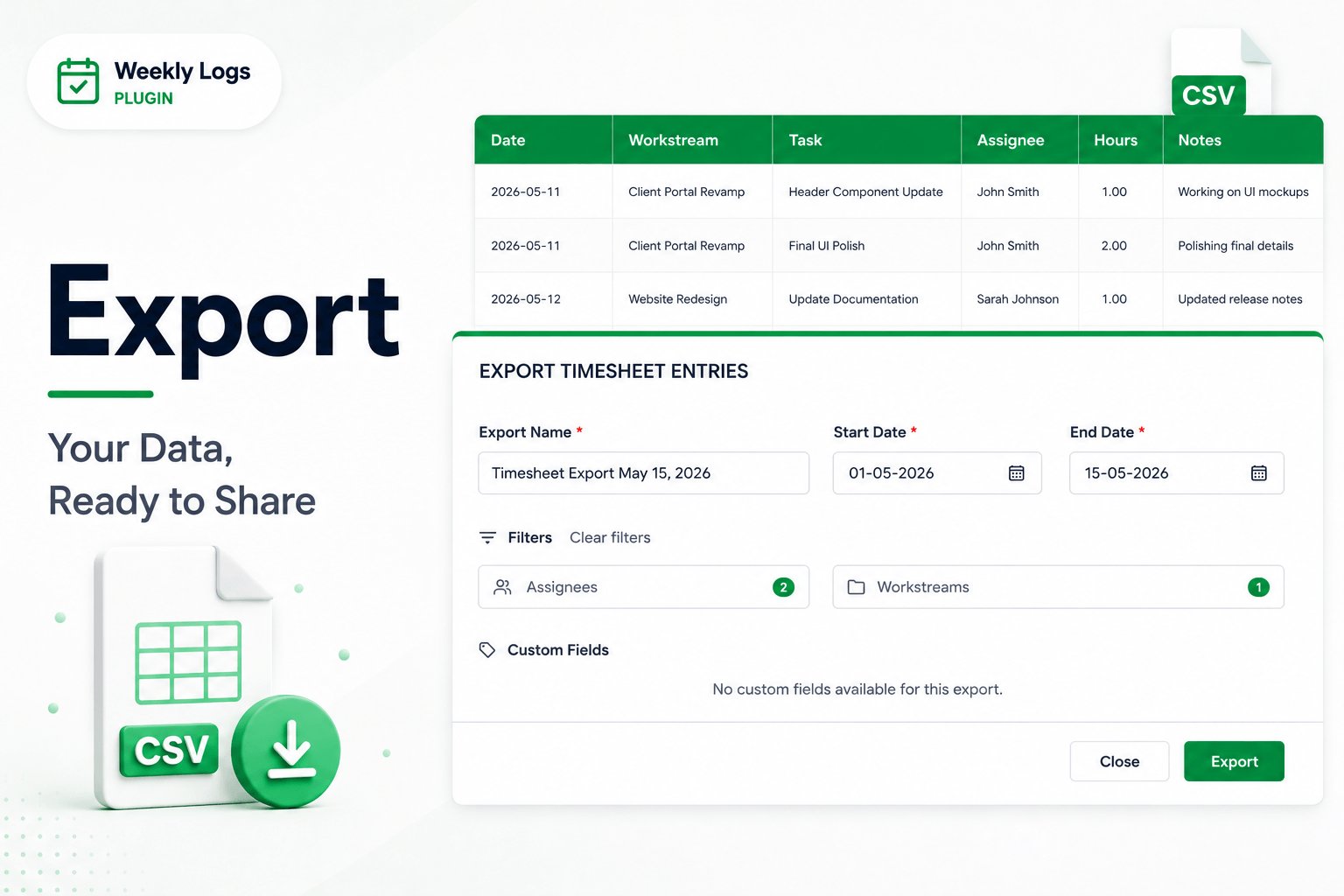
At the end of the month, or whenever reporting is due, you can export your time entries directly from Weekly Logs as a CSV file.
Availability
Export is available in My Logs and Team Logs mode. It is disabled in All Orgs view — switch to a specific organization to export.
Open the export dialog
- Click Export in the header.
- The export dialog opens.
- Give the export a name — it defaults to Timesheet Export with today's date. You can change this to anything.
Set a date range
Set a start date and end date for the export.
- Defaults to the first day of the current month through today.
- The range can span up to one year.
- This controls which entries are included, regardless of which week you are currently viewing in the grid.
Apply filters (optional)
Narrow down what gets exported using the optional filters:
- Assignees — include entries for specific team members only.
- Workstreams — limit the export to a specific folder or hierarchy path.
- Custom fields — if your organization uses custom fields, select which ones to include as additional columns in the CSV.
Download
Once everything is set, click Export. The file downloads automatically to your device as a CSV — ready to open in Excel or import into any reporting tool.
What is in the file
Each row in the exported CSV represents one time entry and includes:
| Column | Description |
|---|---|
| Date | The date the time was logged |
| Full Name | The name of the user who logged the entry |
| Workstream path | The folder hierarchy the task belongs to |
| Task ID | The item number (e.g. I123) |
| Task Name | The title of the task |
| Work Item Type | The item type (e.g. Feature, Story, Bug) |
| Custom fields | Any custom fields selected during export |
| Hours | Hours logged for that entry |
| Notes | Any description attached to the entry |