Admin Onboarding - Item Workspace - Right Bar: Time Estimates
A time estimate is a three-point guess: Optimistic, Likely, Pessimistic hours. DevStride combines them with the PERT formula, (O + 4L + P) / 6, into one estimate with a ± range. The wider the spread you give, the wider the range and the lower the confidence, which is exactly the signal you want when sizing risk.
To make estimating fast, you define named presets (T-shirt sizes are the usual choice) so a team member picks Small and gets 3 / 4 / 6 hours prefilled, adjusting only if this item is unusual.
Step 1: Create ranges
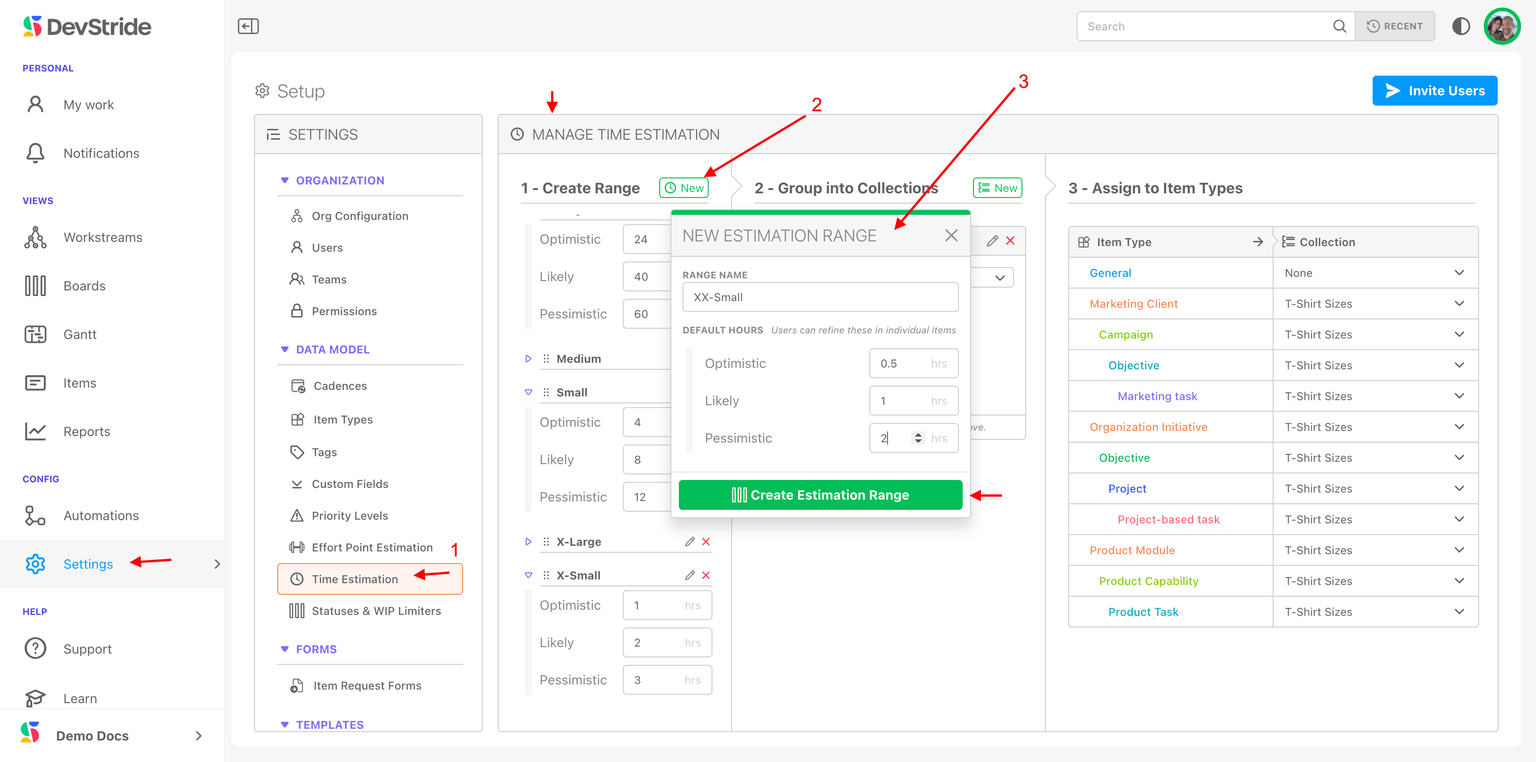
Open Configure Settings → Data Model → Time Estimation. Next to 1 - Create Range, click New and fill in New Estimation Range: a Range Name (XS, Small) and Default Hours for Optimistic, Likely, and Pessimistic. Users can refine these on individual items.
Step 2: Group into collections
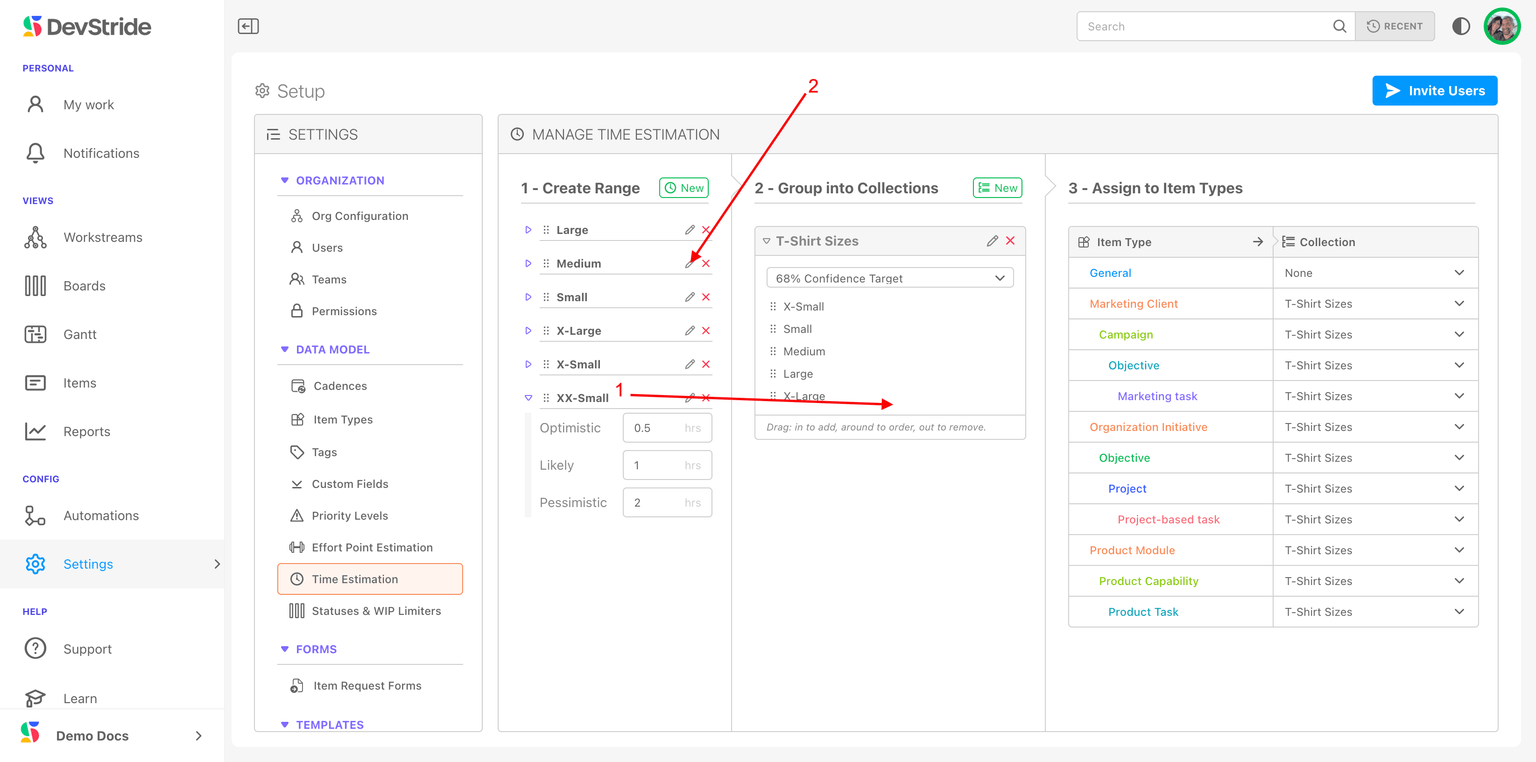
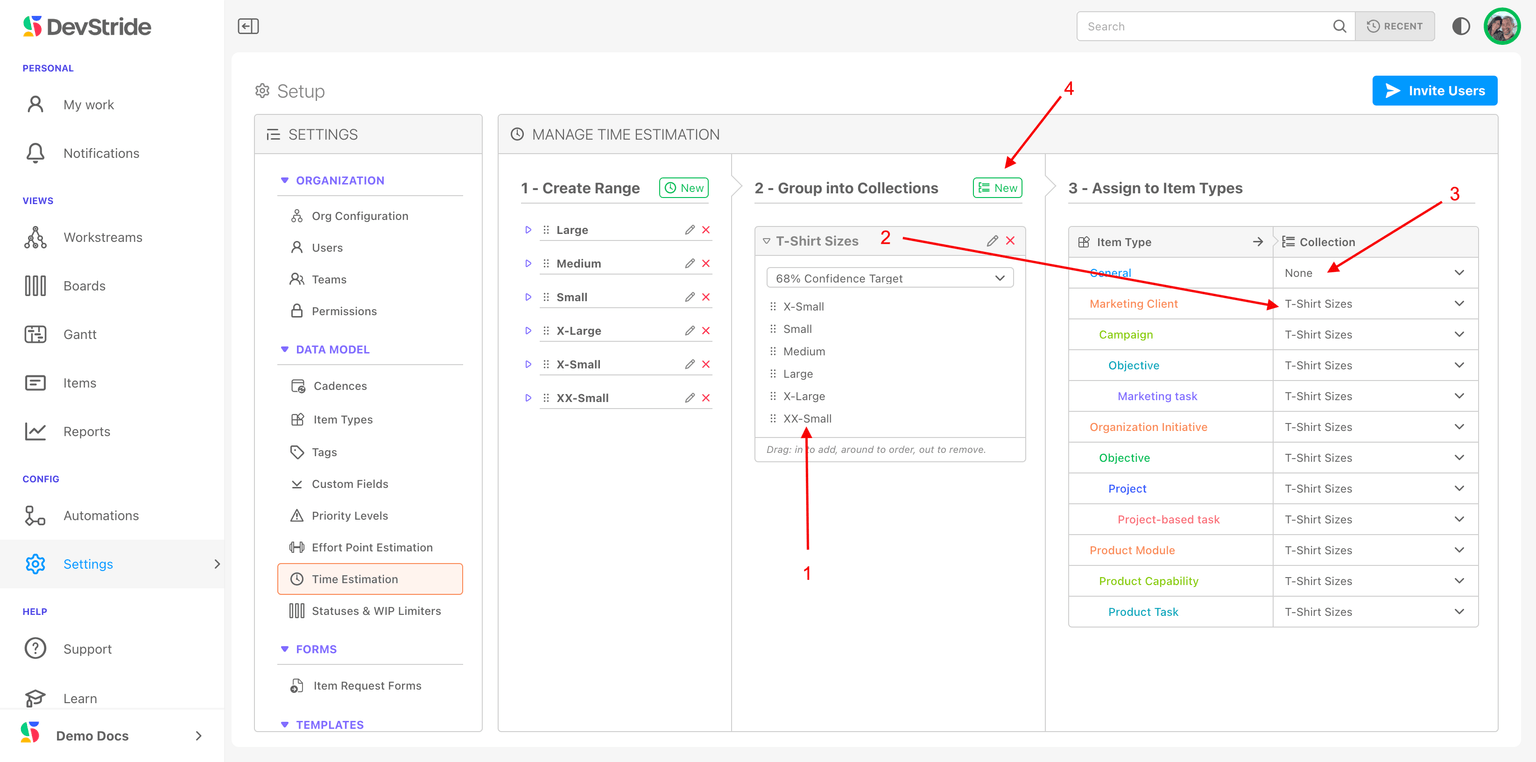
A collection is the list of presets an item type offers. DevStride starts you with a Story Sizes collection (XXXS to XXXL); rename it or add your own with New (New Estimation Collection). Drag ranges from the left pane into a collection; rename a range with the pencil and it updates everywhere. Each collection has a Confidence Percentage, 68%, 95%, or 99%, which sets how many standard deviations the ± range covers.
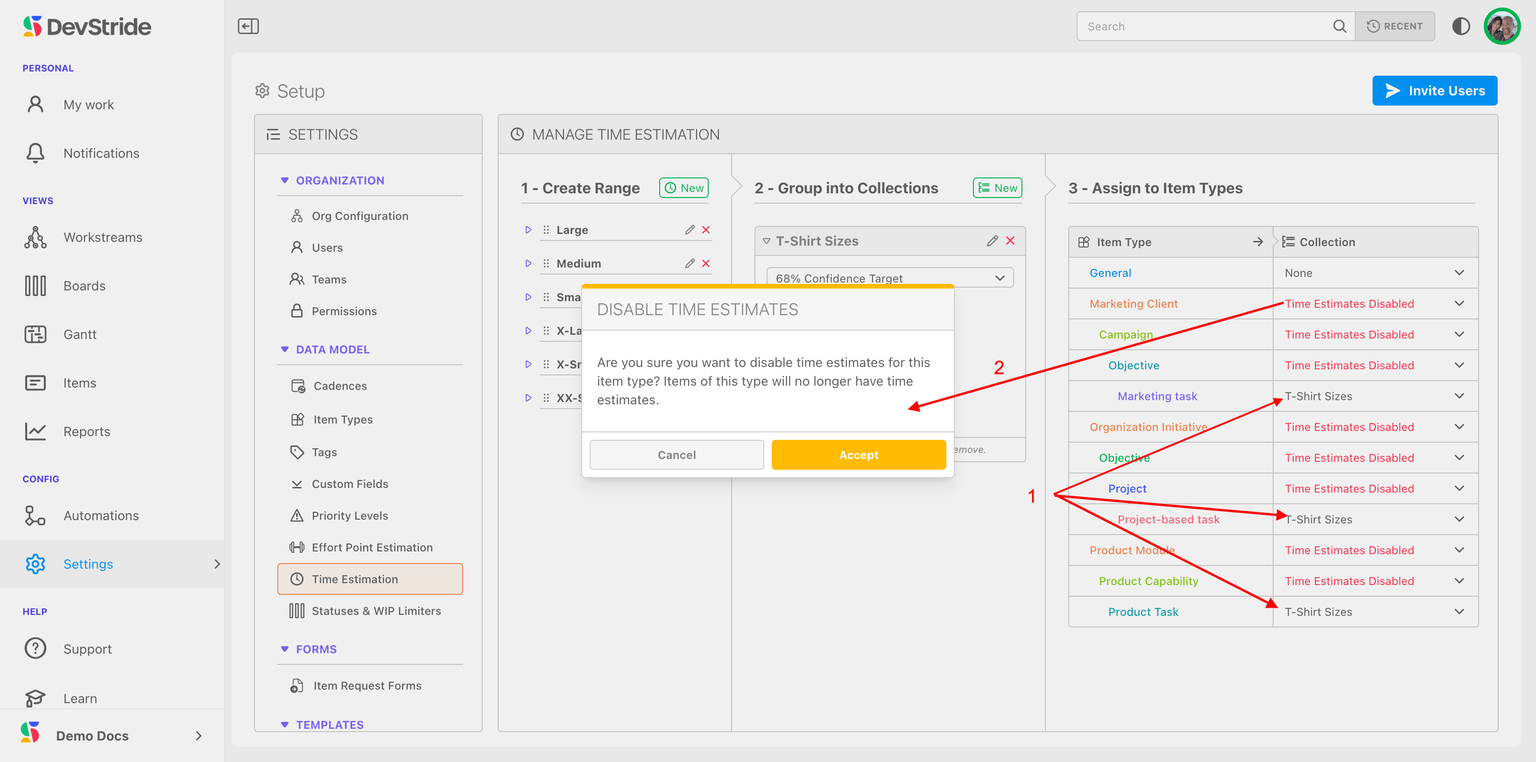
Step 3: Assign to item types
For each item type choose a collection, None (manual entry only), or Time Estimates Disabled. Teams usually estimate time only at the bottom level (Tasks) and disable it above, letting roll-ups do the rest. Reorder presets with the grab bars.
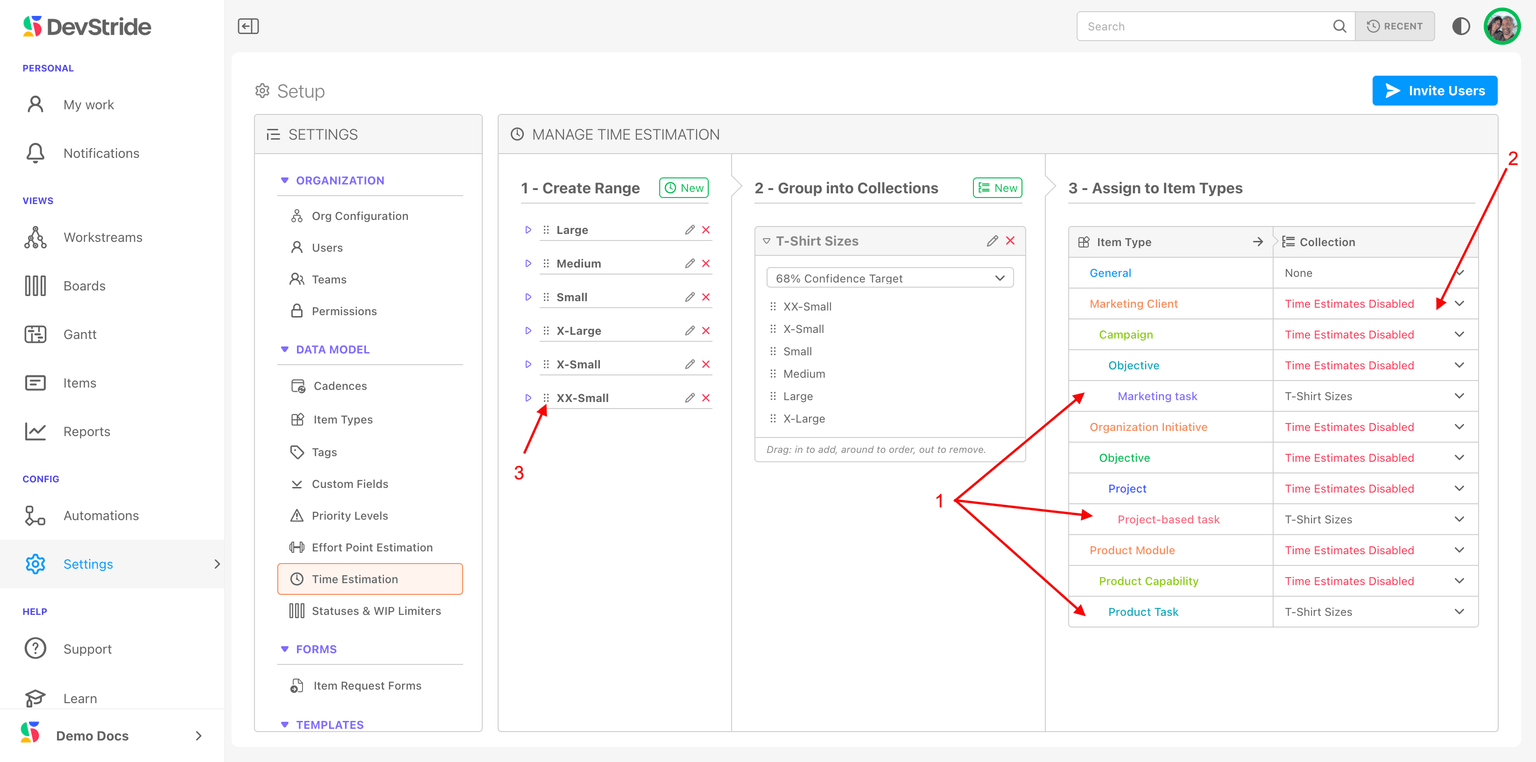
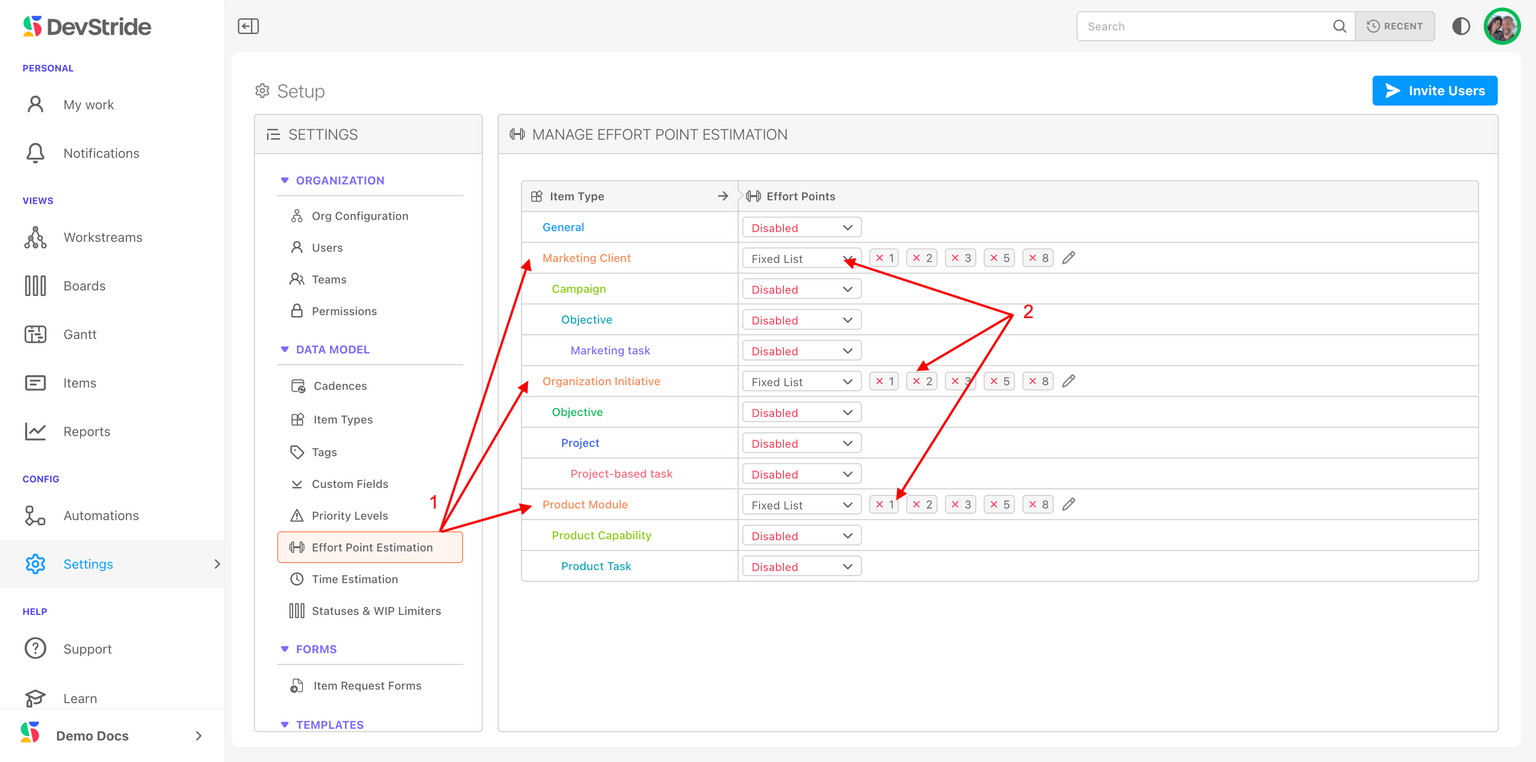
In this example, Stories carry a Fibonacci point scale and Tasks carry the Task Sizes time estimates:
On the item
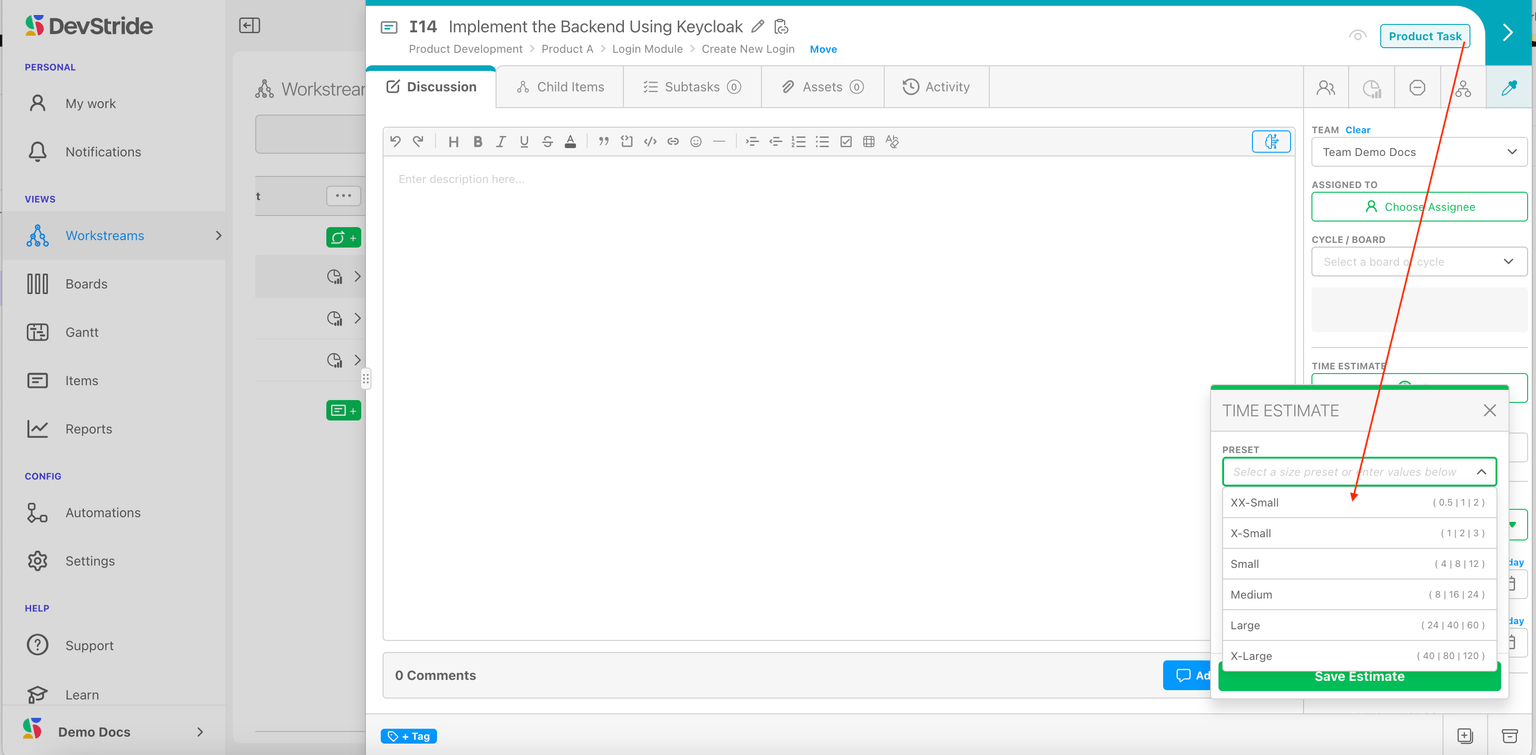
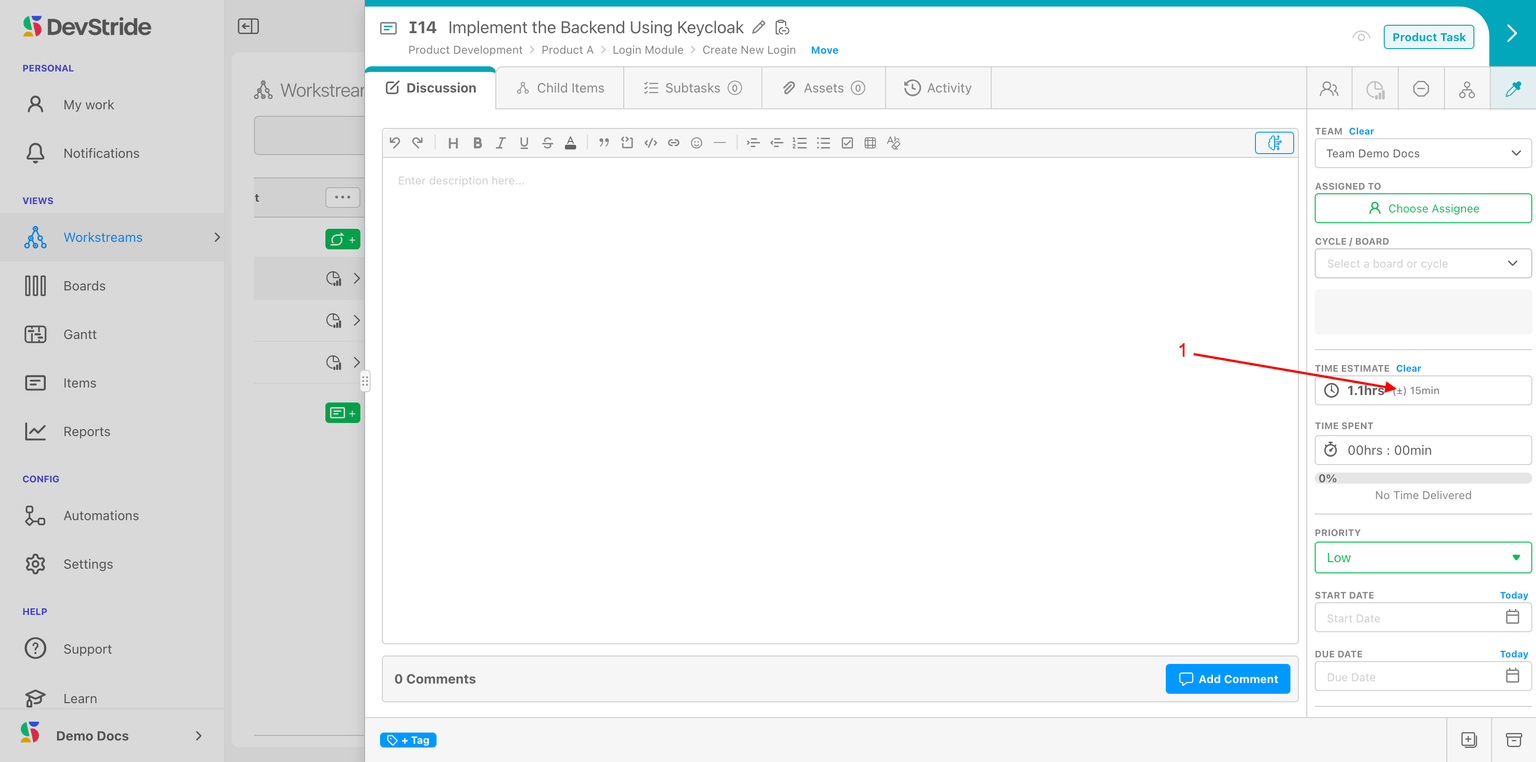
Click Time Estimate to open the estimate dialog: pick a Preset or type Optimistic, Likely, and Pessimistic hours yourself. If your organization only estimates likely hours, an admin can turn on Optimistic and pessimistic are optional; then Likely alone is enough. The dialog shows Estimate, Range ±, and Confidence, then Save Estimate. The sidebar shows the estimate with its ± standard deviation. Parents roll up their children's estimates.
Full reference: Effort Points and Time Estimation.
Admin Onboarding - Item Workspace - Right Bar: Point Estimates
Step 7e of admin onboarding — what effort points are for, how to turn them on per item type (Decimal, Integer, Fixed List, or Disabled), and where they show on the item.
Admin Onboarding - Item Workspace -Right Bar: Best Practice time estimates
Step 7g of admin onboarding — estimate parents as well as children so DevStride can warn you when the children's estimates outgrow the parent's size.