Admin Onboarding - Item Workspace - Right Bar: Progress Tracking
The Progress donut in the sidebar is the item's percentage complete, and the same figure appears on cards, in the Map, on Gantts, and in reports.
How it is calculated
For an item with children, progress is the Progress Rollup of its direct children. Items deeper in the tree count only through the child they sit under, so if your organization allows Stories under both Epics and Features, an Epic's progress counts its Features and any Stories placed directly on it, not the Stories inside its Features. A leaf item is 0% until Done, unless you track it manually.
To count every item at the bottom of the tree instead, turn on Progress from Lowest-Level Work beside the donut: an Epic whose Features are all open but whose Stories are mostly done then shows the Stories' progress. The switch is yours alone and stays as you left it. On the Gantt, the Items table, a board's Table view and the Map the same choice is in Options and is saved with the view.
Overriding a roll-up
Sometimes the children do not tell the whole story: part of the work is with a vendor, or the Epic is 90% done but the last Story is the hard one. Click Edit next to Progress Rollup, enter the percentage, and the field becomes Progress Override. Reset returns to the roll-up.
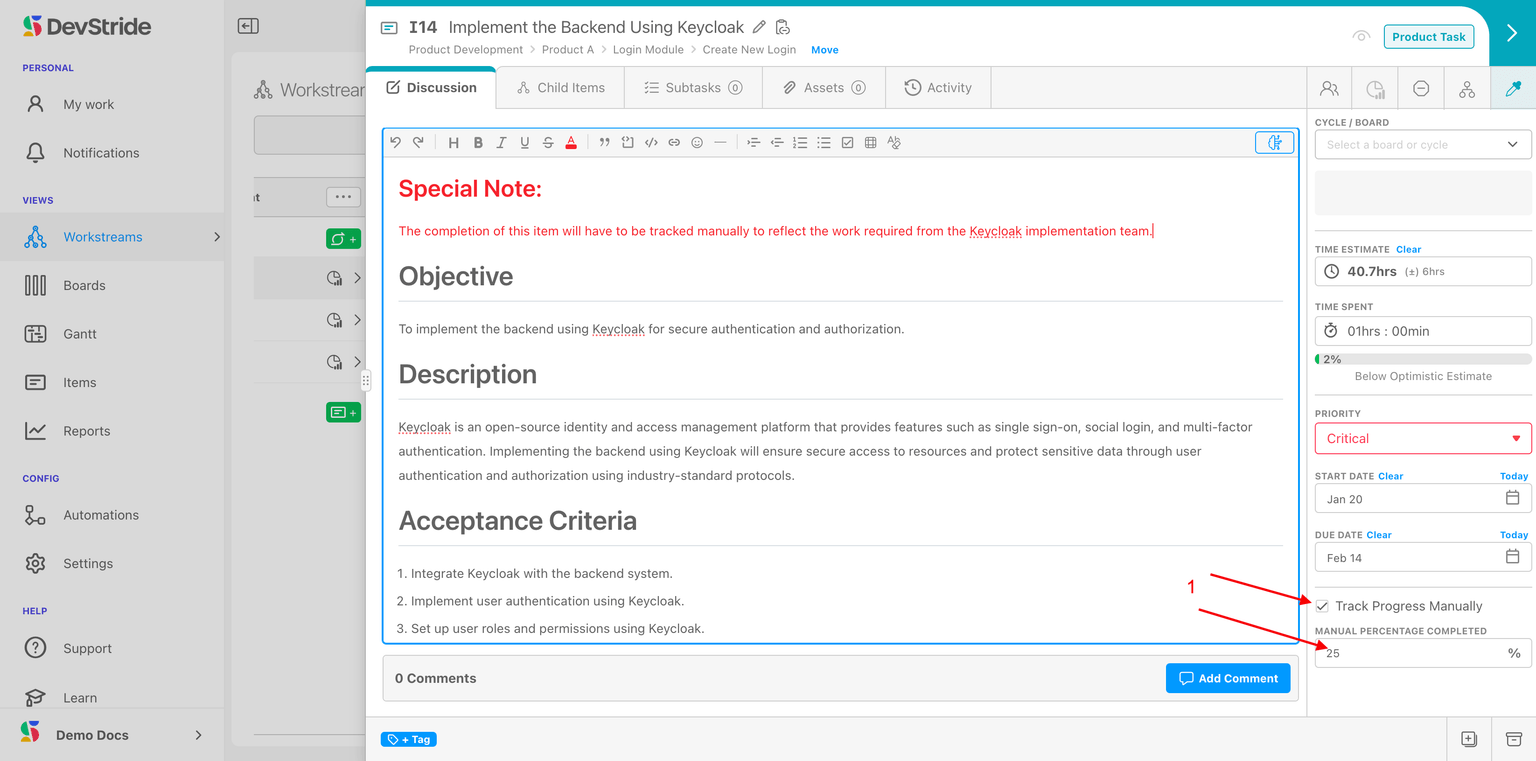
Tracking a leaf item by hand
A bottom-level item with no progress shows + Add Progress Tracker. Add it, and the field offers Track manually so you can set Manual Progress as the work advances, useful for long-running tasks that are not meaningfully split. View details opens the completion stats.
That completes the sidebar tour. The custom fields section at the bottom shows whatever you configured in Setting up Custom Fields.
Next: Setting Up Workflow Statuses.
Admin Onboarding - Item Workspace - Right Bar: Start Dates and Due Dates
Step 7j of admin onboarding — set start and due dates by hand on an item, or let cycle boards set them automatically through the organization-wide date sync setting.
Admin Onboarding - Setting Up Workflow Statuses
Step 8a of admin onboarding — statuses are the columns of your boards; learn why New and Done are fixed, how collections let different teams have different workflows, and how to pick the stages in between.