Admin Onboarding - Item Workspace - Right Bar: Point Estimates
Effort points are a relative size the team agrees on, not hours. A "5" means more than a "3" for the same team; it means nothing compared with another team's "5". They are most useful before you know who will do the work, and they power velocity and capacity reports. If your teams estimate in hours instead, disable points and use Time Estimates.
Turn points on per item type
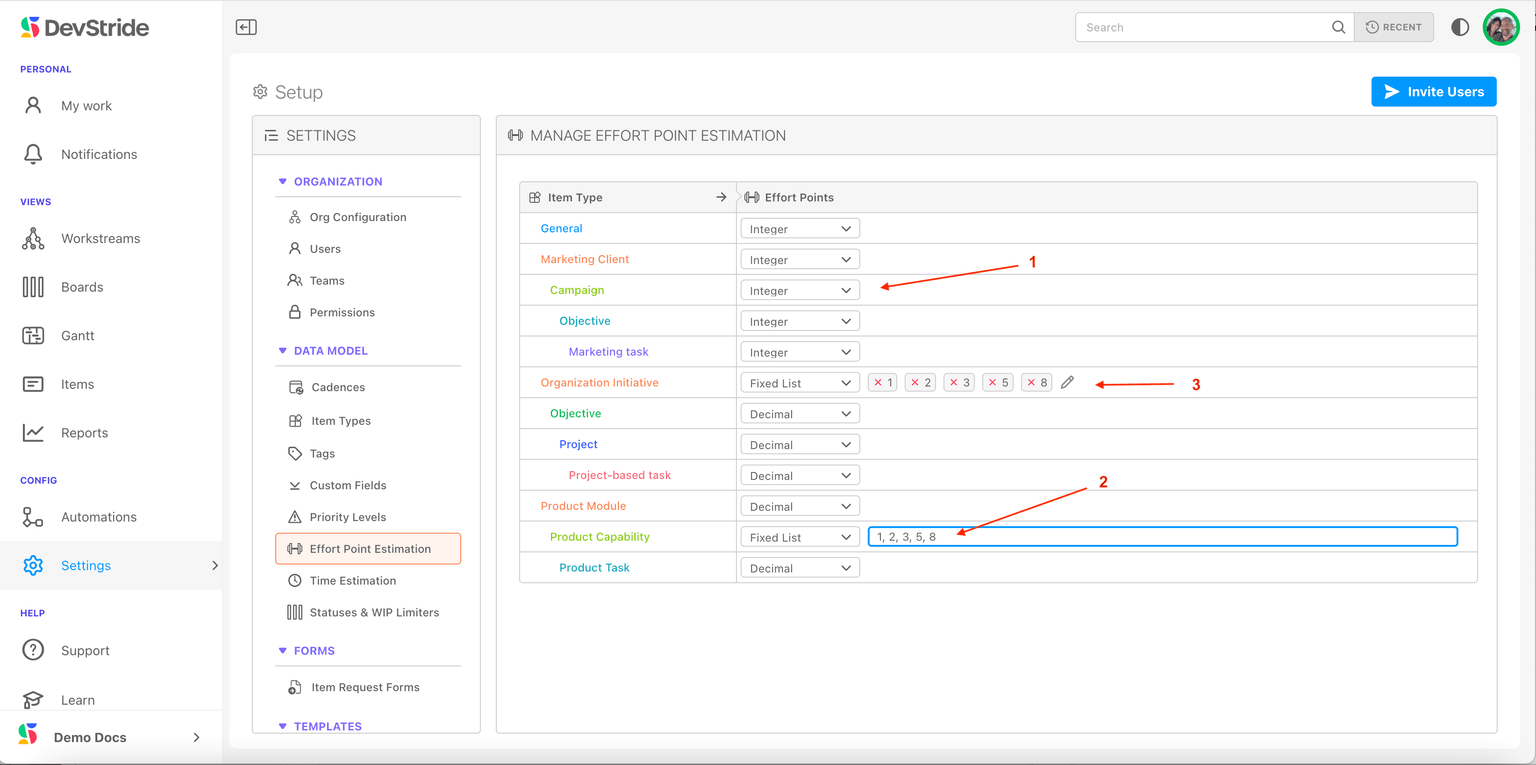
Open Configure Settings → Data Model → Effort Point Estimation. Each item type has one dropdown under Effort Points:
| Option | Meaning |
|---|---|
| Decimal | Any number, decimals allowed |
| Integer | Whole numbers only |
| Fixed List | Only the values you enter, comma-separated (a Fibonacci list: 1, 2, 3, 5, 8, 13) |
| Disabled | No point estimate on this type |
Most organizations enable points on the level the team commits to (Stories) and disable them on higher levels, where the roll-up of children does the job.
On the item
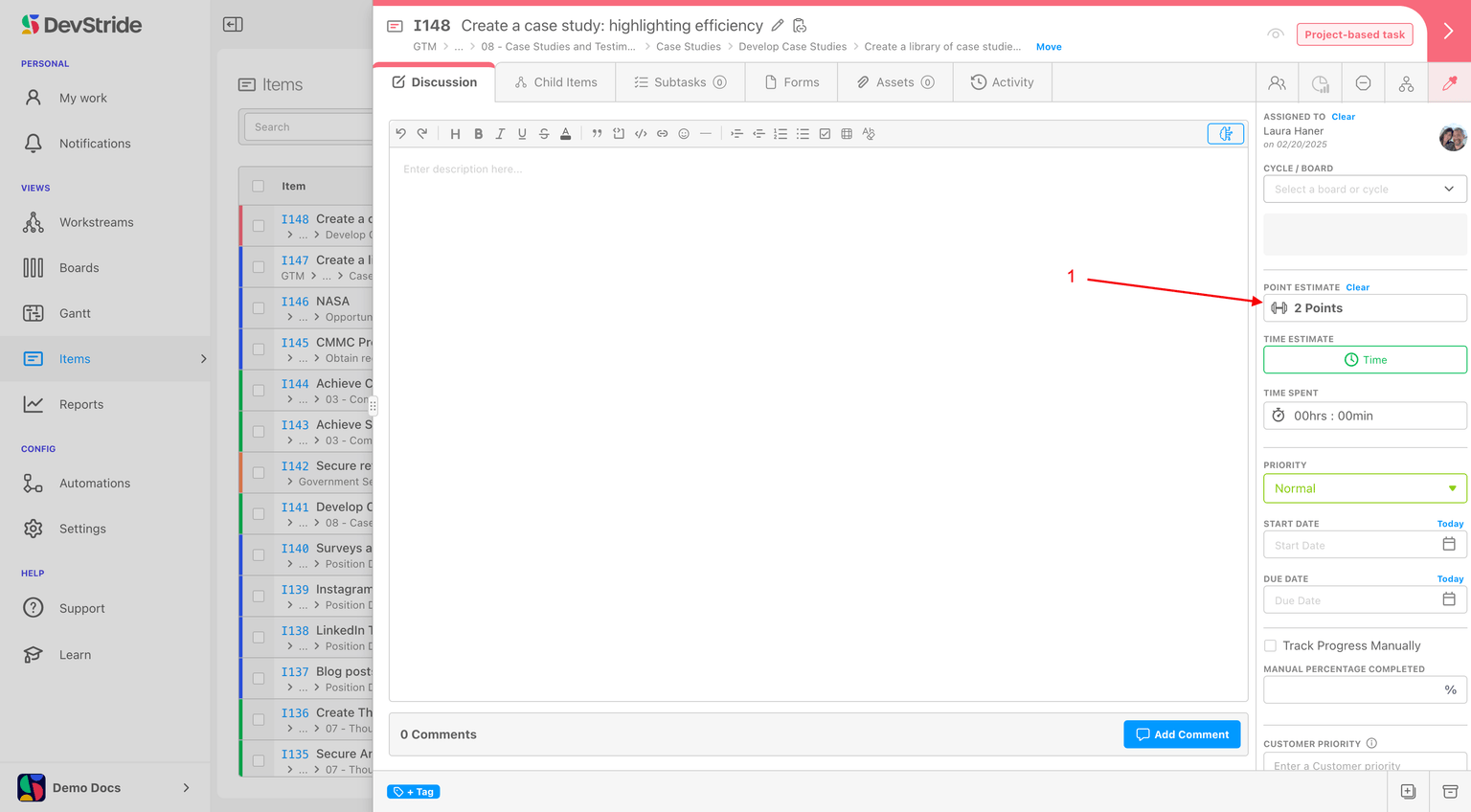
The Point Estimate field shows N Points or No estimate; click it to enter a value from the type's scale, or Clear. Parents show the roll-up of their children and warn when child estimates exceed the parent's own (Child estimates are greater than parent). If the type is disabled it says so. Points appear in filters, tables, boards, and the Velocity and Burn reports.
Next: Time Estimates.
Admin Onboarding - Item Workspace - Right Bar: Team through Status
Step 7d of admin onboarding — the top of the item sidebar: Team, Assigned To, Cycle / Board, and Status, and how each ties back to the settings you configured.
Admin Onboarding - Item Workspace - Right Bar: Time Estimates
Step 7f of admin onboarding — set up time estimation ranges (named presets with optimistic, likely, and pessimistic hours), group them into collections per item type, and read the PERT estimate and confidence on an item.