Report: Velocity
Overview
Velocity is a measure of the amount of work a development team can complete within a given timeframe, typically a cycle or iteration. In Agile software development, velocity is used to measure the team's productivity and to help plan future cycles.
Velocity is usually measured in effort points, which are a measure of the effort required to complete a work item. The team determines the story points for each user story, based on factors such as complexity, risk, and effort. Once the team has completed a few cycles, they can use their average velocity to estimate how much work they can complete in future cycles.
For example, if a team completes an average of 20 effort points per cycle, they can estimate that they will complete 60 effort points in a three-cycle release. This information can be used to plan the release and ensure that the team is committing to a realistic amount of work.
Velocity is a measure of the team's capacity to deliver working software based on their past performance. Velocity can fluctuate from cycle to cycle, depending on factors such as team composition, work complexity, and external factors.
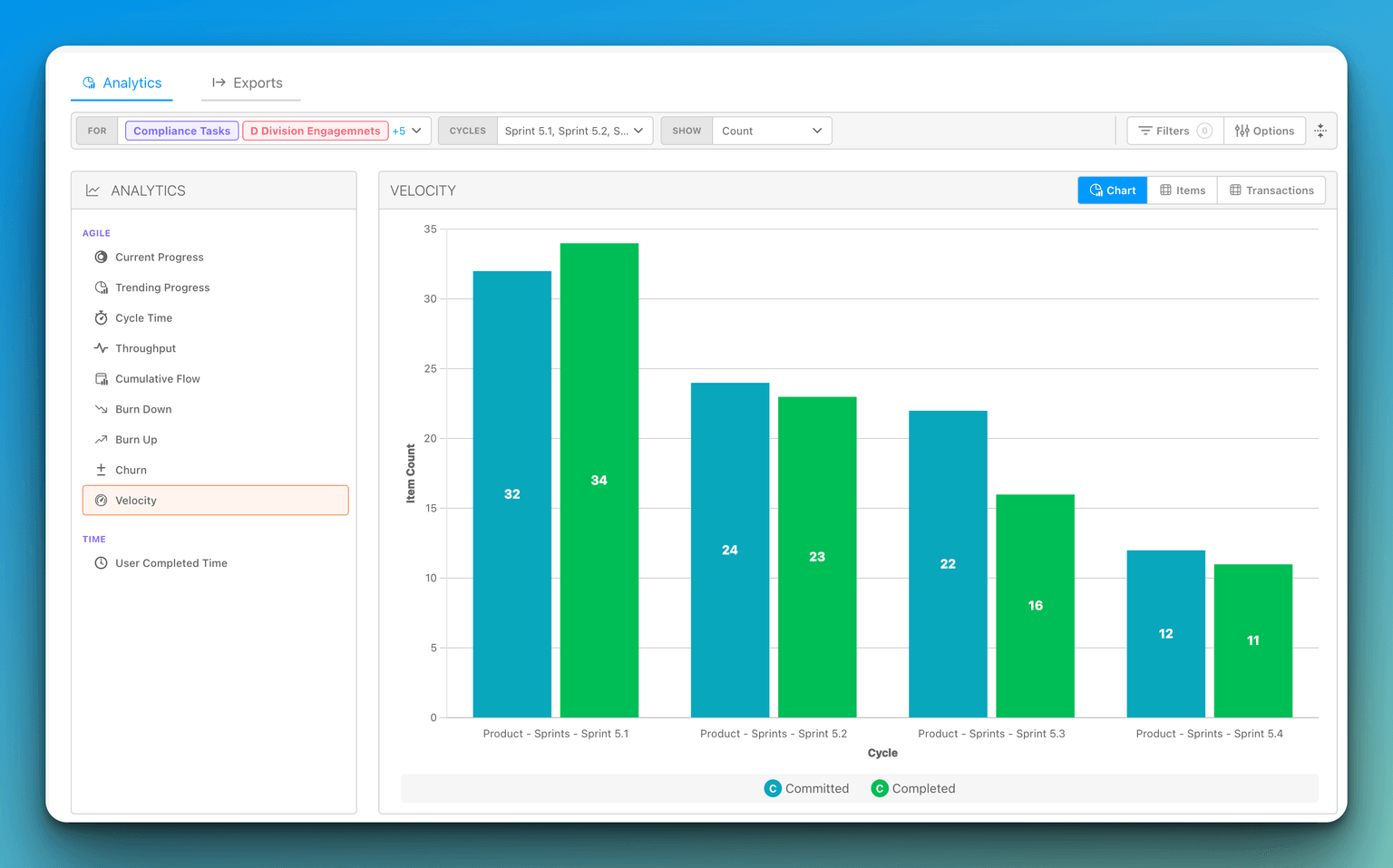
Building the Velocity report
The Velocity report lives under Analyze alongside the other analytics reports. Use the toolbar at the top of the report to scope what it measures:
- Cycles — Click the Cycles selector to open the Cycle Selector and choose which cycles to include. Each selected cycle becomes a bar on the chart. Until you select at least one cycle, the chart shows a "No Cycles Selected" message.
- Status — Choose which status counts as "Done" for this report (see below).
- Show — Switch the unit the bars represent between Count, Time Estimate, and Point Estimate. (Time Spent is not available on the Velocity report.)
- For — Limit the report to specific work types.
The Velocity report includes Chart, Items, and Transactions tabs. The Items tab groups the completed items by cycle, with each section header showing a {n} completed count so you can see how many items made up each bar before expanding it. The Transactions tab lists the underlying status transactions behind the chart.
Choosing the completion status
By default, an item is counted toward velocity when it reaches your organization's Done status. Some teams, however, treat completion differently — work might not be truly finished until it reaches a status like Released or Deployed.
The Status selector in the Velocity toolbar lets you choose which status represents "Done" for this report. Click the Status selector to open the Select Status picker and choose the status that should count as completed. The report then counts an item toward velocity for a cycle when it enters the selected status during that cycle, and the Items tab lists those same items.
Your Status choice is remembered per organization, so the report keeps using the same completion status the next time you open it. The selected completion status is also saved as part of a stored view, so different saved views of the Velocity report can use different definitions of "Done."