Measure Performance: Reports

Report: Churn

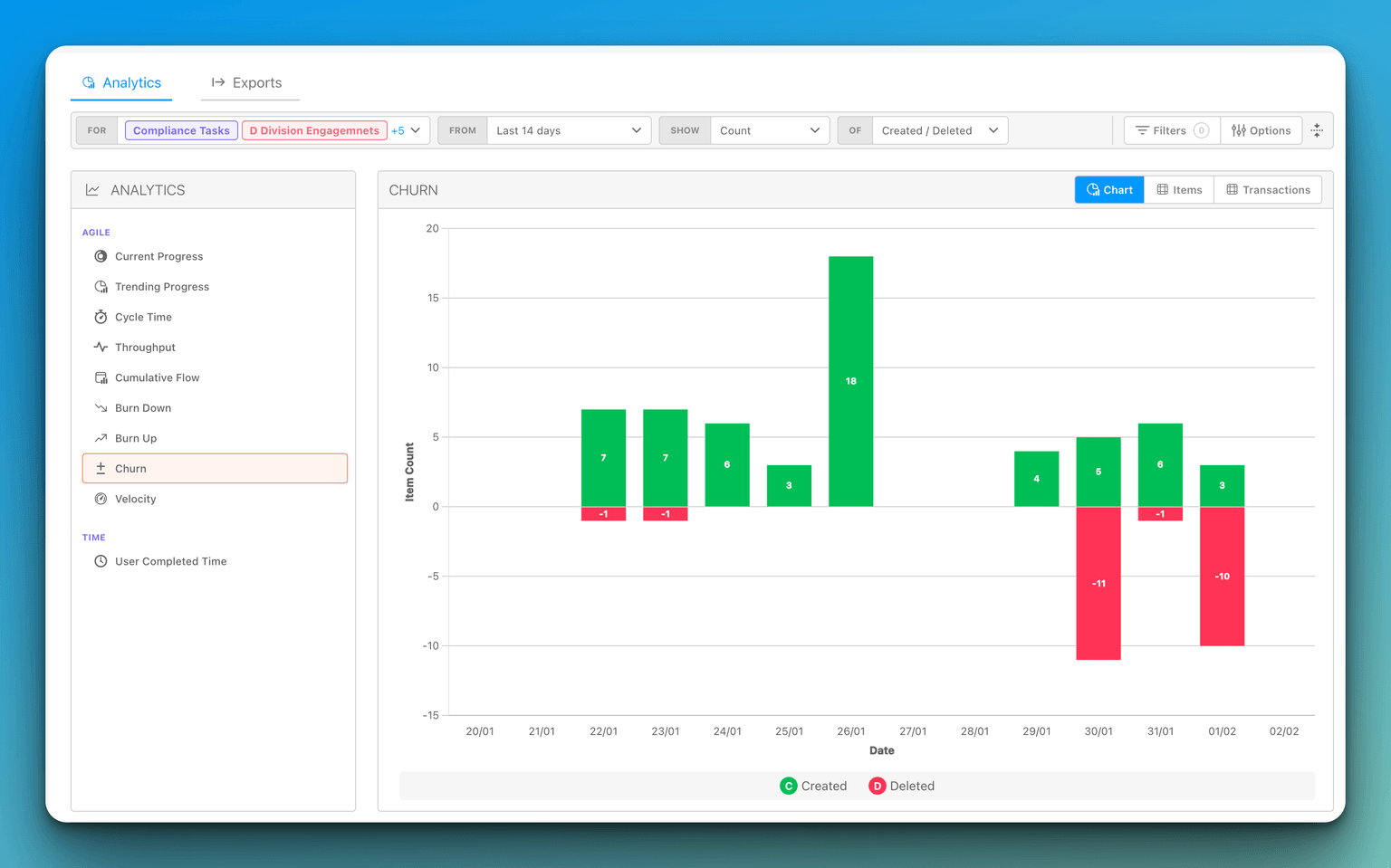
Measure how much work was added to or pulled out of your cycles, or created and archived over time, and use it to spot unstable plans.

Churn answers how much did the plan change? A sprint that finishes 20 points looks fine until you see that 15 points were pulled in and 12 pulled out along the way. Churn draws the work added and the work removed side by side, per cycle or per period, so you can see how stable your plans are.

Open and scope it

  1. Open Measure Performance and pick Churn under Agile.
  2. Choose what to measure with the Of selector:
    • Added / Removed (default): items added to and removed from the cycles you pick.
    • Created / Deleted: items created and items archived within the Range.
  3. For Added / Removed, click Cycles (it reads Select Cycles until you choose) and pick one or more cycles in the Cycle Selector. The Range selector is hidden in this mode because each cycle's dates define it, and the Team and Board filters are hidden because the cycles set the scope.
  4. Choose Show (Count, Time Estimate, Point Estimate, Time Spent) and narrow with For and Filters.

What churn means here

ModeAdded (green, above the axis)Removed (red, below the axis)
Added / RemovedItems moved onto the selected cycleItems moved off the selected cycle, whether to another cycle or back to the backlog
Created / DeletedItems created in the periodItems archived in the period

Moving an item from Sprint 3 to Sprint 4 counts as one removal on Sprint 3 and one addition on Sprint 4. Only moves between a cycle's start and end dates are counted: items planned into the cycle before it starts do not appear, so every Added bar is a change to a plan already under way. With Show set to an estimate, each addition or removal is weighted by the item's current estimate.

Reading the chart

  • One cycle selected: one bar pair per day across the cycle's dates, so you can see when the plan changed.
  • Several cycles selected: one bar pair per cycle with that cycle's totals, so you can compare cycles.
  • Created / Deleted: one bar pair per day, week, or month across the Range.

Hover a bar for its value; click Added or Removed in the legend to hide a series.

Example. Sprint 7 shows 30 points added on day one and nothing else: a clean sprint. Sprint 8 shows 28 added on day one, then 6 added on day four, 9 added on day seven, and 11 removed on day nine. Nearly half the sprint's scope changed after it started. Combine with Burn Down (Remaining jumping up) and Cycle Carry-Forward (the removed 11 points reappearing in Sprint 9) and the picture is a plan being rewritten mid-sprint, not a team that slowed down.

The time axis

In date modes the chart draws nothing into the future: the axis runs to the current period, drawn as a partial period. Weeks run Monday to Sunday. A range entirely in the future plots nothing.

Items and Transactions tabs

The Items tab lists, per cycle or per period, the items under Added and Removed (or Created and Deleted), each with a count. The Transactions tab lists the board moves, creations, or archivals behind them.

Pitfalls

  • "Deleted" means archived. Items that were permanently deleted are not in the report.
  • Added / Removed needs cycles. Until you select at least one cycle the chart is empty. For a perpetual board there is no cycle to churn against; use Created / Deleted or the Trending Progress Planned Items view instead.
  • Reshuffling the same item counts every time. An item bounced between two sprints three times produces six bars' worth of churn, which is exactly the instability the report is meant to show.