Track and Move Work with Board Views
Overview
In Plan Delivery, DevStride board features offer a wealth of information at a glance. Following is a summary of what is available on each kind of board view.
These capabilities apply to both perpetual boards and cycle boards.
How to Use Boards
Step 1: Open a board from your working group folders
From Plan Delivery, navigate to the perpetual or cycle board you wish to view and click Go.
See the Setting Up Perpetual Boards and Using Cycle Boards articles for more on how to navigate to the board you want to see.
Step 2: Track and Move Work
You can track and move work in your boards by any or all of the following views:
- Status View
- Table View
- 2D View
Here's how to interact with each view.
Status View
The default view for boards is the Status view. Drag item cards between status columns as work progresses.
Use filters (by cadence, status, team, etc.) to focus on specific work.
Here's how items look on the Status view:
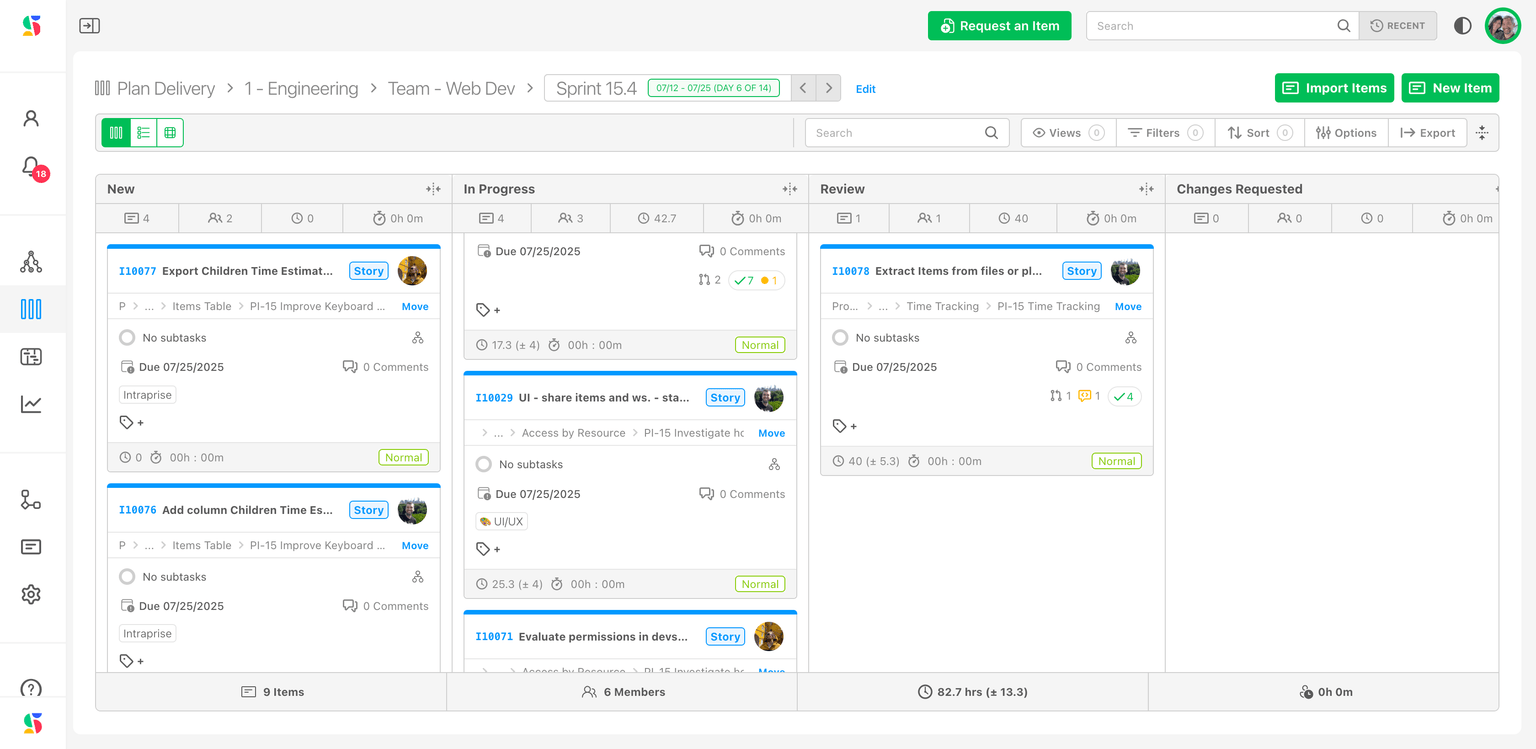
When items are added to the board, they reflect their current status.
As work progresses, you can move backward or forward to the appropriate status by dragging the card, changing the status in the item's workspace, or by taking advantage of an automation through a trigger.
Changing status elsewhere in DevStride, e.g., inside an item's workspace, from Manage Items, Track Progress (gantt), etc., also moves the card to the appropriate status on the board.
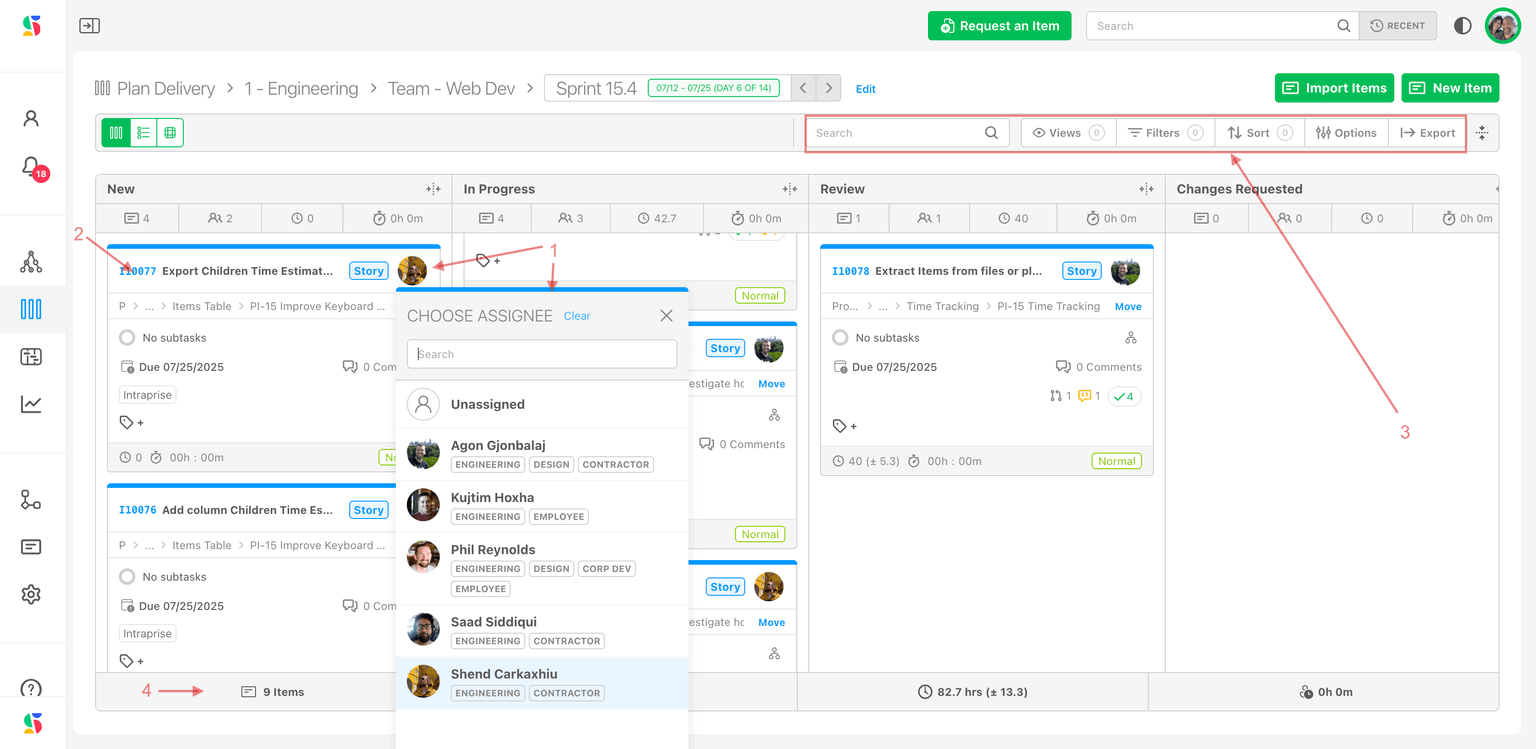
See the example board in the image below. All board views are interactive and editable. You can update items directly in this view, including dragging them to their appropriate status, assigning/reassigning resources (1) and opening item drawers (2).
Using options from the control ribbon (3), you can:
- Search for specific items
- Create and open customized views for quick reference and to share with others as desired. Includes sharing setting options.
- Filter items (by cadence, status, team, etc.) to focus on specific work.
- Sort
- Hide fields
- Export
Summary data by board (4) displays along the bottom of the screen, including:
- Number of items
- Team members
- Estimated hours
- Actual hours
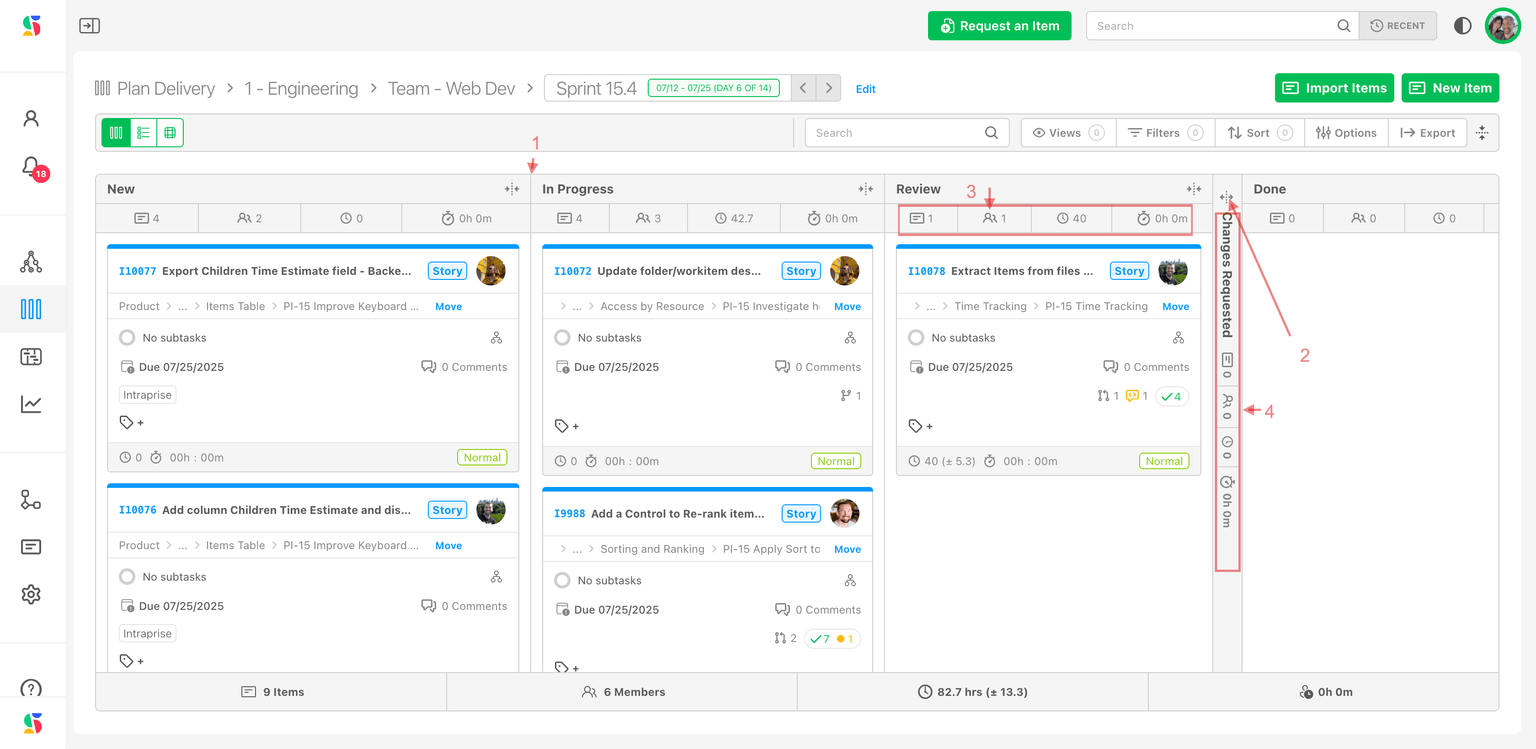
Adjust board real estate by resizing (1) or collapsing (2) columns as desired. Note that both normal columns (3) and collapsed columns (4) still display the same summary data as listed above, by stage.
Quickly reorder a card to the top or bottom of a status
Dragging is the usual way to reorder cards within a status column, but you can also jump a card straight to the top or bottom of its status.
Right-click any card you can edit and choose one of the two options in the menu that appears:
- Move to Top — sends the card to the top of its status.
- Move to Bottom — sends the card to the bottom of its status.
This is a faster alternative to dragging when a status column is long. Each option is disabled when it would have no effect — Move to Top is disabled when the card is already first in its status, and Move to Bottom is disabled when the card is already last.
Table View
The table view in Plan Delivery is a powerful place to view work items in a spreadsheet type interface. With its customizable columns and rich data, this view allows you to commit and modify work items easily, while also being able to sort, filter, and prioritize items.
Many teams find this view extremely useful for review meetings, client conversations, program increment planning and stand-up meetings.
You can export the data from here to share more broadly or create customized internal or external views. The export dialog includes a Select All checkbox in its header and a Find input so you can quickly locate specific items or columns.
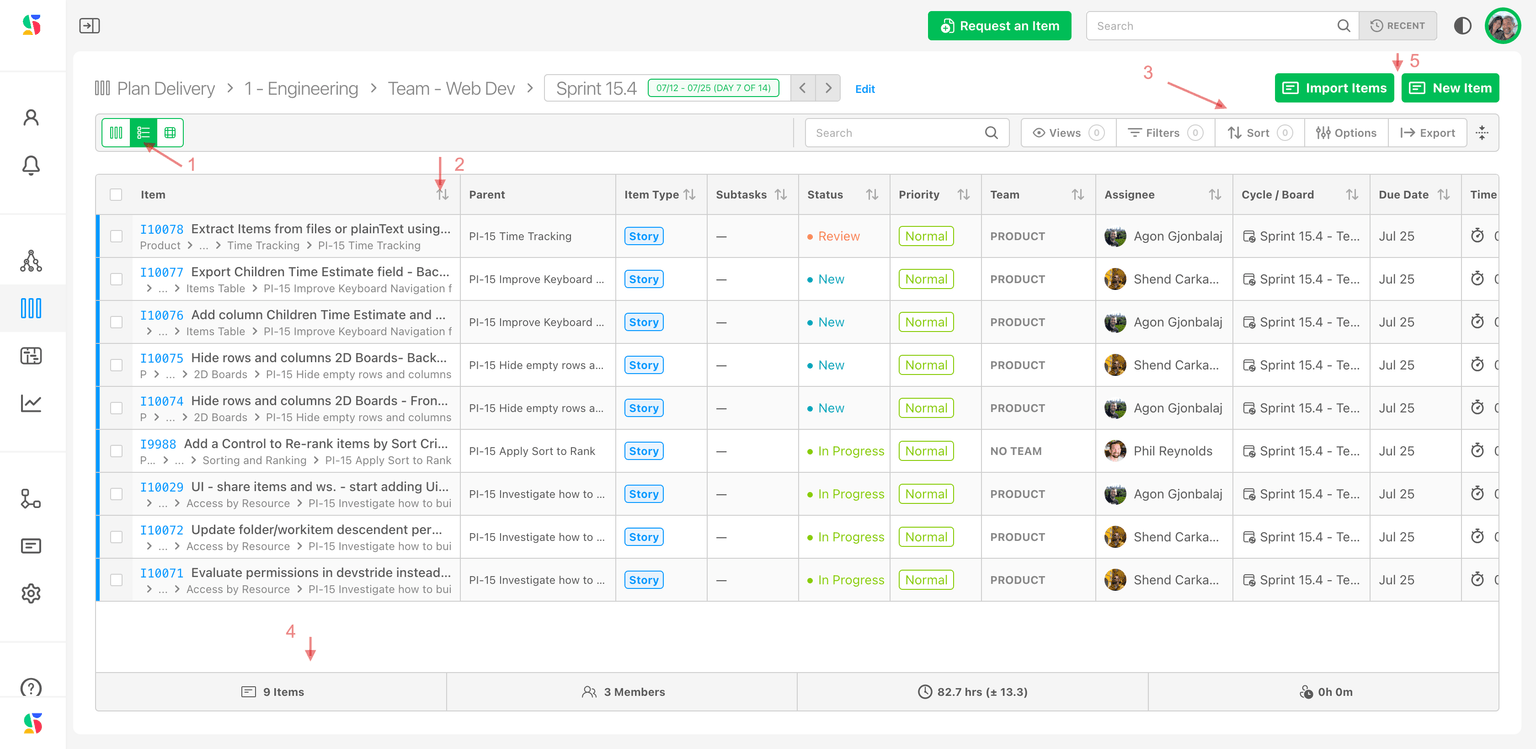
To access this view, open a board and then click the table view icon (1) on the left side of the control ribbon. Here's what this view looks like. Highlights include:
- Width adjustable and sortable columns (2)
- Search, customizable/Saved views, filters, column display options and exporting (3)
- Board statistics, including item numbers, members, estimated and completed time (4)
- Ability to add items to the board by importing or adding items from the screen (5)
As a fully interactive and editable view, the board also provides hot keys and drop-down lists that allow users to move through the items, review, and make changes with ease.
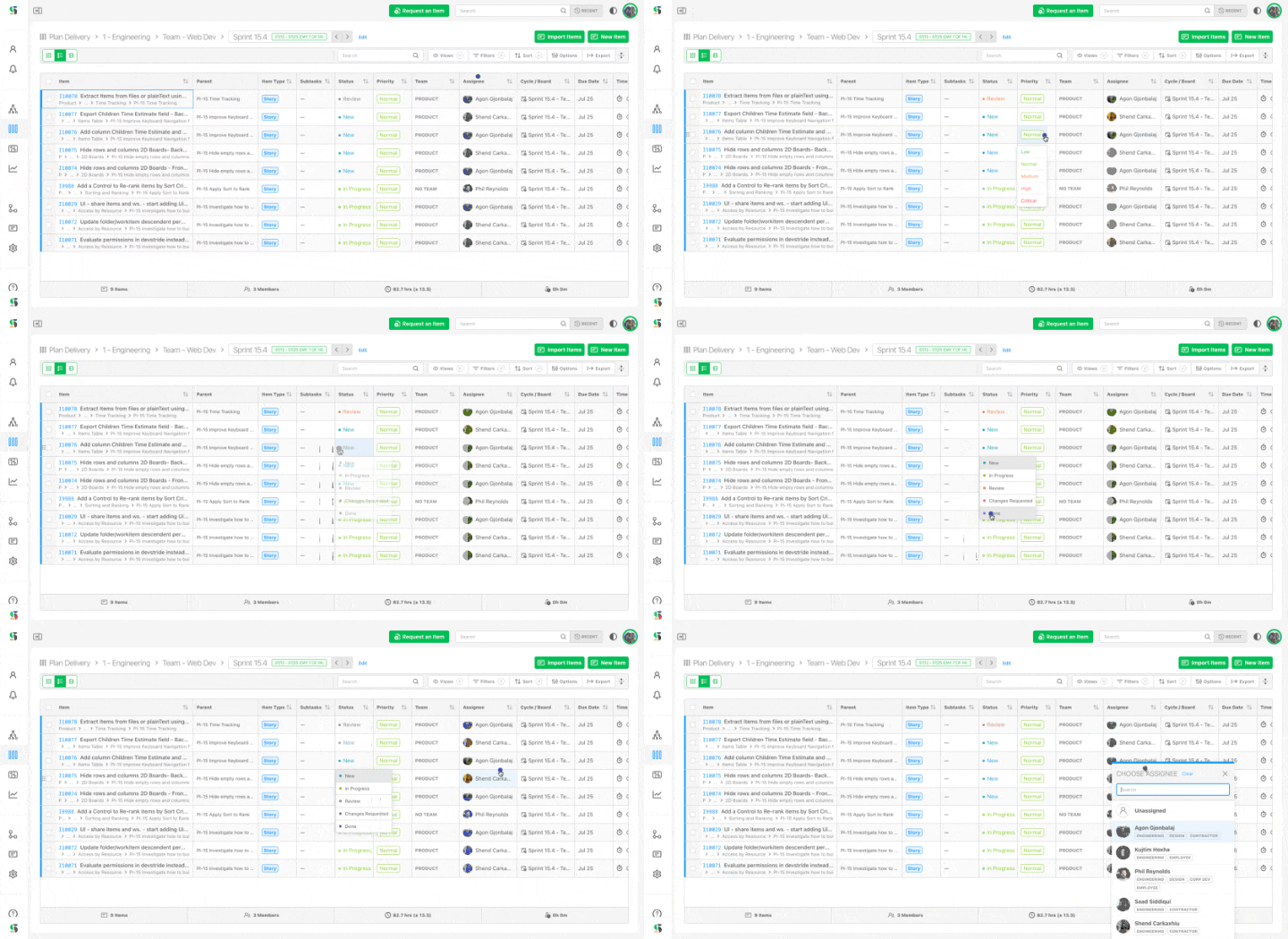
View hierarchy in the Table view
The board Table view can show items in their parent/child hierarchy, the same way the Manage Items table and the My Work view do. This lets you expand and collapse work items to see their structure right on the board.
Hierarchy is available only in the Table view. Switch views from the three view buttons in the control ribbon — hover to see their tooltips Card view, Table view, and 2D view — and choose Table view (the middle button). The hierarchy controls appear only while you are in the Table view; they are not shown in the Card or 2D views.
Once you are in the Table view, the same hierarchy controls used elsewhere in DevStride appear in the filter bar:
- A Show hierarchy toggle (the tree icon). Its tooltip reads Show hierarchy when off and Hide hierarchy when on. Turn it on to group items under their parents.
- A Duplicates selector, shown only when hierarchy is on. It controls how an item that matches both as a top-level row and as a descendant appears — choose Show Duplicates as Child Rows Only, Show Duplicates as Primary Row Only, or Show Duplicates in Both Locations (short labels Children, Primary, Both).
- Four expand/collapse level buttons, shown when hierarchy is on and there are rows that can be expanded: Collapse row one level, Collapse all one level, Expand all one level, and Expand row one level.
The control ribbon's options panel adds matching toggles: Show Hierarchy, Show Duplicates (options As Children Only, As Primary Rows Only, As Both), and Show Matching Children Only.
By default, hierarchy is off, Show Matching Children Only is off, and duplicates are set to As Children Only.
A board remembers its own hierarchy settings — each board keeps its own Show hierarchy state, duplicates mode, and Show Matching Children Only setting independently.
The top-level rows you see are scoped to the current board, but expanding a row can pull in child items that live on other boards (unless Show Matching Children Only is turned on, which keeps subtree results within the same filters). The Table view is a flat data grid, so turning on hierarchy does not change the board's statuses or columns — those belong to the Card and 2D views.
For full details on how hierarchy, duplicates, and the expand/collapse controls behave, see Working with hierarchy. The My Work view offers the same hierarchy controls; because Manage Items and My Work are single-table pages with no view switcher, their controls are always visible, whereas on a board you must be in the Table view to see them.
2D View
DevStride's 2D view of boards offers a visual picture to see the status of work by team and across all teams tied to a given board.
It provides a rich, interactive, and editable graphic interface with many options, including:
- Ability to view different data points on either the x or y axis, including by:
- Status
- Color
- Priority
- Assignee
- Item Type (read only) — items cannot be moved between item types from this view
- Parent (read only) — items cannot be moved between parents from this view
Any single-select choice or yes/no custom field on the board can also be used as an axis, so the available options grow with the custom fields you define.
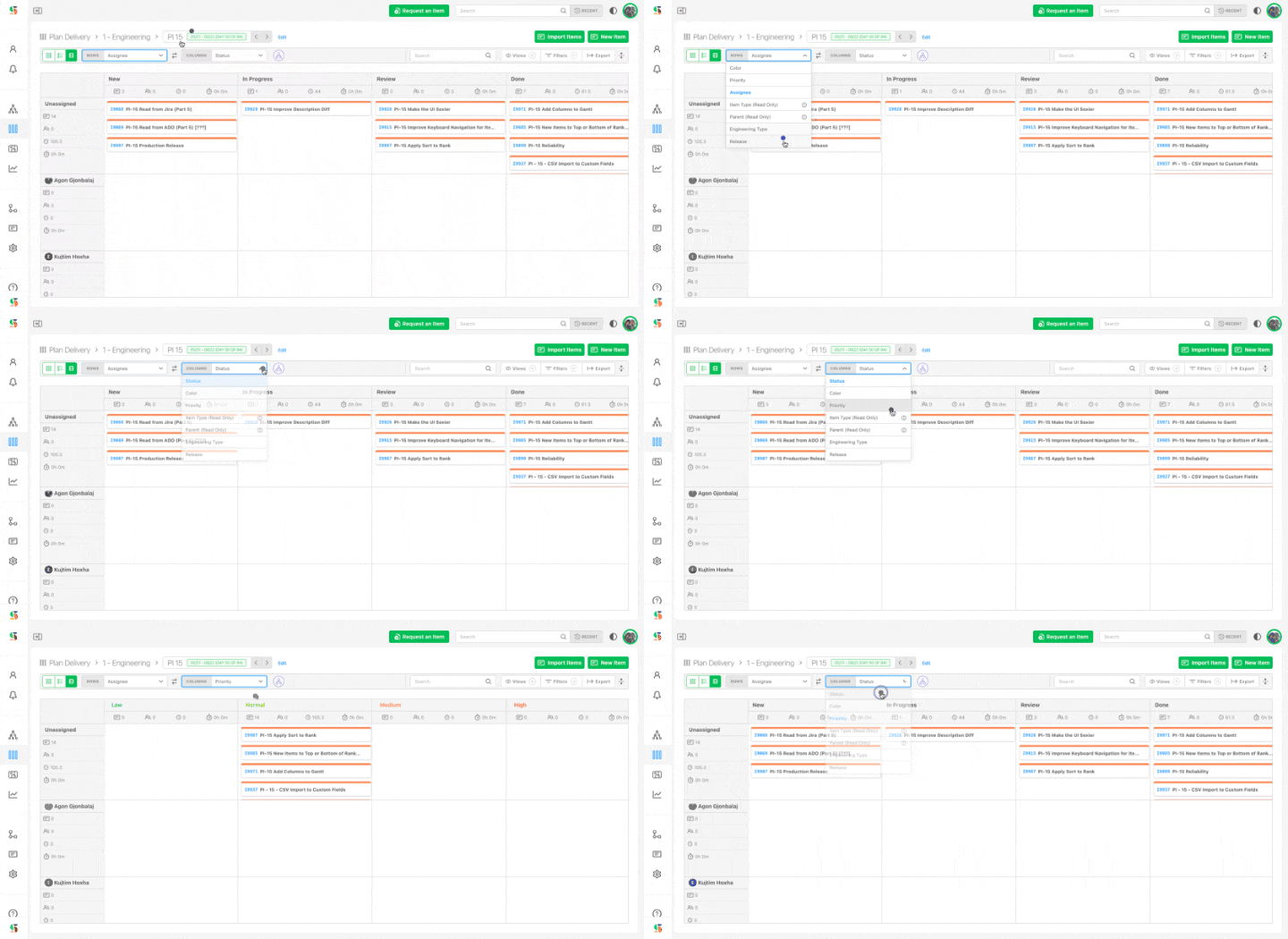
You can click on the axis switch icon from the control ribbon (located between the Row and Column selectors) to designate what displays on each axis.
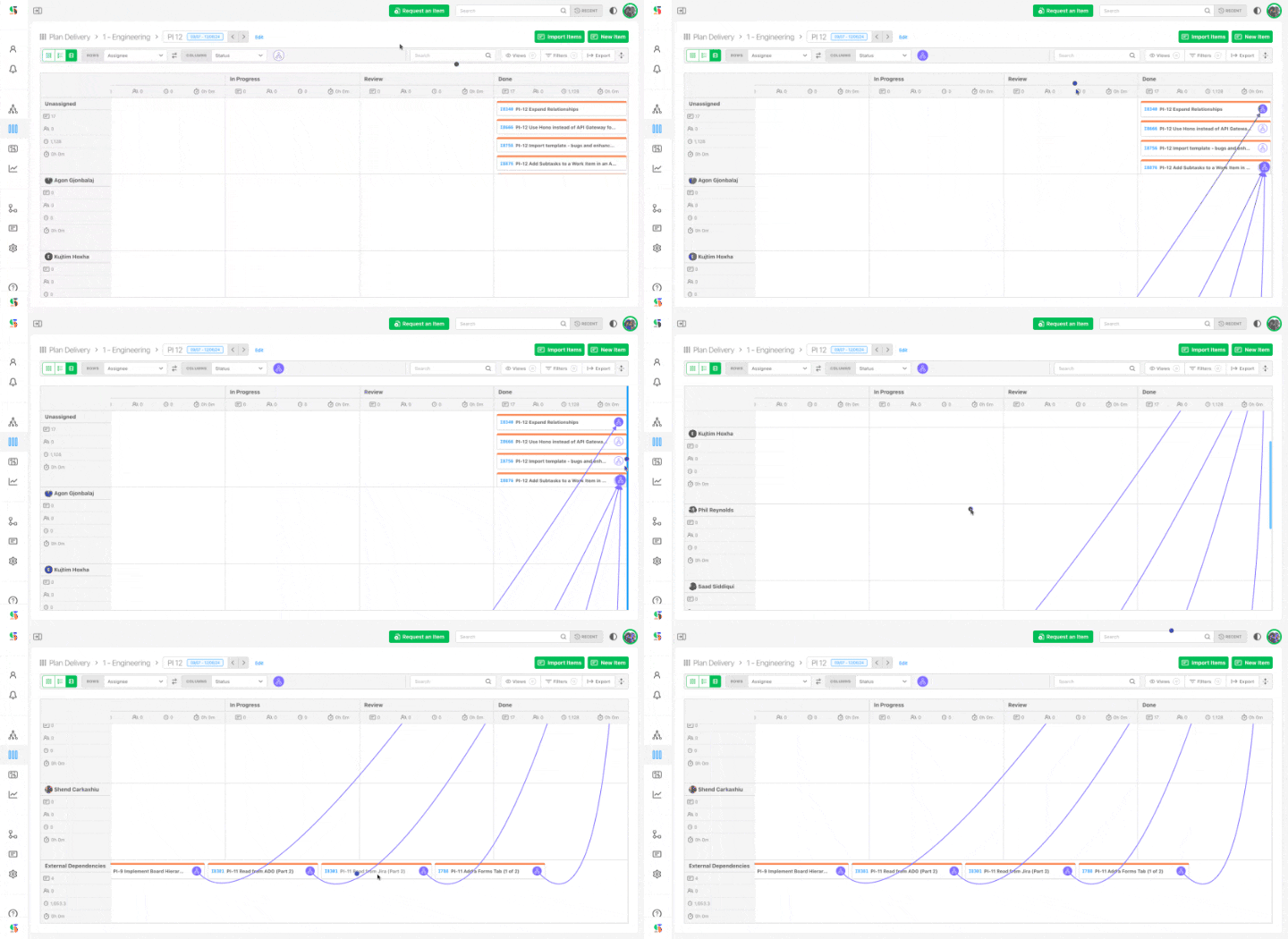
What's more, the 2D view allows users to see external dependencies. The video below shows external dependencies from other boards listed in the bottom row.
This "gutter lane" helps connect the work in a visible way. For additional visibility, you can turn on the dependency graph mode, which will display the relationships in a spider graph:
Hide empty rows and columns
A 2D board can produce rows or columns that contain no items — for example, a priority level or assignee that has no work in the current view. To keep the matrix compact, you can hide those empty rows and columns.
Two toggle buttons sit in the control ribbon: one immediately to the right of the Rows selector and one immediately to the right of the Columns selector. Hover over them to see their tooltips:
- Hide empty rows — collapses any row that has no items.
- Hide empty columns — collapses any column that has no items.
Click a toggle to turn it on; it fills in with your theme's primary color when active and returns to an outlined state when off. Each toggle works independently, and both default to off, so the full matrix shows until you choose to hide empty rows or columns.
When a toggle is active, it also appears as a removable pill in the applied-view bar (labeled Hide empty rows or Hide empty columns). Click the pill to clear that setting in one step.
Advanced Board Features and Capabilities
Other advanced board features include:
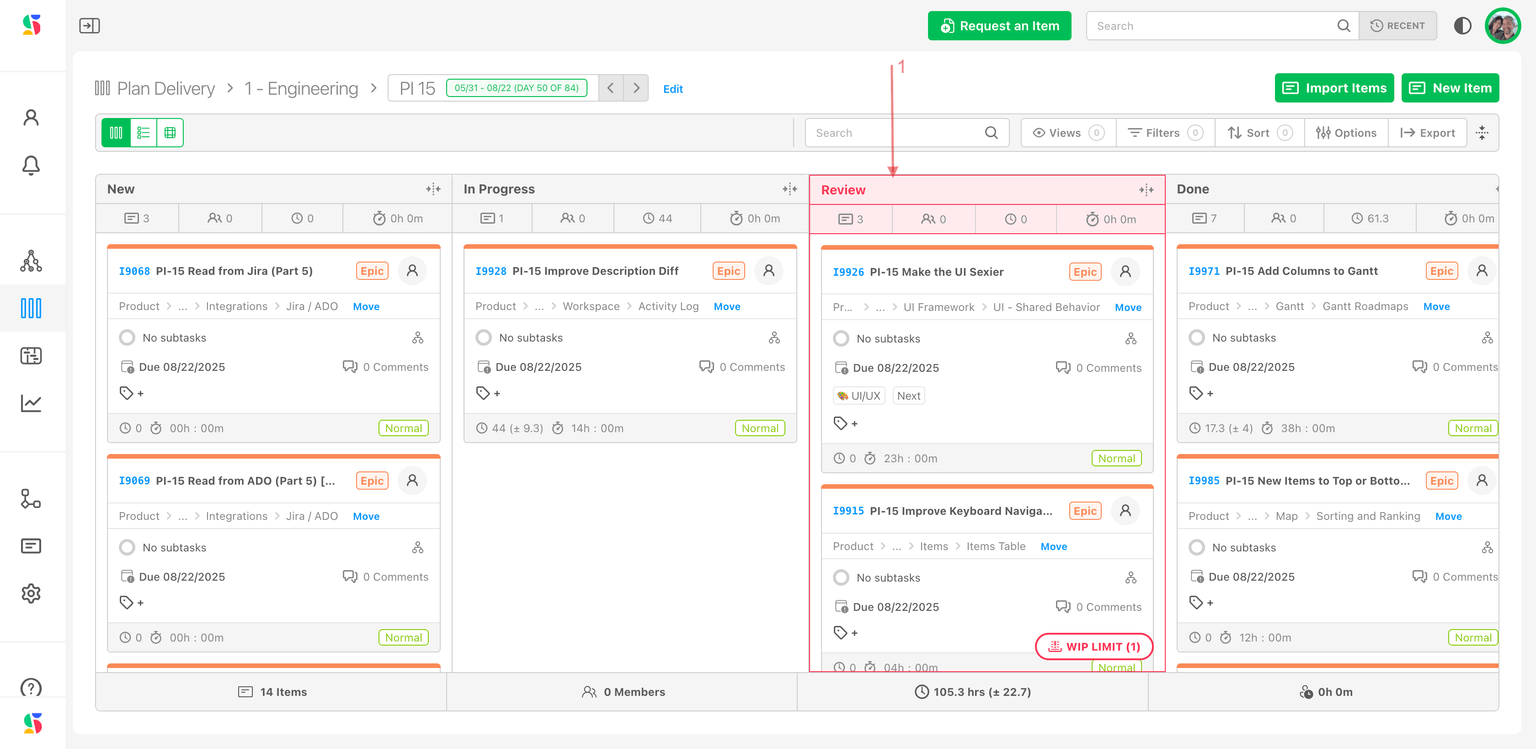
- Work-in-Progress (WIP) limits to avoid overload. If you use WIP limiters, boards give you a warning when WIP limits are exceeded. This feature helps teams manage capacity and prevent bottlenecks.
In the example below, the review column has turned red because the rule set by the admin in Settings - Statuses & WIP Limiters has been exceeded.
- Automatic parent rollup: moving a task on the boards triggers status updates and completion totals for its parents.
Jump to a board from an item
You don't have to return to Plan Delivery to open the board an item belongs to. From any item's drawer, you can jump straight to its assigned board or cycle.
Open an item to display its drawer, then look at the Cycle/Board field in the right-hand sidebar. When the item is assigned to a board, a green Go button appears on the right — click it to navigate directly to that board or cycle. A Clear link sits to its left if you want to unassign the board instead.
The field label always reads Cycle / Board, and the word matching the item's assignment is bolded — Cycle for a time-based (cycle) board and Board for a perpetual board — so you can tell at a glance which kind of board the item lives on.
Why this matters
Boards give everyone—from individual contributors to executives—clear visibility into who's doing what, and what's getting done. They keep day-to-day work connected to strategic goals.
Using cycle boards ensures that every team receives and manages their portion of the work, while still being connected to overall delivery objectives and timing.
DevStride's cadence and board capabilities offer a powerful way to manage structured workflows, ensuring consistent execution, visibility, and collaboration.
By properly configuring and using these features, organizations can drive predictable and scalable project success.