Setting up and Using Perpetual Boards
What it is
Perpetual Boards (also called evergreen boards) are ideal for workflows that don't follow a strict sprint or time-boxed cycle.
These boards are always active and display work as it flows through your process without specific start or end dates. Due dates on items can still be used - there is just no strict start and stop timing for the board.
Examples of use cases for perpetual boards are ongoing queues of work such as:
- a trouble ticket list
- a backlog
- operational to-do's
In the Boards module, your boards are grouped under two section headers: Perpetual Boards and Cycle Boards. Perpetual boards are evergreen and always active; cycle boards are bound to a cadence (sprints, cycles, PIs) and have a defined time range.
Here's how to set up and use a perpetual board:
Step 1: Navigate to Boards
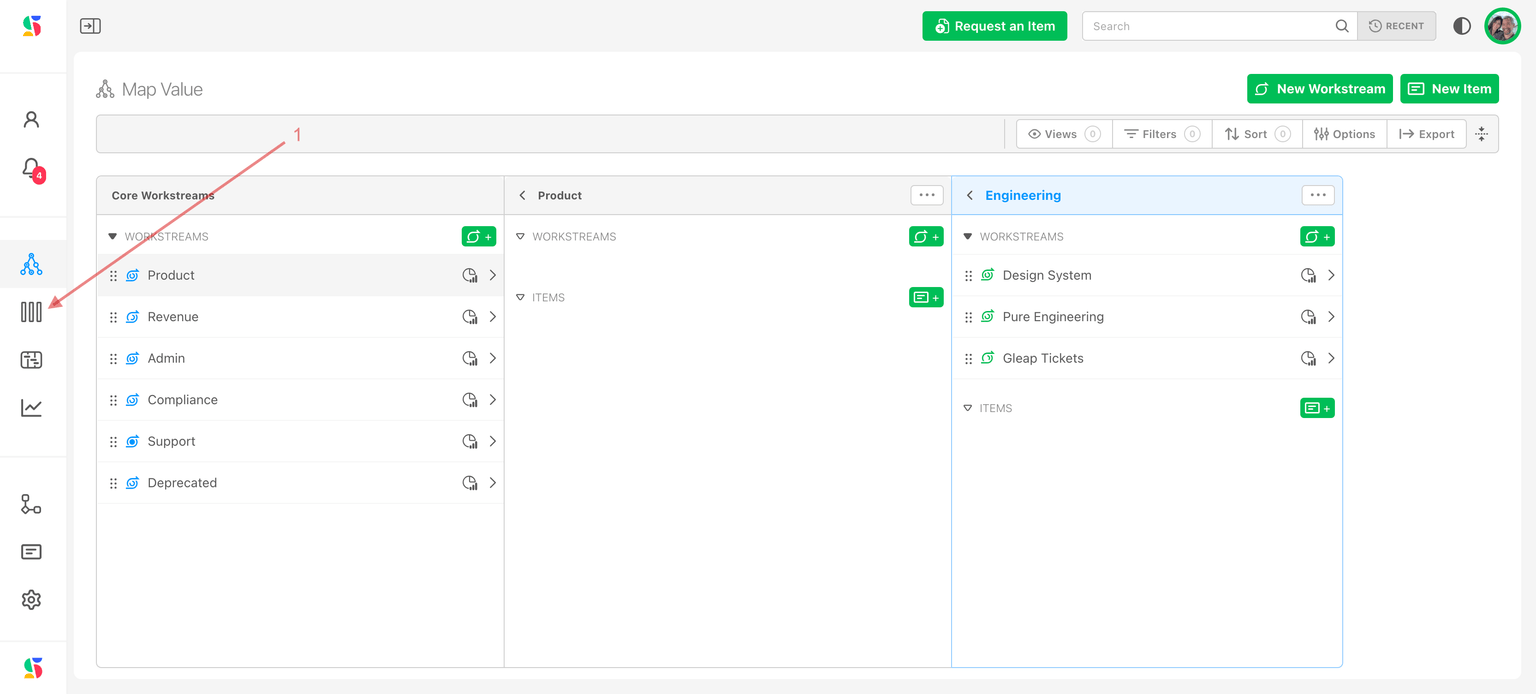
Click the "Plan Delivery" icon (1).
Step 2: Select your working teams folder
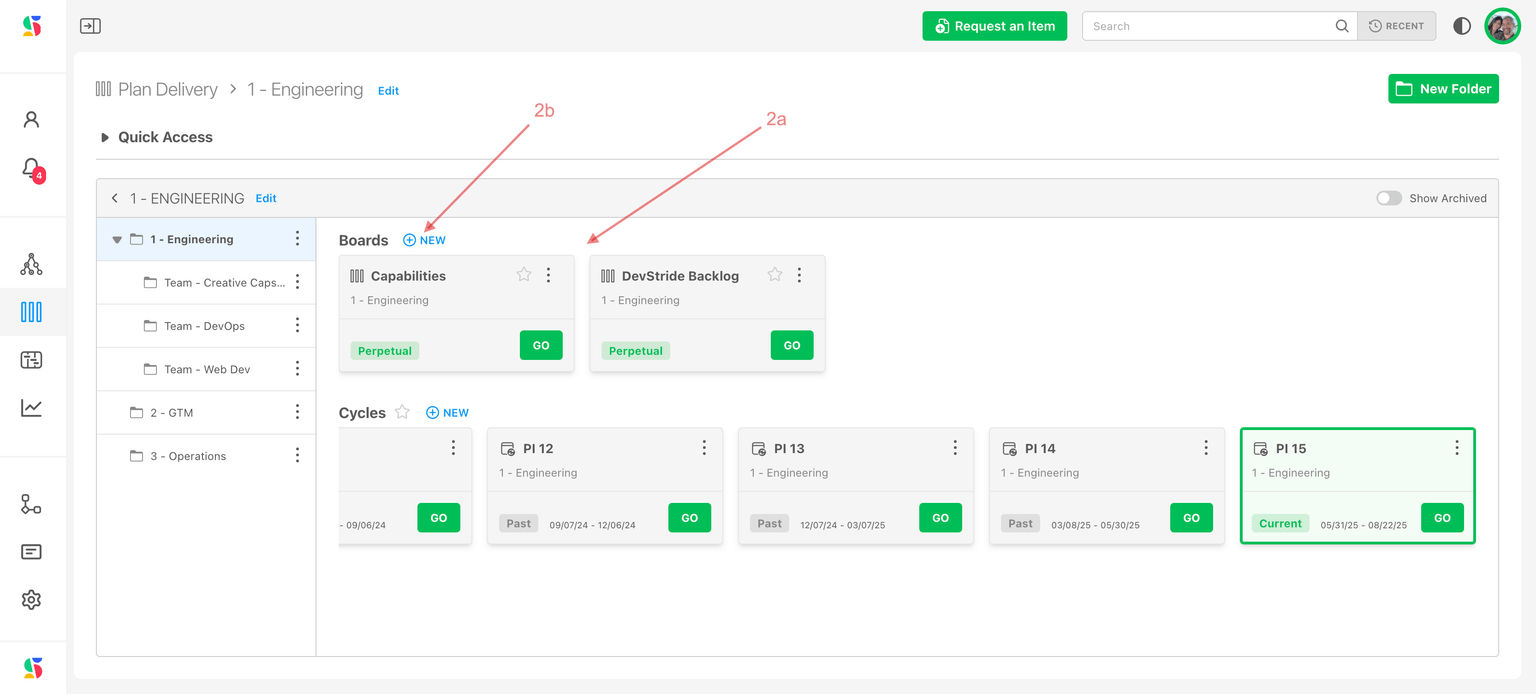
- Navigate to the working teams folder in which you want to add a board (2a).
- If you need a new folder, create it first. Note that creating a top-level folder requires the Admin role — once a folder exists and you have Editor (update) access to it, you can add boards inside it as a Member.
To start a new perpetual board, click the New button under the Perpetual Boards section header (2b).
Step 3: Add a new board
Under the Perpetual Boards section, click the New button to open the Create board dialog.
Step 4: Configure basic board settings
In the Create board dialog, complete the following fields:
- Name (required) — Enter a name for the board. The name must be at least 3 characters. Example: "Customer Support Queue" or "Marketing Content Pipeline."
- Description (optional) — Add a short description for the board.
- Status Collection (required) — Select a status collection. The status collection drives the phases (statuses) used on this board. Status collections are set up in your organization settings; if you need a different set of statuses, configure them in Settings before or after creating the board.
- Default Team (optional) — Select a default team. The default team is used to pre-populate the team field when you create an item while viewing the board.
When creating a new board, the dialog also reminds you that boards inherit permissions from their parent folder, so the board's access is determined by the folder it lives in.
When you've filled in the required fields, save the board.
The board displays. This is an empty board at this point. To add items, you can either create items directly on the board or import them.
Step 5: Add items to your board
- Create items here on this screen by:
- Clicking New Item
or
- Import a set of items from the workstream
- To do this, click Import Items.
or
- Navigate to Map Value and assign items to the board from the workstream map.
Step 6: View boards
To view a particular perpetual board, navigate to the desired board through your folders view (1).
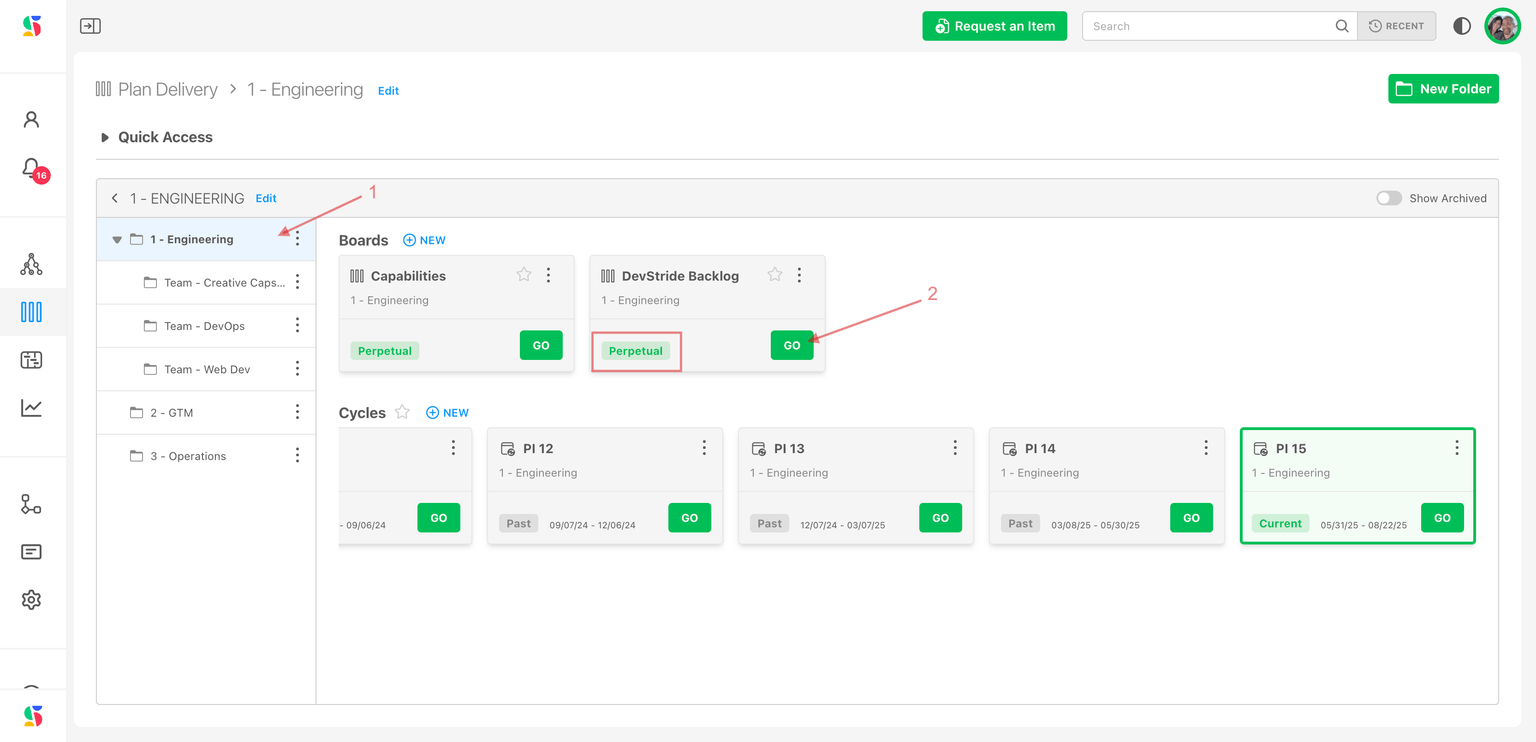
Select the board you wish to see. Within a folder, perpetual boards are listed under the Perpetual Boards header and cycle boards under the Cycle Boards header. Click go on the desired board (2).
Each board appears as a card. Perpetual board cards show a green Perpetual badge, while cycle board cards show their time state — Future, Current, or Past — along with the cycle's date range, so you can tell the two types apart at a glance.
There are multiple ways to view your selected board.
Kanban view
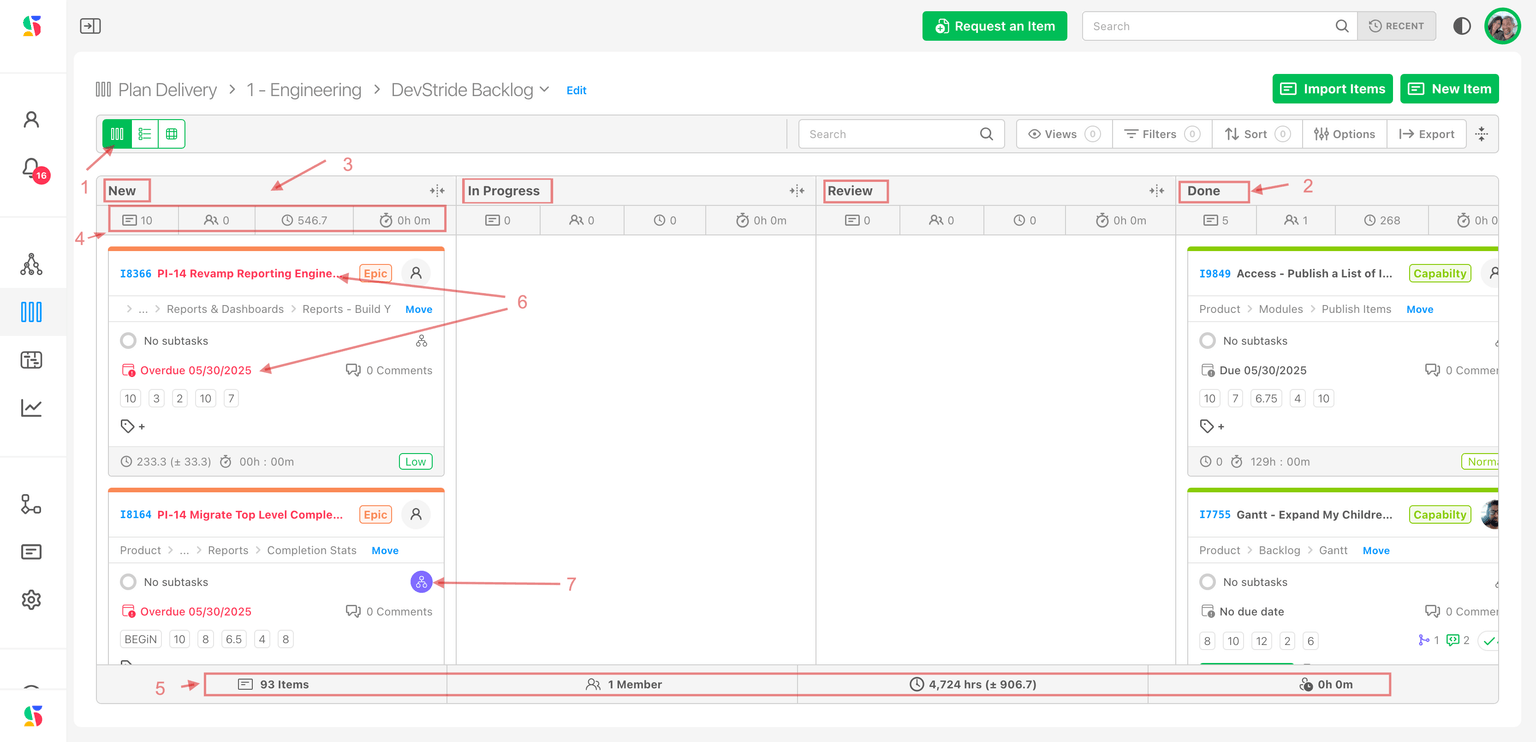
- To view columns in a kanban board click on the kanban icon (1).
This view provides a wealth of information, including:
- Items are displayed as cards in a kanban board in the column of their status (e.g., new, in progress, review, done). (2)
Reminder: Status columns are customizable in settings.
- You can move items from one phase to the next by simply dragging them to the appropriate column. Items updated elsewhere in the system automatically move the cards to the correct status as well. For example, if you mark an item as done from the Map Value, Manage Items, or Track Progress modules, those changes are automatically reflected in the boards (3). You can also set up automations to move cards based on triggers.
- Totals of items, teams, estimates and time spent are available at a glance by status (4).
- DevStride displays overdue items in red (5).
- Items with dependencies, dependents, or related-to relationships display the relationship tracker icon (6).
- Totals for items, team members, estimates, and time spent by board display along the bottom row (7).
- Click any total to drill into it. Selecting a stat in the Board Totals footer opens a detailed, itemized breakdown of what makes it up — the work items on the board (click an item number to open it), the members contributing, or the per-item points, time estimate, or time spent (each sorted by largest contributor). The breakdown honors the board's active filters.
Table view
To view board items in a table view, click the Table View icon (1).
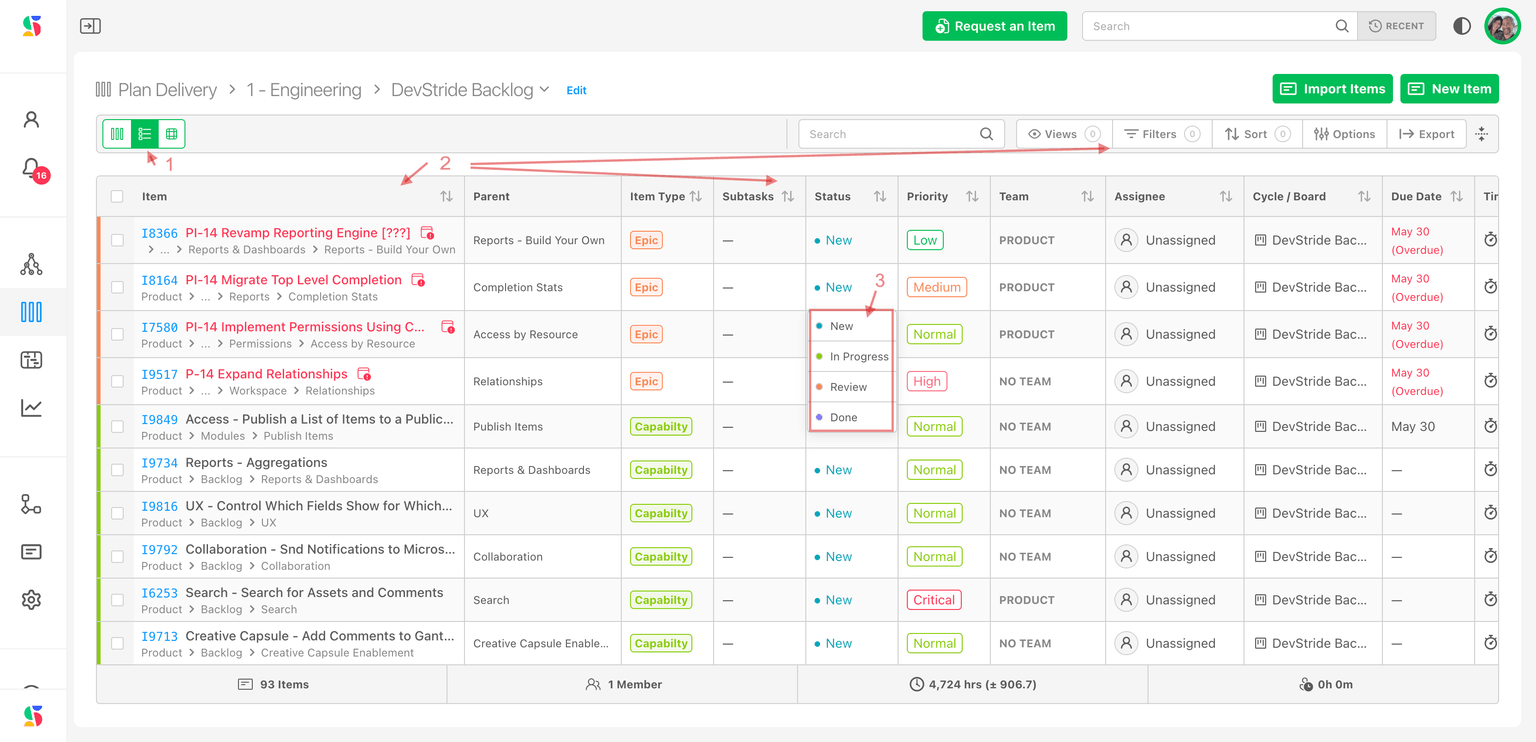
Columns are editable and rows can be sorted, filtered, or dragged up and down individually or as groups to reflect ranking, priority, or other desired order (2).
This board shows all the items on that board in an easy-to-navigate, editable list. Similar to a spreadsheet, you can use your mouse, arrows, or hot keys to navigate fluidly through the rows and edit values (3).
2D view
DevStride provides a powerful, two-dimensional view with multiple options available along the x and y axes.
To view board items in 2D view, click on the 2D view icon (1):
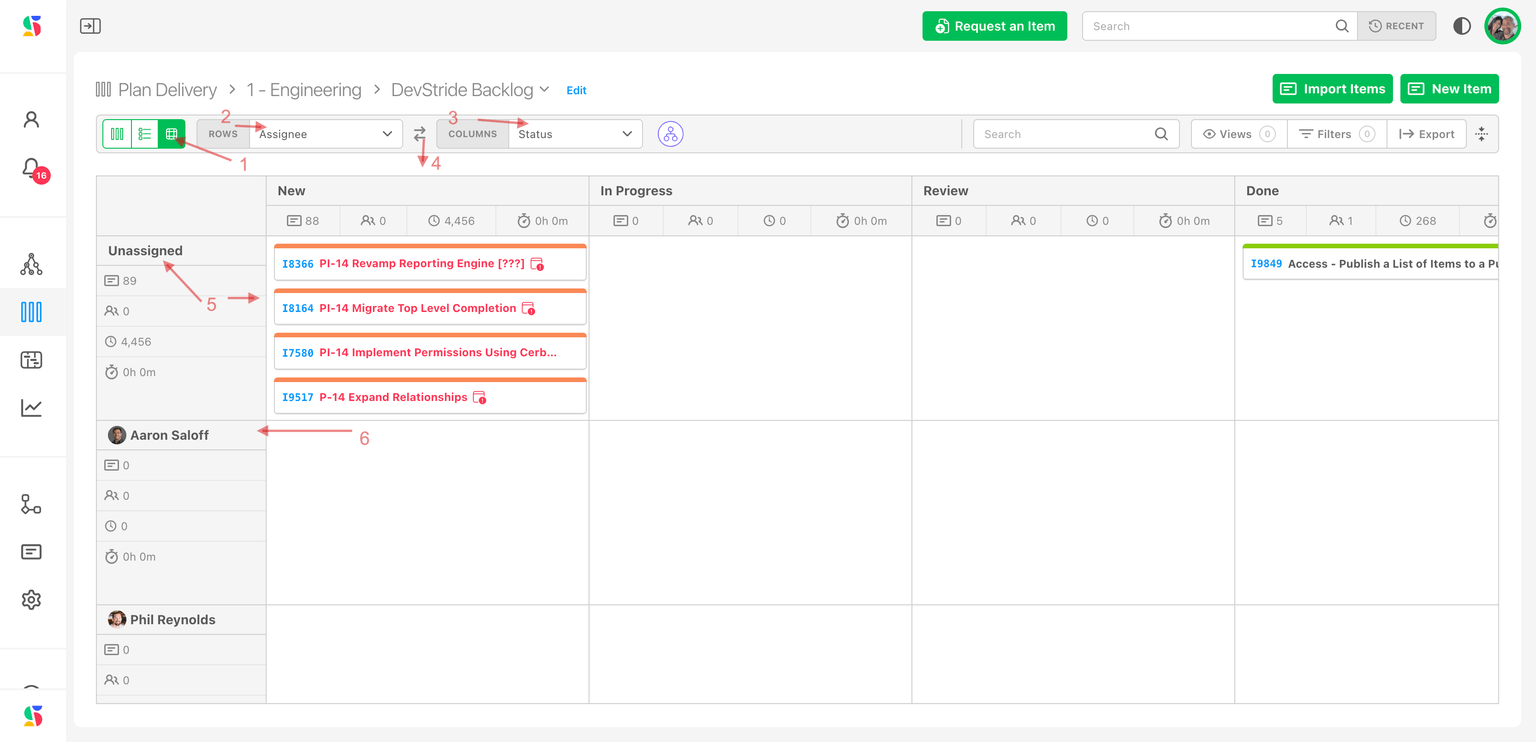
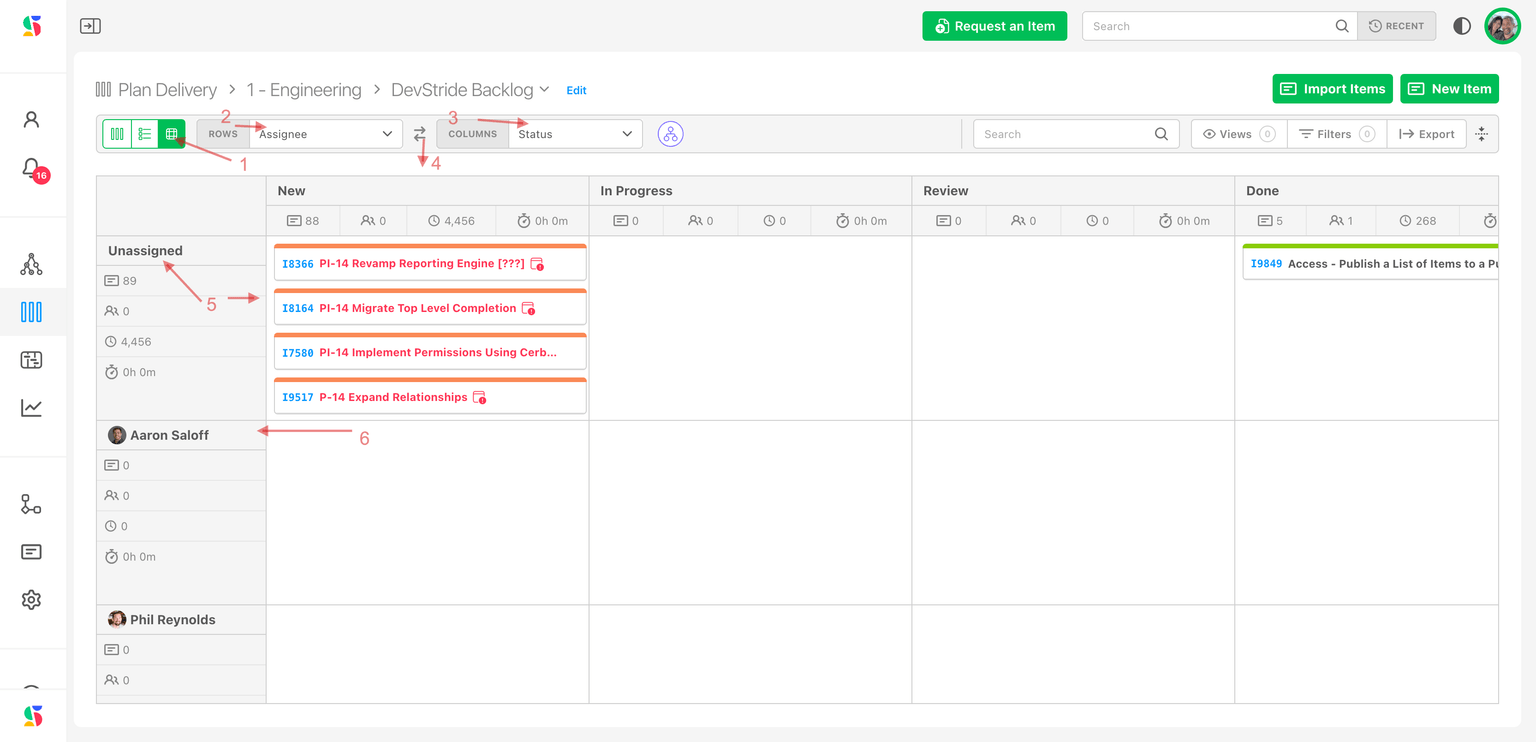
You can then select the information you would like to see in the columns. Here, we are showing the assignee's team in the rows (2) and Status in the columns (3).
You can change what appears on the x vs. the y axis by selecting the switch icon (4).
Unassigned tasks appear in the first row (5). You can drag tasks into different rows, thereby assigning them. You can also change the status of an item by dragging it into the appropriate status column.
Note: You can see in this view that the same tasks that were showing up as red/overdue in the kanban and the list view are still showing up as red in the 2D view. This makes it easy to see that something is at risk.
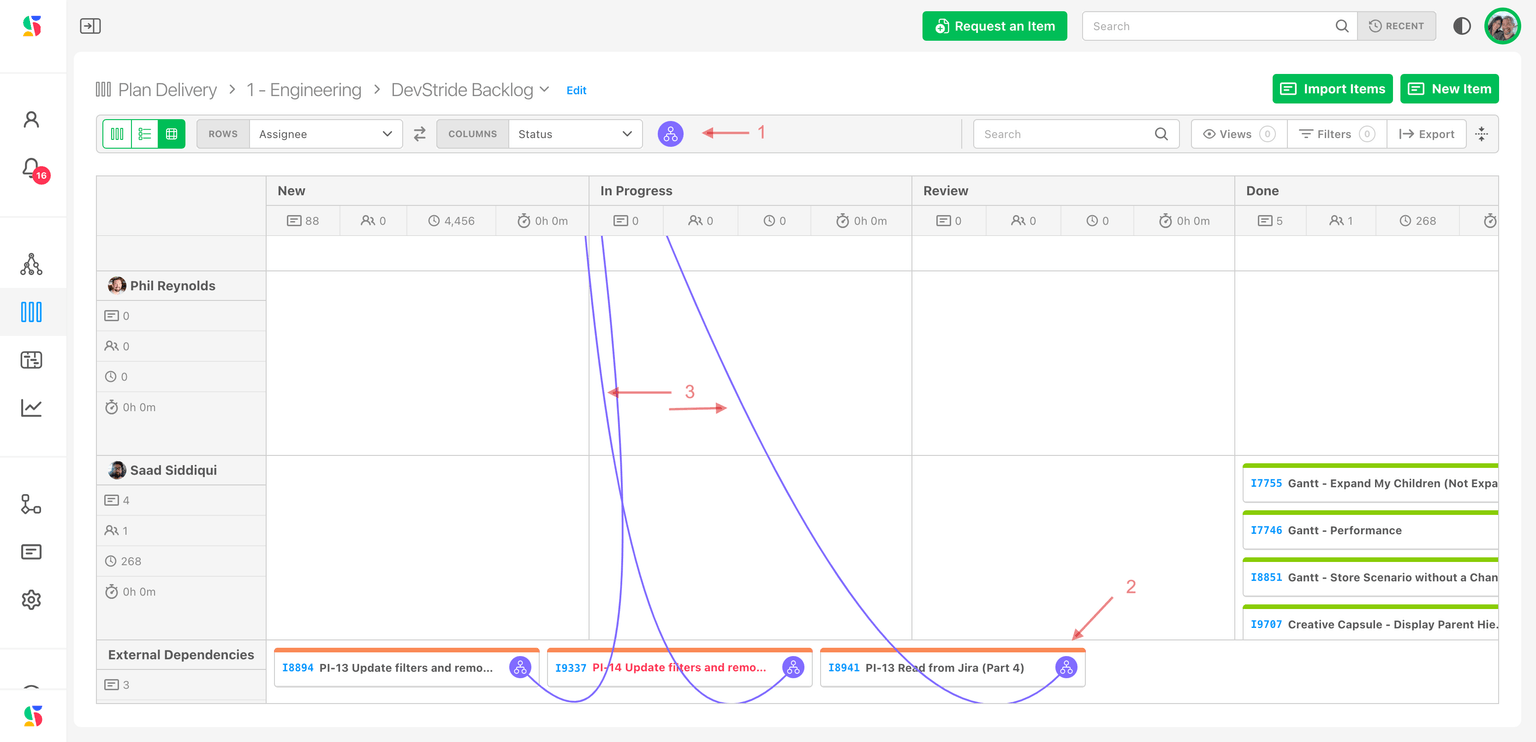
Another powerful feature is this board's combination of relationship map and internal/external dependency display.
You can click on the relationship map if you would like to see the relationships drawn out on the 2D board (1).
DevStride also provides you with the ability to see a "gutter lane" - in other words, you can see dependencies/relationships that fall outside your team (2).
DevStride includes the gutter lane in the 2D view (as well as all other rows), rendering a complete picture of all the relationships in the view you have chosen (3).
You can see here that there are some external relationships that connect to some of the unassigned and overdue tasks on this board. This can help you to address any issues before negative downstream effects occur.
Step 7: In each type of board, edit views and columns as needed
The 2D board will display the values you decide to include - you can also show these boards by other data and can filter, create views, etc. using selections from the control ribbon at the top:
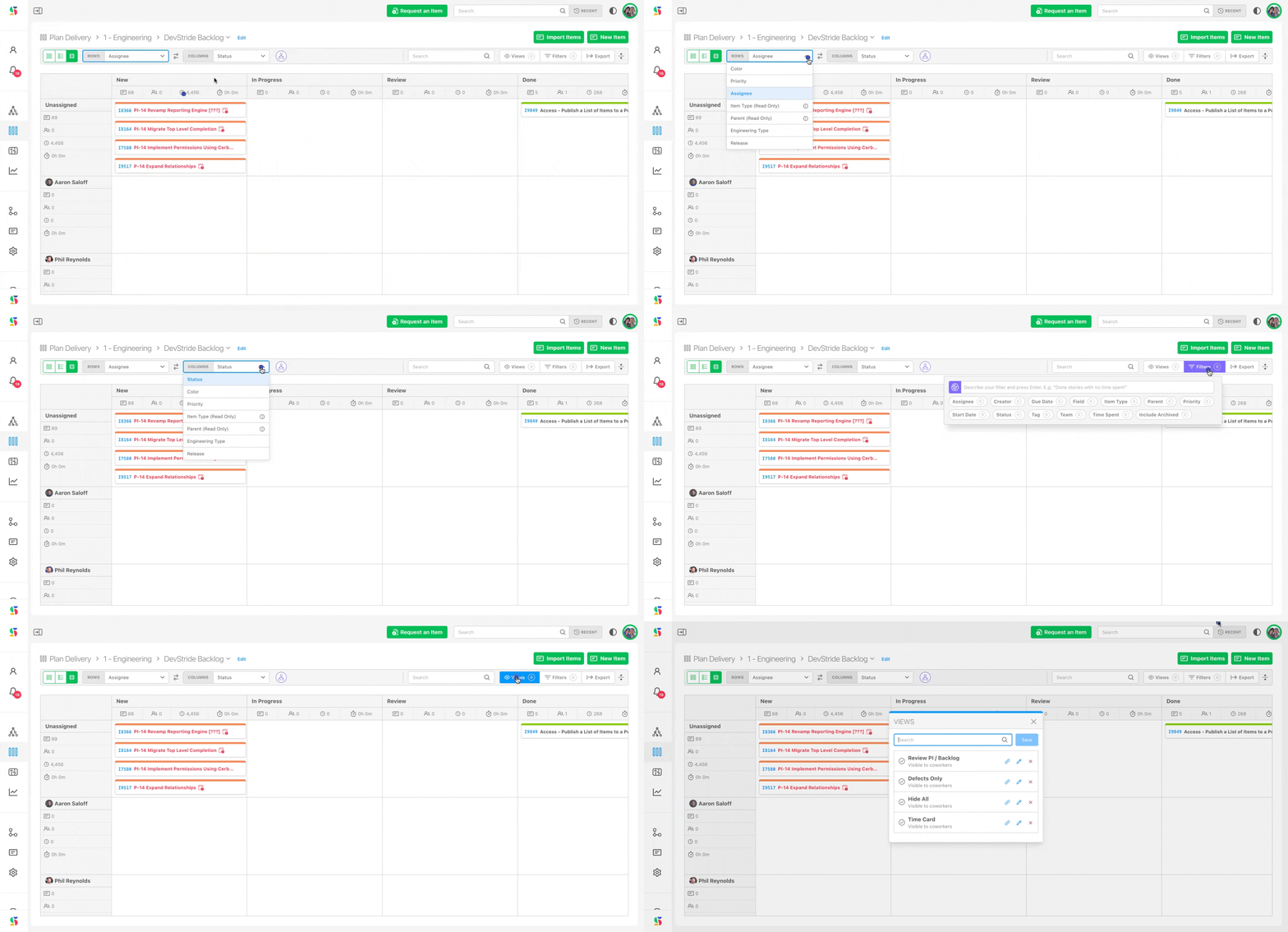
Click the icon in the board header that you wish to use: Views, Filters, Sort, Options.
Add, remove, or reorder columns to match the way you wish to see the data (e.g., apply the Priority filter to only show high-priority work).
Step 8: Save and share views, as desired
Click here for how to Create and Use Views.
Step 9: Create new items, as desired
Create new items directly on the board using the "+ Add Item" button in any column.
Step 10: Monitor and manage work
Boards in any view are a wonderful staging and monitoring area for viewing, discussing, sharing, and managing work with stakeholders.
Drag cards across columns as work progresses.
Click into any card to update status, add comments, assign owners, or adjust metadata.
Use filters in the top-right to focus by team member, priority, status, or tag, etc.
Archive completed work periodically to keep the board clean — or let an automation do it. The Item Stays Done on Board trigger fires once an item has sat in Done on a board you choose for a set time (Time spent Done on this board), and can then move the item to another board or take it off this one. It applies to items that reach Done after the rule is on; reopening an item or moving it to another board starts the wait again, and a rule acts once per stretch in Done.
For a step-by-step rule, see remove completed work after a delay.
Advanced functionality
Calculated fields: Use formulas to track cycle time or SLA metrics.
Automation: Create automations to move items when status changes, assign owners, or update fields.
Export data: Using filters as needed, export to a .csv file.
Note - powerful reporting and analytics tied to these boards are available in the Reports Module.
Tips for using perpetual boards effectively
| Best Practice | Why it Matters |
|---|---|
| Keep WIP (Work in Progress) limits per column | Avoid overloading team members and bottlenecks |
| Regularly groom the board - check and maintain | Prevent clutter and keep the board current |
| Use tags or filters for segmentation | Helps manage specific aspects of the work |
| Avoid mixing perpetual and time-boxed items | To avoid confusing reporting logic |