Working Group Folders: Organizing the Who of the work
Organizing Boards: Working Group Folders
One of the overarching goals of DevStride is to help teams connect strategic objectives to the tasks teams will execute.
You reach this area from Plan Delivery in the left side navigation. Within it, working group folders are your "containers" for organizing "who" does the work you have identified in the Workstreams.
To consider how to structure your working group folders, let's first take a quick look back at workstreams. Once the workstreams have been created and the work to be done has been identified, the work can be assigned.
Again, the workstream represents the "what" of the work to be done. The "who" and "when" still has to be defined. And that will be done through setting up working group folders.
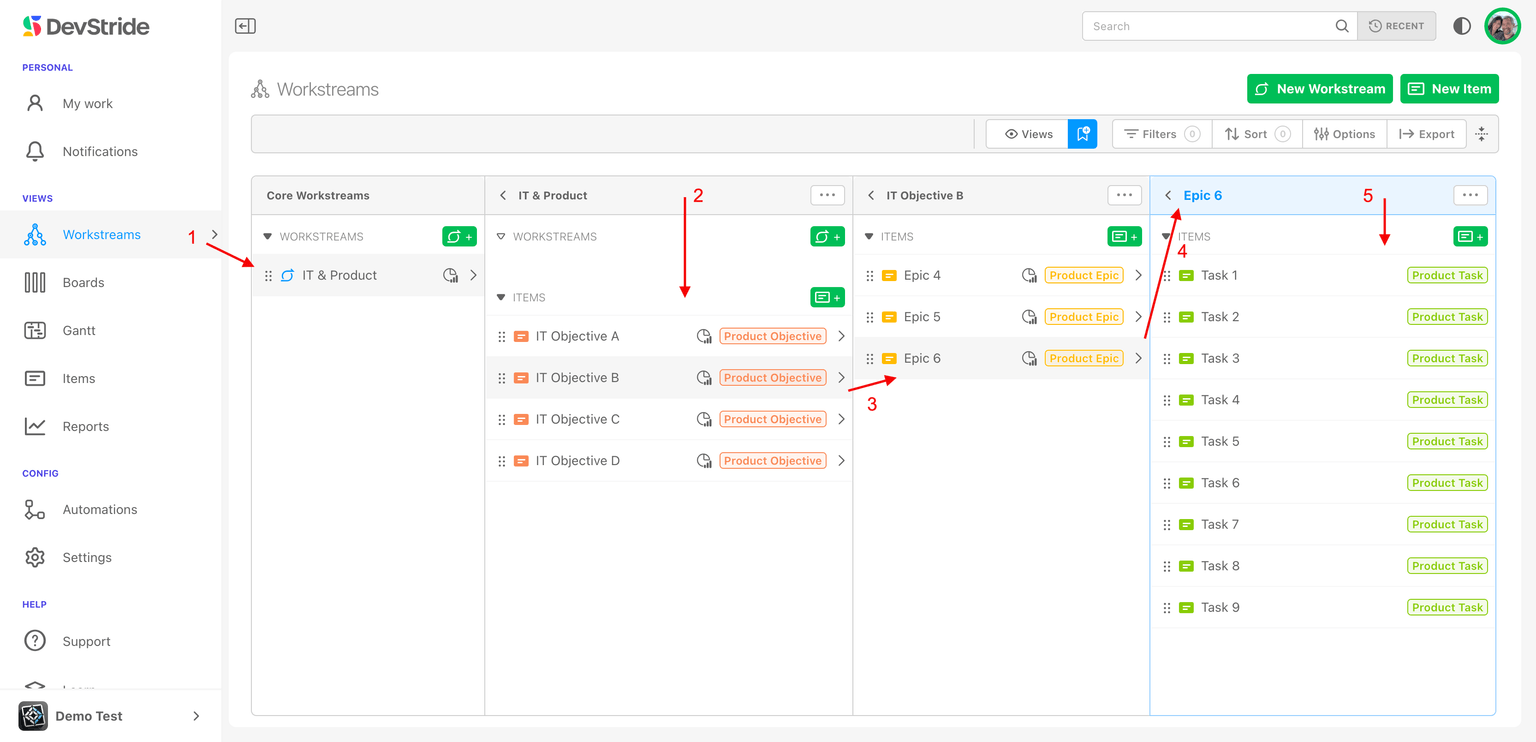
In the image below, we can see that there's a workstream called IT & Product (1). This work has been broken down into Product Objectives (2), which have been further decomposed into Epics, or features (3).
Finally, each Epic (4) has been broken down into a series of Product Task items (5). This is just an example. Your organization can use any workstream hierarchy and naming convention you wish.
The next step is to assign this work to a particular working group, the "who" using board folders and boards. The folders are used to help organize the boards.
Here's a look at an example board folder structure that an organization might use to organize the work of multiple teams within a product development organization:
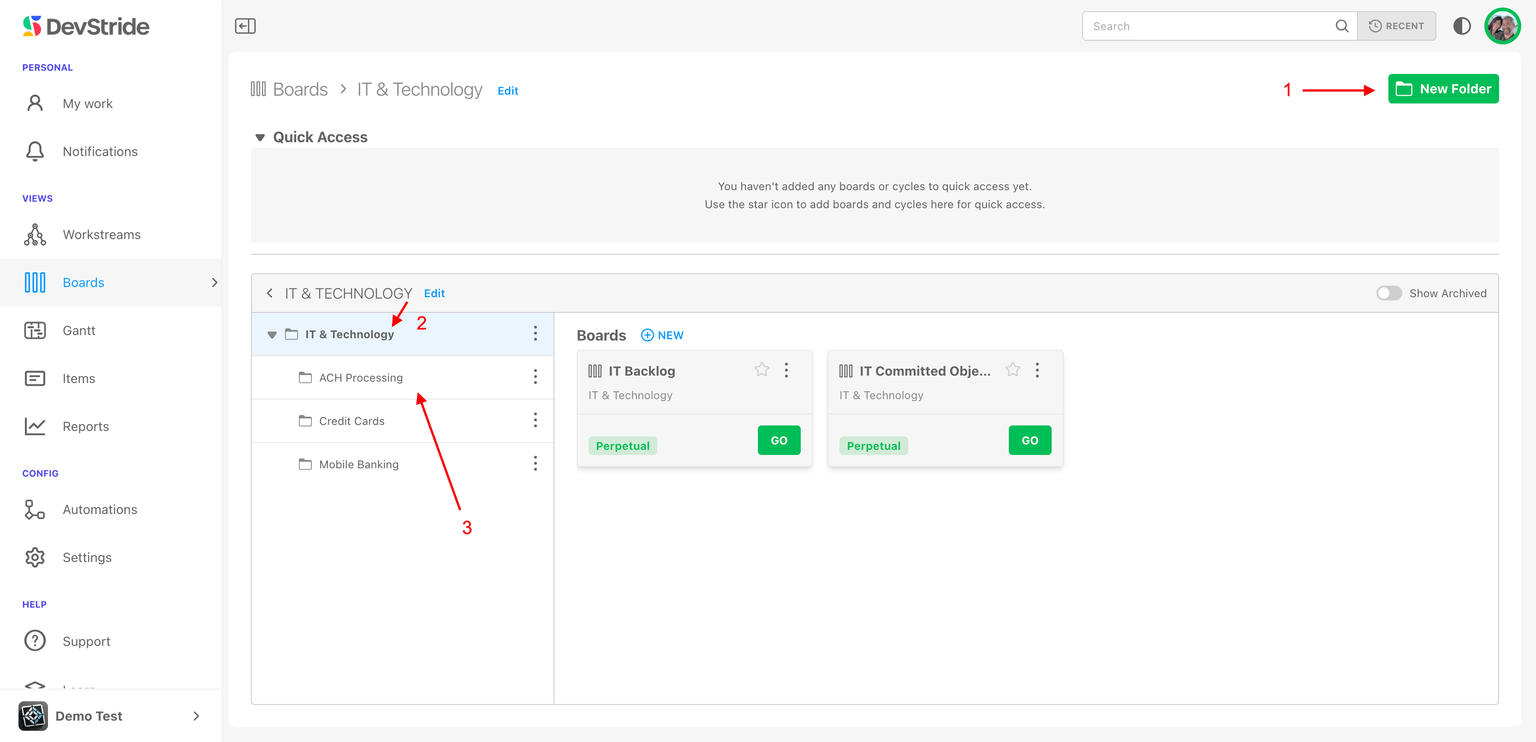
As you can see here, a common strategy for organizing folders and their boards in DevStride is as a nested hierarchy of working groups.
Folders are flexible - they can represent the work being done instead of a strict organizational chart. They simply reflect the various working groups doing the work.
Hierarchical nesting can be used - or not. Nesting teams in a hierarchy allows visibility to the work at all levels, where there are smaller teams reporting up through a bigger functional group or initiative.
Folders can represent teams, departments, programs, functional groups, or temporary working groups. These folders allow you to assign boards, cadences, and work at the right level.
Looking at this example again, we can see the teams represented on these folders are nested in a hierarchy, like this:
- IT & Technology (in this case, representing the entire enterprise)
- ACH Processing (a working group focusing on ACH processing)
- Product team 4 (a working group supporting a product within ACH processing)
- ACH Processing (a working group focusing on ACH processing)
Navigating Folders
The folder page uses a two-pane layout: a folder browser on the left, and the content of the selected folder on the right.
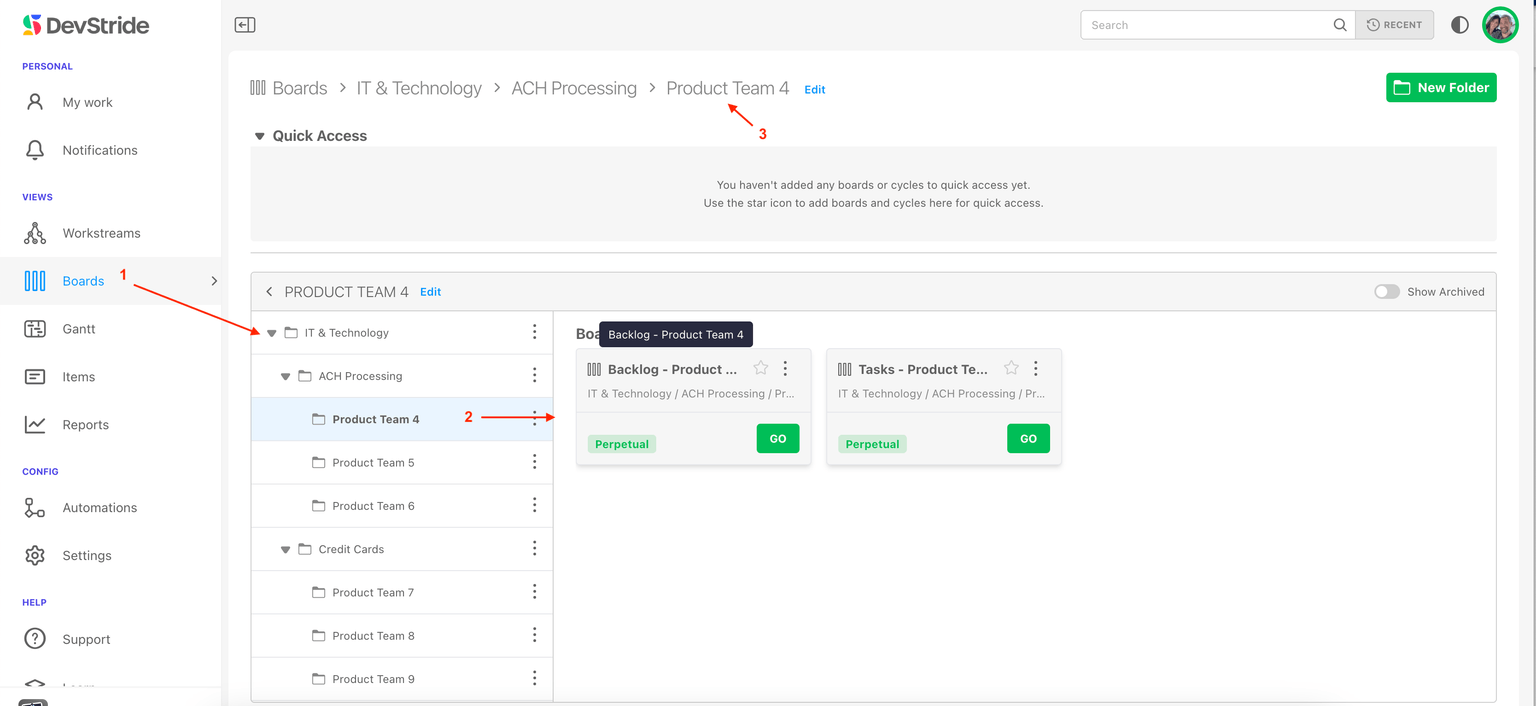
The folder browser (left pane)
The left pane is a folder tree:
- Expand and collapse any folder using the caret next to its name. Child folders load as you open each level.
- Click a folder row to open it. The right pane updates to show that folder's boards and cycles, and the selected folder is highlighted and scrolled into view.
- Quick Access appears at the top of the browser. Use the star icon on a board, cycle, or folder to pin it here for fast return visits. This section can be collapsed, and your choice is remembered between sessions.
- Resize the browser by dragging the handle between the two panes. Double-click the handle to reset it to the default width. Your chosen width is remembered.
The content pane (right pane)
When you select a folder, the right pane shows its contents, grouped into two sections:
- Perpetual Boards — ongoing boards that aren't tied to a cadence.
- Cycle Boards — boards tied to the folder's cadence (for example, sprints).
The header of this pane includes the current folder name, a back chevron to step up to the parent folder, an Edit button, and a Show Archived toggle so you can reveal or hide archived boards and cycles.
Permanently deleting an archived board or folder
Archiving hides a board or folder; Permanently delete removes it for good. The option appears only on an archived perpetual board (its card's kebab menu, with Show Archived on) or an archived folder (its context menu), and only when you can delete everything inside it.
- Your work items are kept. Items, subtasks and workstreams that were on the deleted boards stay in their workstreams; only their board placement is cleared, and an item's status may adjust to its team's or organization's workflow.
- Cycle boards go with their folder. To remove individual cycles, permanently delete the archived folder that holds them.
- Deletion runs in the background. Once it starts you can close the dialog and follow progress in Jobs. If it stops, Retry deletion continues from the last saved step.
- It cannot be undone.
The breadcrumb trail
An interactive breadcrumb trail runs across the top, starting at Plan Delivery and following the path of folders down to the one you're viewing. Each crumb is clickable, so you can jump back to any level in the path. When the path is more than six levels deep, the middle of the trail collapses into a ... button that opens a menu of the hidden folders.
Folder Structure
When you create your folders, one folder should correlate to one working group.
In our example, the top working group is IT & Technology. Sub-working groups in this example, such as ACH Processing, are named based on the technology solutions or modules they are working on. The Credit Card group is on the same level as ACH. Both roll up into IT & Technology.
Step 1: Create a New Folder
Top-level (root) folders and sub-folders are created in slightly different ways.
To create a top-level working group, use the + Folder control at the top of the folder browser. Give the folder a meaningful name (for example, "IT & Technology"), and leave the parent empty so it sits at the root.
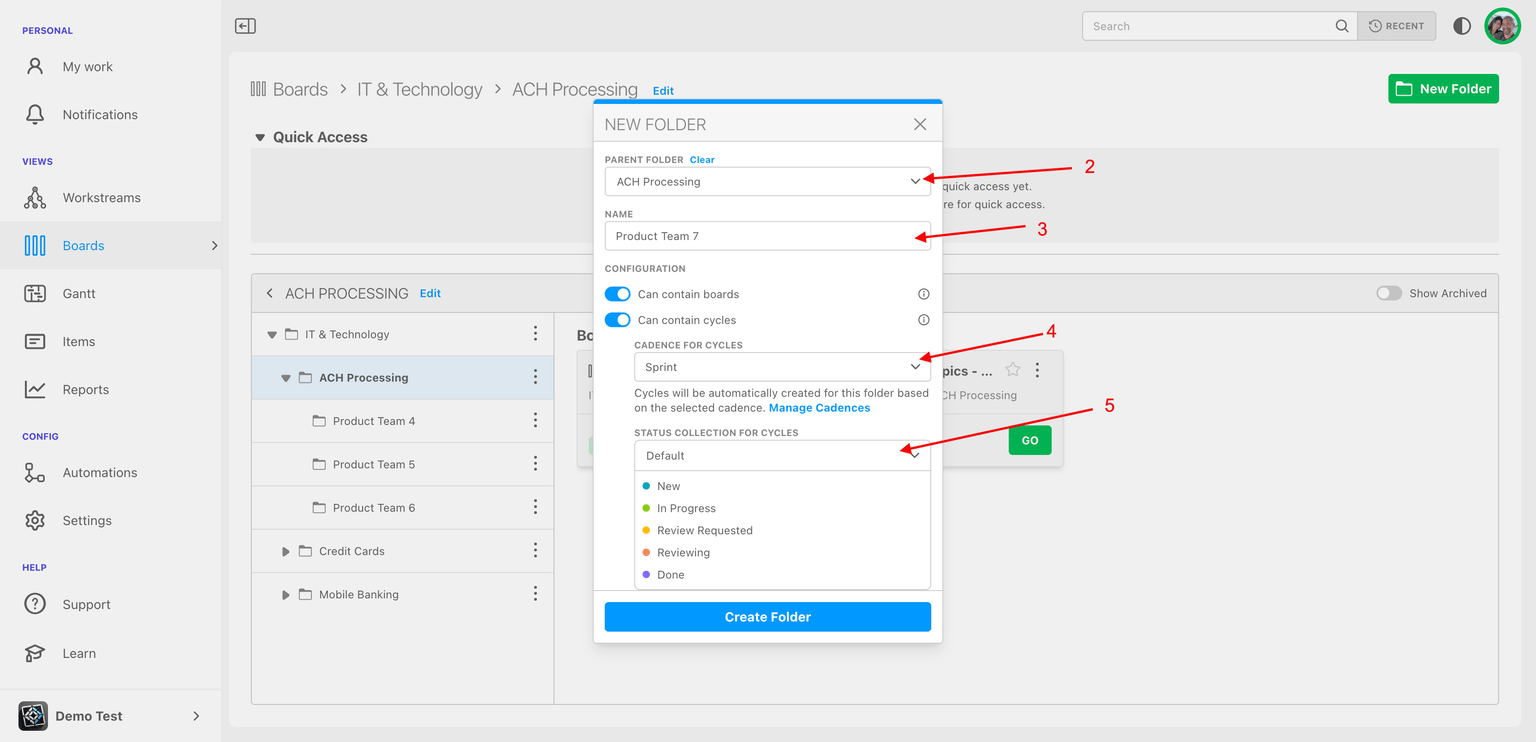
In the New Folder dialog, fill in:
- Name — required, and at least 3 characters.
- Parent Folder — leave empty for a root folder, or pick a parent to nest under. A Clear link removes a selected parent.
- Configuration — two toggles: Can contain boards and Can contain cycles. Turn on whichever the folder needs.
When Can contain cycles is turned on, three more fields appear (these apply to cycles, not perpetual boards):
- Cadence for Cycles — required. Cycles are created automatically based on this cadence.
- Status Collection for Cycles — required. Sets the statuses used by cycles in this folder.
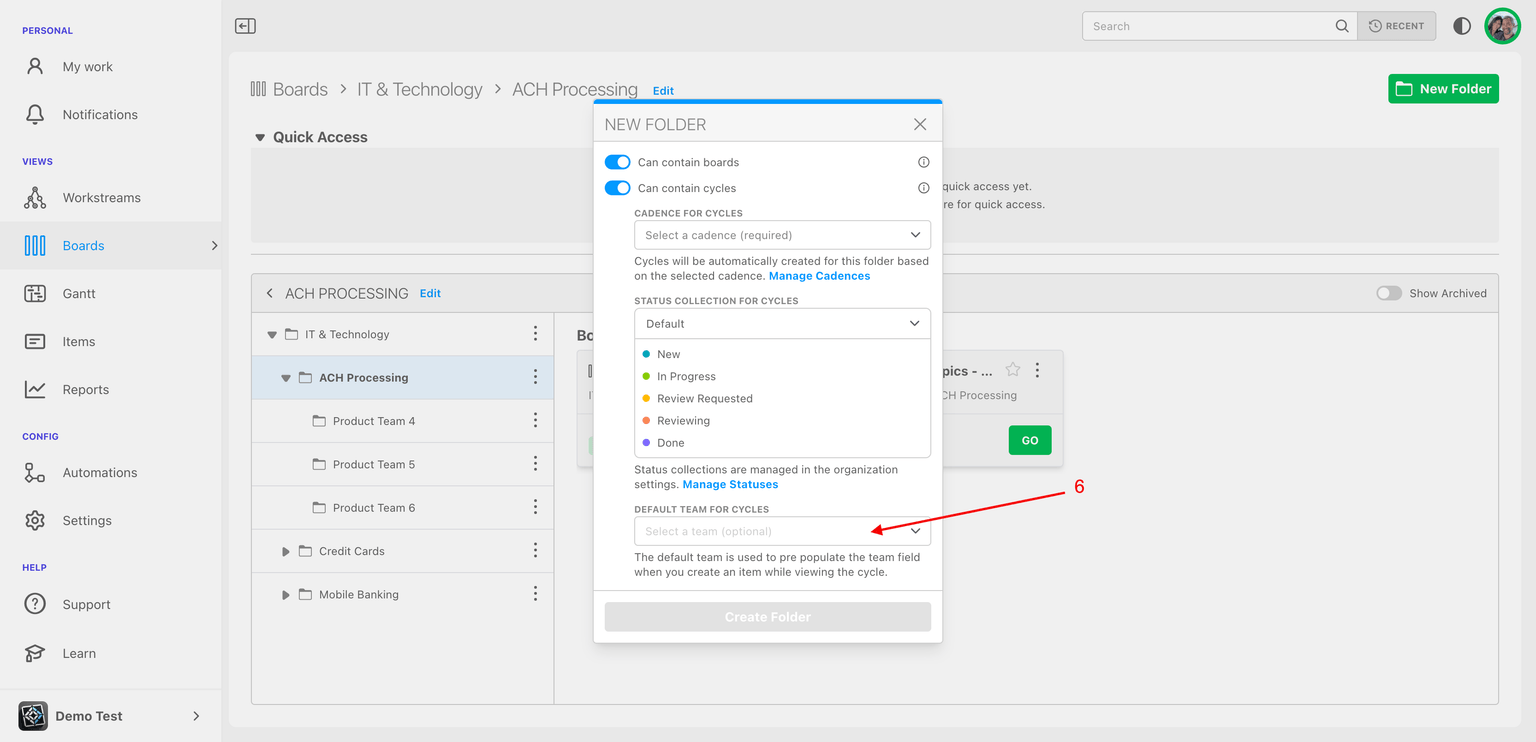
- Default Team for Cycles — optional. The default team pre-populates the team field when you create an item while viewing the cycle.
For root folders, you'll also choose a Visibility setting:
- Public — all members of your organization can view and edit the folder.
- Team — only members of a selected team can view and edit. This option appears when Can contain cycles is enabled.
- Private — the folder starts visible only to you; you can invite specific users or teams later.
When you select a parent folder, the visibility options are replaced with a note: Folders inherit permissions from the parent folder. Sub-folders take their access from where they live in the hierarchy.
Click Create folder to finish.
Step 2: Create sub-folders, as necessary
Add additional sub-working groups as needed.
Right-click the parent folder in the tree (or open its context menu from the kebab) and choose New Folder.
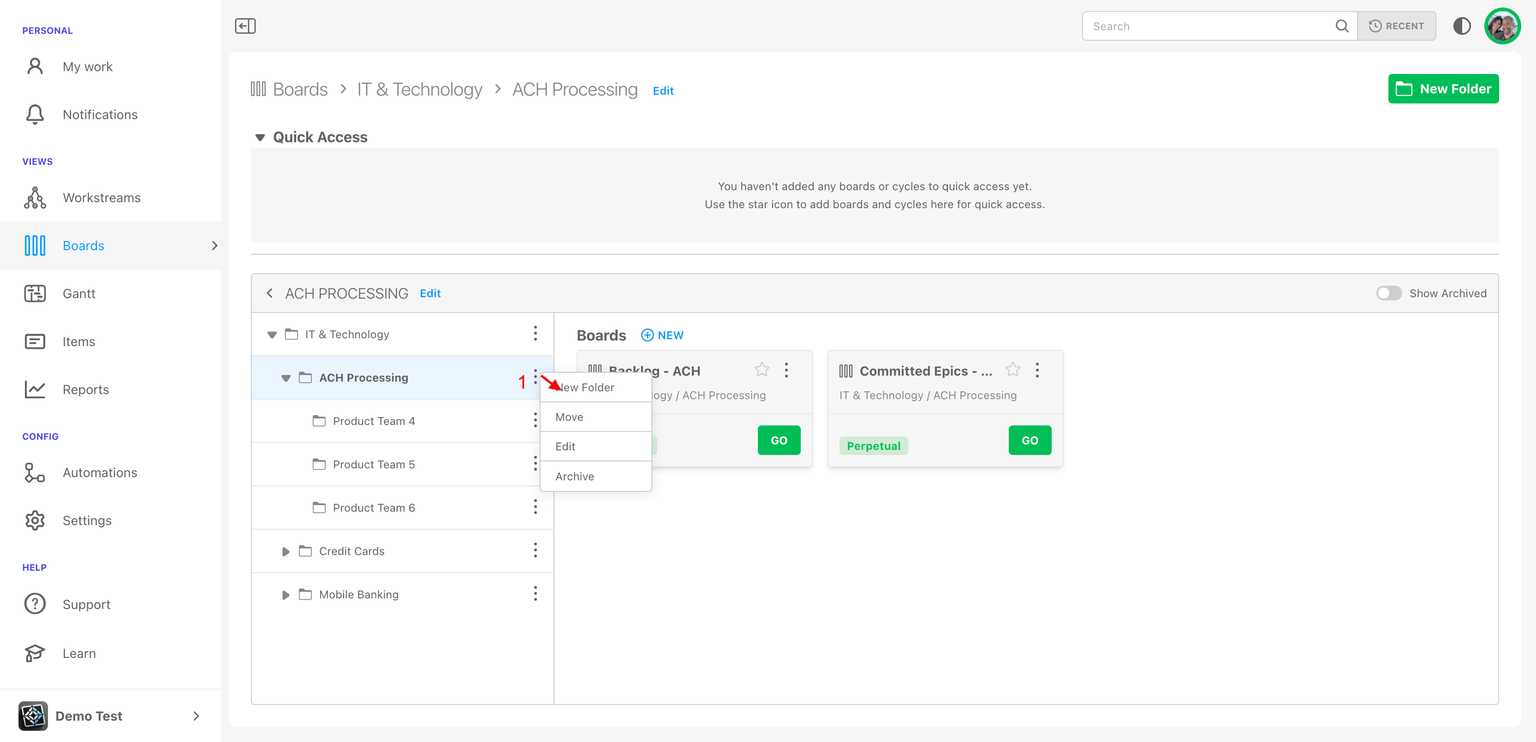
In the New Folder dialog, the parent is already selected. Fill in the child folder's Name, and set the Configuration toggles (Can contain boards / Can contain cycles). If the folder will contain cycles, also choose the Cadence for Cycles and Status Collection for Cycles, and optionally a Default Team for Cycles.
The default team is a time-saving selection that pre-populates the team field when you create items while viewing a cycle in that folder:
Click Create folder to save the sub-folder.
Why it Matters: Folders
Folders are your containers for organizing work. They can represent teams, departments, programs, or working groups and allow you to assign boards, cadences, and work at the right level.
Folder hierarchy can be nested as deeply and broadly as each organization prefers.
Next up, we'll review how boards are created for each working group folder.