Plan Delivery: Boards
Import Stories and Epics into Boards
Add existing stories and epics to a board using the Import Items button.
How to Import Stories and Epics into Boards
Follow these steps to import stories and epics into your board:
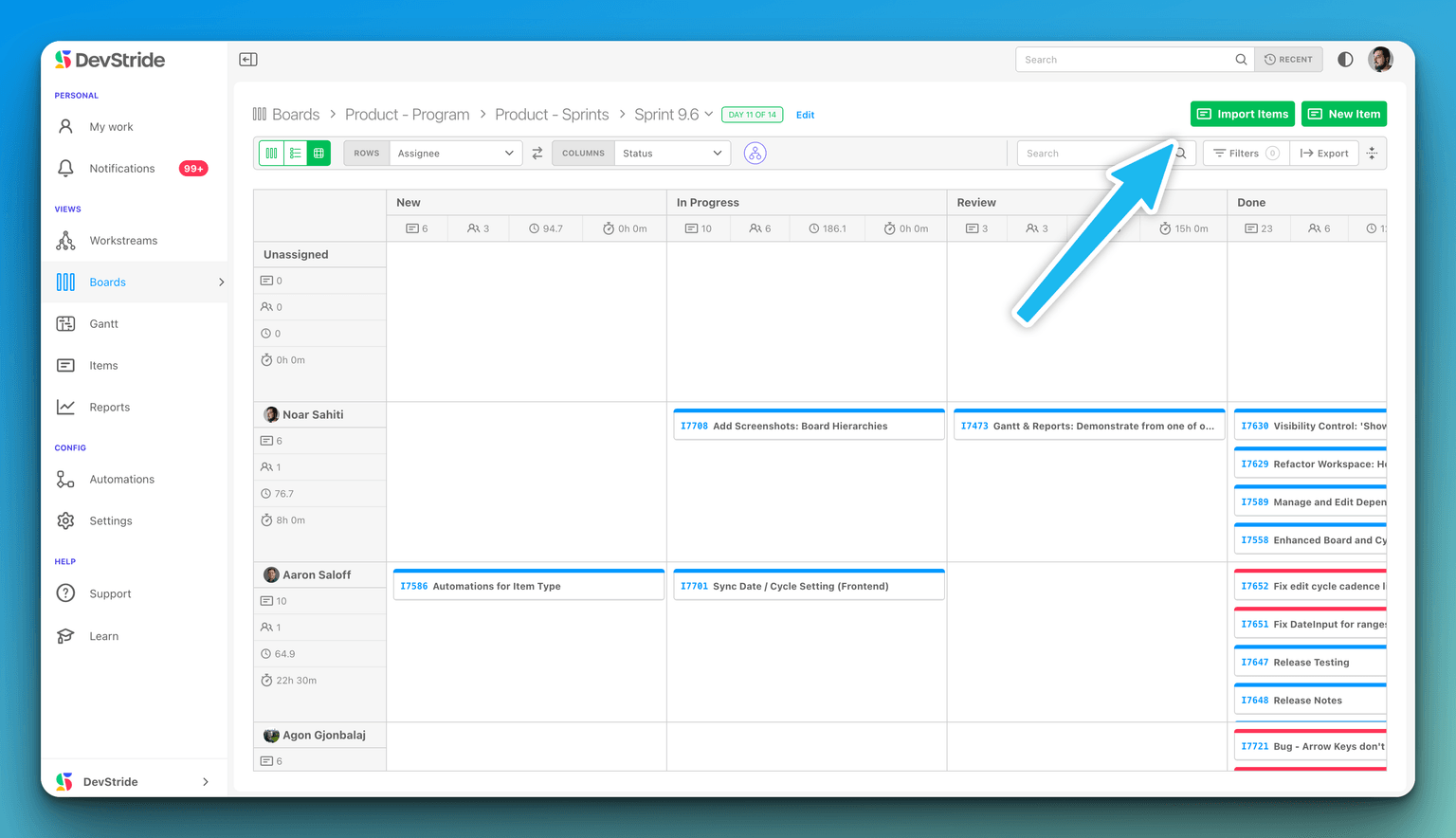
Step 1: Navigate to Your Board
- On the left sidebar, under the PERSONAL section, click on Boards.
- Select the appropriate board from the list of boards available.
Step 2: Access the Import Function
- Look towards the top right of your screen.
- Click on the green button labeled Import Items.
Step 3: Import Items
- Once you click on Import Items, a dialogue box or a new screen should appear.
- Here, you will be able to choose the stories or epics you wish to import.
- If the items you want to import are not immediately visible, use the search bar in the import tool to find them.
Step 4: Select Items to Import
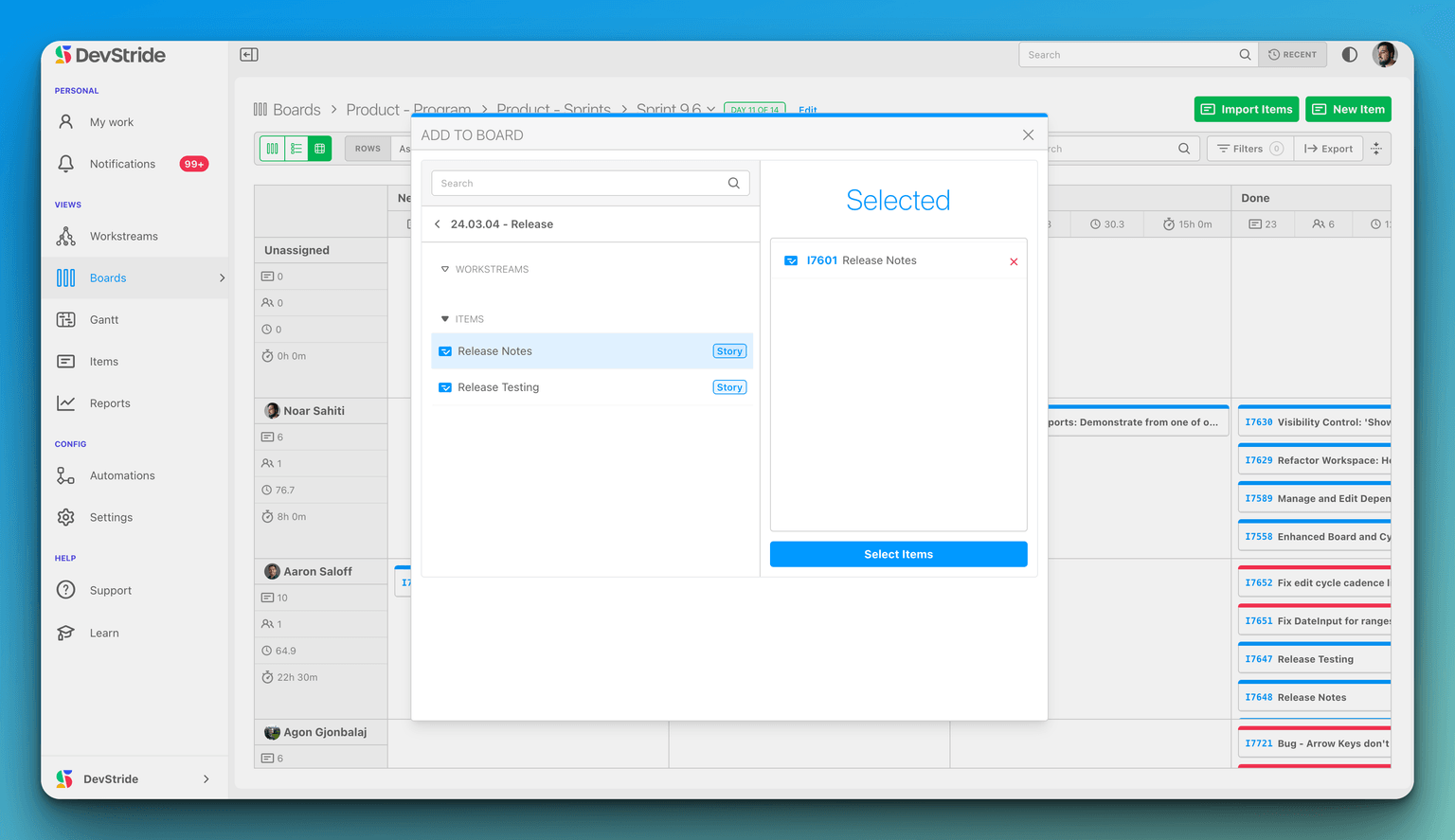
- When you have located the stories or epics, select them by clicking on the checkbox next to each item.
- After selecting all the items you want to import, click on the Select Items button, typically found at the bottom or in the lower right corner of the dialogue.
Step 5: Finalize Import
- After clicking Select Items, you may be prompted to confirm your selections or choose where on the board you'd like to place them.
- Follow any additional on-screen instructions to complete the import process.
Step 6: Review and Organize
- After importing, review your board to ensure all stories and epics are correctly placed.
- You can organize and assign the imported items as necessary by dragging them to the appropriate place on the board or by using board features for categorization.