Item Statuses
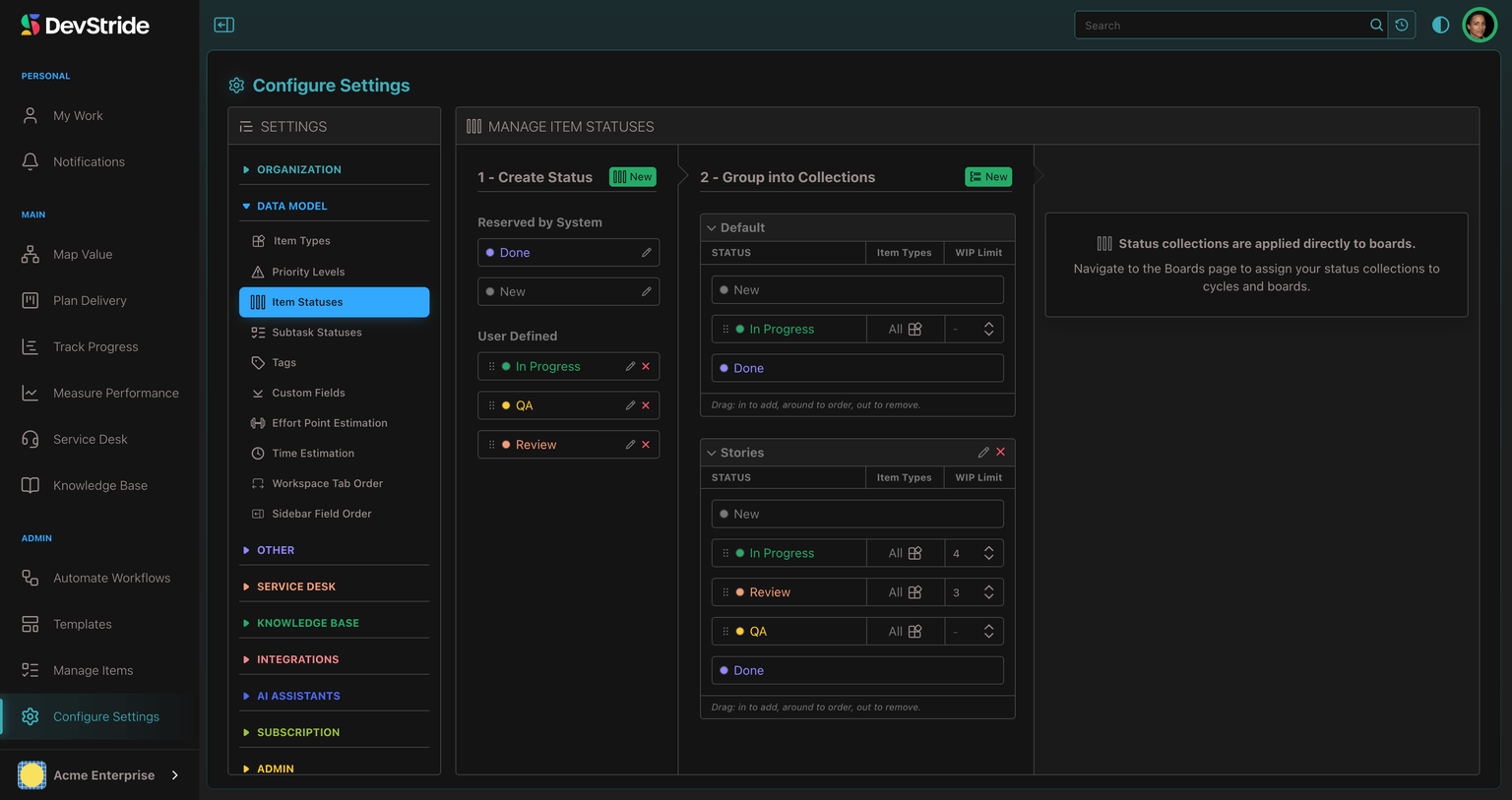
A status is a step in your workflow — New, In Progress, Review, Done — and a status collection is an ordered set of them that a board uses as its columns. Different boards can use different collections: a simple three-column collection for a support board, a longer one with Code Review and QA for an engineering board.
A WIP limit (work-in-progress limit) is a cap on how many items a status should hold at once. It is the Kanban idea that finishing beats starting: if In Progress is capped at 5 and already holds 5, the team swarms to finish something before pulling more. DevStride makes the limit visible rather than enforcing it.
Where to find it
Configure Settings → Data Model → Item Statuses. The page heading reads Manage Item Statuses. It needs the Manage work types permission (default Owner and Admin roles). Statuses for subtasks are set separately, on Subtask Statuses directly below it in the menu.
1 - Create Status
Click New, enter a Status Name and pick a Status Color. Two statuses are Reserved by System and cannot be renamed or deleted:
- New — where items start.
- Done — a terminal status, always Completed.
Everything else is User Defined: In Progress (created for you), Approved, Review, Pending Release, and so on. A status is shared across collections, so renaming it or changing its colour applies everywhere. A user-defined status can also be terminal, as Shipped or Cancelled are; see Terminal statuses.
2 - Group into Collections
Click New to create a Status Collection, then drag statuses from the pool into it; drag within to order the columns, drag out to remove. In a long list, hold the item on the band at the top or bottom edge and the list scrolls straight away. Each status row in a collection has two more settings:
- Item Types — which item types may sit in this status on boards using the collection. All Item Types Allowed is the default; restrict it to, say, Stories and Defects to keep Epics out of a Code Review column. Restricting a status that already holds items of the excluded types shows a warning (Warning: Items Will Be Affected) with the count of items that will be moved to the collection's default status before you confirm.
- WIP Limit — the maximum number of items this status should hold on a board. Leave it blank for no limit.
Removing a status from a collection asks you to confirm; any item in that status on a board using the collection moves to the collection's default status.
3 - Apply collections to boards
Status collections are applied to boards, not to teams or item types. Open the board (or cycle) in Plan Delivery and choose the collection in its settings; see Boards and WIP limiters. A new organization has one collection, Default, with New → In Progress → Done.
When an item moves to a board with different statuses
When an item moves to a board, team or item type whose collection does not include its current status, DevStride picks the closest status in the new collection:
- An item in a New or Done status goes to the new collection's status of the same kind.
- An item in one of your own statuses goes to a status with the same name (capitals and spaces at the ends are ignored), as long as it ends work the same way. A Cancelled item stays cancelled, for example.
- Otherwise, a status that ends work goes to a status in the new collection that ends work the same way, so finished work is never reopened.
- Anything else starts over in the new collection's default status, usually New.
What a WIP limit does
When a board column holds more items than its limit, the column header turns the warning colour and shows WIP Limit (n). Nothing is blocked: people can still move items in. The signal is the point. Use the Cumulative Flow and Cycle Time reports to see whether the limit is being respected and whether it is helping.
Deleting a status
Deleting a status first moves every item still in it to the first valid status in the item's collection, so nothing is left pointing at a status that no longer exists. Two rules apply:
- New and Done cannot be deleted.
- A status holding more than 1,000 items cannot be deleted in one step; DevStride refuses rather than attempt a relocation too large to complete safely. Move or drain the status below that limit, then delete it.
Terminal statuses
Not all finished work was completed. A request can be cancelled, withdrawn or declined; a feature can be shipped under its own name rather than moved to Done. A terminal status is one where an item's lifecycle is complete: Done, Cancelled, Rejected, Shipped and the like. Any user-defined status can be made terminal, with an outcome:
- Completed — the item counts as completed, like Done. Use it for statuses such as Shipped or Released.
- Not completed — the item is finished but not counted as completed. Use it for Cancelled, Won't Do or Duplicate.
Marking a status
Open the status (Edit in the pool), switch on Terminal status, and choose Completed or Not completed. The pool and every collection then show the outcome as a small badge beside the status name. New cannot be terminal, and Done is always terminal as Completed.
Saving applies the change to the items already in that status, in the background. The save message tells you how many items are being updated:
- Marking a status ends every item in it that has not already ended. Each item's end date is back-dated to when it entered the status, so reports read as if the status had always ended work.
- Changing the outcome keeps each item's end date and changes only how it counts.
- Unmarking a status reopens the items in it.
What a terminal status changes
- Items. Moving an item into a terminal status ends it, records the outcome and stamps its end date, exactly as moving it to Done does. An ended item is no longer shown as overdue, and the Gantt draws an item that ended Not completed muted, with a ✕.
- Parents. When every child of an item has ended, whatever the outcomes, the parent moves to Done. A child that has already ended is never moved when its parent is completed.
- Totals and reports. Work that ended Not completed is removed scope: it leaves the item counts, estimates and points that progress, burndown and burnup use, so cancelling work shrinks what is left instead of counting as done. Time logged on it still counts. Work that ended Completed counts as completed everywhere Done does.
- Filters and searches. Ended items are grouped with done work. Where a filter or report asks for completed work, only items that ended Completed match.
- Automations and notifications. Board automations that act on finished work treat every terminal status as finished, a status-change notification says whether the item was completed or ended without being completed, and your own due-date reminders skip any item that has ended, whatever the outcome.
- Customer portal. On a Service Desk ticket, a terminal status reads Solved (Completed) or Closed (Not completed) to the customer, unless the work type maps the status to a customer status of its own; see customer statuses.
Effort Points and Time Estimation
Turn effort points on per item type and choose the point format, and define the three-point time-estimate ranges (optimistic, likely, pessimistic) each item type offers.
Subtask Statuses
Add your own subtask statuses, such as Cancelled or Blocked, beside New, In Progress and Done, and choose which ones count as finished.