Subtask Statuses
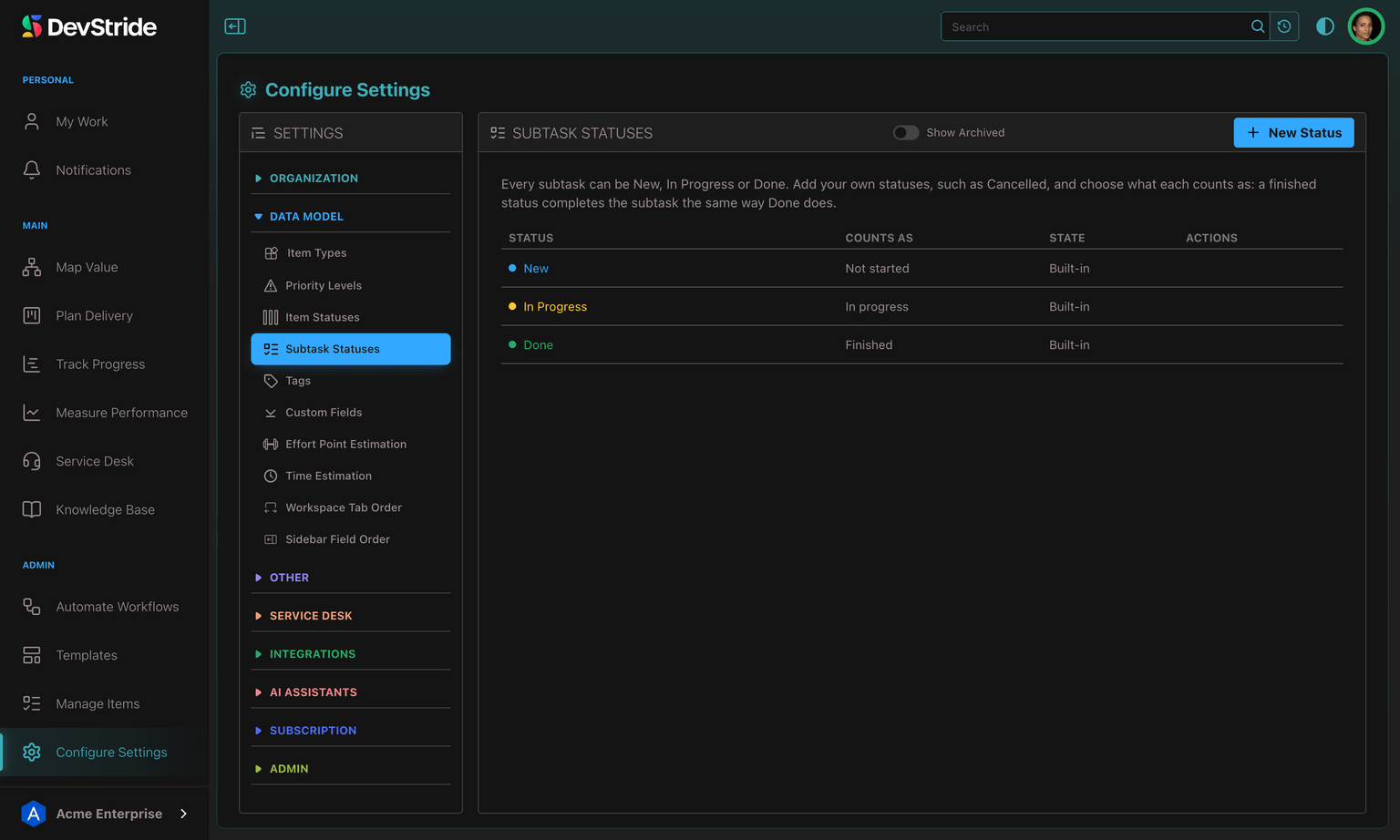
Every subtask can be New, In Progress or Done. Subtask Statuses lets you add your own, such as Cancelled or Blocked, so a subtask can say what actually happened to it.
Where to find it
Configure Settings → Data Model → Subtask Statuses. The page needs the Manage Org Configuration permission (MANAGE_ORG_CONFIGURATION), held by the default Owner and Admin roles. The three built-in statuses are listed first and cannot be changed.
Add a status
- Click New Status.
- Enter a Name and pick a Color.
- Choose what it Counts As: Not started, In progress or Finished.
- Click Create Status.
Edit a status later to rename or recolor it, and archive one you no longer use; turn on Show Archived to see archived statuses and Restore one. An organization can have up to 50 of its own statuses.
What "Finished" changes
A Finished status completes the subtask the same way Done does. That matters because an item with open subtasks is not considered done: a subtask marked Cancelled (counting as Finished) stops holding its item open.
Pick the status on any subtask by clicking its status in the subtask list, the same place you choose New, In Progress or Done.
Strikethrough for subtasks
The Formatting Rules page can also mark subtasks. Under Strikethrough Subtask Statuses, tick the subtask statuses (built-in or your own) whose subtasks should show their title in red with a line through it, the same way struck-through items appear. It takes effect while the Strikethrough Style for Statuses checkbox on that page is on.
Item Statuses
Define the statuses work moves through, group them into collections for boards, restrict a status to certain item types, and set WIP limits that warn when a column holds too much.
Customizing the Item Drawer
Per item type, choose which tabs and sidebar fields the item drawer shows and in what order, arrange the sidebar's field groups, and promote individual custom fields to their own sidebar pill.