Item Types
Item types are the vocabulary of work in your organization: Epic, Feature, Story, Defect, Task. Every item has exactly one type, and the types form a hierarchy that DevStride enforces everywhere an item is created or moved. The hierarchy also decides what each type carries: custom field collections, priority levels, tag collections, effort-point and time-estimation settings, and the layout of the item drawer are all assigned per item type.
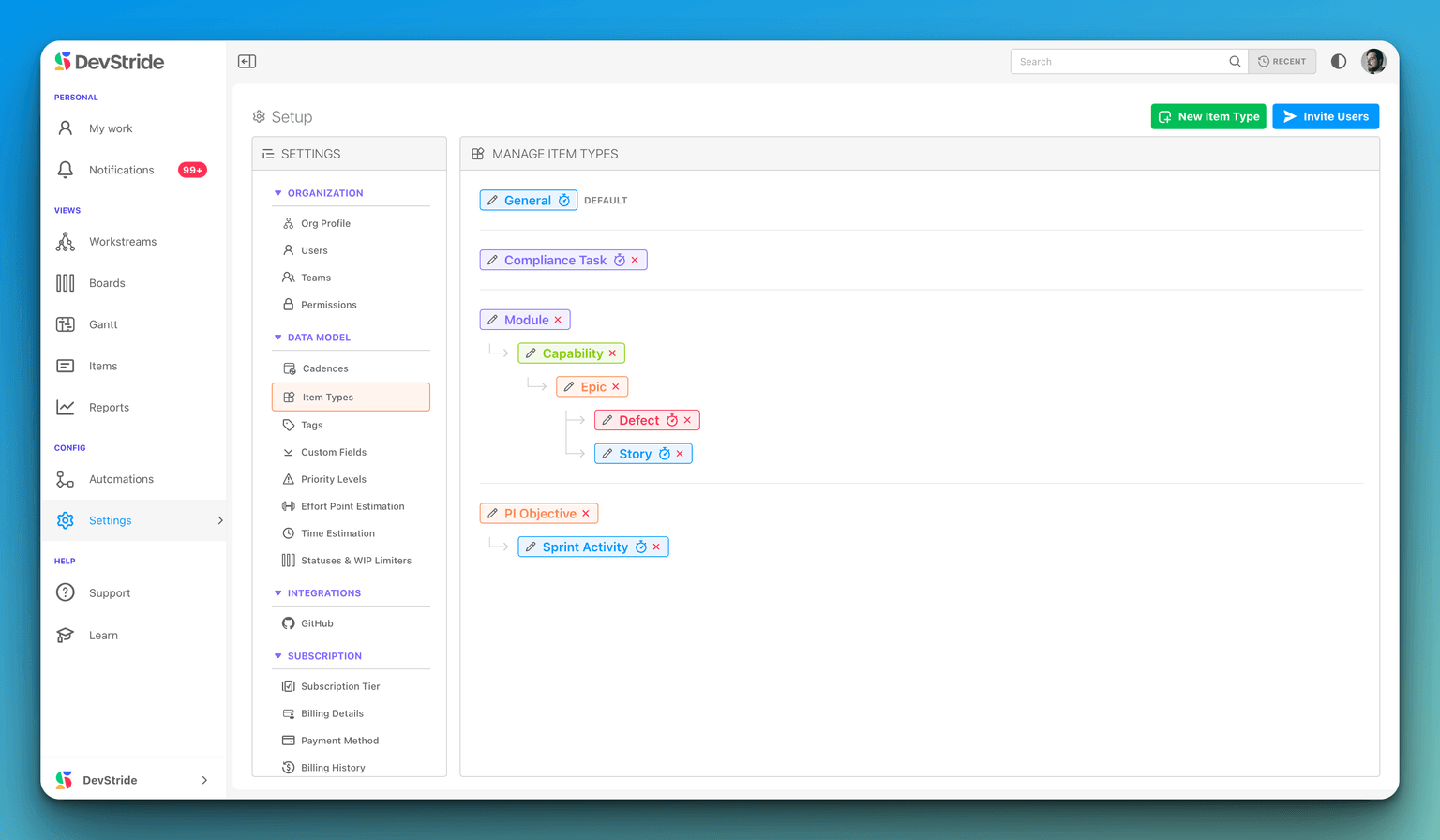
Where to find it
Configure Settings → Data Model → Item Types. The page needs the Manage work types permission (default Owner and Admin roles). It shows your types as a tree, each type under the parents it is allowed to sit beneath. A new organization starts with Item (the default type), Epic → Feature → Story and Defect, and Objective → Task.
Creating or editing a type
Click New Item Type, or the pencil on an existing type, and fill in:
| Field | What to enter |
|---|---|
| Label | The type's name, singular: Story, not Stories. |
| Parent Item Types | One or more types this one may sit under. Leave it empty — None (top level) — for a type at the top of the hierarchy. |
| Badge Color | The colour of the type badge shown on cards, tables and the item drawer. |
Whether items of a type can have time logged against them is not set here: by default any item can, and the organization-wide Allow Parent Item Time Entries switch restricts logging to types with no child types.
Choosing parent item types
A type can sit under more than one kind of parent. For example, allow Story under both Feature and Epic, so a small piece of work can go straight under an Epic without a Feature to hold it.
When you pick more than one parent:
- The type is allowed under every parent you pick, and the tree draws it under each of them. Every copy is the same type, so an edit (its name, colour or parents) shows in all of them at once. Each chosen parent appears in the dialog as a chip in that parent's colour.
- The first parent is the primary one. DevStride uses it wherever only one place can be shown, such as the item type pickers. Click Make primary next to another parent to change it.
- The list never offers a type that would create a loop. You cannot pick the type itself, or any type beneath it, as its parent.
You can add a parent at any time. Removing one is refused while items of this type still sit under items of that parent type, and the dialog warns you: "Existing items keep their current parents — but removing a parent type here will be blocked while any items of this type are still nested under items of that parent type." Move those items first, then remove the parent.
Everywhere you place an item, DevStride accepts any of its type's permitted parents: the parent picker in the item drawer, the location picker when you change a type, moving items and drag-and-drop in the Map, quick-add, creating items with AI, request forms, item templates, and the Jira and Azure DevOps sync.
Deleting a type
Click the red X on a type. Deletion is refused while any item, archived ones included, still has the type; reassign or delete those items first. When a type is deleted, the types that sat under it become allowed under each of its former parents instead, alongside any parents they already had.
What is assigned per type
Once your types exist, the other Data Model pages each end with a 3 - Assign to Item Types column where you pick, per type, which collection applies:
| Setting | Page |
|---|---|
| Which custom fields an item shows, and where | Custom Fields |
| Which priority levels it can take, and the default | Priority Levels |
| Which tags it can carry | Tags |
| Whether and how it is pointed, and which time-estimate ranges it offers | Effort Points and Time Estimation |
| Which tabs and sidebar fields its drawer shows | Customizing the Item Drawer |
Statuses are the exception: a status can be restricted to certain item types, but status collections are applied to boards, not to types. See Item Statuses.
Changing an item's type
Click the type control on the item: in the item drawer header, the Type cell of a table, or a board card. You can also select the item in an items table or the Map and choose Item Type from the bulk-edit menu. What happens next depends on whether the item's children still fit under the new type.
When every child still fits
The Update Item Type confirmation opens. It shows what the change does to this item: field values that would be lost, tags, a priority or status that resets, and anything hidden but kept, such as estimates or logged time. If the new type cannot stay where the item is, the confirmation asks for a location that can hold it, defaulting to the nearest place up the chain. You can keep the current location when it fits.
When the children need new types too
When a parent and its children need to change together, for example an Epic becoming a Feature while its Stories become Epics, picking the new type opens the Change item types dialog. The parent and everything beneath it convert in one step:
- The dialog opens already filled in. For each type found in the tree it suggests a new type: one with the same name, one that uses the same fields, or the only type that fits beneath the new parent type. Every row stays editable, and you can leave a type unchanged.
- If the parent's new type cannot stay where it is, the dialog asks where it should go, defaulting to the nearest place up the chain that can hold it. The move happens in the same step as the conversion.
- As you choose, the dialog checks the result. It lists each item that would end up under a parent that cannot hold it, for example "I14 would be a Task under I10 as a Feature, which cannot hold it.", and flags an item whose board has no status that allows its new type. Adjust the mapping until it reads "Every item fits."
- A panel under the mapping says, in plain words, what the conversion costs:
- Lost: field values the new type does not have, tags, and priorities that reset.
- Changed: statuses and completion.
- Hidden but kept: estimates, tabs, time logging and portal fields that the new type turns off. Nothing is deleted.
- Request forms and email addresses that would create a type their parent can no longer hold. These are switched to the mapped type in the same step.
- Automations whose actions would fail after the change. These are turned off in the same step, with the reason recorded on each.
- Access: whether it changes. It does not change unless the move puts the item somewhere shared differently.
- Click Convert. When anything would be lost, the button turns red and reads Convert anyway. The message afterwards lists the forms, addresses and automations the conversion changed.
Either every item converts or none does: if anything changed since the check, nothing is changed and the problem is reported. A tree can hold at most 200 items, counting the parent and archived items; a larger tree is refused before the dialog opens. You need permission to update items and edit access to every item in the tree. Switching request forms or email addresses also needs Manage Service Desk Settings. A tree that holds items synced from Jira or Azure DevOps is refused, because that tool owns those items' types.
For a bulk type change with no children involved, the selected items must have a parent type in common, and the list offers only the types that fit where each selected item sits now.
How types affect progress
An item's progress counts only its direct children. If Stories may sit under both Epics and Features, an Epic's progress counts its Features and any Stories placed directly on it, not the Stories inside its Features. Right-click an item in the Map for its item-type totals.