Admin Onboarding - Item Workspace Tabs
Item Workspace Tour: Tab Features
Discussion Tab
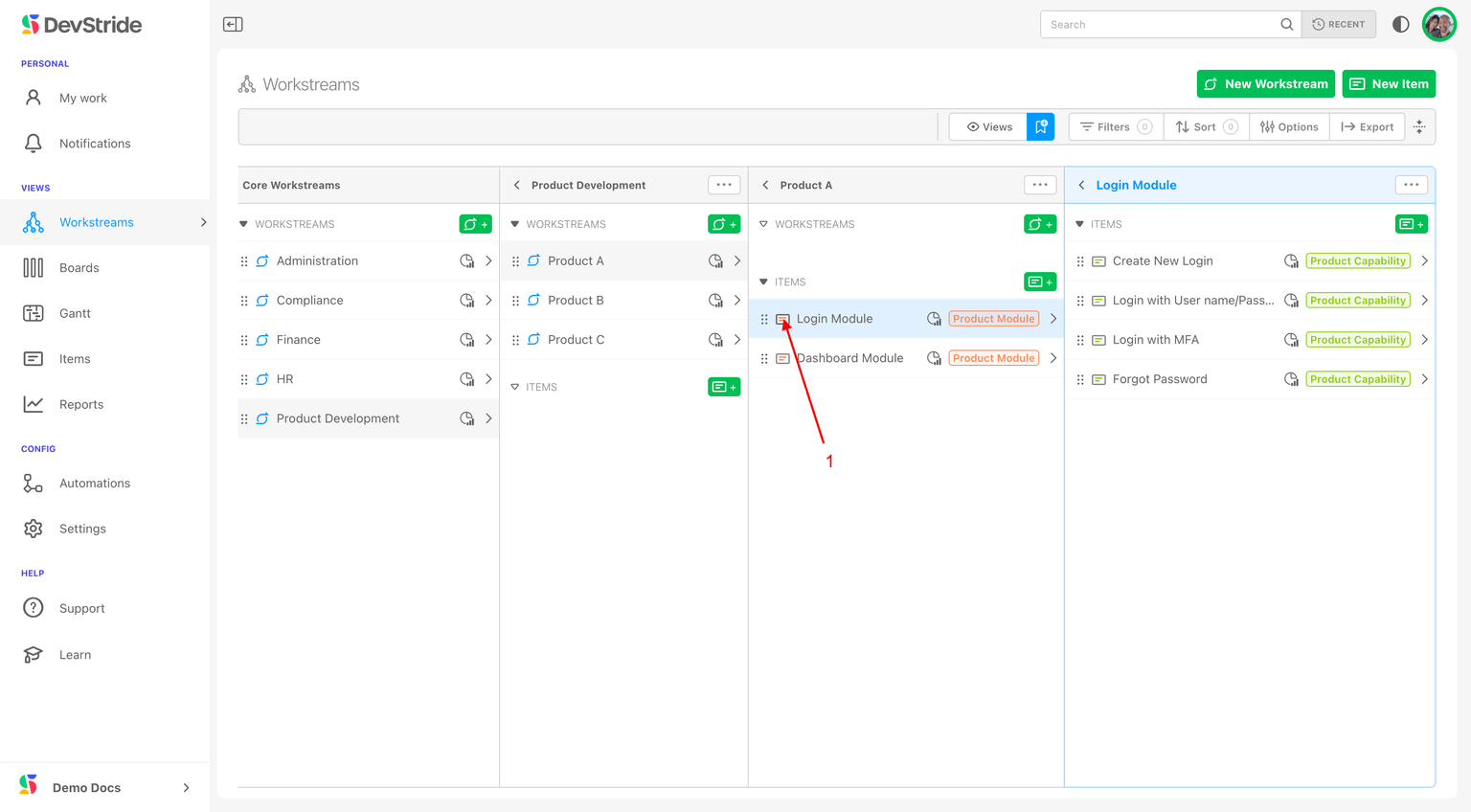
To review the tabs on the item workspace, we will take a look at a Module Item (1) from our earlier example. There are a few more tabs that come with custom fields that we will cover later.
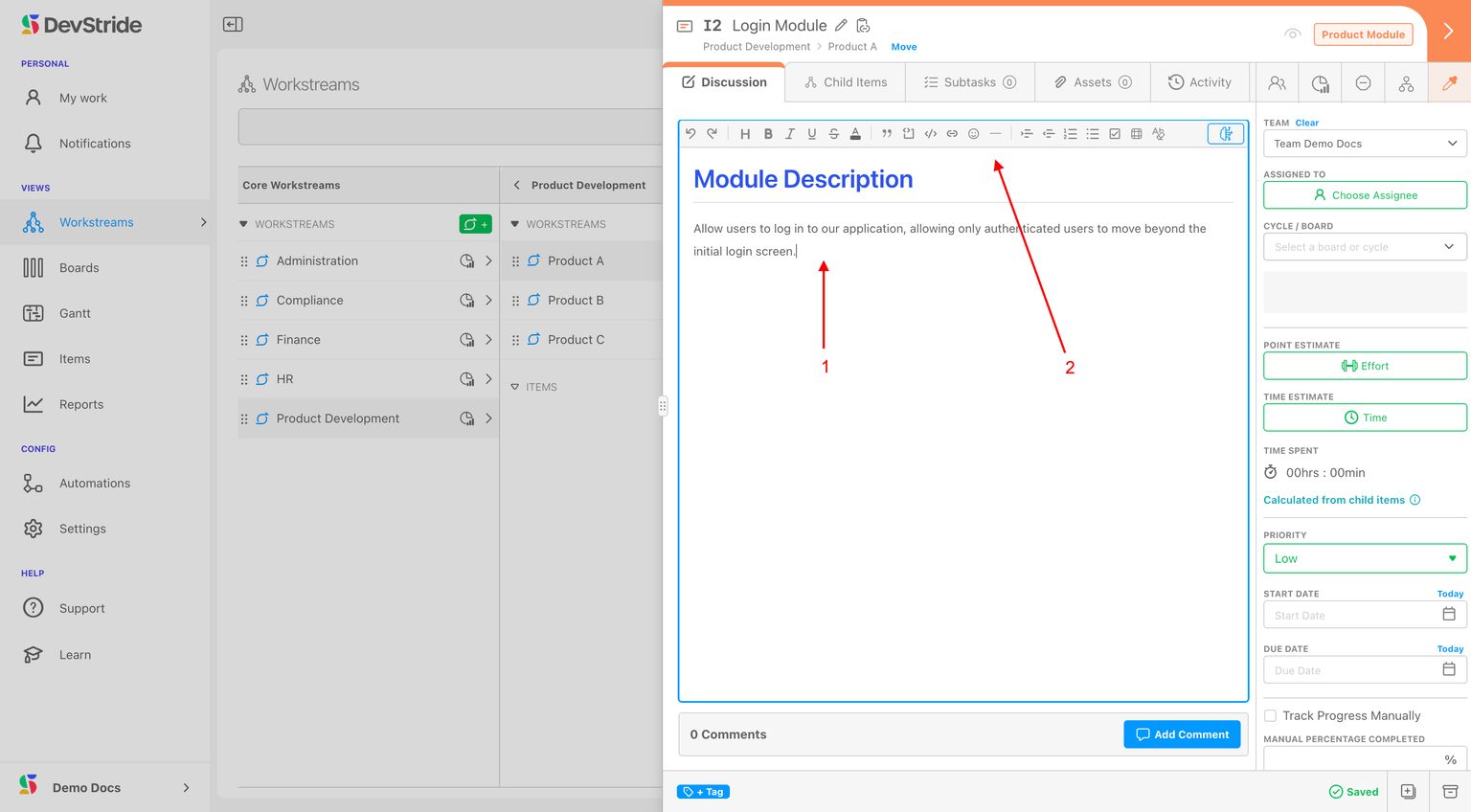
We might want to describe what the expected module will deliver. We can do this in the Discussion tab (1). This tab allows you to describe the item using a feature-rich text editor (2).
→ AI Time Saver
You can take advantage of AI in DevStride to help generate your item description. On the description editor toolbar, click the purple brain button on the right side (its tooltip reads Use AI templates to generate a description).
This opens the Generate Description modal, where you can guide what the AI produces:
- Select a description template — choose a built-in or organization-saved template. The built-in Custom template scaffolds Objective, Description, and Acceptance Criteria sections to get you started.
- Template (Supports markdown) — the prompt template the AI uses to structure the description. You can write or edit this in Markdown.
- Additional instructions (optional) — extra guidance such as tone or style (up to 400 characters).
When you are ready, click Generate Description. While the description is being created, an overlay reads Generating description... The AI uses your item's title and current description along with the template and any additional instructions to build the result.
What This Gives You
The AI feature can save countless hours by providing relevant content, a consistent way to describe an item, suggested steps or considerations, and any additional information you would like to include — all shaped by the template and instructions you choose.
Reusable description templates
Description templates are saved at the organization level, so the whole team can reuse them. Anyone with edit access can pick a template and generate a description, but only your organization's administrators can save, edit, or delete reusable templates — by default, the Admin and Owner roles (the roles that can open Configure Settings).
A template is made up of two things you fill in at the top of the Generate Description dialog:
- Template (Supports markdown) — the layout of the description you want, written in markdown (a simple way to add headings, lists, and sections using plain text). This is the structure the AI fills in.
- Additional instructions (optional) — guidance on how it should read, such as the tone (formal, informal, business-friendly) or level of detail. Up to 400 characters.
Creating and saving a template (administrators), step by step
- On an item's Description tab, open Generate Description (the AI description option).
- In the Template (Supports markdown) field, type or paste your markdown layout (see the tip above for an easy way to create it).
- Optionally, add Additional instructions to set the tone or style — for example, "Keep it concise and written for a business audience."
- Click the Save link next to Select a description template to open the Manage Template section.
- Enter a Label — the name teammates will see in the list (up to 100 characters) — and, optionally, a short Description explaining when to use it (up to 200 characters).
- Click Save template. To change an existing one, select it first and click Update; use Save as new to branch it into a separate template, or the trash icon to delete it.
Once saved, anyone with edit access can choose it under Select a description template and click Generate Description.
Comments
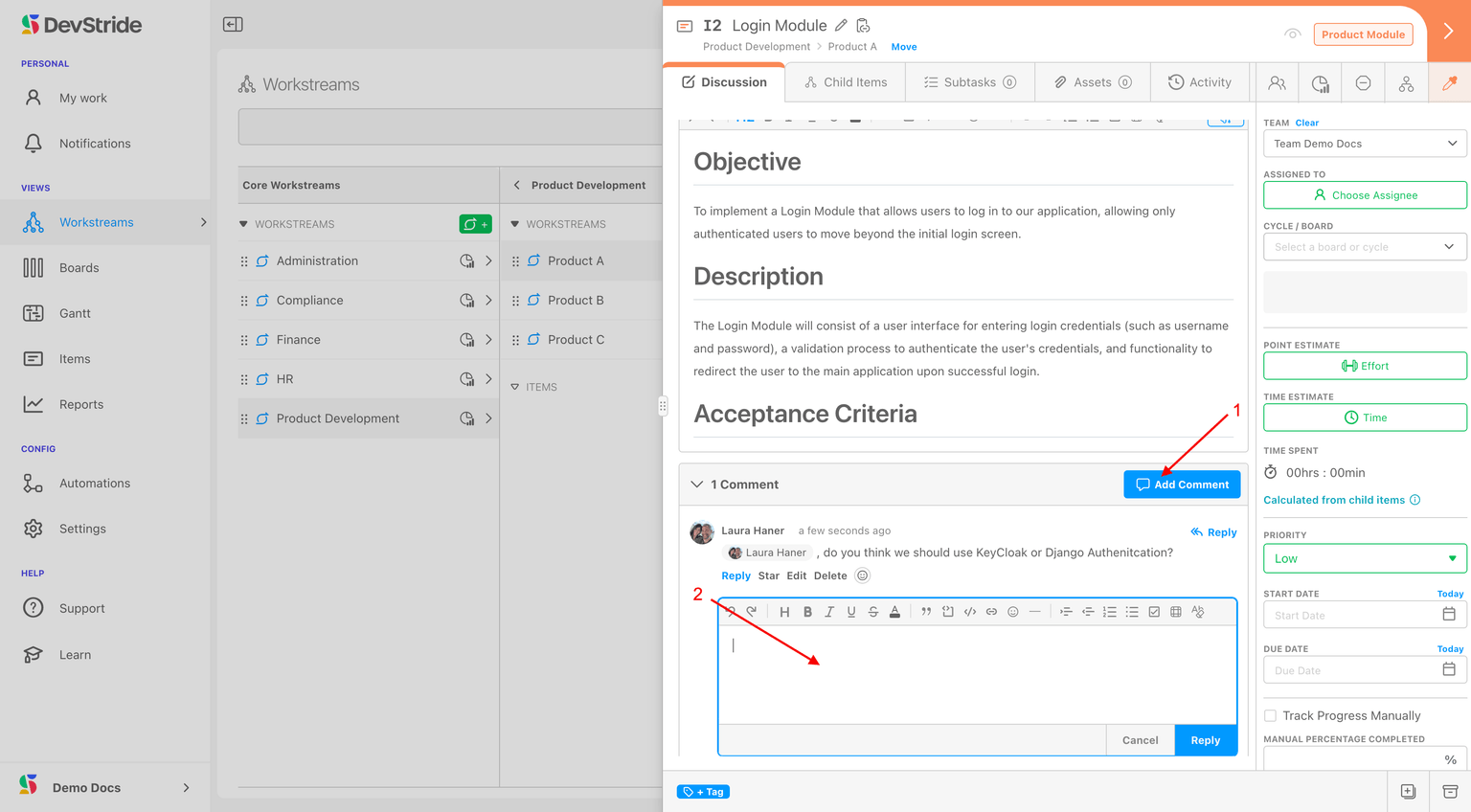
The Discussion tab also has a Comments feature (1). This feature helps you capture valuable discussions pertaining to the item (2). This comments section is also integrated with DevStride Notifications and email.
Child Items Tab
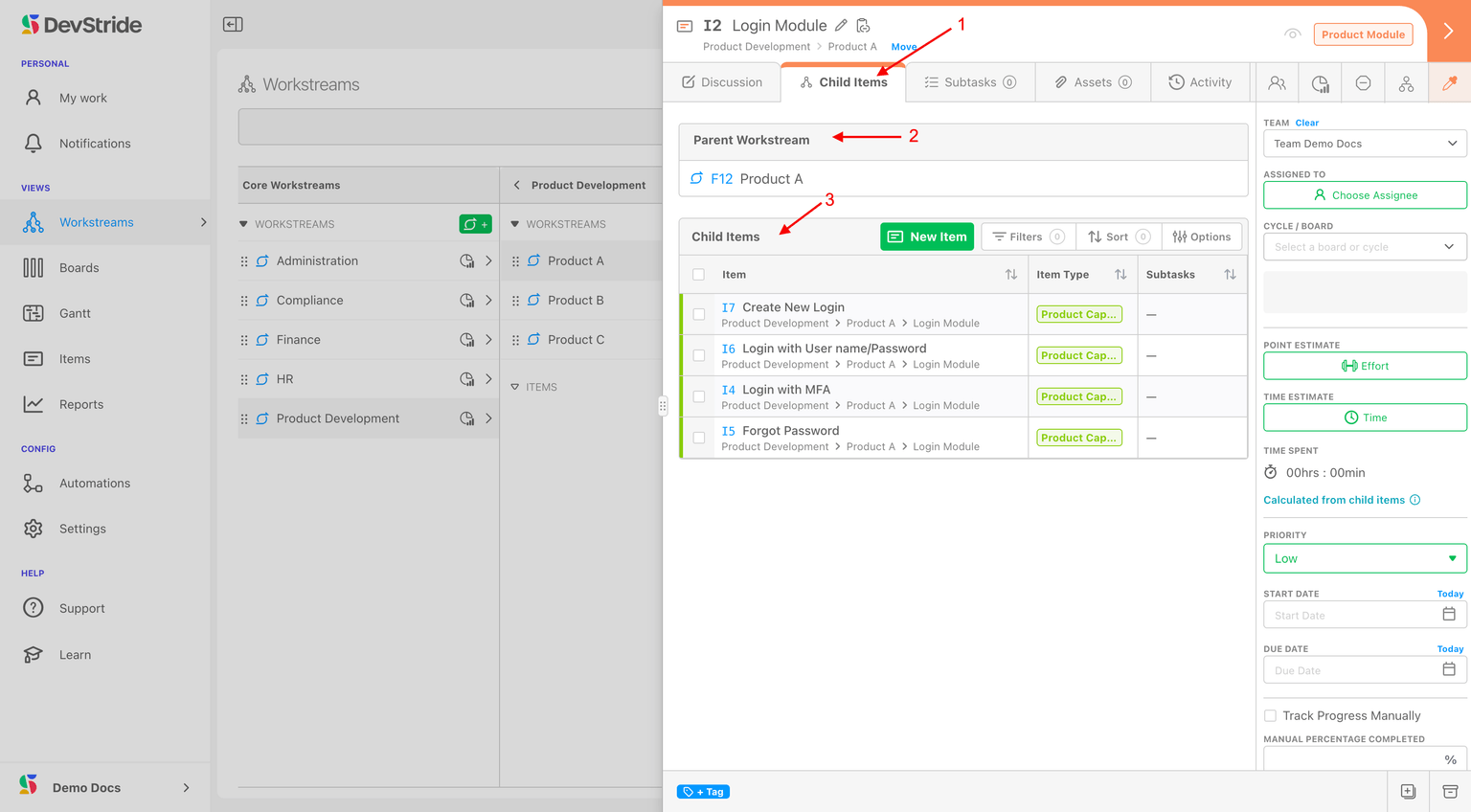
This tab (1) provides another quick link to reference where this item lives in the workstream map.
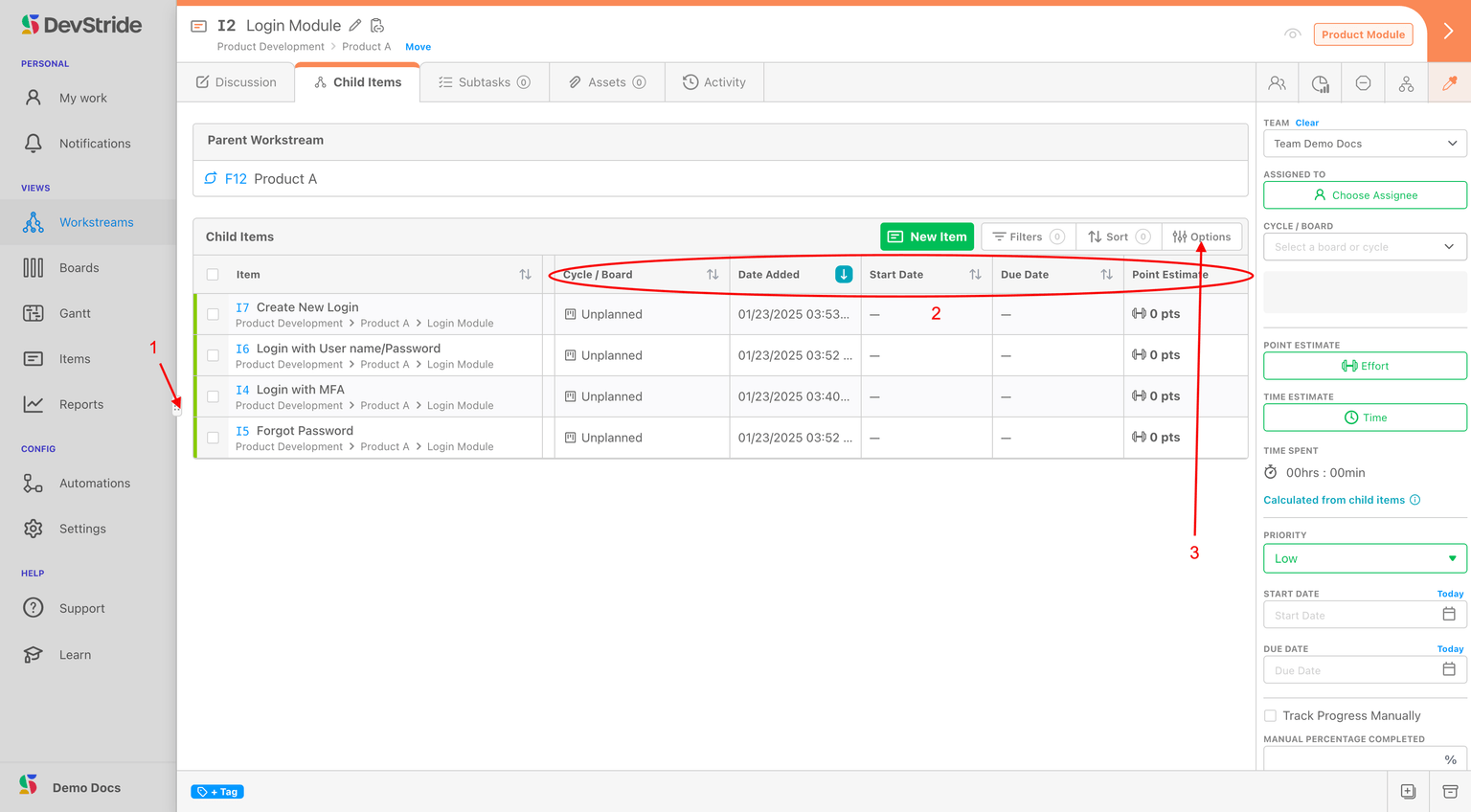
You can see both its parent workstreams (2) and its child items (3). This section provides the child information in a table format. This tab is a convenient place to make changes to child items - as the data in table are actionable as well.
New child items can be added here.
In addition, if you click on the grabber bar (1) and drag it to the left, you can expand any item window to provide a larger view.
Inside this table, you can filter, sort by fields, determine which columns you would like to see. You can also and set columns using the options available.
You can also manage large lists of items here through Filter, Sort and Options views (2). If you'd like to manage which columns you view from here, click on Options (3):
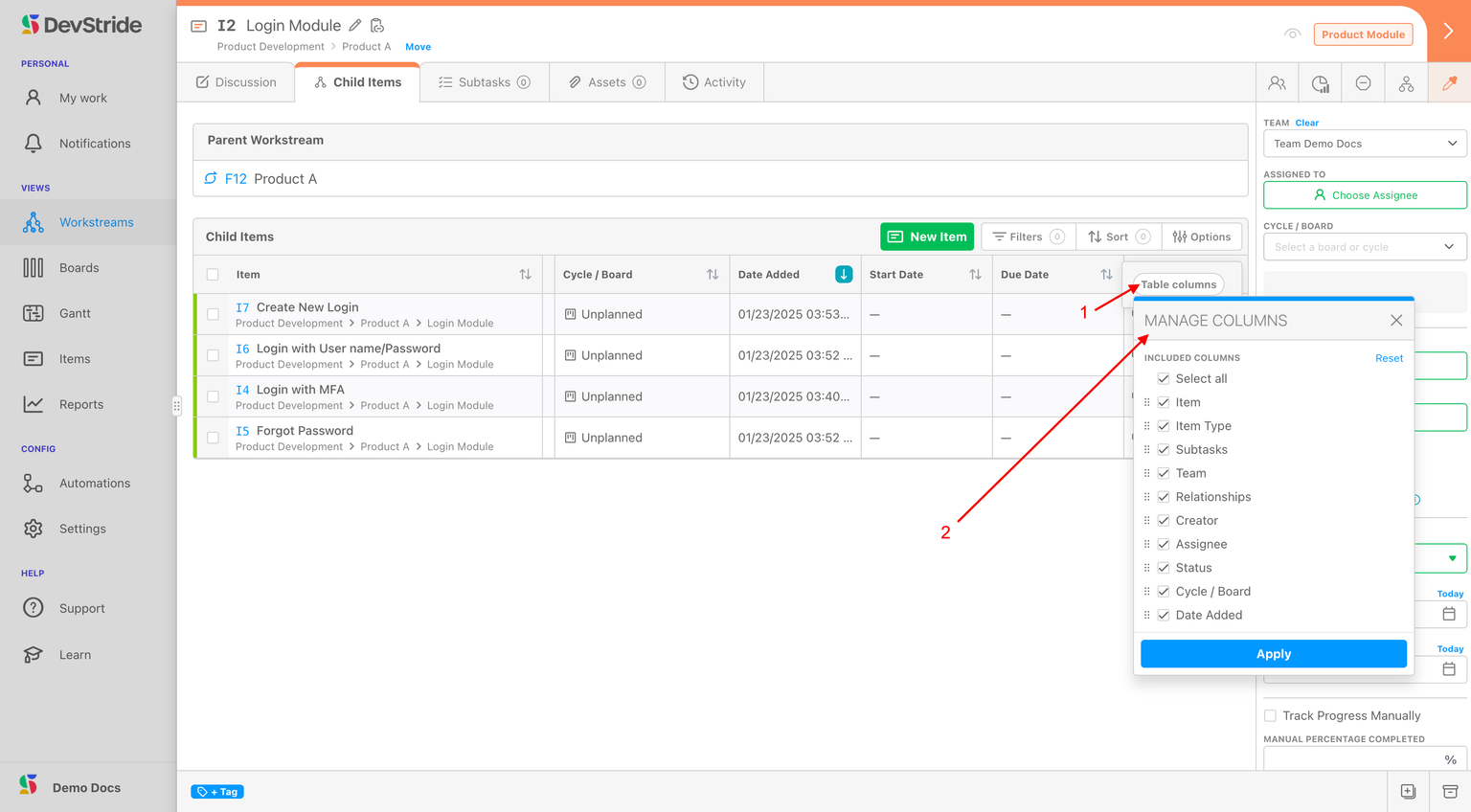
Then click Table Options (1) and select the columns you'd like to see (2):
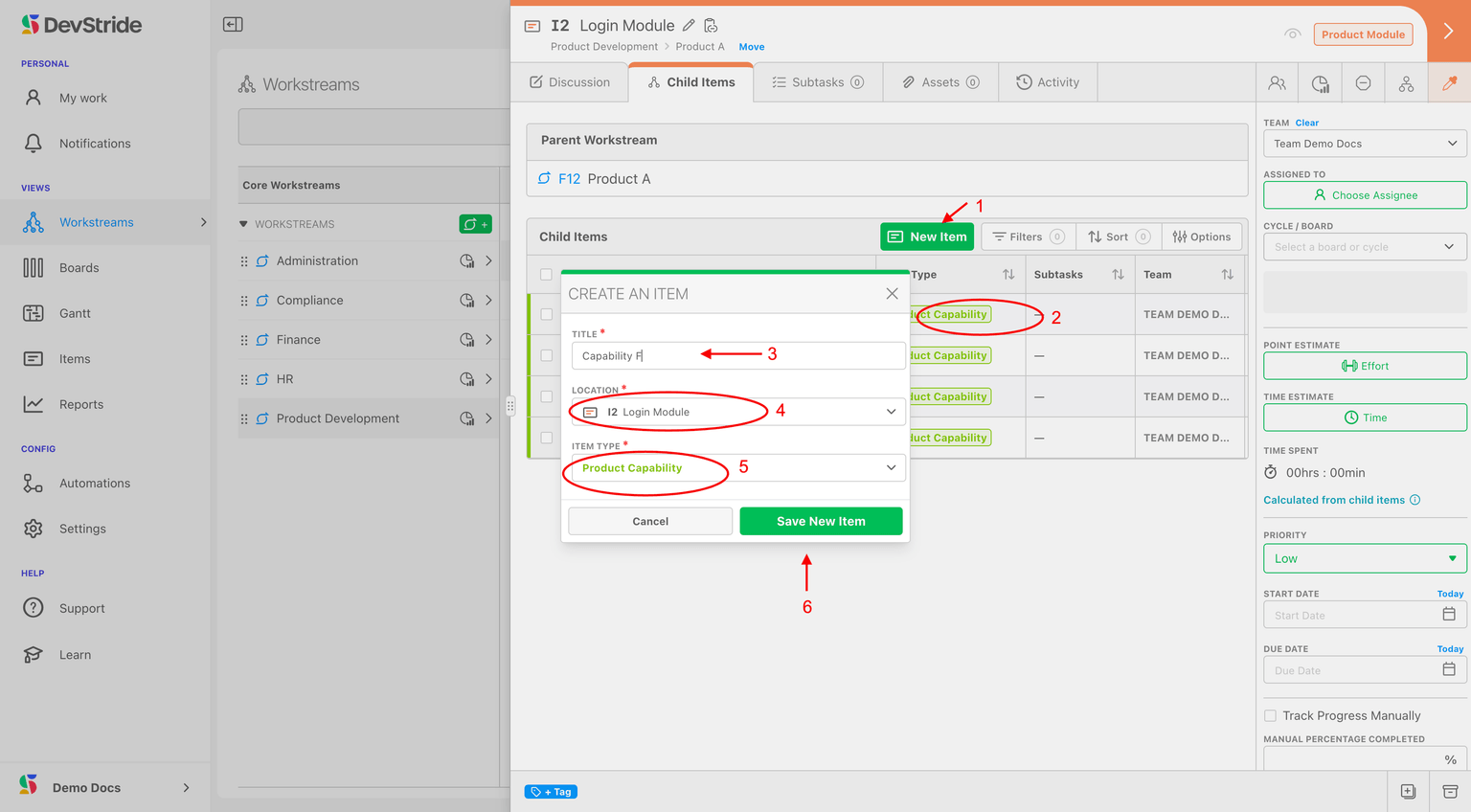
If you'd like to add a new work item right from this screen, click on New Item (1). Note that the default new item type assumes the hierarchy of the child items in current list (2). The add-item dropdown also offers Create Items with AI for generating several child items at once — see Creating Items with AI.
A pop-up window displays. Name the item you are adding (2). You can accept the location and item type or, you can change the location and item type as well throught these dropdowns (4 - 5). Click Save New Item (6) when finished.
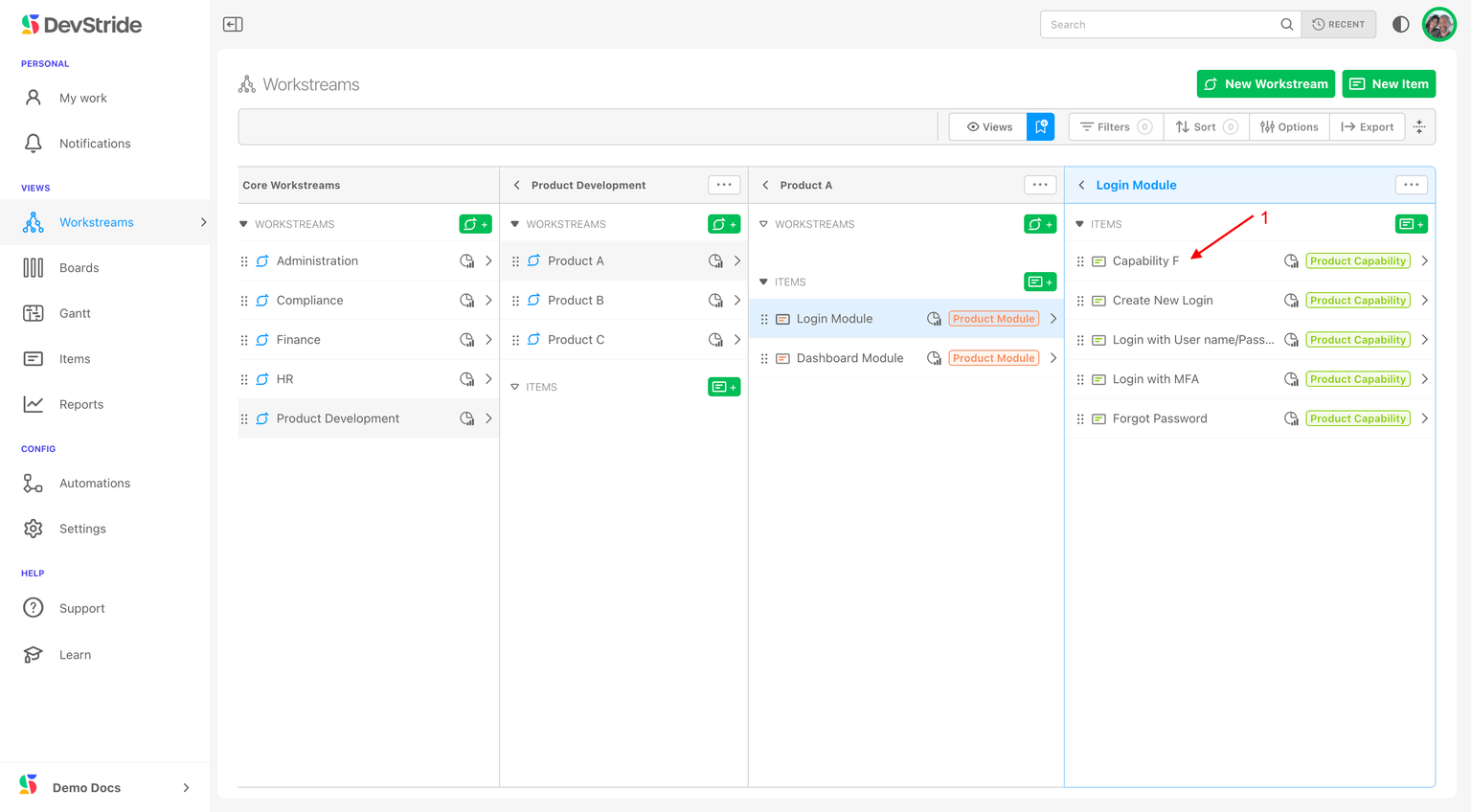
Adding items here is synchronized with the main Workstream Map and will automatically populate in the map as well. Here, our example, Capability F, is now on the Workstream Map in the correct location (1).
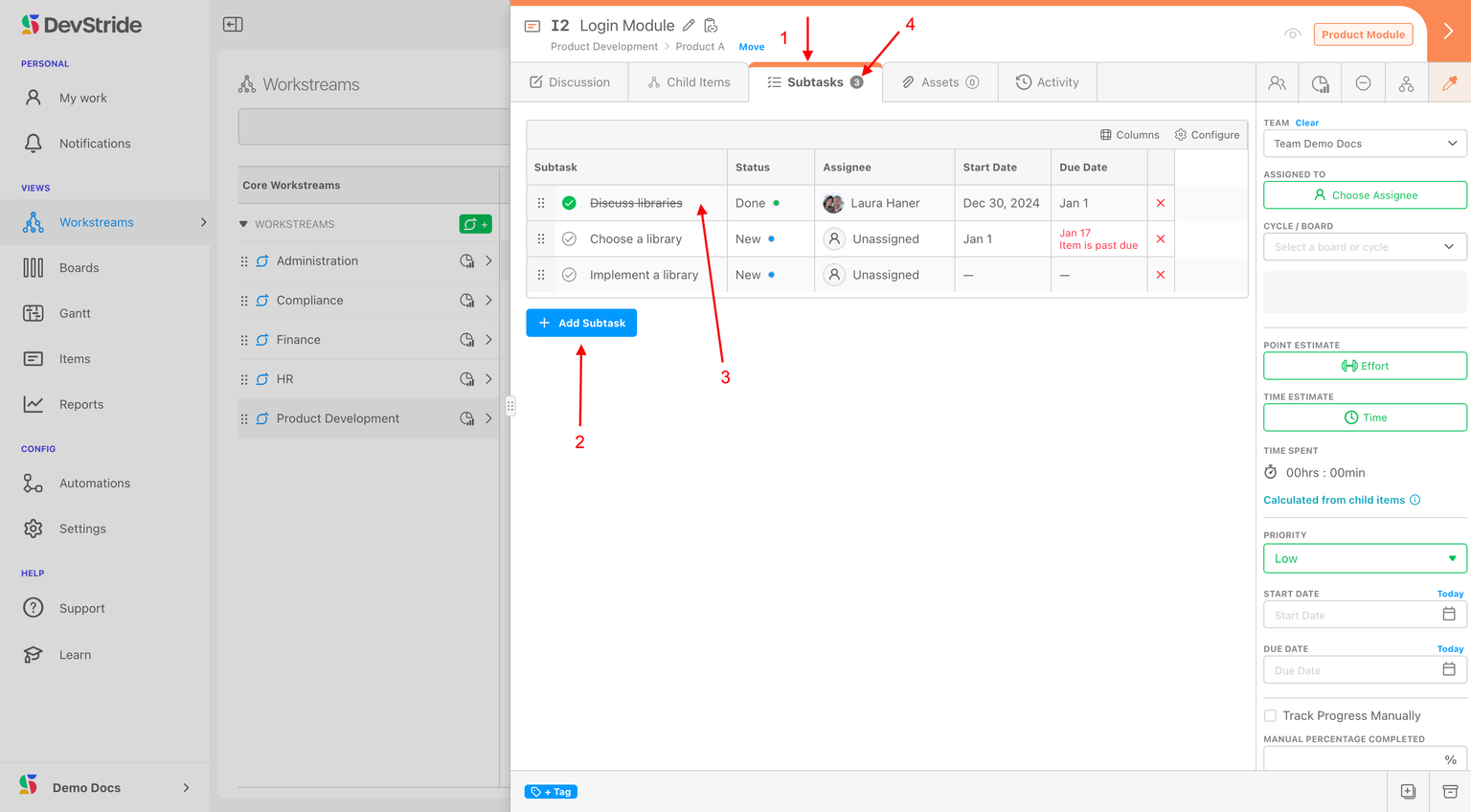
Subtasks Tab Subtasks exist for the purpose of creating a light-weight task list. This is not designed to be work with a data model and reporting, etc. It's meant to be a checklist of small activities you want to remember to do related to this particular item.
If you need to report on the activity, do not manage it as a sub-task item.
Subtasks are not represented in DevStride reports in any meaningful way. While they have some helpful capabilities (can be copied as part of a template, can have due dates, an —if they are on the lowest level of the item hierarchy—can track time against them, etc.), they are meant to be used as simple checklist items.
You can assign subtasks to people and give each of the sub-tasks their own due dates (as long as they do not exceed the item's due date).
If you use a subtasks list, your item will not be considered "done" until the sub-tasks are also completed.
To create subtasks: From the Subtasks tab (1) click on Add subtask (2).
To indicate a subtask is complete, simply click on the checkmark next to it (3). Note that you can see that there are subtasks on this tab by glancing at the badge counter (4).
Assets Tab
The Assets Tab is a way of organizing and linking to the item's relevant external resources. Great examples of useful assets are:
- Google Docs of living or static documents
- Figma boards or other design files
- Spreadsheets
- Websites
- Local files (these can be uploaded instead of linked)
What this gives you
This functionality creates durable assets for ongoing reference and use.
Assets help keep everything up-to-date and all in one place for visibility, without having to reproduce it manually.
Rather than trying to recreate large amounts of information in the description tab or pass around and update documents, use links in Assets wherever possible.
Links allow you and your team to refer to and work on the most current version of any given file.
Asset links preserve access rights protection so that only team members with the appropriate rights can actually open the document.
How to Do it
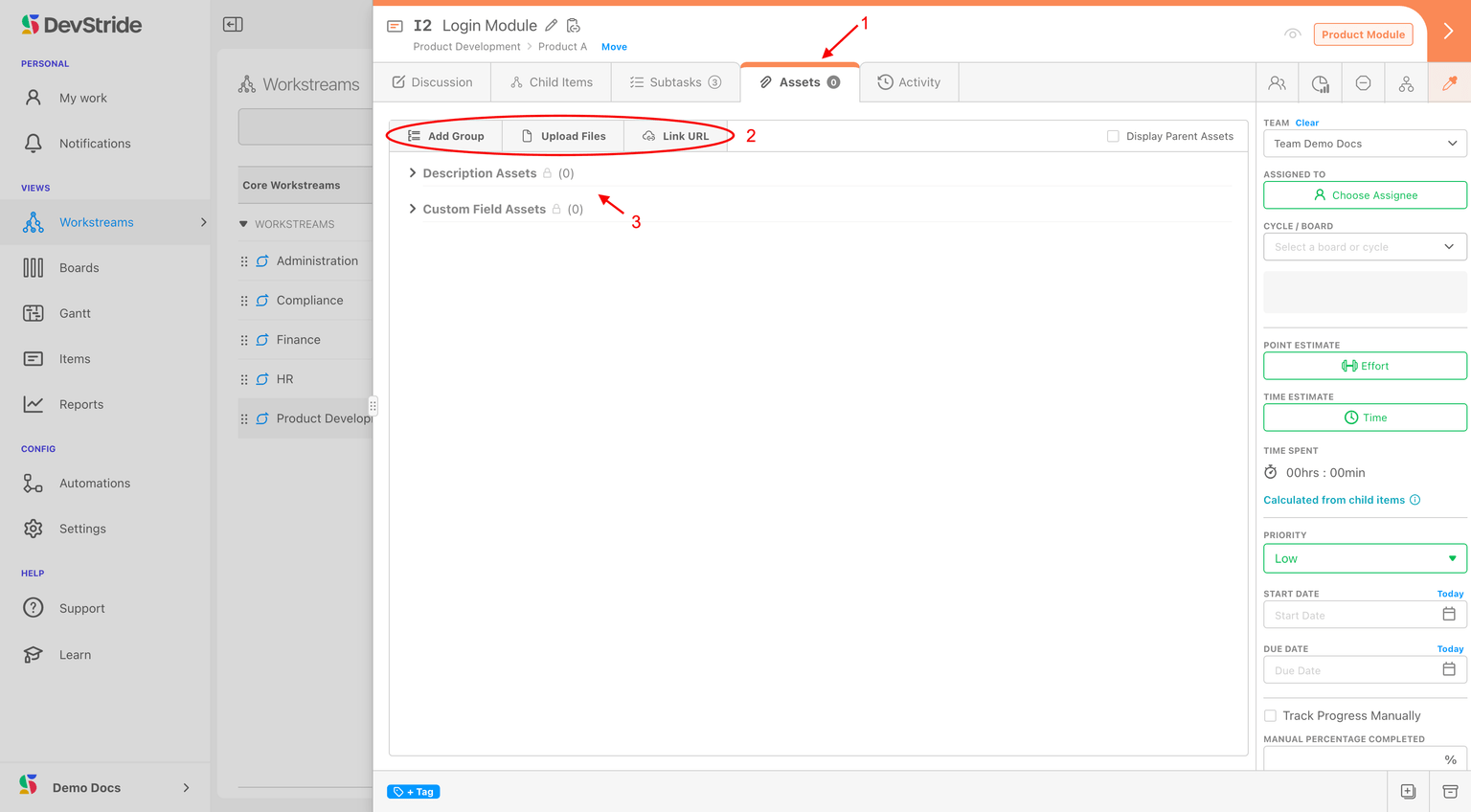
The Assets tab header offers three buttons: Add Group, Upload Files, and Link URL. Use Upload Files to attach local files, and use Link URL when you want to link to a living shared file that is stored online (like Google Docs). Use Add Group to organize how assets display by naming a group.
Assets that are mentioned in the Discussion tab's description auto-populate in a description assets group. Assets that are added to Custom Fields on this item are auto-populated in a Custom Field Assets group.
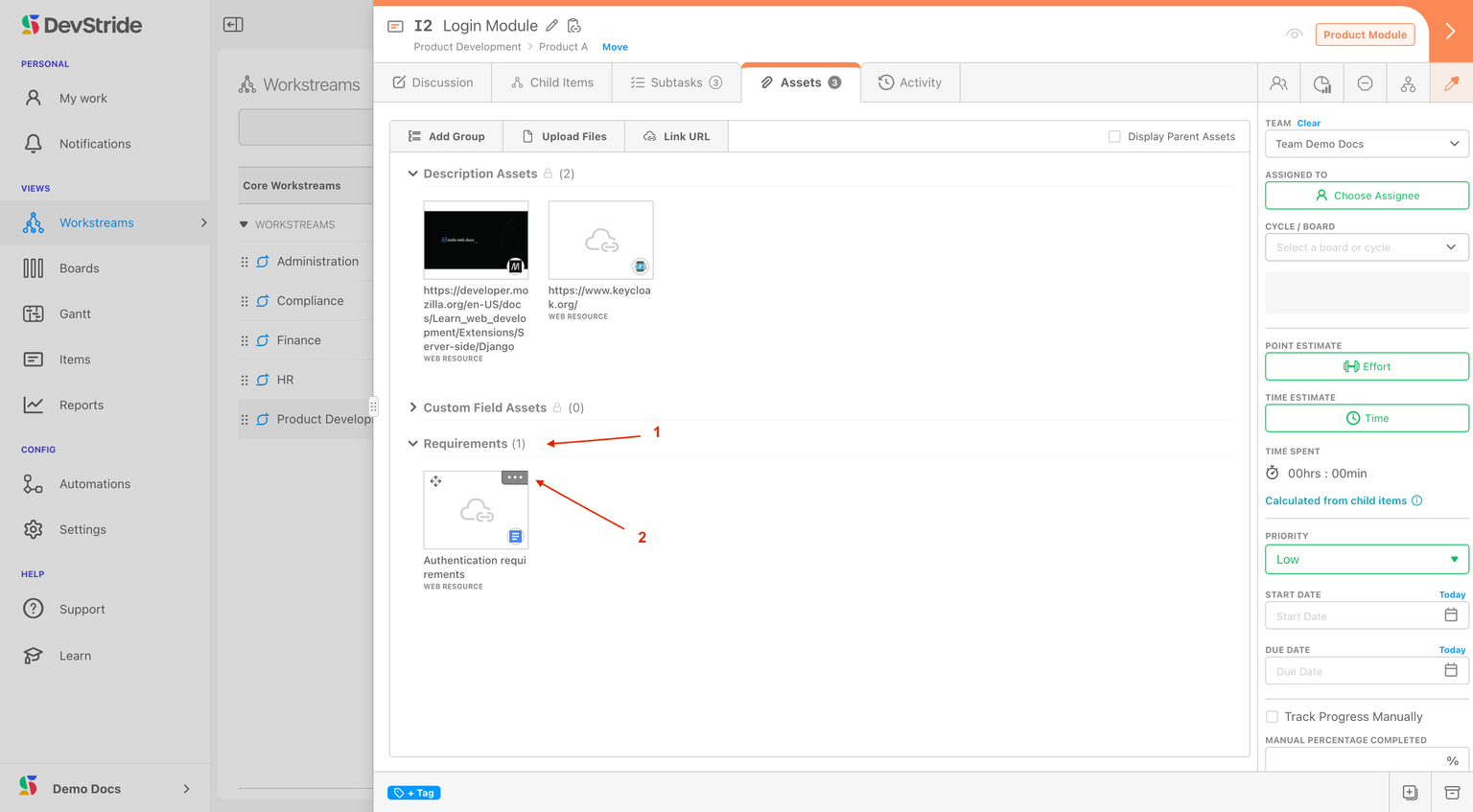
As an example, here's how to create a group and link a URL.
From the Assets tab, click Link URL. This opens the Add Link URL modal:
- Group — toggle between New Group and Choose Existing Group. If you create a new group, enter its name in New Group Name; otherwise pick an existing group from the dropdown.
- Link — type or paste the URL. A live indicator shows whether the link is valid, and the address is normalized to add
https://if you leave off the protocol. - Name — how the link displays under the group.
Click Add Link when finished.
As soon as you enter a valid URL, the Name field shows a spinner and Fetching title... while DevStride reads the page and pulls in its title for you. You can always override the suggested name.
Auto-titling is best effort: for sites that block cross-origin requests or take more than a few seconds to respond, DevStride falls back to a name derived from the URL path or hostname instead of the page's actual title.
The asset will now appear in the group you created. You can add or remove assets from the group anytime.
Activity Tab
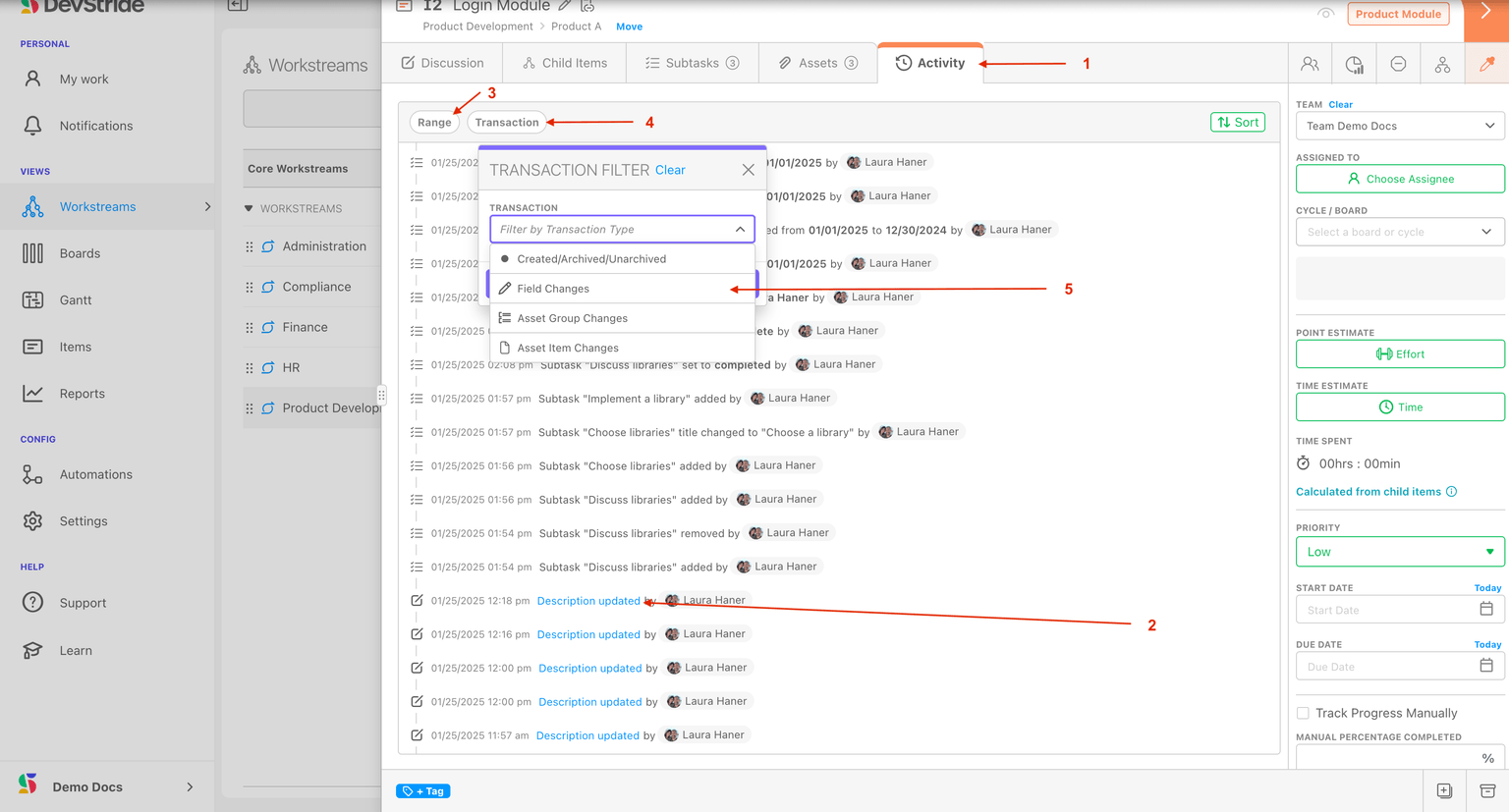
The activity tab provides an audit trail. It displays all the actions that have been taken on the item. It's an immutable list, so the list of actions on this list cannot be deleted.
If you ever need to track down who made a particular change or when they changed it, the Activity Tab (1) provides that information.
You can interact with the list of activities (2) by clicking on links, searching by date range (3) and transaction type (4-5).
Restore a Description from the Activity Tab
When a description has been edited, the Activity tab shows a clickable Description updated link (followed by by
The dialog has three stacked sections:
- Diff — a rendered comparison of the description before and after the edit.
- Before Edit — the prior description, with its own Restore button.
- After Edit — the new description, with its own Restore button.
Click the Restore button for whichever version you want to bring back. DevStride applies that description to the item, takes you to the Discussion tab, closes the dialog, and confirms with a success message such as Description restored from before edit successfully!
Next, let's take a look at the item workspace quick links.