Admin Onboarding - Item Workspace - Right Bar: Team through Status
Item Workspace Tour: Right Bar Features
The features along the right bar of the item's workspace have to do with your data model.
In this section, we will move down to cover each of the features contained in the bar.
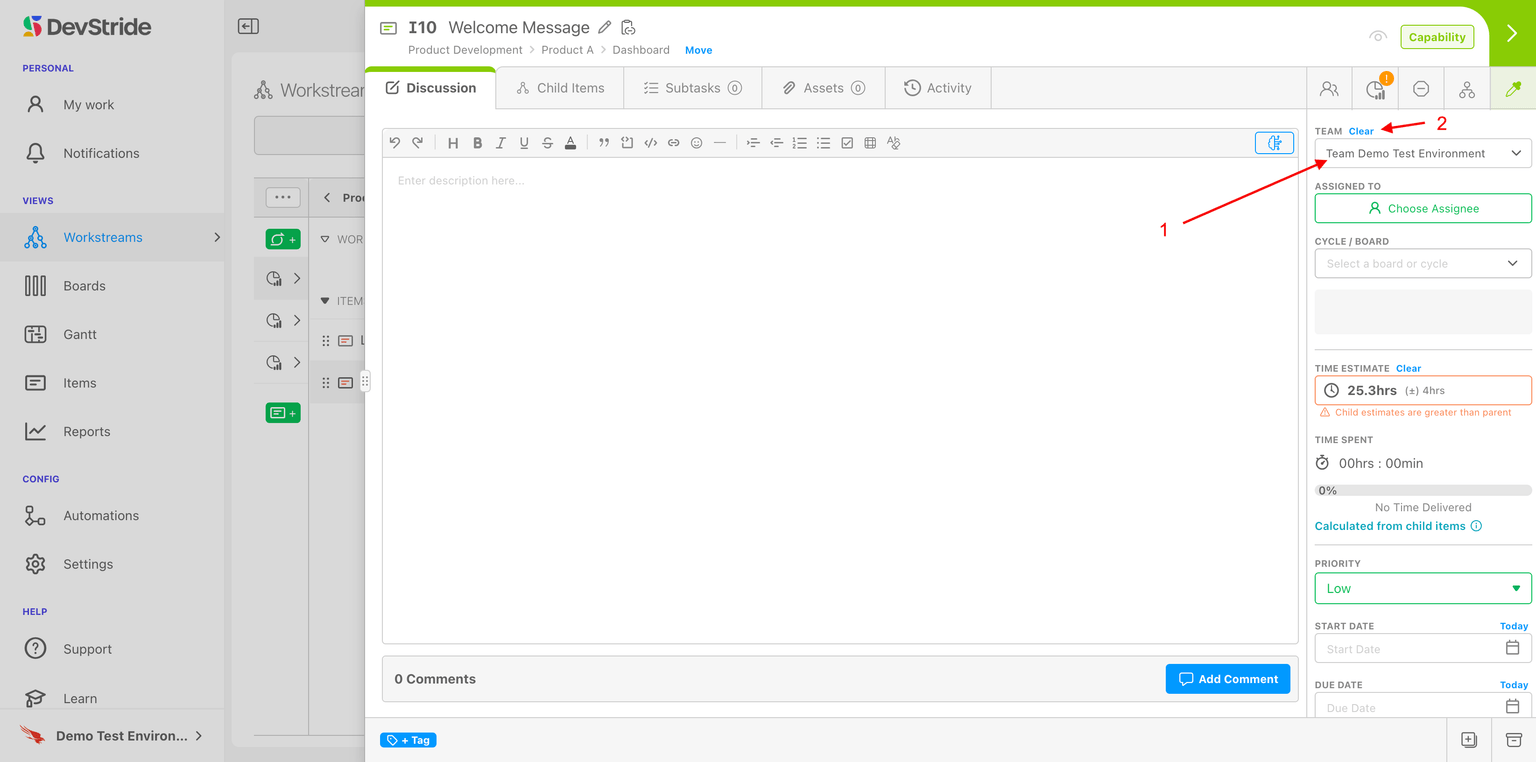
Team The team picker (1) allows you to select which team is associated with the item for the purpose of assignments. The teams that appear here are the ones that were set up in your organization's Settings.
To assign a team to an item, click on the team picker (1) and select the team. You can also clear (2) the team name if you want to change it to remove any team association.
Identifying the team for the item populates the Assigned to dropdown with the members of that team. If it is an empty team, this will be blank.
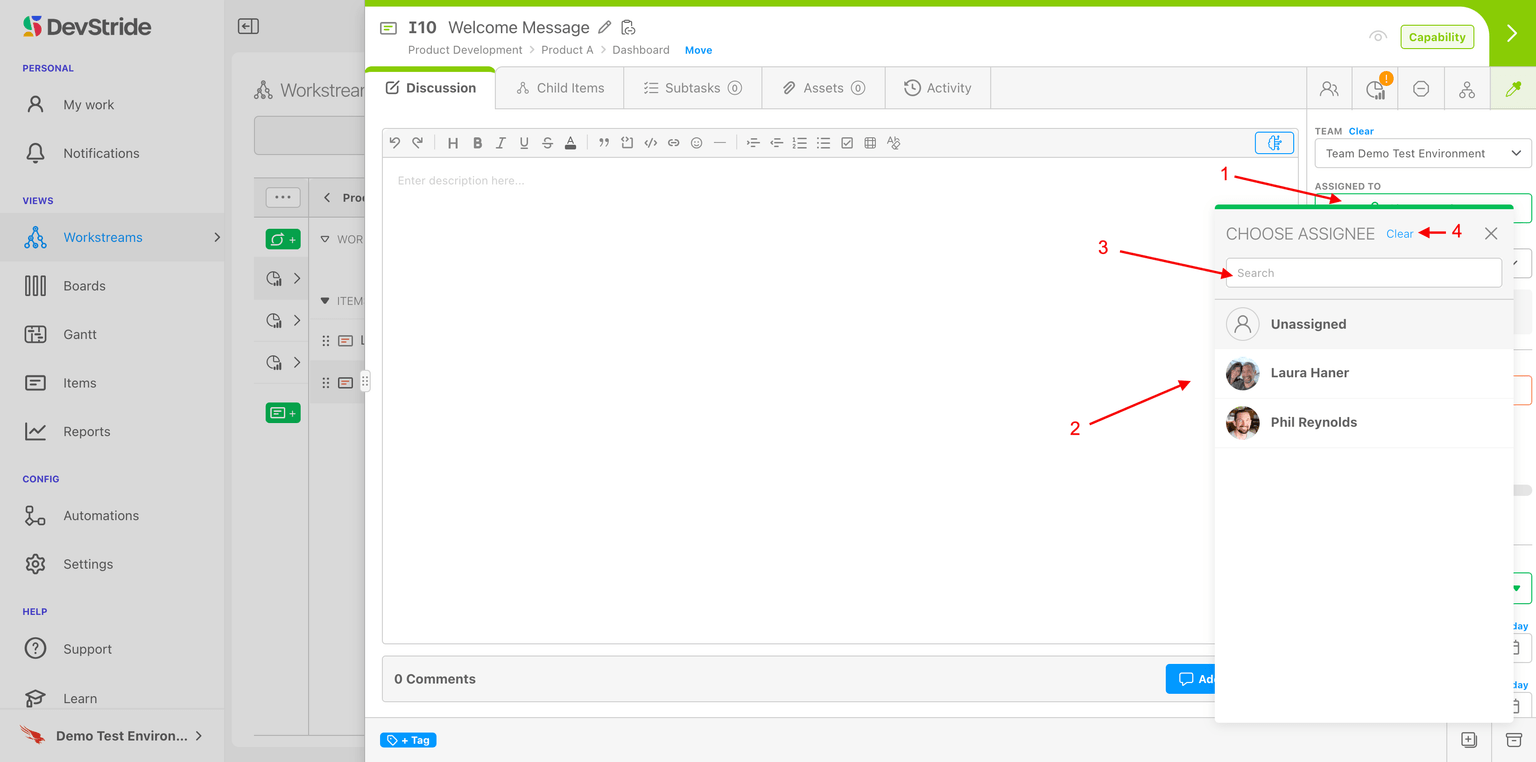
To assign a team member to the item, click on Choose Assignee (1). Then select a team member from the list (2) or search by their name (3). If you want to clear the assignment, click on clear (4) here next to Assigned To in the bar.
Item are assigned to one individual - the assignee. This helps create ownership and accountability.
Subtasks of items can be assigned to other team members (one assignee per sub-task) to help further break up smaller, checklist-type to dos. Typically, though, If it's big enough to be visible on a timeline, it's best to track work as items rather than sub-tasks.
When an assignee has completed the task - When a task has been completed, mark it "done" and leave the assignee on the item.
"Clear" is meant to be used as a fast way to change remove an assignee for later assignment, not to indicate that the individual no longer has the work.
Leaving the assignee's name on the "done" task allows for reporting of hours, referencing who performed the work, etc.
Cycle/Board
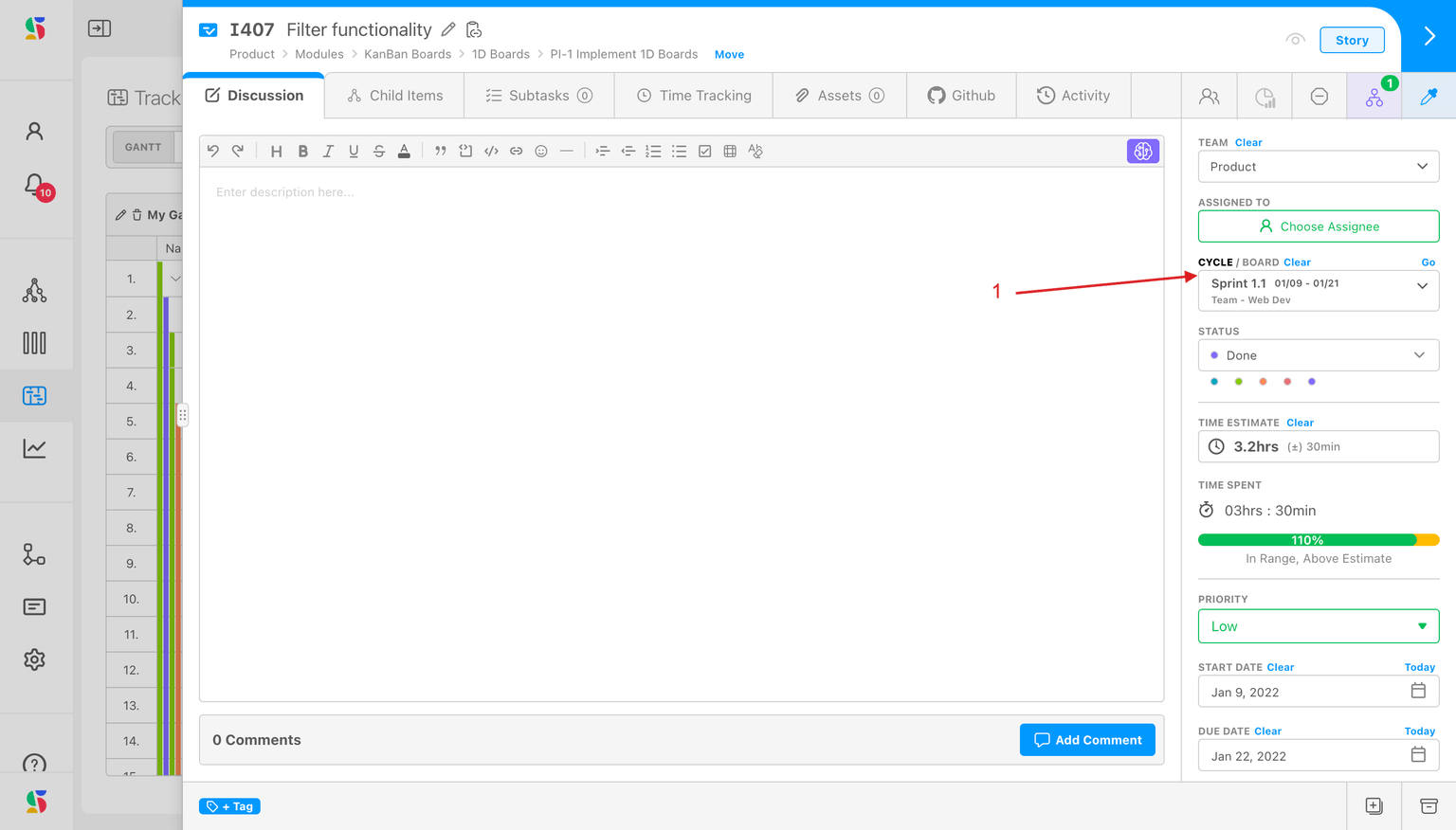
This is one of the places where the "when" of the work can be indicated for the item (1). We will discuss this in more detail in the Set up Cycles and Boards Section coming up in this guide.
Status
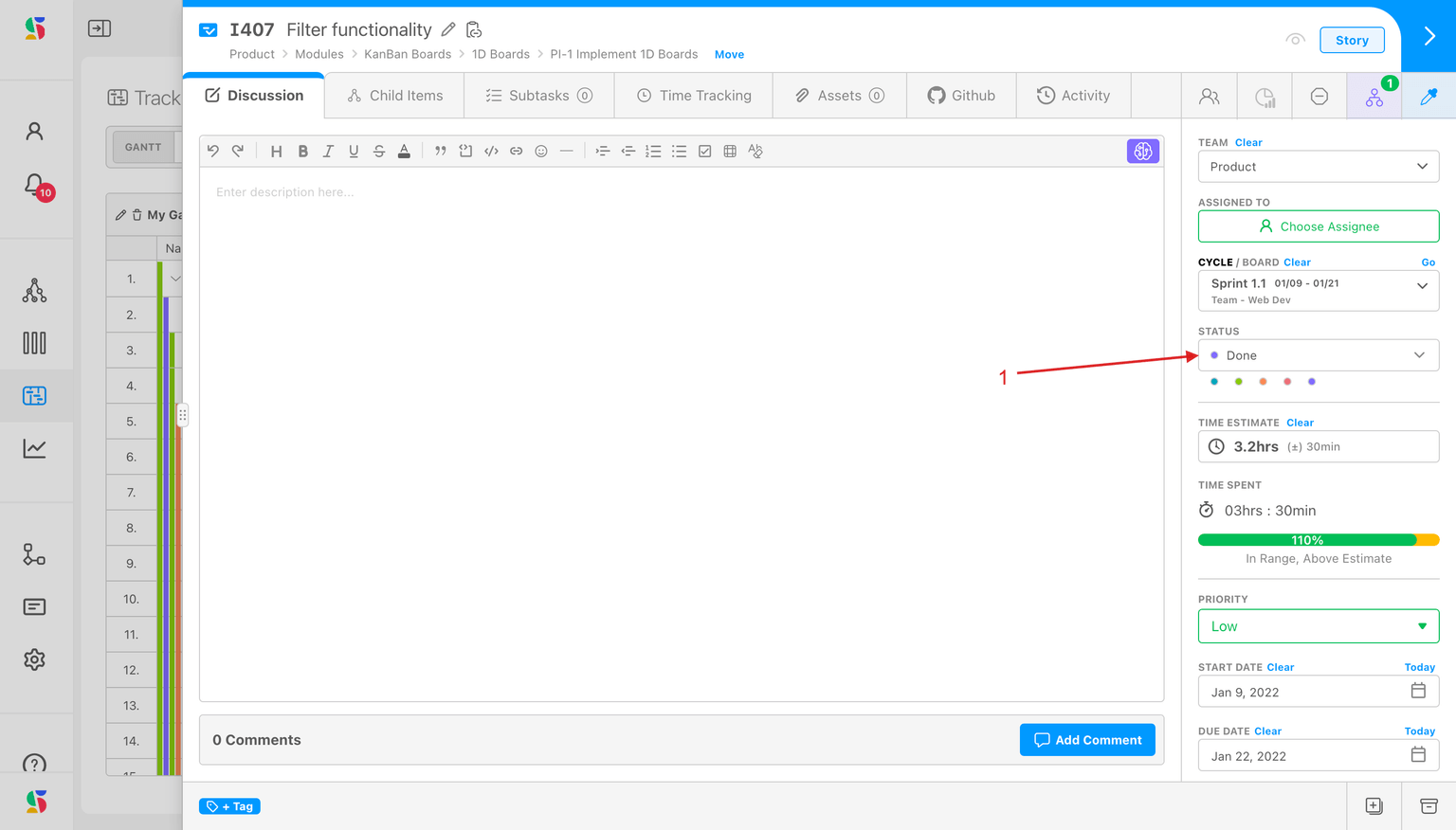
Status indicates the item's state in your work process, and is based on either default or custom statuses in Settings.
Continue through the features on the right bar of the item workspace: