Admin Onboarding - Item Workspace Header
Configure Item Properties
Each work item has a data model underneath it where we can track a host of details about the items.
You can also customize the properties that will appear on items to match your workflow requirements such as custom fields, priority levels, and estimation types.
In the nest few articles, we will tour each section of the item workspace.
Item Workspace Tour: Header
Let's open an item and take a look at what we can manage about items.
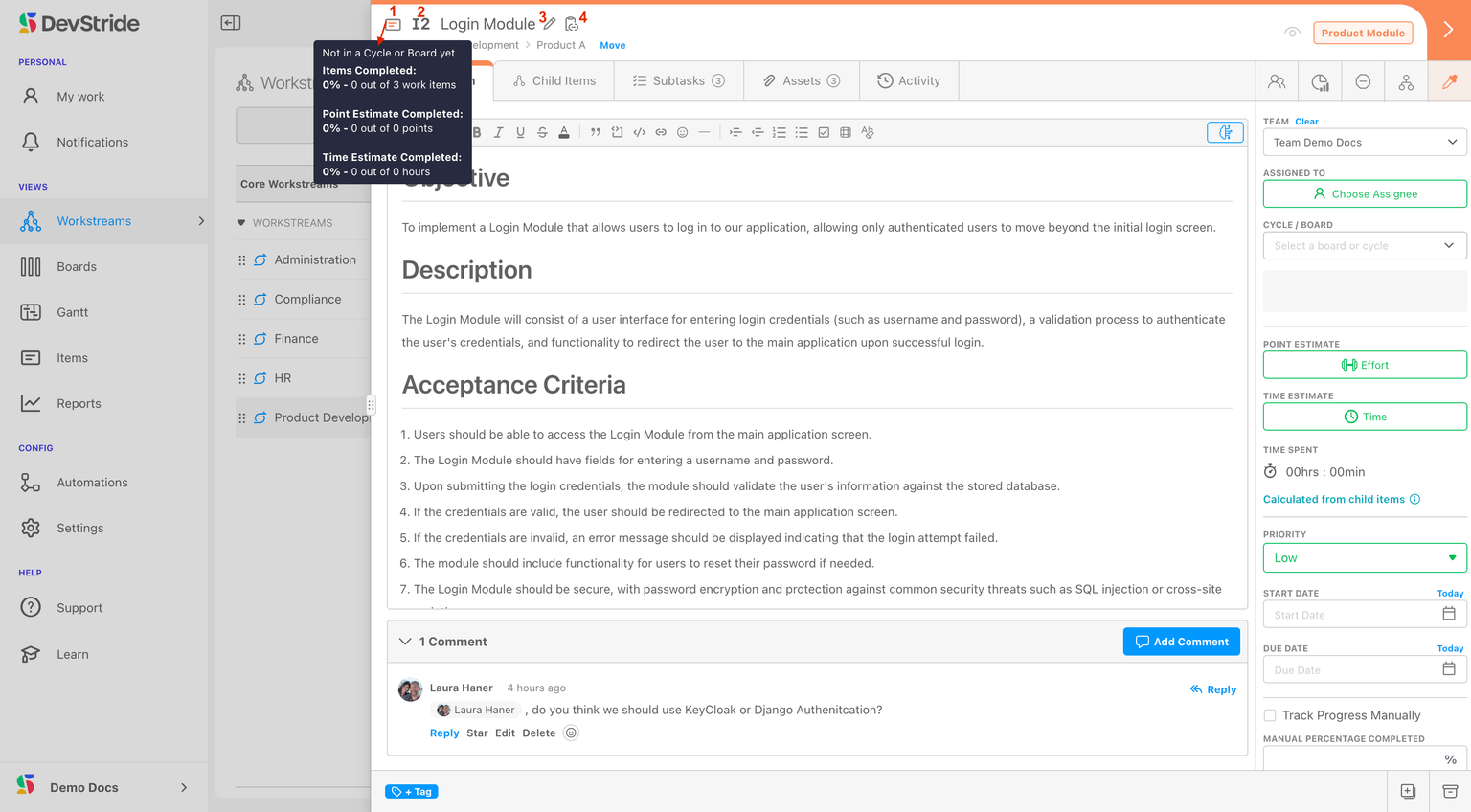
Item Header There are several pieces of information about the item that we can get right from the header.
- Item card (1) - displays completion stats
- Item number (2) - this is a system-assigned number in the DevStride database. It starts with "I" for Item.
- Item name (3) - you can edit the name by clicking on the pencil icon. The new name will display system-wide.
- Copy item link (4) - this can be used to create a link that when clicked will drop the user right back to this item. This is great for referring to items in Slack, email, on lists, etc. It can clicked on from anywhere or pasted right in a new browser instance. It is a link that works internet-wide for any logged-in users.
Breadcrumb Trail
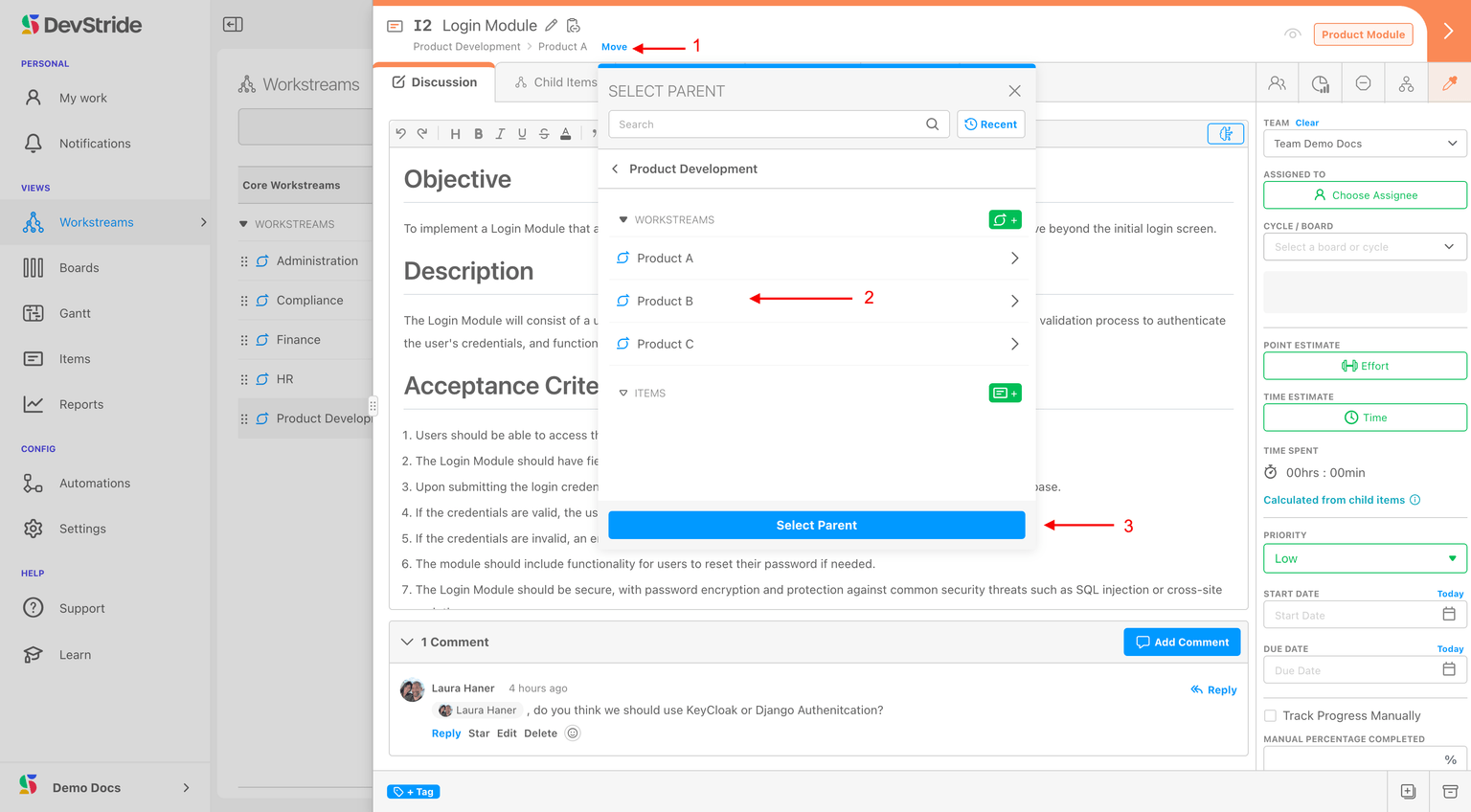
The breadcrumb trail under the item name reflects where the item is in the Workstream map. In addition to using it to navigate to other places in the workstream, you can move the item to a different location from here.
To move an item, click on the Move link (1). In the pop-up box that displays, select where you want to move the item to by navigating to and clicking on the desired location in the workstream (2). Click Select Parent (3).
Watchers
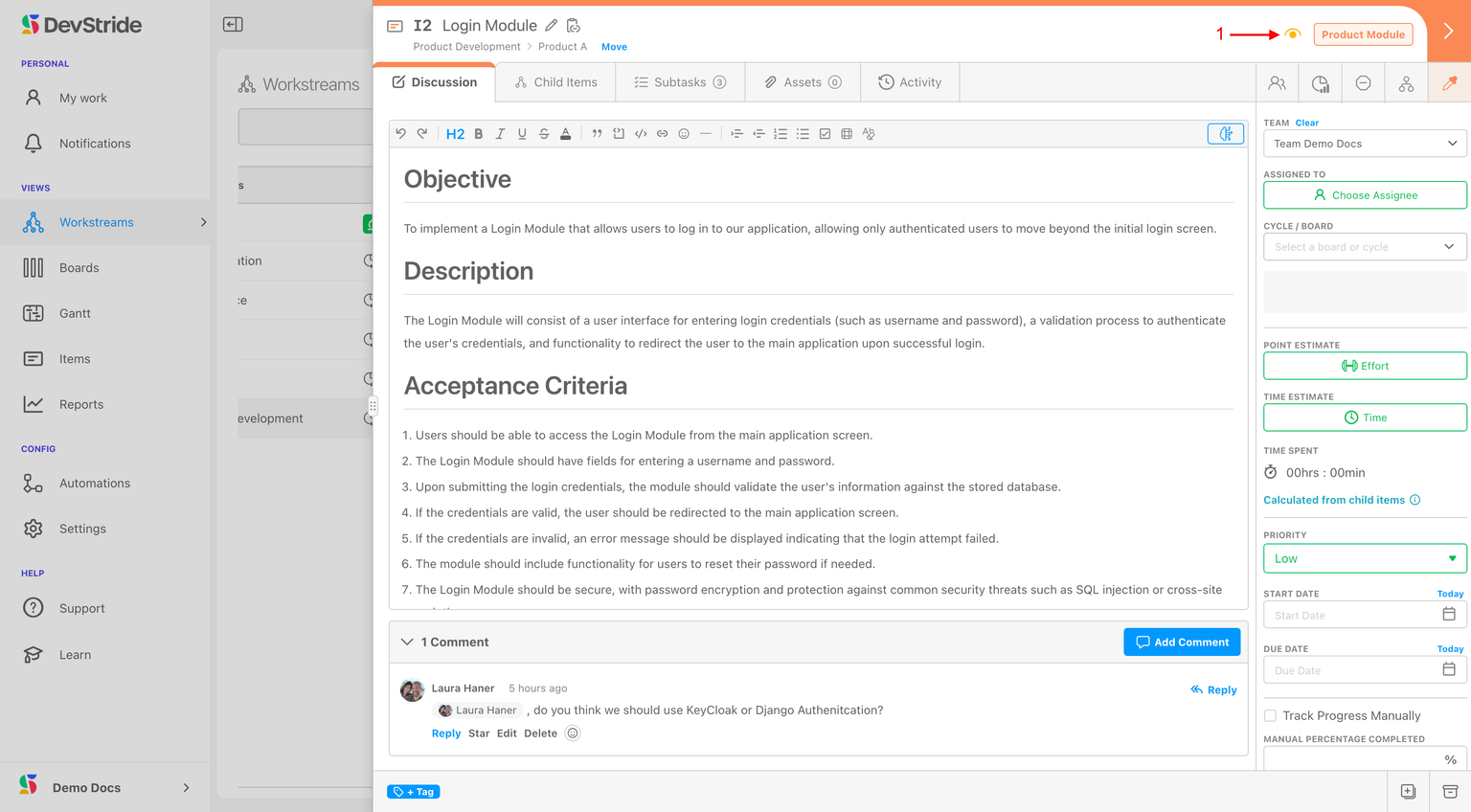
Watchers receive activity notifications for an item, so they stay informed as the item changes. The header gives you two ways to manage watching, side by side.
- Watch yourself. Click the eye icon to start watching. The button reads Watch when you are not watching and Watching once you are, and the icon is highlighted while you're watching. Click it again to stop. This toggle only adds or removes you.
- Add other watchers. Next to the self-watch toggle, an avatar stack shows who is currently watching the item — up to three avatars plus a +N indicator when there are more. Click the stack to open the Select watchers dialog, choose any members who should be watching, and click Update Watchers. Use this to add or remove other people as watchers, not just yourself.
Editing watchers is part of normal item editing, so you need edit access to the item. In read-only contexts the watcher controls are disabled, and the eye icon simply reflects whether you're watching.
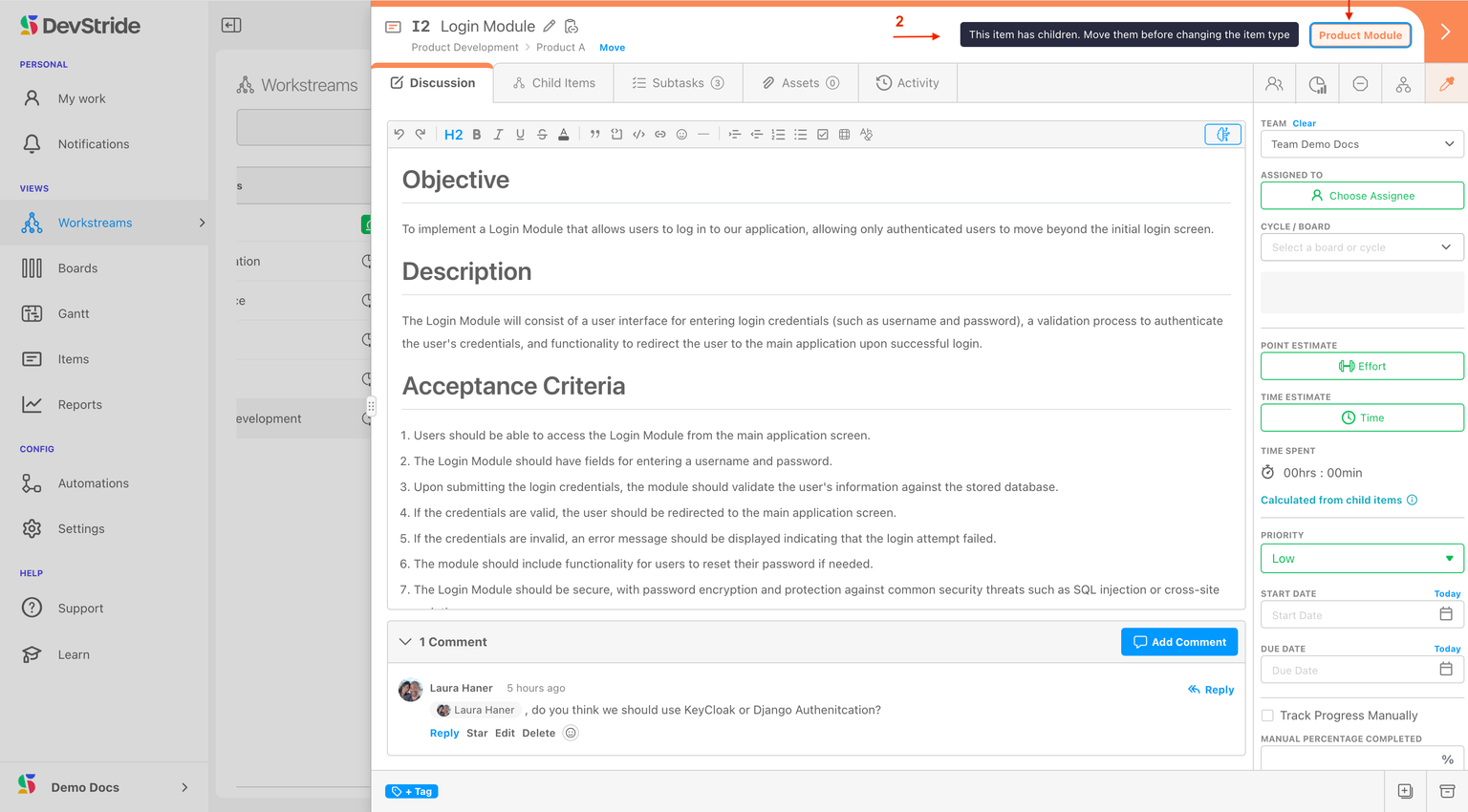
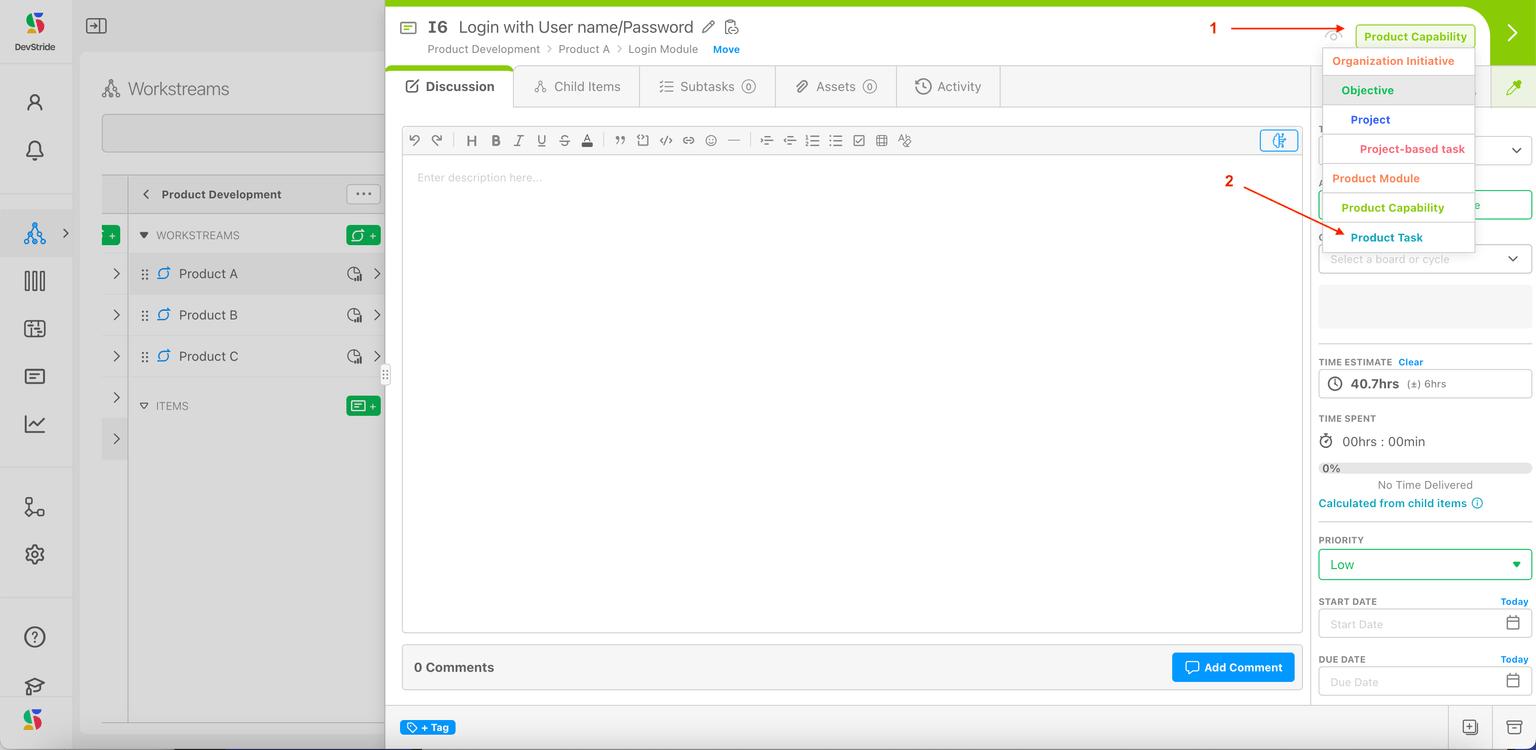
Item type label The label on the far right indicates the item type. You can click it (1) and edit it to be a different item type, but only if it doesn't have children. This is what is displayed if an item type already has children underneath it (2).
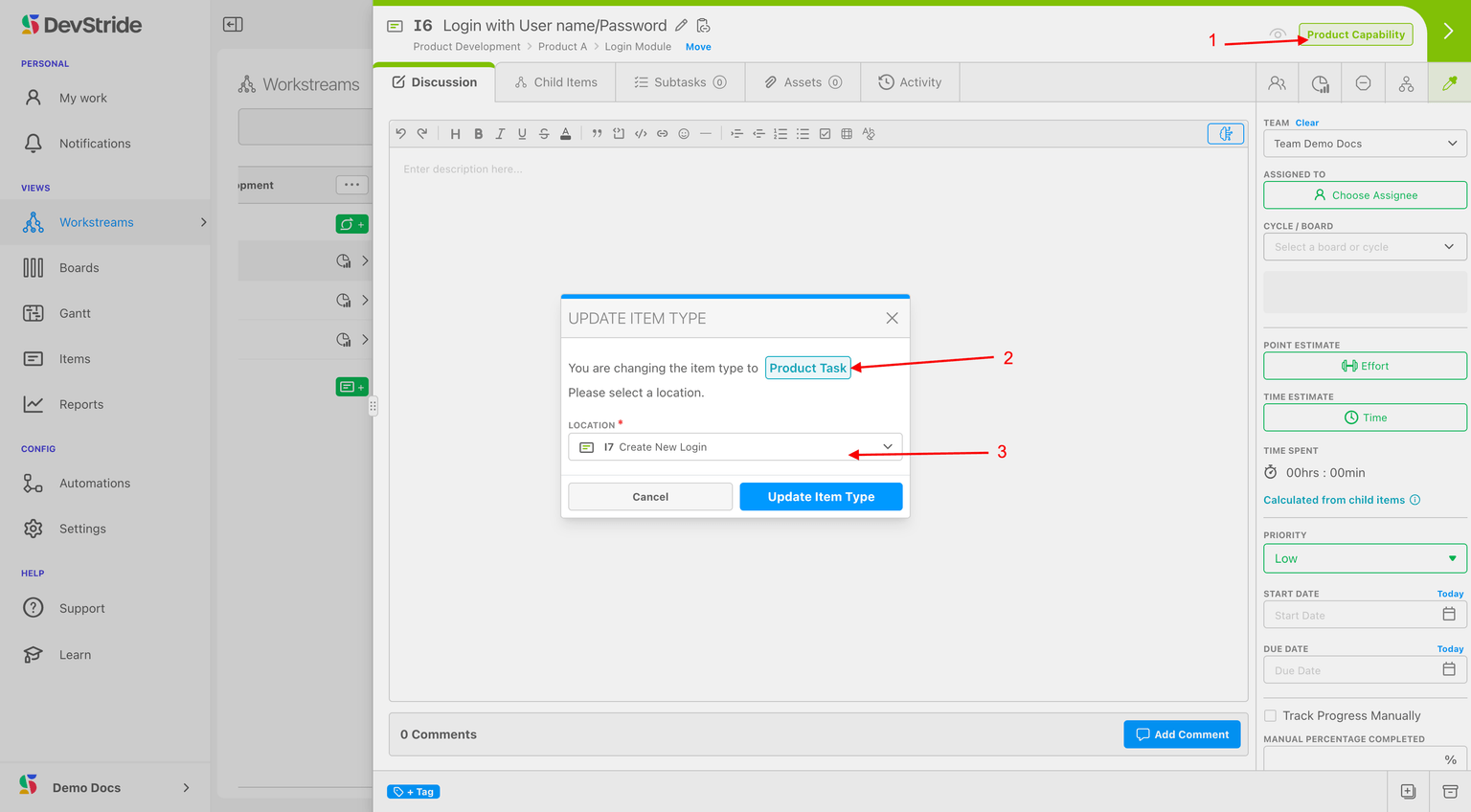
If the item type is eligible to be changed, there are just a few steps.
In the following example, we want to make the Login with User name/Password Capability (1) a Task instead. So we indicate the type of change (2) and the location (3) it should be in on the Workstream Map. Then we can click on Update Item Type.
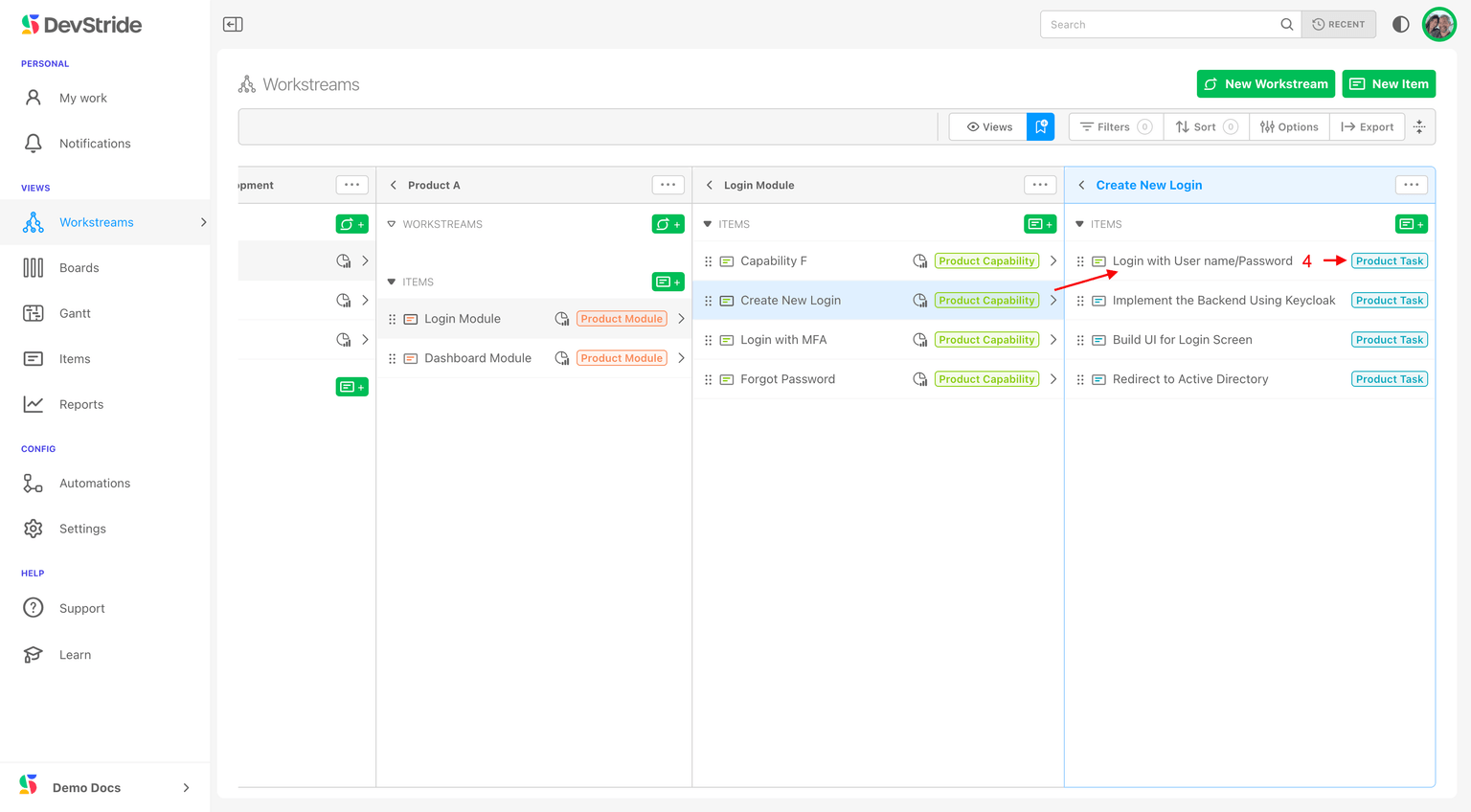
Our Module was changed to a Product Task and we moved it. We can now see it on the Workstream Map under the Create New Login Capability as a Project Task called Login with User Name/Password (4).
Next, we'll review the Item Workspace Tabs.