Meetings
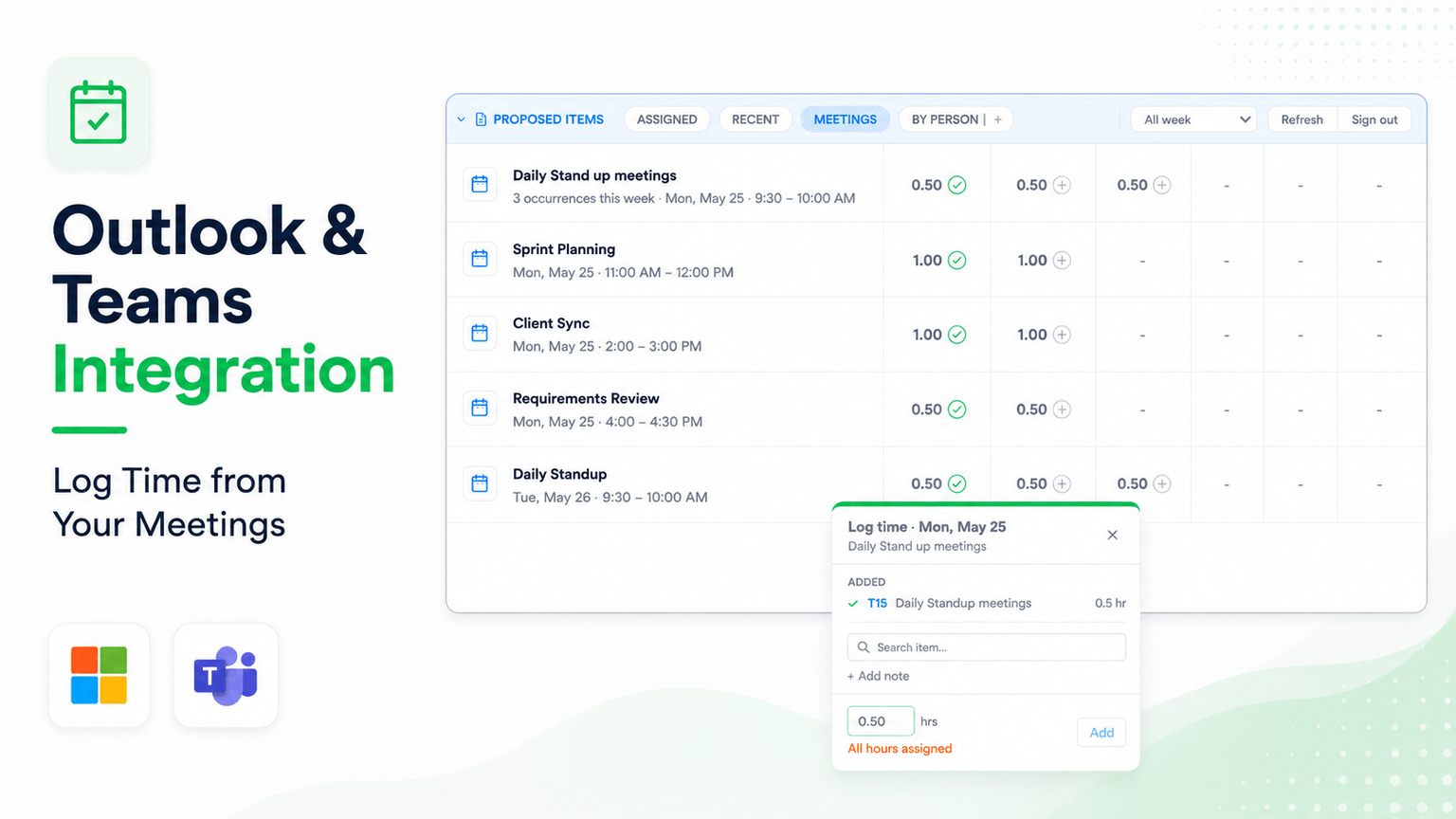
The Meetings tab in Proposed Items lists your Outlook calendar events and Microsoft Teams calls for the week, so you can log meeting time without retyping titles or durations.
Sign in once
- Open the Meetings tab in Proposed Items.
- Click the sign-in prompt and choose your work account in the Microsoft popup.
- The tab loads your events for the current week.
Your session is remembered, so later visits open the tab directly.
What appears
- Meetings and calls — scheduled calendar events and Teams calls.
- Public holidays on your calendar, with 8 hours pre-filled.
- Leave days, like any other event.
- Recurring meetings collapse into one row, with each occurrence in its day column.
If an event is missing, check that it exists in your Outlook calendar for the selected week; the tab shows what the calendar shows.
Log a meeting
- Click + on the meeting's day cell.
- The panel opens with the meeting title and duration filled in.
- Search for the task, select it, and confirm. The entry lands in your timesheet immediately.
Split a meeting across tasks
Click + on the same cell again for each additional task and log the portion that belongs to it. The portions do not have to add up to the meeting's length — log what reflects the work.
Several meetings on one task
Log each meeting to the task separately. The task accumulates the hours while each entry keeps a record of which meeting it came from.
Export
Export Weekly Logs entries for a date range to CSV, filtered by people, workstreams, and custom fields, for billing and reporting.
Webhooks
DevStride POSTs a signed JSON event to your HTTPS endpoint the moment an item, comment or SLA timer changes, so your systems react in seconds instead of polling the API.