Weekly Logs
Time Logging
Enter hours in Weekly Logs, add a note to an entry, and remove entries.
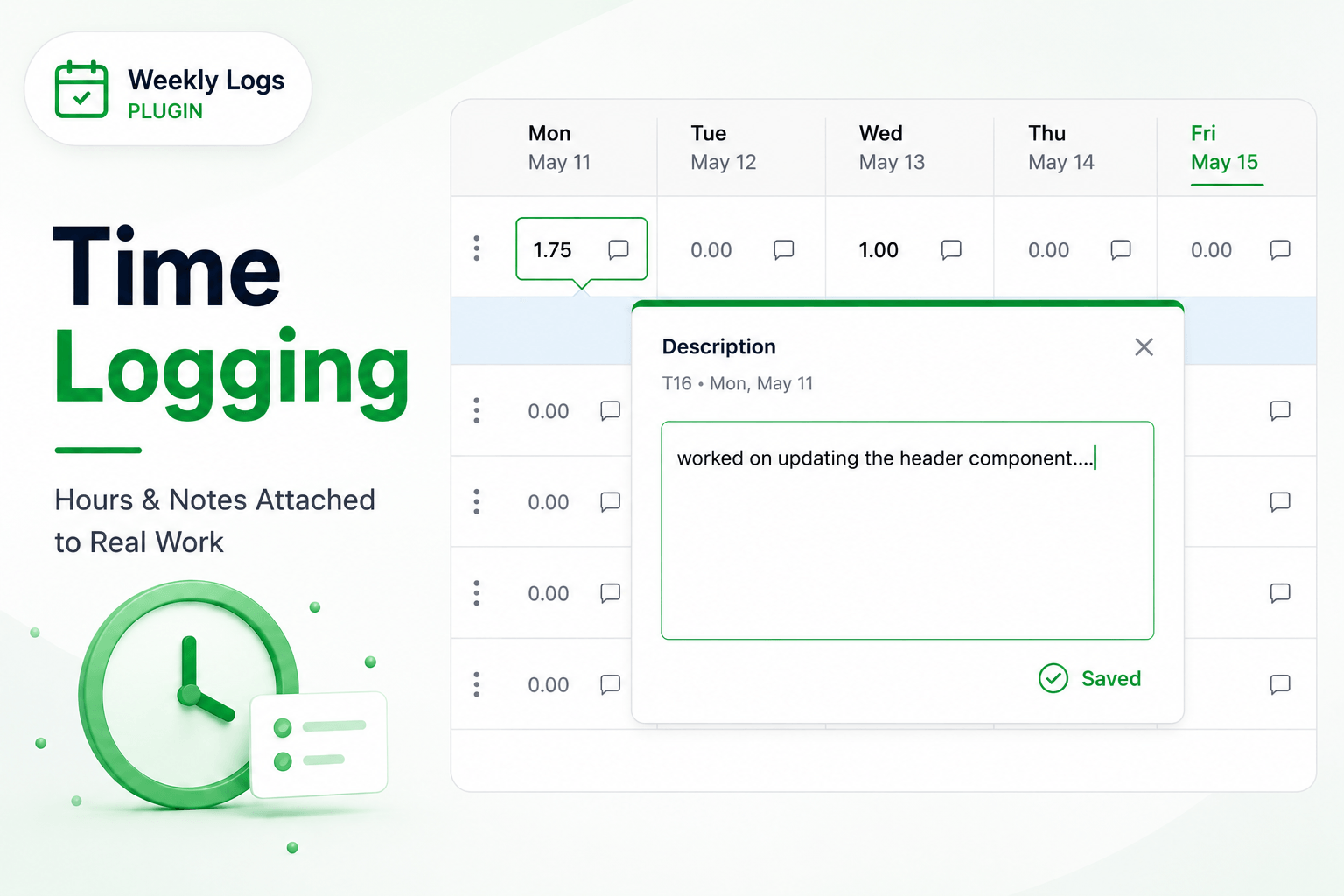
Enter time
- Get the task into the grid — from Proposed Items or Search.
- Click the cell for the day.
- Type the hours. Decimals work: 1.5 is an hour and a half, 2.25 two hours fifteen. Values are rounded to the nearest quarter hour.
- Move to the next cell. Entries save automatically.
Log the same task on several days by filling each day's cell. A single entry cannot exceed 24 hours.
Add a note
- Hover over a filled cell and click the notes icon, or press Space while the cell is active.
- Add the description alongside the hours and save.
The note belongs to that entry on that day, and the icon stays visible so you can spot entries with context.
Remove entries
- One entry: clear the cell or set it to 0. Weekly Logs asks you to confirm.
- A whole task for the week: click the delete icon in the task's total cell and confirm.
Deleting an entry deletes its note too.