Request Forms
Email is the main way requests come in, but a request form lets a customer submit one through a structured form instead: useful when you want specific details up front (an account name, a category, a priority) rather than whatever they happen to type. Forms and email feed the same Inbox.
Make a form that creates tickets
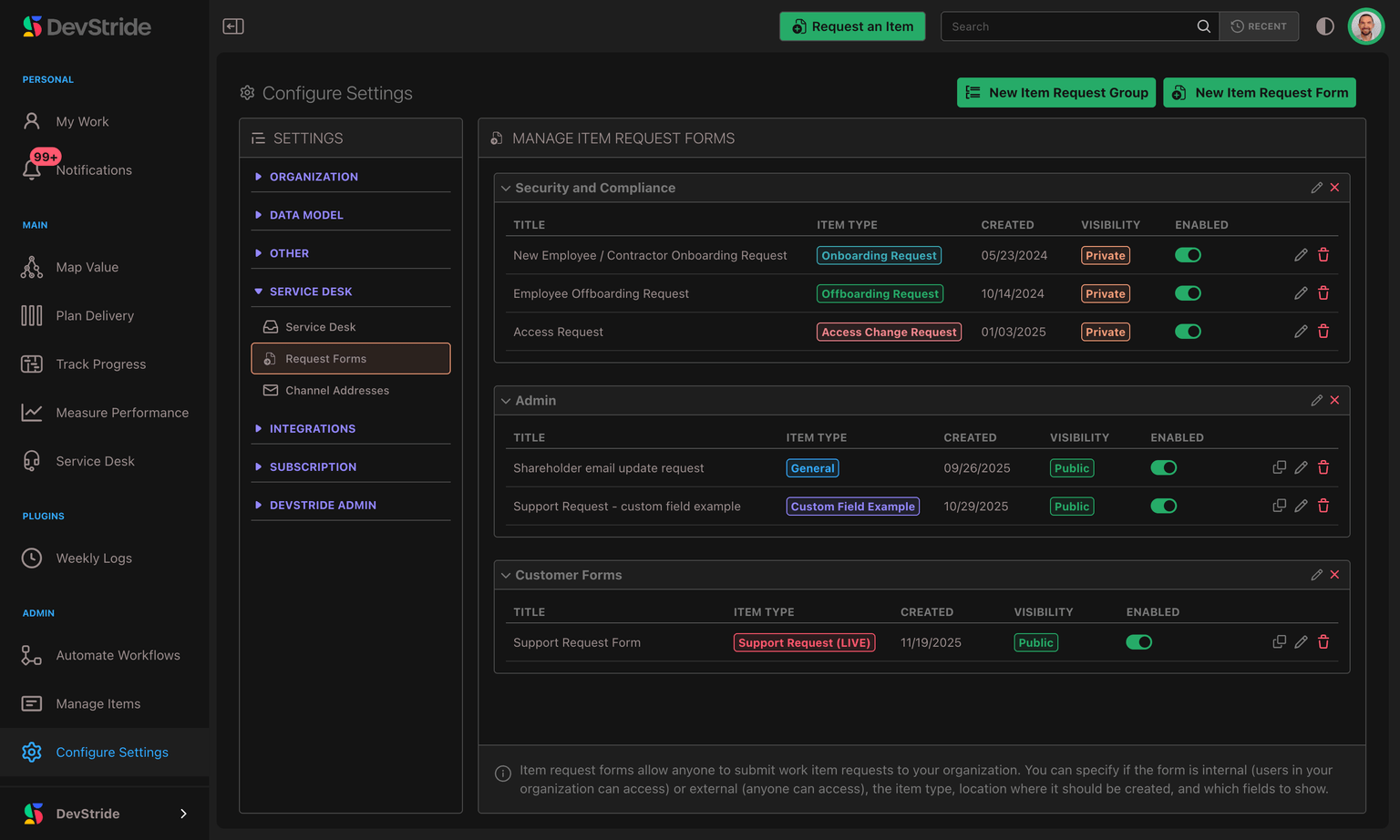
Forms live in Settings → Service Desk → Request Forms, the same forms used for ordinary item requests. A form has a title, a destination (the workstream or item submissions are filed under), the work type it creates, and a list of components you arrange in order: headings for section labels and instructions, item fields such as title and description, and custom fields from the work type's collection. Each field can be labeled, given a default, and marked required or hidden.
To make a form feed Service Desk:
- Open the form and switch on Create as Service Desk ticket. Each submission then becomes a ticket from the person who submitted it, with a requester, a customer-visible description, and SLA coverage.
- Optionally switch on List in customer portal (below).
- Enable the form so it accepts submissions.
In the forms list, forms that create tickets carry a Ticket badge and listed ones a Portal badge, so you can tell at a glance which forms feed the Inbox. Forms can be grouped for easier management.
Put forms and groups in order
Each form row has a drag handle beside its title. Drag a form up or down within its group; the order is saved as you drop it. New forms go to the end of their group.
Groups have an order too. Each group header has a grip; drag a group up or down (or focus the grip and use the arrow keys) and the groups are saved in that order. Other, the forms in no group, always stays last. A new group goes to the end until you move it.
Customers see both orders on the portal's Submit a request page: your groups as section headings, in your group order, with each group's forms in your form order underneath, and any ungrouped forms under Other. A portal whose forms are all ungrouped shows one plain list.
How a submission becomes a ticket
A submission creates a ticket at the form's destination, as the form's work type, with the submitted values on the item. The submitter becomes a requester and the ticket's channel is Portal. The ticket also remembers which form it came through, so customers can group My requests by request form; tickets from email, the API or before 25 October 2026 have no form and group under Other requests.
- Not signed in: the submitter types their name and email and is trusted straight away. (If you've required sign-in to submit, only a form marked public accepts this.) The request is filed at once, they get a receipt by email, and your public replies reach them.
- Signed in to their company's portal: the form shows Submitting as their name and email, and the request is filed under their portal identity for their company. A Not you? link switches back to typing details. See Submitting a new request.
- Signed in to DevStride (for example, one of your team opening the form's public link): the name and email are filled in from their own DevStride account. Both stay editable, and the request is otherwise handled like one from someone not signed in.
A required rich-text field, such as the description, must contain real content; an empty paragraph doesn't count.
The spam brake
If your organization receives more than 100 form submissions from people who are not signed in within one hour, each further new submitter that hour is asked to confirm their email first. Their request waits (nothing is refused or lost) and shows the requester as Pending verification. They are verified as soon as they prove the address in any way: clicking the link, signing in to the portal, or emailing your desk from that address. Signed-in customers are never asked.
Forms on a channel address
Attach a form to a channel address as its Default request form so new tickets from that address, by email or opened by your team for a client, are filed through the form: its location, its work type and its field set. See where a ticket actually lands.
Forms in the Customer Support Portal
Switch on List in customer portal to show the form on the portal's Submit a request page, under its group and in the order you set in the forms list. Only groups that hold at least one listed form appear on the portal, so a group of internal-only forms stays out of sight. Listing is per form and off by default:
- Any enabled form can be listed, public or private. A listed private form stays off its shareable link and out of your team's Request an Item menu; the portal is the only place customers reach it.
- A listed form appears on every company portal in your organization.
- File-upload fields work: videos (MP4, MOV, WebM) up to 100 MB, other files up to 25 MB, all scanned for malware before your team sees them. The customer can see what they uploaded under Files on their portal request.
What customers see. Customers are never shown Relationships or user / item reference fields. If such a field is hidden and carries a default (a default reviewer, say), the default still applies; if the work type or form requires a reference field, you must give it a default before the form can be saved as public or listed. Hidden fields keep their defaults. A default saved through the API in a shape the ticket can't take is skipped and the submission still goes through.
Required fields are enforced on submit, on the portal, the public link, and the API alike. A required checkbox left unticked counts as "no", a required calculated field is worked out once the ticket exists, and explicit No and 0 answers are kept as entered.
Automate on submissions
The Item Request Submitted automation trigger fires for every form submission, ticket or not, so you can route or notify from there. See Setting Up Basic Automations.
Managing forms, and reordering them, needs the Manage Service Desk Settings permission.
Working a Ticket
Triage from the Inbox, open a ticket for a client, reply to the customer by email, copy other people on the conversation, keep internal notes separate, fix the requester, merge duplicates, and understand what the customer sees as the ticket moves through your statuses.
Held for Review and Rejected Mail
Some inbound mail is held back instead of becoming a ticket or an article reply. Review what was held and why on the Held for review tab, recover real messages, and use Rejected mail to answer 'did this email reach us?'