Client Reviews
When a piece of work is ready, you can ask the client to sign it off inside DevStride. You send the work item for client review, the client's reviewers get an email with a link, and they approve it or request changes on a Reviews page in their customer portal. Their decision lands on the work item as an internal comment, you're notified, and automations can act on it.
The client never sees the work item itself. They see only the title, summary and links you write for them.
Before you start
- Service Desk is enabled and the customer portal is switched on. See Enabling Service Desk and Headless Mode and Customer Switches.
- The client company has a portal: a Portal slug on its company record. See Customer Support Portal.
- You hold Send Items For Client Review. Only the built-in Owner role has it at first. Existing roles, Admin included, don't get it automatically; an administrator turns it on for a role under Settings → Admin → Permissions, in the Service Desk group. Roles built from the Service desk agent template include it. See Permissions.
Send a work item for review
- Open the work item. In its sidebar, find the Client reviews card and choose Send for client review… from its ⋯ menu (or click Send for client review while nothing has been sent yet). You can also right-click the item in a table and choose Send for client review.
- Pick the Company. Only companies with a portal are listed.
- Under Reviewers, name up to 20 of the company's active contacts who may decide, or leave it empty to let anyone at the company decide. With nobody named, the company needs between 1 and 20 active contacts.
- Write what the client sees:
- Title, up to 200 characters. Leave it empty to use the work item's own title, but a title written for the client usually reads better.
- Summary (required), up to 2,000 characters of plain text: what was delivered and what they should check.
- Optional Feature link and Walkthrough video link, each starting with
http://orhttps://.
- Click Send.
The item's description, number and comments are never shown to the client.
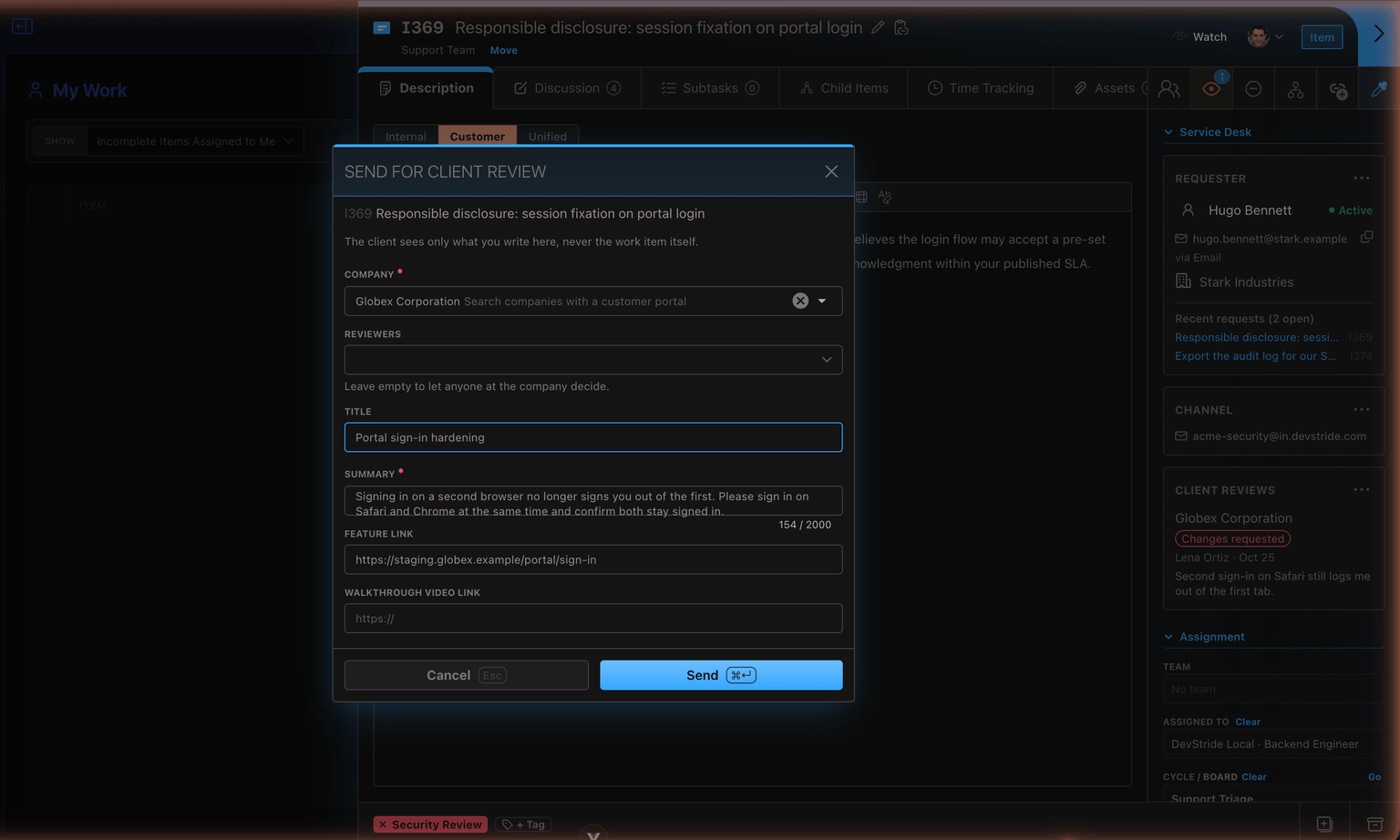
A company can have one review of an item waiting at a time. Sending again while one is waiting is refused. Once the client has decided, sending again starts a new round, so the history of each sign-off attempt stays intact.
The email your reviewers get
Each named reviewer, or each active contact when nobody is named, is emailed Please review "title" with your organization's name and a link to the review in their portal. Nothing else from the item is in the email. A contact the portal wouldn't let sign in, under the company's access mode, isn't emailed, and neither is someone who has left the company by the time the email goes out.
No email is sent while the organization is in headless mode.
Follow a review from the work item
The sidebar's Client reviews card lists every review of the item, newest first. Each row shows the company, then:
- a Waiting pill with how long it has waited, and Withdraw if you may send reviews;
- or Approved / Changes requested with who decided and when, followed by the client's note (two lines; click to read the rest);
- or Withdrawn.
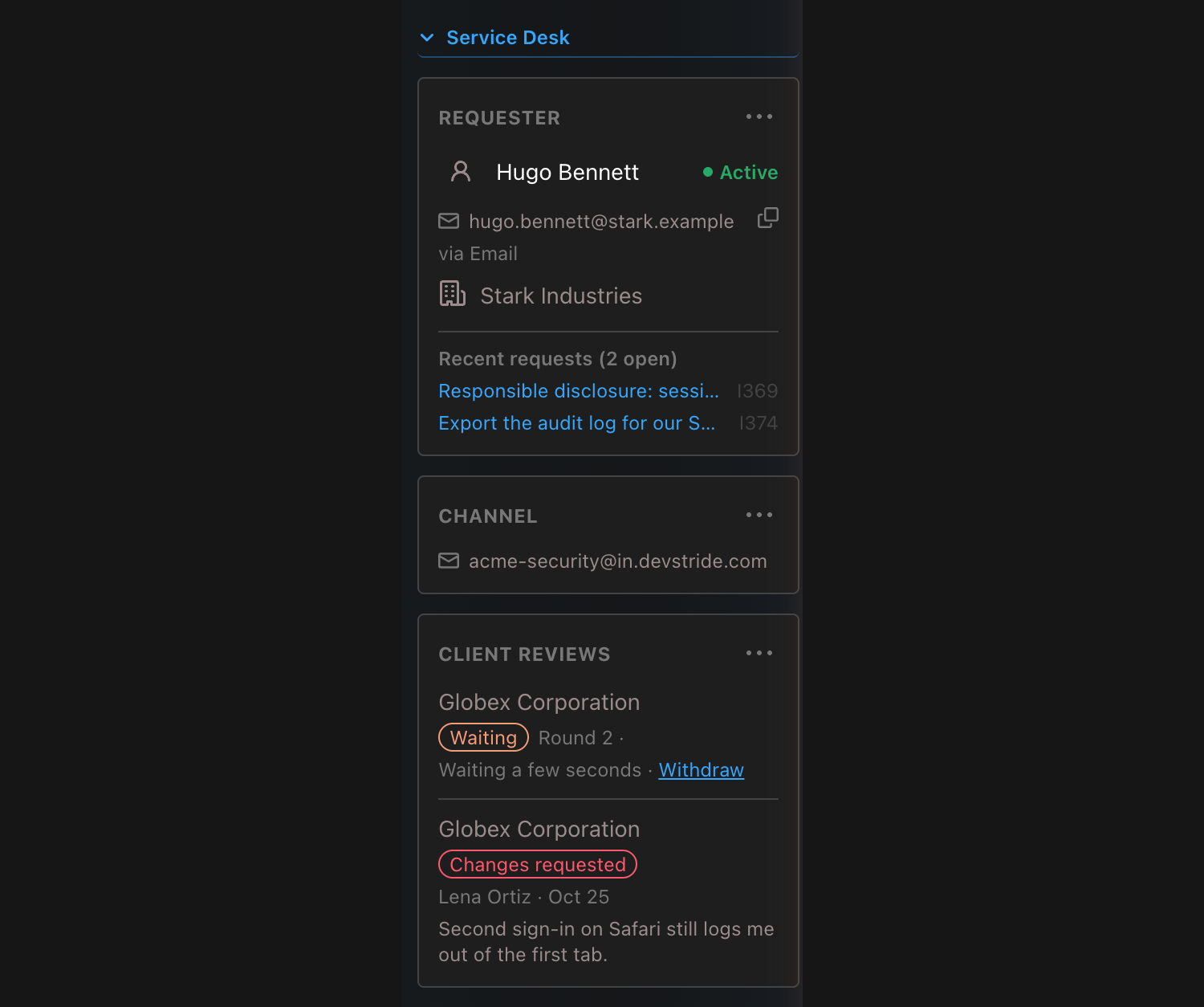
Withdraw takes back a review that is still waiting: it leaves the client's portal and can no longer be decided. A review the client has already decided can't be withdrawn; send a new round instead.
What the client sees
Once a reviewer has something to review, the portal's My requests page shows a Reviews link with a count of those waiting. Reviews are kept apart from support requests. The Reviews page has two sections:
- Waiting for you, oldest first, each card showing how long it has waited (for example Waiting 3 days).
- Decided, with the outcome and who decided on what date.
A card shows the title, summary and any Open the feature / Watch the walkthrough links. A second or later round says Round 2, and so on. Following the email's link opens the Reviews page with that card highlighted, after signing in if needed.
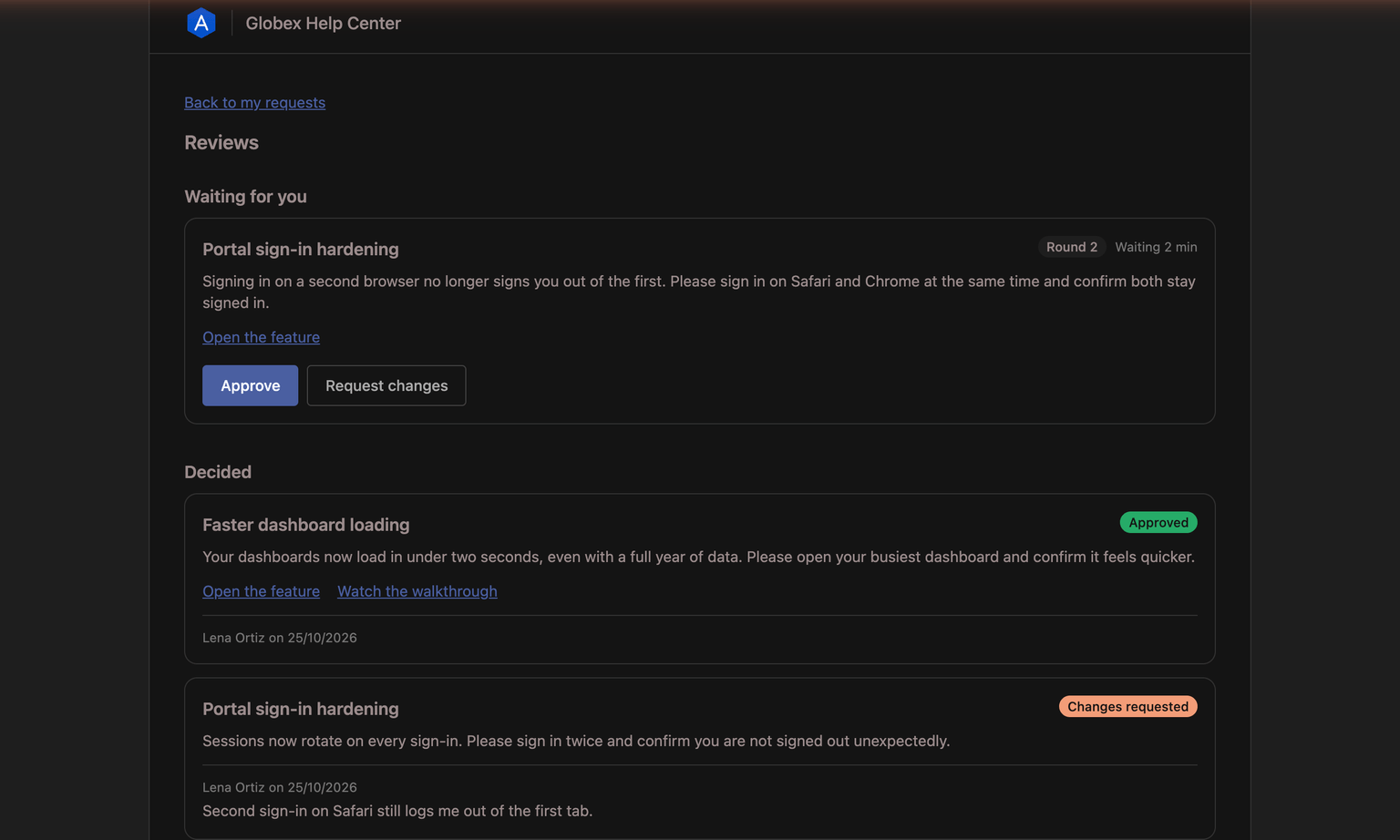
To decide, a reviewer clicks:
- Approve, then confirms Approve and record your name? This cannot be undone.
- Request changes, then writes What needs to change? (required, up to 2,000 characters) and clicks Send.
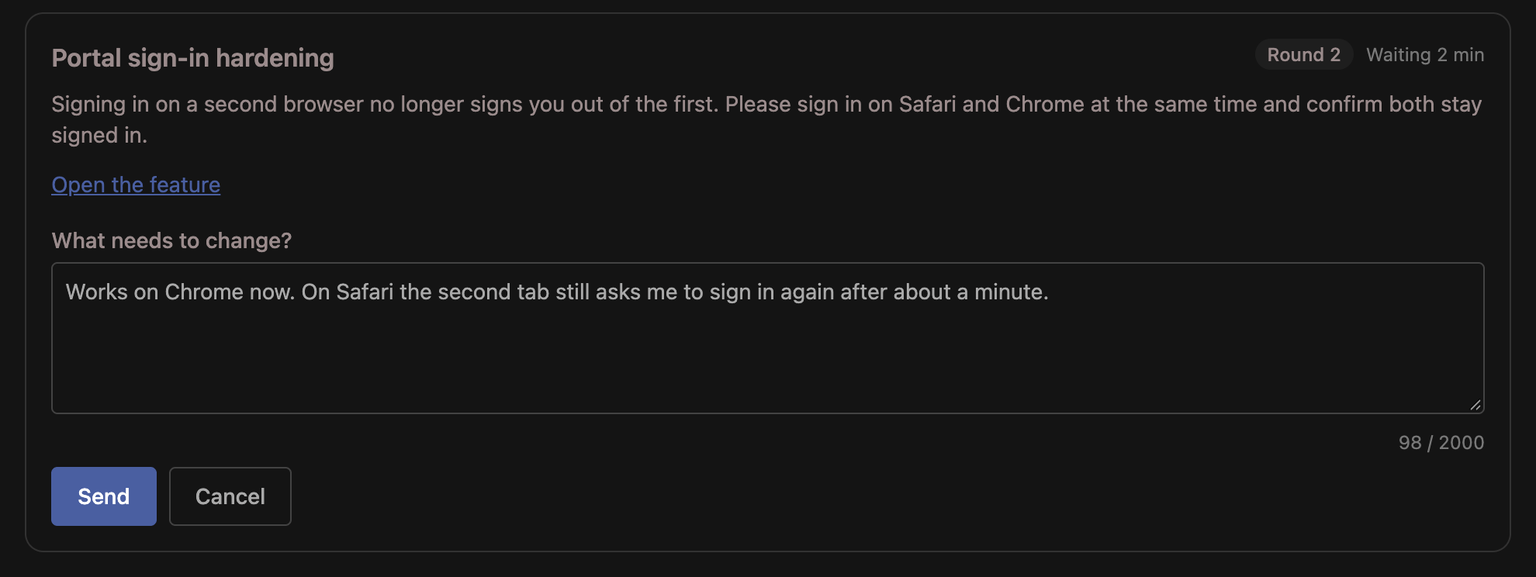
The card moves to Decided at once. If a colleague decided first, the reviewer is told Already decided by Name. If you withdrew it, they're told it's no longer available.
When you name reviewers, only they see the card and can decide. With nobody named, everyone at the company sees it and any of them can decide.
When the client decides
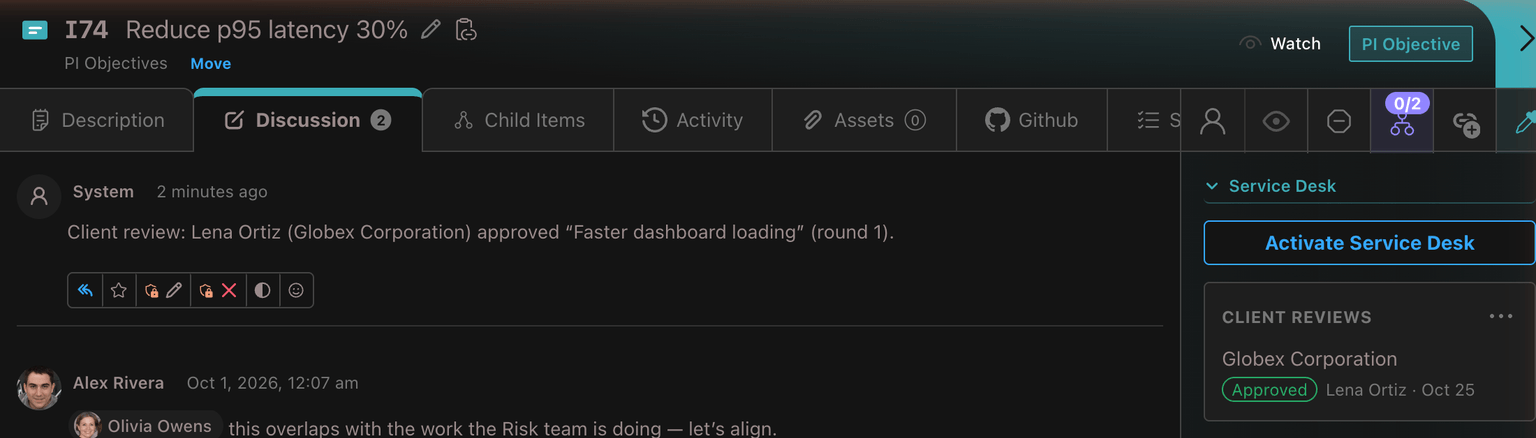
- The work item gets an internal comment from System, for example Client review: Lena Ortiz (Globex) requested changes on "New invoice export" (round 1)., with the client's note quoted beneath it. It is internal: other customers never see it.
- Whoever sent the review is notified, in the app: A client approved "title" or A client asked for changes on "title". Open the item to read the decision.
- Automations can act on it, through the Client Approved Review and Client Requested Changes triggers: for example, move the item to Done when it is approved, or open a follow-up when changes are asked for. See Setting up basic automations.
Spec changes waiting on the client
Proposed changes to a client's published spec appear on the same Reviews page. When a help-centre category needs approval for published changes and the article is shared with specific companies, submitting a proposed change asks those companies to approve it too. Their reviewers see a card titled Proposed change to article, with who proposed it, See the proposed version, and New title if the title changes.
Approving it makes the new version live, exactly as a staff approval does. Requesting changes sends it back to the proposer with the client's note. If the spec changed after the proposal was made, the card says it is out of date and can't be approved; changes can still be requested. When a spec is shared with several companies, a reviewer at any of them can approve.
These cards disappear if the article stops being shared with the company, or if the help centre is switched off.
Privacy: erasing and merging contacts
- Erasing a contact removes their name and notes from the decisions they made, including the decision comments on work items and the notifications and webhook deliveries that copied them.
- Merging two contacts moves the reviews the merged-away contact was named on, the decisions they made and the emails sent to them onto the surviving contact, without naming anyone twice.
From the AI assistant or an API key
Agents connected through the DevStride MCP server can use send_item_for_client_review, list_client_reviews and withdraw_client_review, with the key's own permissions. Sending always waits for a person to approve it. A client's note and name are treated as data to report, never as instructions.
Permissions
| To do this | You need |
|---|---|
| Send a work item for review, withdraw a waiting review | Send Items For Client Review, plus access to the item |
| See an item's client reviews | Access to the item |
| See, approve or request changes in the portal | A signed-in portal contact of the company (a named reviewer, if any were named) |
Headless Mode and Customer Switches
Stop DevStride sending anything to your customers so your own tools send it instead, close the customer portal or the help centre, and turn off status-change emails, from Settings → Service Desk.
Overview
Templates capture a reusable tree of workstreams, work items, and sub-items so you can stamp out the same shape of work again and again — with the right owners, dates, and fields already in place.