Customer Support Portal
The Customer Support Portal is a self-service website for your customers, branded per company and reached at …/portal/{slug}. It is separate from the workspace your team uses: light, phone-friendly, and never a door into boards or internal notes. Signing in opens one company's portal and nothing else.
Inside, customers see what is waiting on them at a glance, track their requests, follow each conversation, reply with attachments, update the details you expose, mark a request solved, submit new requests, find, write and approve specs, read your Help center, see lists you share with them, and approve work you send them for review.
Set up a company's portal
Everything lives on the company record under Service Desk → Companies:
- Open the company and set a Portal slug. The portal's address becomes
…/portal/{slug}. - Choose an Access mode (below).
- Optionally add Portal branding: a logo (and a second one for dark mode, if you like), primary color, and header text.
- Click Preview portal to open it in a new tab as customers see it.
- Send customers the address, or let the link in your emails do it (see Your emails point customers to the portal).
Configuring a company's portal needs the Manage Requesters permission. The portal only exists while Service Desk is enabled.
Who can sign in: access modes
| Access mode | Who can sign in |
|---|---|
| Open | Anyone with a valid email address. |
| Domain-restricted | Only people whose email is on the company's Email domains, the same domains that auto-match requesters. |
| Invite only | Only requesters who already belong to the company, as their main company or one your team added. |
Use Open for a public-facing desk, Domain-restricted to keep a portal to a customer's own staff, and Invite only for a tightly controlled account.
How your customers sign in
Sign-in is passwordless:
- The customer opens the portal and enters their email address.
- DevStride emails them a one-time link and a 6-digit code.
- They click the link or type the code.
- They're signed in for about a week.
Only the newest email works. Each new request replaces the link and code sent before it, so a customer who asks twice must use the most recent email. The sign-in page says so after they ask, and a code from an older email is refused with a message telling them to use the newest one or request another.

Company sign-in. For a company that runs its own identity provider (Microsoft Entra, Okta or any OpenID Connect provider), the portal can also offer a Sign in with company account button above the email form. See Company sign-in for your portal.
Contacts of more than one company sign in to each company's portal separately and see only that company's requests. Being let into a portal they don't belong to yet (under its access mode) adds that company to their record without changing their main company. Your team can also add or remove a person's companies.
Opened the wrong company's portal? If the person belongs to another company and this portal won't let them in, DevStride can email them directions to their own company's portal. That email contains no sign-in link; they still sign in at the right portal. The on-screen confirmation looks the same either way.
Sign-in email limits. Each mailbox gets three sign-in emails per clock hour (wrong-portal directions have a separate allowance of three). Repeated requests from one IP address are also limited.
Why it's safe
- No way to fish for customers. Whoever enters an email sees the same confirmation, whether or not that address is allowed in.
- Links and codes expire after about 15 minutes, and a code stops working after repeated wrong tries.
- Sessions end after about a week.
- Revocation is immediate. Access is re-checked on every visit. Block or erase a requester, remove them from the company, or disable Service Desk, and they are out on their next action.
- A separate door. A portal session reaches that one company's portal only, never your workspace, and signing in to one portal never carries over to another company's portal in the same browser.
Getting around: Home and the menu
Signing in lands a customer on Home. A side menu takes them everywhere else:
| Menu entry | Opens | Shown |
|---|---|---|
| Home | What is waiting on them, their specs and newest requests, and a help-center search. | Always. |
| Requests | My requests, their request list (below). | Always. |
| Specs | The company's specs, by stage. | When a customer-facing Knowledge Base category holds specs or is open to client drafts, and the help centre is open. |
| Reviews | Work and spec changes sent to them for approval, with a count of those waiting beside it. | Once the company has something to review. |
| Help center | Your help articles. | While the help centre is open. |
The company's logo and header text sit at the top of the menu and lead back to Home from any page. On a phone the menu is tucked behind a menu button and slides in from the left.
The Home page
Home leads with what needs the customer's attention, then gives them a way into everything else:
- Waiting on you: reviews waiting for their approval, marked Approval (work you sent for client review, or a proposed change to one of their specs), and their requests waiting for their reply, marked Reply needed (a request is waiting for their reply only while its status is mapped to Awaiting your reply; a staff reply on its own does not put it there). They are listed oldest first, each with how long it has waited, and each opens the review or request. When there is nothing, it says Nothing is waiting on you.
- Specs in progress: the company's specs, published and draft, counted by stage, with All specs to open the Specs page. Shown only when the portal has a Specs entry and the company has specs.
- Recent requests: their five newest requests, with All requests to open the full list.
- Find an answer: a search box that opens the Help center's results. Hidden while the help centre is closed.
Light and dark
The portal takes DevStride's own look: a light frame tinted with the color of the open menu entry, panels for each section, and the company's primary color on its buttons. A switch in the top bar flips between light and dark mode. The portal opens in light mode until someone chooses, whatever their computer is set to, and then remembers the choice in that browser. The request form and the confirmation pages a customer reaches from the portal follow the same choice. When the company has a dark mode logo, the portal shows it while in dark mode.
Inside the portal: requests, conversations, and submissions
Requests in the menu opens My requests: every request they've raised with this company, split into Open and Past, with a search box and a Status filter. Each row shows the title, when it was last updated, and a status in customer terms: Open, In progress, Awaiting your reply, Solved, or Closed. See customer statuses for how these map to your own statuses.
If the company has Shared tickets on, a Company requests tab shows colleagues' requests too. Each tab carries a count of the requests it holds under the current search and status filters, so a customer who has raised nothing themselves can see at a glance that their company's requests are one click away.
Group by. On either tab a customer can choose Group by: Status, Importance (the importance they gave the request) or Request form. The list then shows one section per value, each with its own heading, count and Show more, and the search box and Status filter apply inside every section. Requests that did not come through a form listed on the portal — raised by email, through the API, or before 25 October 2026 — sit under Other requests. The choice is remembered for that customer on that portal, in their browser. A customer only ever sees sections made of requests they can already see; your internal priority and the item hierarchy are never offered as groupings.
Following a request
Opening a request shows Your request (the customer description) and the Conversation: your team's public replies and the customer's own messages, including replies a colleague forwarded in on the customer's behalf. Internal notes never appear. If an email was too long to store, the request or reply says "This email was longer than we can store, so the end of it is missing."
A Files section lists the files the customer attached to the request form when they submitted it, plus any ticket file your team has shared with them. Each shows by name with a download link. Other ticket files stay with your team.
From here a customer can:
- Reply. The message lands on the ticket exactly like a reply by email.
- Attach files. Videos (MP4, MOV, WebM) up to 100 MB; anything else up to 25 MB. Every file is scanned for malware before your team sees it; a file that fails is discarded.
- Update details. Custom fields you've marked customer-visible for the work type appear under Details: those the request has a value for, plus any the customer may edit (shown even when empty so they can fill them in), which can be changed and saved. A read-only field with no value is left out, and fields you keep internal never show.
- Mark solved. Shown while the request is Open, In progress, or Awaiting your reply, and only to the person who raised it. The ticket moves to the status mapped to Solved in the status set it uses (its board's when it sits on a board, otherwise its team's or your default). If nothing there is mapped to Solved, it moves to the first Done status, which the portal already shows as Solved. Either way it fires the Customer Marked Solved automation trigger, and the page tells the customer whether the request was marked solved.
Submitting a new request
Submit a request lists the forms you've listed in the portal, grouped under your Item Request Groups as section headings and in the order you arrange them in settings, with ungrouped forms under Other. A signed-in customer doesn't retype their details: the form shows Submitting as their name and email, and the request is filed for their company and appears in My requests at once. A Not you? link lets someone on a shared computer enter their own details, which are handled like any submission from someone not signed in. After a signed-in customer submits, the portal takes them back to My requests, where a short confirmation sits above their list with the new request in it. Someone who isn't signed in sees the form clear with a confirmation message instead.
Finding the right form by searching. The search box at the top of Submit a request also narrows the forms. As the customer types, the page lists only the forms that match every word they typed, in a form's title, its group's name, or any question or answer choice the form shows them. A question you've hidden on the form is never searched, and priority choices are left out because every form shares them. While your Help center is open this is the What do you need help with? box, which suggests articles at the same time; while it is closed the box reads Find a request form and narrows only the forms. Clearing the box brings the full list back.
Folding the groups. With many forms, switch on Fold request form groups on the portal in Settings → Service Desk (needs Manage Service Desk settings; off by default). The portal then lists your groups folded, and a customer opens the one they need. Searching still lists every matching form, whatever is folded.
Require sign-in to submit
By default anyone can submit a request through the portal, signed in or not. To accept requests only from signed-in customers, switch on Only signed-in customers can submit requests in Settings → Service Desk (needs Manage Service Desk settings). Then:
- Someone who isn't signed in and opens Submit a request is taken to the sign-in page, and back to Submit a request once they've signed in.
- The sign-in page no longer offers to submit a request without signing in.
- A request sent without signing in is refused, on the portal and through the API alike.
- Signed-in customers submit exactly as before.
Public forms stay open. A form marked public keeps its shareable link, and anyone with it can still submit without signing in. Make a form private if it should need sign-in.
To keep a portal to one customer's own staff, pair the switch with the Domain-restricted access mode: anyone with an email at the company's domains can then sign in the first time they visit, with no account to set up, and nobody else can.
Before the form, Before you submit searches your Help center as the customer describes the problem and shows These articles may help. A customer who finds the answer never files the ticket.
Reviews
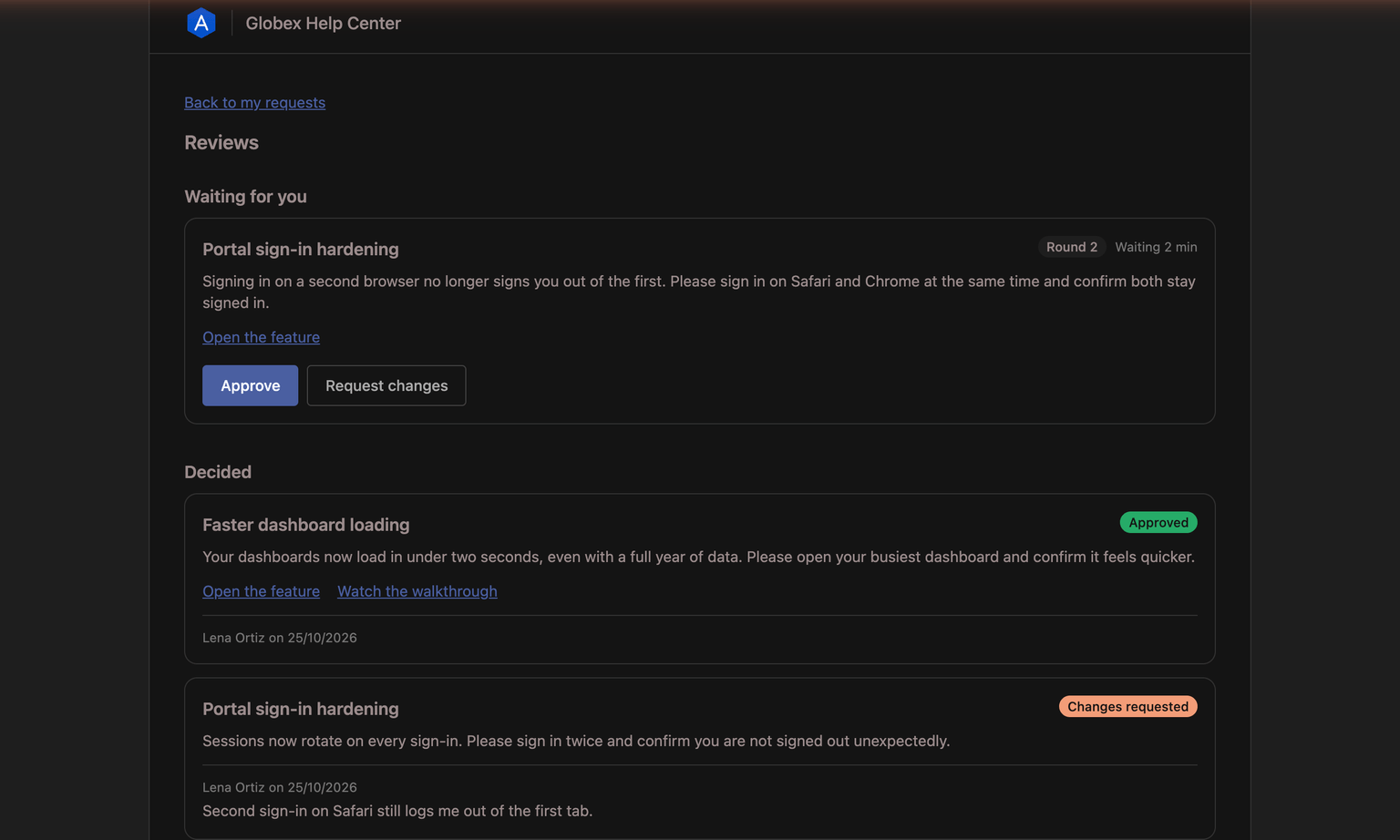
When you send a work item for client review, the company's reviewers see a Reviews entry in the menu, with a count of the reviews waiting for them, and each waiting review on Home. The Reviews page lists Waiting for you and Decided, and a reviewer Approves or Requests changes with a note right on the card. Proposed changes to a spec shared with the company can appear there too. The entry shows only once the company has something to review.
Specs
Specs are the Knowledge Base articles a client shapes with your team, kept apart from help articles. Your team decides which articles are specs by switching on This category holds specs on a Knowledge Base category; its sub-categories follow. The Specs page lists, in order:
- Waiting for your approval: specs with a proposed change waiting for the company's approval, each with how long it has waited and a Review button that opens the change on the Reviews page. Shown only when something is waiting.
- Your drafts: the company's draft specs, with Write a new spec, when a category is open to client drafts. The customer's own drafts are marked Written by you.
- Published specs: the specs published for the company, grouped by stage, with specs that have no stage under No stage.
Opening a spec shows it with a Back to specs link. Customers see only specs they could already read: published, marked for the portal, outside internal-only categories, and shared with their company.
A portal whose Knowledge Base has no category holding specs, and none open to client drafts, shows no Specs entry.
Browsing the Help center
Help center in the menu opens your published help articles to browse by category or search. Articles in categories that hold specs are left out of its list, search and category tree; they are on the Specs page instead. Customers see only articles that are published, marked for the portal, outside internal-only categories, and shared with their company. Where a publisher has allowed customer comments, they can ask questions under an article. See The customer Help center and Customer comments on articles.
Shared lists
Below their requests on My requests, a customer may see Shared lists: saved item views you have granted to their company. Each renders as a table with Number, Title, Status, Created, Updated, and Channel, sortable by column. Selecting a row opens an item drawer with its own URL, so a customer can link a colleague straight to one item; a ticket row offers Open conversation, and other items are View only. A customer whose company holds no grant sees no section at all.
Branding the portal for each company
On the company record you can set a Logo (upload up to 2 MB, or paste a hosted URL), a Primary color for buttons and accents, and Header text to greet customers. Set none and the portal uses a neutral DevStride-branded shell with a small "Powered by DevStride" footer. The logo and header text sit at the top of the menu and link back to the portal Home from any page, including a form opened by mistake. A request form opened from the portal shows the same logo and header text at its top, in place of your workspace's own logo.
Logo size. Once a customer is signed in, the logo fills the width of the menu, up to 64 pixels tall: a wide logo spans the menu, and a square one shows at 64 × 64. On the sign-in page it sits in the top bar, 40 pixels tall. Upload an image at least twice the size it shows at (128 × 128 for a square logo) so it stays sharp on high-resolution screens.
A logo for dark mode. If your logo is hard to see on a dark background, add a Dark mode logo under Portal branding: customers who switch the portal to dark mode see it instead. Leave it empty and the regular logo shows in both.
Posting a notice on a company's portal
The company's Portal branding section also holds a Portal notice: a switch and a plain-text message of up to 500 characters. While the switch is on, the message shows as a banner at the top of every page of that company's portal, for example to say a system is down and you know about it. Each company has its own notice. Switch it off and the banner disappears, but the wording stays saved for next time. Clearing the text and switching it off removes it entirely.
Portal language
The portal follows the visitor's browser language, and the company's Portal default locale pins it for visitors with no preference. English is the only language available today; more can be added later without any change on your part.
Closing the portal or the help centre
An administrator can close the whole customer portal, or just its help centre, in Settings → Service Desk. Customers then see a plain "This support portal is not available" page with no branding. See Headless Mode and Customer Switches.
Your emails point customers to the portal
When a customer has a portal, the emails DevStride sends about a request (your replies, status updates, and the acknowledgement) end with a line inviting them to view the request in the company name support portal, linking straight to that request. The line appears only when Service Desk is enabled, the customer portal is switched on, the customer's company has a portal, and that portal would let them sign in. A customer who isn't signed in when they follow the link signs in first, then lands on that request.
Permissions
| To do this | You need |
|---|---|
| Set a company's portal slug, access mode, branding, locale, and shared-tickets setting | Manage Requesters |
| Enable Service Desk so portals exist at all | Manage Service Desk Settings |
| Add identity-provider connections and offer company sign-in on a company's portal | Manage Portal SSO (plus Manage Requesters on the company) |
See Permissions.
Requesters & Companies
Requesters are the customers who raise tickets; companies group them, carry per-customer defaults, and own the customer portal. How to manage both, merge duplicates, block senders, and handle erasure requests.
Working a Ticket
Triage from the Inbox, open a ticket for a client, reply to the customer by email, keep internal notes separate, fix the requester, merge duplicates, and understand what the customer sees as the ticket moves through your statuses.