Working a Ticket
This is the heart of Service Desk: the moment-to-moment work of reading a request, talking to the customer, and getting it done. Because a ticket is an ordinary work item, everything you already do with items — assign an owner, set a priority, move it across a board, add it to a cycle — works here too. What's new is the conversation.
Triage from the Inbox
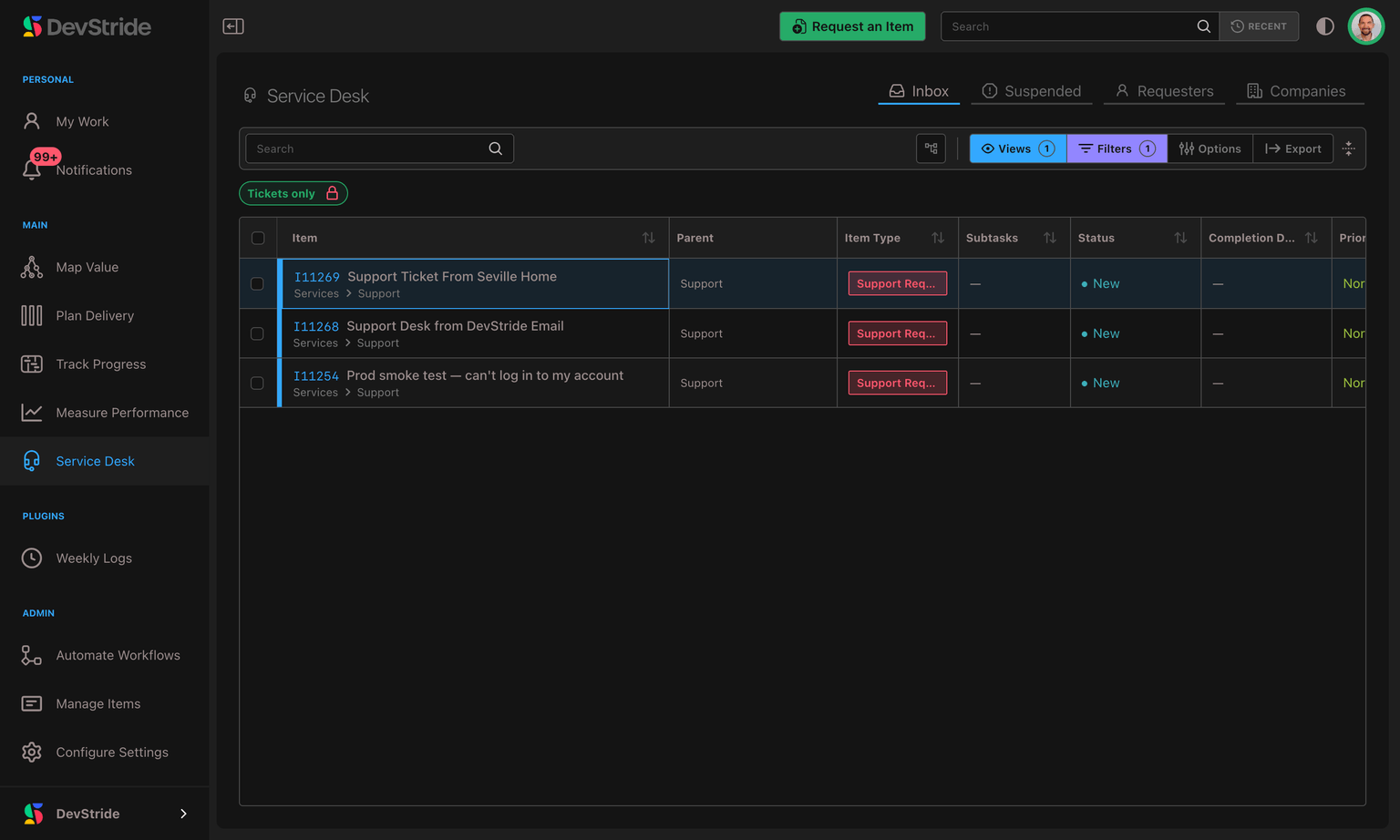
Open Service Desk → Inbox for your triage queue. Every email that reaches a channel address opens a ticket here, whoever sent it — see Tickets from your own team, and forwarded mail. It's the familiar items table, automatically scoped to tickets — a locked Tickets only filter keeps non-support work out, so you're always looking at customer requests and nothing else.
From here you can:
- Sort and scan new requests, and open one to start working it.
- Select several at once (click, ⌘/Ctrl-click, or Shift-click a range) to update them in bulk — reassign, re-prioritize, or move them together.
- Switch to a saved view such as Unassigned to focus on what still needs an owner, or save your own.
Turning an existing item into a ticket
Not every customer problem arrives as an email. Someone reports a bug in a meeting, an engineer files it as a story, and only later does it turn out a customer is waiting on it. Convert to ticket takes a work item you already have and makes it a Service Desk ticket, without retyping it or losing its history.
Converting asks you for two things:
- The customer. Pick an existing requester, or create one during the conversion if they are not on file yet.
- What the customer should see. The item's existing description is your team's, and it may not be written for a customer. You choose the customer-visible description as part of converting, so nothing internal is exposed by accident. If the two do not need to differ, choose one unified description instead and the item's existing description becomes the customer's as well — the same choice you can make later on the ticket itself.
From the moment it converts, the item behaves like any other ticket: SLA clocks start, the customer's replies thread onto it, and it appears in their Customer Support Portal alongside requests they raised themselves.
You can convert from three places:
- the right-click menu on an item, under Edit
- the item's side panel, where an Activate Service Desk button sits in the slot the Requester pane occupies once it is a ticket
- bulk edit, to convert several items at once — from the items list, boards, map, or portfolio
Tickets from your own team, and forwarded mail
Every email that reaches a channel address opens a ticket, whoever sent it. Two of those cases look different in the Inbox, and it pays to recognize them:
- A colleague wrote in. Someone on your own team emailed a support address, so they are the ticket's requester and they received the usual acknowledgement. Work it exactly as you would a customer's — every reply you send goes to them.
- A colleague forwarded a customer's email in. The ticket is credited to the customer: they are the requester, the title and Customer description are the customer's own words, the colleague who forwarded it is a watcher, and their covering note is an internal note on the ticket.
When DevStride can't safely tell who the customer is, it credits the ticket to the colleague who forwarded it and keeps the forwarded text as an internal note instead — so glance at the Requester pane before you reply, and change the requester if it's the wrong person. Email Channels & Setup sets out exactly when each happens.
Changing a ticket's requester
When a ticket belongs to the wrong person (a forward credited to the colleague who sent it, or a request filed under a shared address), move it to the right customer. In the ticket's Requester card, open the ⋯ menu and choose Change requester…, then either pick an existing requester or enter a new requester's name and email.
- Replies, the portal and the company follow the new customer. Your next reply is emailed to them, the ticket appears in their portal, and the ticket moves to their company.
- Only this ticket moves. The previous requester keeps their other tickets. To combine two records for the same person, merge the requesters instead.
- Nothing is sent and nothing is lost. Nobody is emailed about the change, the ticket's history stays as it is, the change is recorded in its activity feed, and SLA timers keep running.
- The previous requester's words stay theirs. If they write to this ticket again, their email is added as an internal note rather than being shared with the new customer. And if they later ask to be erased, what they wrote on this ticket is erased with them.
If a colleague changed the requester while you had the dialog open, DevStride refuses your change rather than overwriting theirs. Reopen the ticket and try again. You need the Manage Requesters permission.
Automatic priority from incoming email
When a new ticket arrives by email, DevStride reads the subject and message and chooses the closest match from the priorities configured for that ticket's work type. A message such as “URGENT: production is down” can therefore arrive already elevated, while a routine request stays at the configured default.
The classifier only runs while the ticket still has its default priority. A priority supplied by a request form or already set by a team member is never overwritten. If the AI service is temporarily unavailable, DevStride falls back to a conservative urgency-word check using the priorities your organization actually configured; it never invents a new priority.
Prioritizing with Customer Importance
Beyond the standard priority, tickets carry a Customer Importance — a quick triage signal for how much a request matters to the customer:
- Critical — high-stakes work that should jump the queue.
- Important — matters, but not on fire.
- Nice to have — low-urgency requests.
Set it right on the ticket while you triage, or select several tickets in the Inbox and set their importance in bulk in one action. Customer Importance is more than a label: you can sort and filter on it (see Finding & Filtering Tickets) and match SLA policies against it (see SLAs), so it feeds directly into how tickets are surfaced and how their deadlines are set.
Merging duplicate tickets
When the same issue comes in twice — a customer emails and also fills in a form, or two people report the same outage — you can fold the duplicates into one. Open the ticket menu and choose Merge, then pick which ticket survives. The other ticket's conversation and history move onto the survivor, so you're left with a single thread instead of scattered fragments, and future replies — including replies to emails that belonged to the merged ticket — all land in one place. The survivor gets an internal note naming the ticket that was merged in. That ticket is archived and linked as related, and its own opening message, attachments and images stay there, one click away.
Both tickets must come from the same requester and belong to the same customer company. A requester who is a contact for several companies can have tickets for each, and DevStride refuses to merge tickets from two different companies, because that would move one customer's conversation into the other customer's portal.
The two descriptions: Internal and Customer
Open a ticket and its Description tab carries a small control with three choices — Internal, Customer, and Unified. The first two are the ticket's two descriptions:
- Customer — what the requester wrote, and what they can see. The body of their original email lands here — unless it arrived as a forward DevStride couldn't safely attribute, in which case the message is kept as an internal note instead (see Tickets from your own team, and forwarded mail).
- Internal — your team's working description, private to the organization.
Keeping the customer's words and your team's notes apart means you can capture internal context — reproduction steps, links to related work, a blunt assessment — without ever exposing it to the customer.
The control appears only on tickets. An ordinary work item has one description and no customer to show it to, so there is nothing to choose between.
Unified: one description for both
Sometimes the split is more work than it is worth — you have written a clear description and you would rather the customer simply read it. Choose Unified and the ticket keeps one description, shown to your team and to the customer alike. There is a single editor, and what you write in it is what the customer sees.
Tickets start on the two-description split, and deliberately so: the internal description is private until you decide otherwise. Choosing Unified requires Send Public Replies or Manage Requesters — but anyone who can edit the item may switch back to Internal or Customer, so a unified description can always be separated again by whoever notices it should not be shared.
The text is sanitized before the customer sees it, and the two stay in step for as long as Unified is selected: edit the description and the customer's copy follows.
If the original email included files, an Attachment indicator and the linked filenames appear directly beneath the Customer description. Attachments on later inbound replies appear beneath the exact customer comment or nested reply that included them. Selecting a filename opens the saved file; the same attachments remain available together from the ticket's Assets tab.
Replying: customer replies vs. internal notes
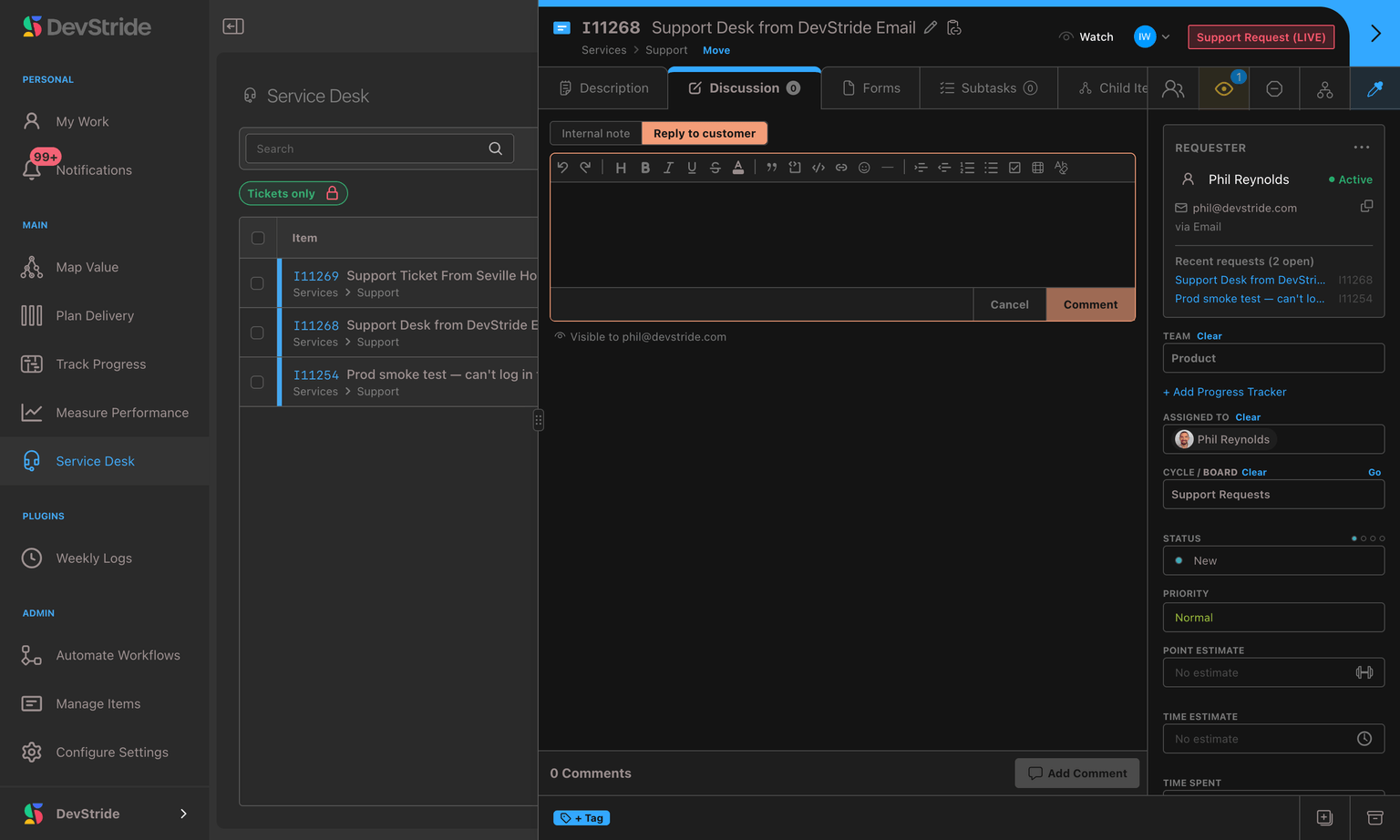
Every ticket has one conversation thread, but each entry is one of two kinds. The composer lets you choose before you send:
| Reply to customer | Internal note | |
|---|---|---|
| Who sees it | The requester — it's emailed to them | Only your team, inside DevStride |
| Use it for | Answers, questions, and updates to the customer | Working notes, hand-offs, and discussion |
| How it looks | A normal message in the thread | Flagged with an Internal marker so it's unmistakable |
When you send a Reply to customer, DevStride emails it to the requester and threads it so their response comes back to the same ticket. An Internal note never leaves DevStride.
One customer comment isn't composed here at all. When a colleague forwards a customer's reply to your channel address, the customer's own words are published on the ticket as a comment from them, and the colleague's covering note lands as an internal note in the same step. Both still obey the same line: the customer's message is public, your colleague's is not.
Replying inside a thread
A reply inside a comment thread the customer can see starts as Reply to customer, the same as the main comment box. The one exception: when you click Reply on an internal note in the thread, the reply starts as an Internal note, like the note it answers. Replies under an internal note are always internal, and if you don't have permission to reply to customers, every reply starts as an internal note.
Text you've already written keeps its audience. If you start a reply, close the box without sending, and open it again, it keeps the audience you chose. A saved draft also comes back the way you wrote it, so an internal note never reopens as a reply to the customer.
How the conversation flows
- An email reaches your support address → a ticket appears in the Inbox with the message as the Customer description. A message a colleague forwarded in is credited to the original customer (see Tickets from your own team, and forwarded mail).
- DevStride makes an initial priority choice from the email when the ticket still has its default priority.
- You triage it: confirm the priority, set an owner, add internal notes, and do the work.
- You send a Reply to customer → they receive it as an email and can simply reply.
- Their reply lands back on the same ticket as a new customer comment, notifies your team, and shows any attached files alongside that message. If they reply to one of your team directly instead, that colleague can forward the reply in and it still lands as the customer's own comment.
- When it's resolved, you move the ticket to a closed status like any item.
Who can reply to customers
Anyone working the ticket can add Internal notes, but sending a Reply to customer requires the Send Public Replies permission. This lets you bring in collaborators — say an engineer investigating a bug — who can contribute internal context without the ability to message the customer directly. See Permissions.
Customer Support Portal
A branded, passwordless self-service portal your customers reach at a per-company web address — how sign-in works, why it's safe, and how to brand and control access for each company.
Request Forms
Collect structured support requests through a form, in addition to email — with the fields you need, filed where you want.