Notifications in DevStride
# Notifications Feature in DevStride
Introduction
DevStride provides a robust Notifications system to keep users informed about activities and updates relevant to their work. This guide will outline the functionalities of the Notifications feature for users.
Notification Types
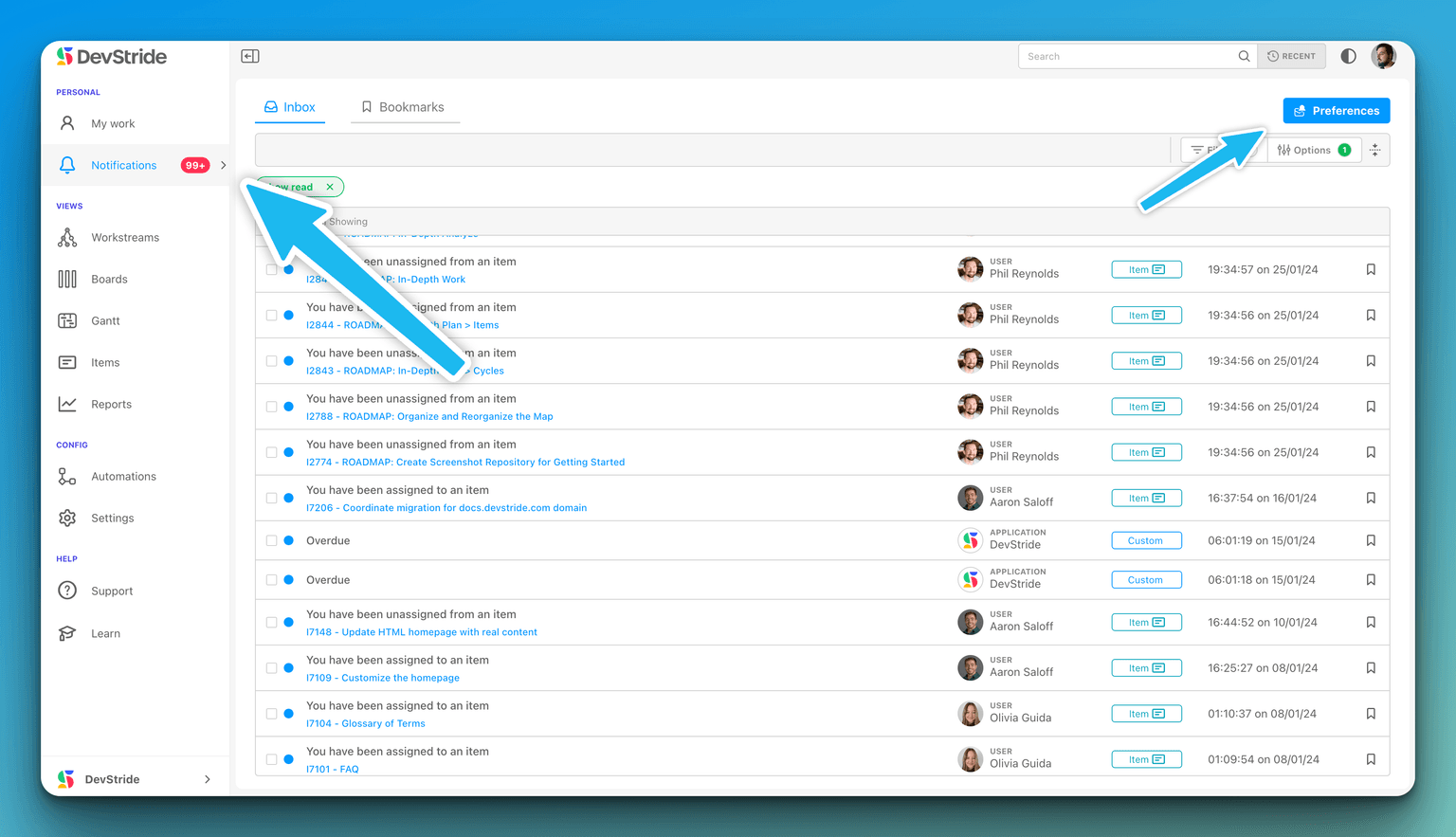
DevStride classifies notifications into different types, which include:
- Direct Mentions: When another user mentions you directly in a comment or update.
- Assignment Notifications: When you are assigned to an item.
- Overdue Items: Alerts you when tasks are past their due date.
Notification Center
- The Notification Center is where all your notifications are listed.
- You can view unread notifications and mark them as read.
- Overdue tasks and direct mentions are prominently displayed for immediate attention.
Customizing Notifications
- Open your account menu, then My Account → Notification Settings.
- You can opt to receive notifications through the DevStride Notification Center, Email, Slack, or Microsoft Teams.
- Slack delivers personal messages from the DevStride app after an administrator connects your organization's Slack workspace. Your Slack email must match your verified DevStride email. Enable Slack for direct mentions and configure its separate activity/role grid. Follow the Slack connection and notification test guide for administrator setup, recipient preferences, and troubleshooting.
- Microsoft Teams provides personal messages from the DevStride app. The Teams tab becomes available after your organization's tenant is connected, but delivery also requires adding the app in Teams with an email that matches your verified DevStride account. Direct mentions are off by default for Teams; conditional activities and recipient roles have separate settings. Your Teams administrator first uploads the production app package to your organization's catalog. Each recipient then selects Apps → Built for your org → DevStride → Add in Teams and enables the desired preferences in DevStride. Follow the Teams setup and notification test guide for the download, administrator and recipient instructions, and a real delivery test.
Conditional Push Notifications
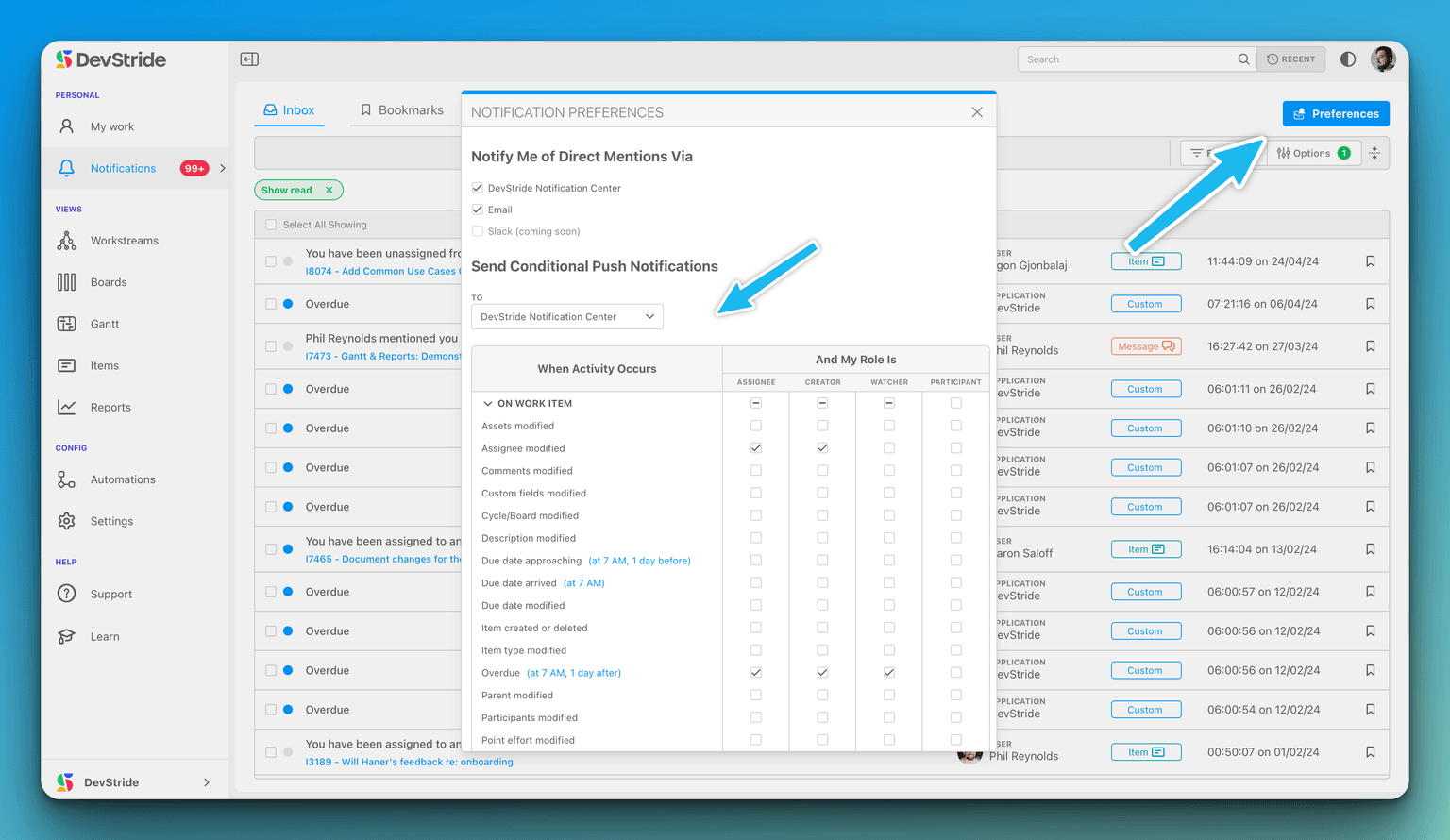
- Conditional Push Notifications can be customized based on the activity and your role in the activity:
- On Work Item: Choose which changes to an item will trigger a notification (e.g., Assets modified, Assignee modified).
- Roles: Specify the role you must have in the item for the notification to be sent to you (e.g., Assignee, Creator, Watcher, Participant). You become a Watcher with the Watch toggle in the item header, where watchers can also be added.
- Users can set these notifications to be sent to the DevStride Notification Center, their email, Slack, or Microsoft Teams — each channel has its own tab with its own selection of activities and roles.
Managing Notifications
- The system allows you to 'Select All' to mark notifications as read or manage them in bulk.
- Filters are available to display only 'read' or 'unread' notifications.
Notification Preferences
- Notify Me of Direct Mentions Via: Choose how to be notified of direct mentions.
- Send Conditional Push Notifications To: Set specific conditions under which you want to receive notifications.
Summary
The Notifications feature is designed to ensure that users stay informed about critical updates without being overwhelmed by information. Customizing your notification preferences helps maintain focus on what's important to your role and responsibilities.
Conclusion
Understanding and configuring the Notifications feature will help users maintain productivity and enhance collaboration within their teams in DevStride.
My Work
My Work is your personal, cross-project view of the items that are yours — choose what to show, work items in place, and shape and save the view to fit how you work.
Customizing Notification Settings for Individuals and Teams
Choose direct-mention channels and conditional notifications for your role in each item.