Notifications in DevStride
DevStride tells you when something you care about changes: you were mentioned, an item of yours moved, a due date is close. Notifications arrive in the in-app Notifications inbox and, if you choose, by email, Slack or Microsoft Teams. You decide what reaches you and where in My Account → Notification Settings; this page explains the pieces, and Customizing Notification Settings walks through the settings.
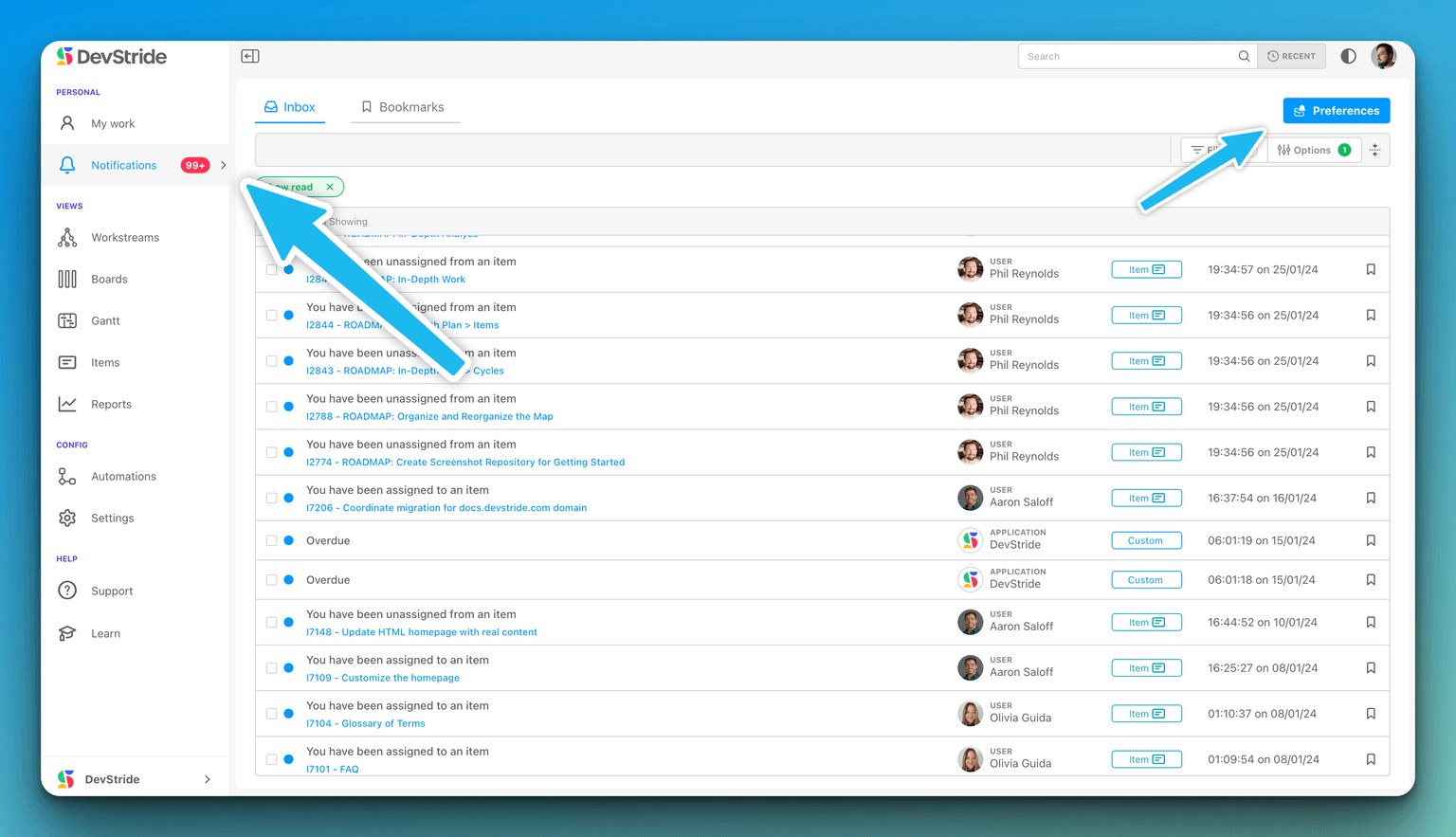
What you can be notified about
| Kind | When it fires |
|---|---|
| Direct mentions | Someone @mentions you in a comment or description. Always on for the Notification Center; choose the other channels. |
| Activity on items you have a role in | A change to an item where you are the Assignee, Creator, Watcher or Participant: status, assignee, dates, comments, attachments, pull requests and about twenty more, each one opt-in per channel. |
| Due date reminders | Due date approaching, Due date arrived and Overdue, at a time of day you pick. |
| Automations | Workflow automations with a notify action can message you directly; see Automations. |
The Notifications inbox
Notifications sits under Personal in the left navigation, with a badge showing your unread count. It has two tabs:
- Inbox — everything sent to you, unread first.
- Bookmarks — notifications you saved to come back to.
Each entry shows the item, who made the change (a member, a Customer through Service Desk, or DevStride itself), what changed and when. Click it to open the item.
To work through the inbox:
- Filters narrow it by Activity, date Range, Team, User and Role; Options → Show Read brings read notifications back into view.
- Tick entries (or Select All Showing) and use Edit Selected to Mark Read, Mark Unread, Add Bookmark or Remove Bookmark in bulk. A single entry has the same actions on its row.
The four channels
| Channel | What you need | Notes |
|---|---|---|
| DevStride Notification Center | Nothing | The in-app inbox above. |
| A verified email on your account | Sent to your DevStride sign-in address. | |
| Slack | An administrator has connected your Slack workspace, and your Slack email matches your DevStride email | Delivered as personal messages from the DevStride app. Until the workspace is connected the setting reads Slack Integration Required. |
| Microsoft Teams | An administrator has connected your Microsoft tenant and you have added the DevStride app in Teams | Delivered to your personal DevStride chat in Teams. A readiness panel in Notification Settings checks each step and sends a test message. Until the tenant is connected the setting reads Teams Integration Required. |
Every channel has its own choices: you can get mentions everywhere but route only status changes to Slack, or keep email for due-date reminders alone.
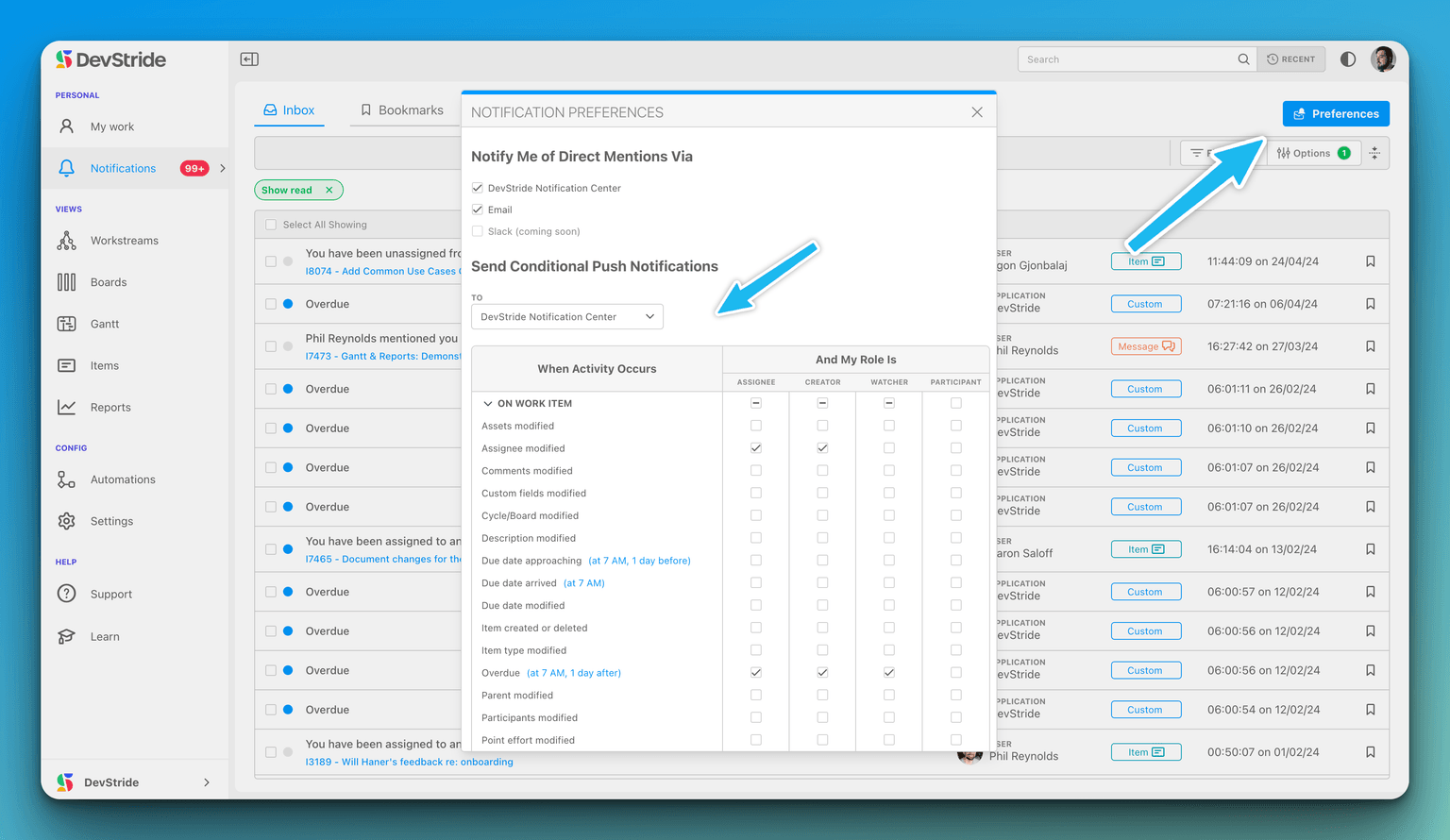
Where to set your preferences
Open your account menu (your avatar in the top bar), choose My Account, then Notification Settings. Preferences are per organization and save as you change them. The settings page is described step by step in Customizing Notification Settings.
My Work
My Work is your personal, cross-project list of the items assigned to you — open items first, grouped or nested as you like, acted on in place, saved as views and exported.
Customizing Notification Settings
Choose where direct mentions reach you, pick which item activities notify you for each role you hold on an item, set due-date reminders, and enable and test Slack and Microsoft Teams delivery.