2025 - 08-01 - 09-27
New Features
🆕 Advanced Permissions for Workstreams & Items
What’s New?
You can now set granular permissions for workstreams and work items across the app.
Permissions can be managed at the user, team, and organization level, giving you full control over who can view, edit, comment on, or restrict access.
Why It Matters
Project success depends on the right visibility for the right people. These new permissions help teams:
- Reduce noise by filtering out work that isn’t relevant to every user.
- Keep projects focused by showing each person only the streams and items they need to see.
- Strengthen governance by protecting sensitive initiatives while still enabling open collaboration where it’s valuable.
Public vs. Private workstreams
When creating a core workstream, you can choose to make it public (shared across the organization) or private (visible only to you and any selected users).
Public workstreams allow all organization members to view and edit immediately. Access for nodes and items downstream can be restricted.
Private workstreams allow you to set the workstream as private to you and then invite specific users, teams or set organization-level preferences later as necessary.
Public Workstreams
When setting up a new workstream, public access is the default.
Click New Workstream (1), then name it and select Public (2). Click Save New Workstream.
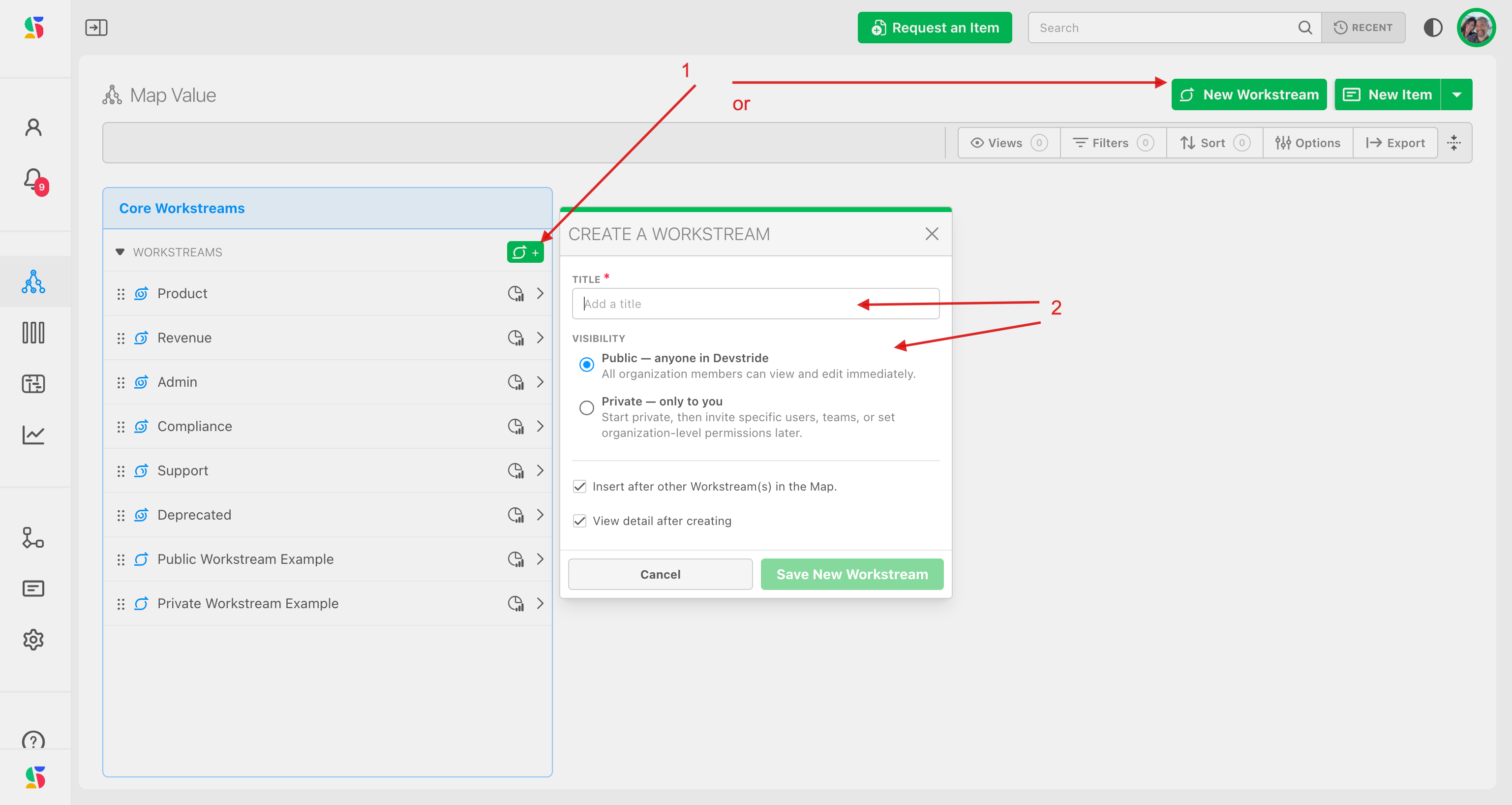
In this public workstream example, the access setting icon (1) is not in "locked" mode. Because everyone in the Organization has Editor access to the workstream itself (2). All members of the organization have full have full edit rights, even if indviduals are listed as restricted in the User Access section.
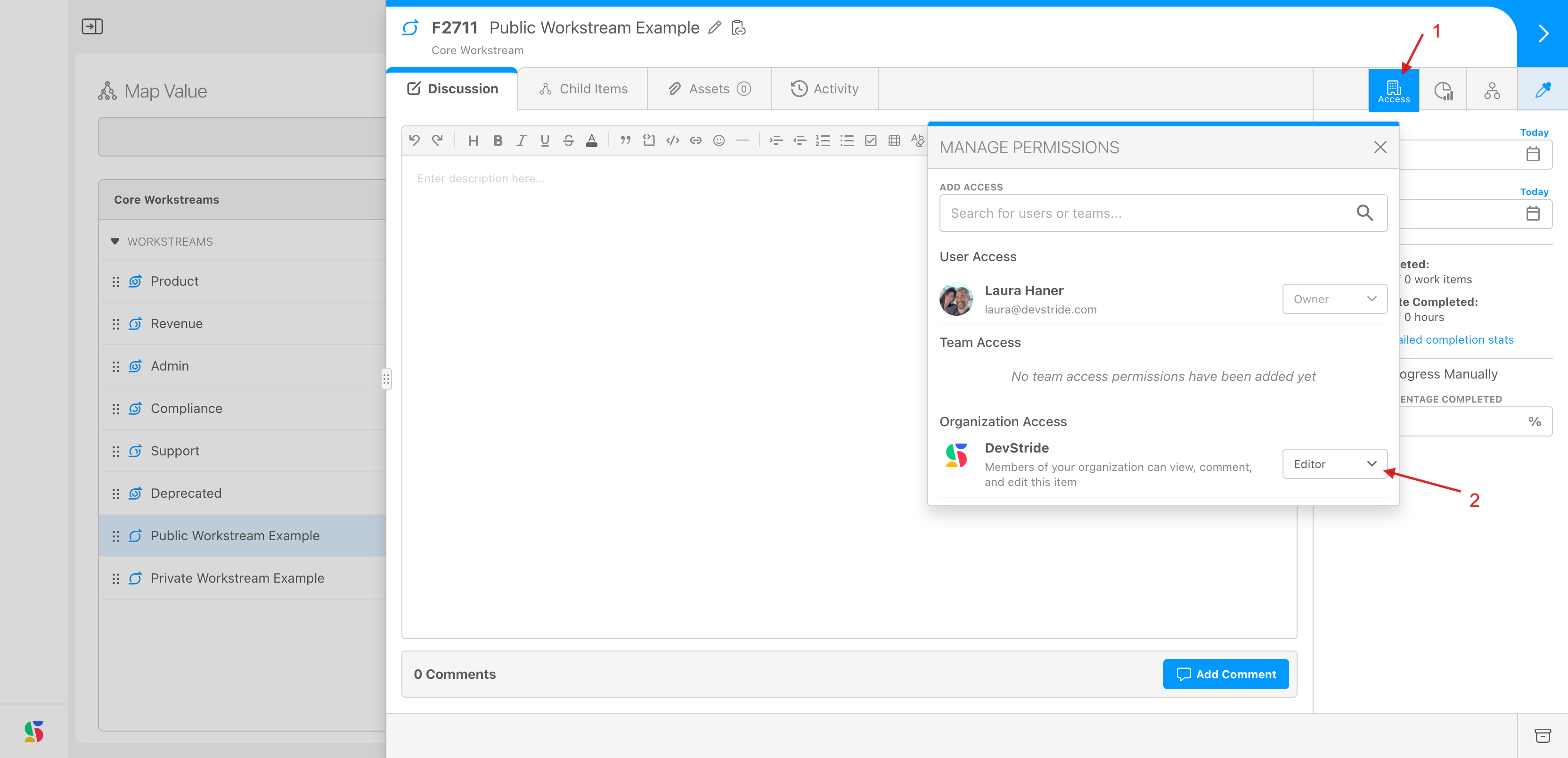
To Restrict Access to a Public Workstream
If you would like to restrict access to a public workstream, click on the Access Button to change the settings for the organization access.
In the example below, we are setting the organization to "Viewer" access (1).
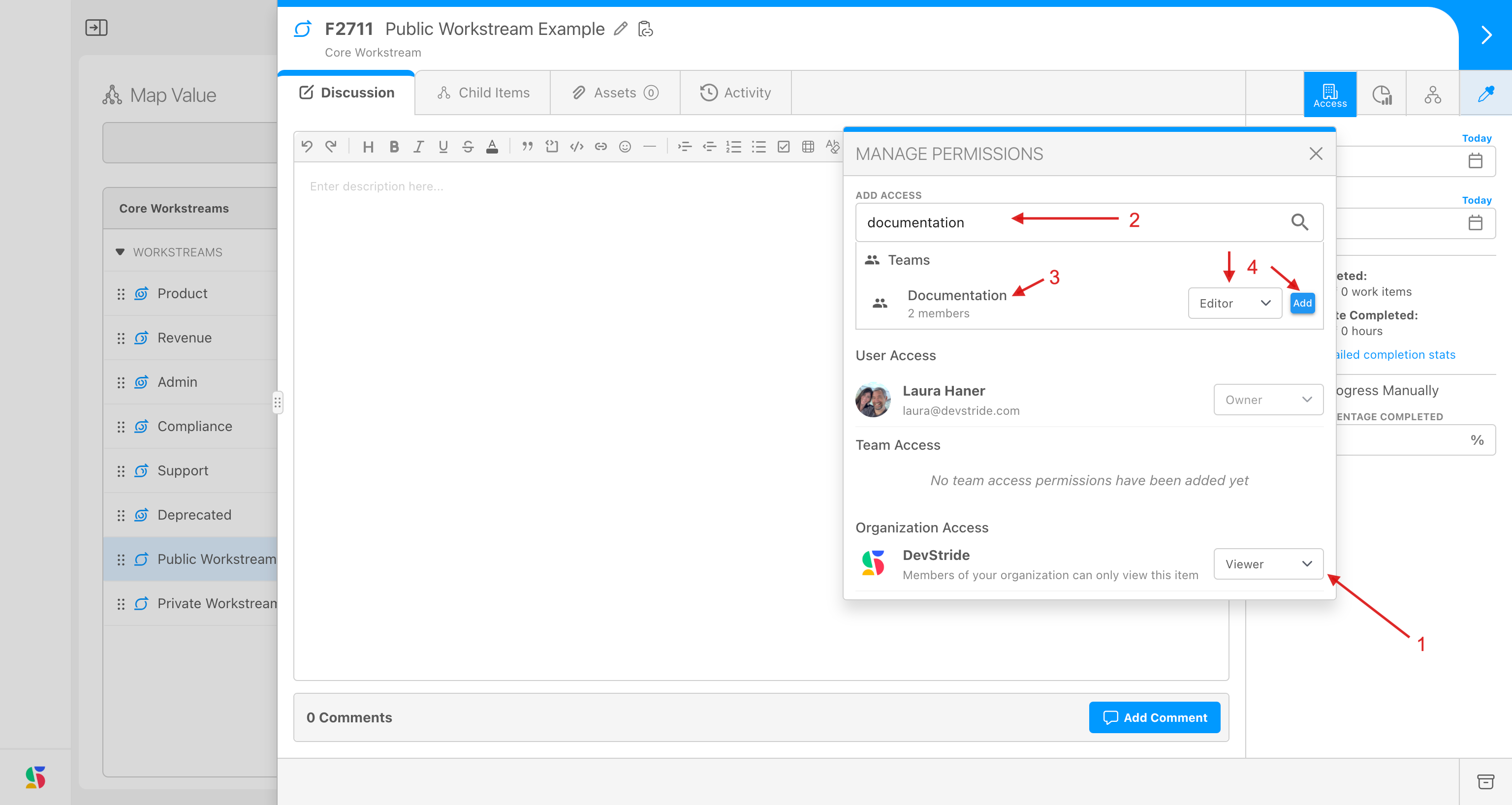
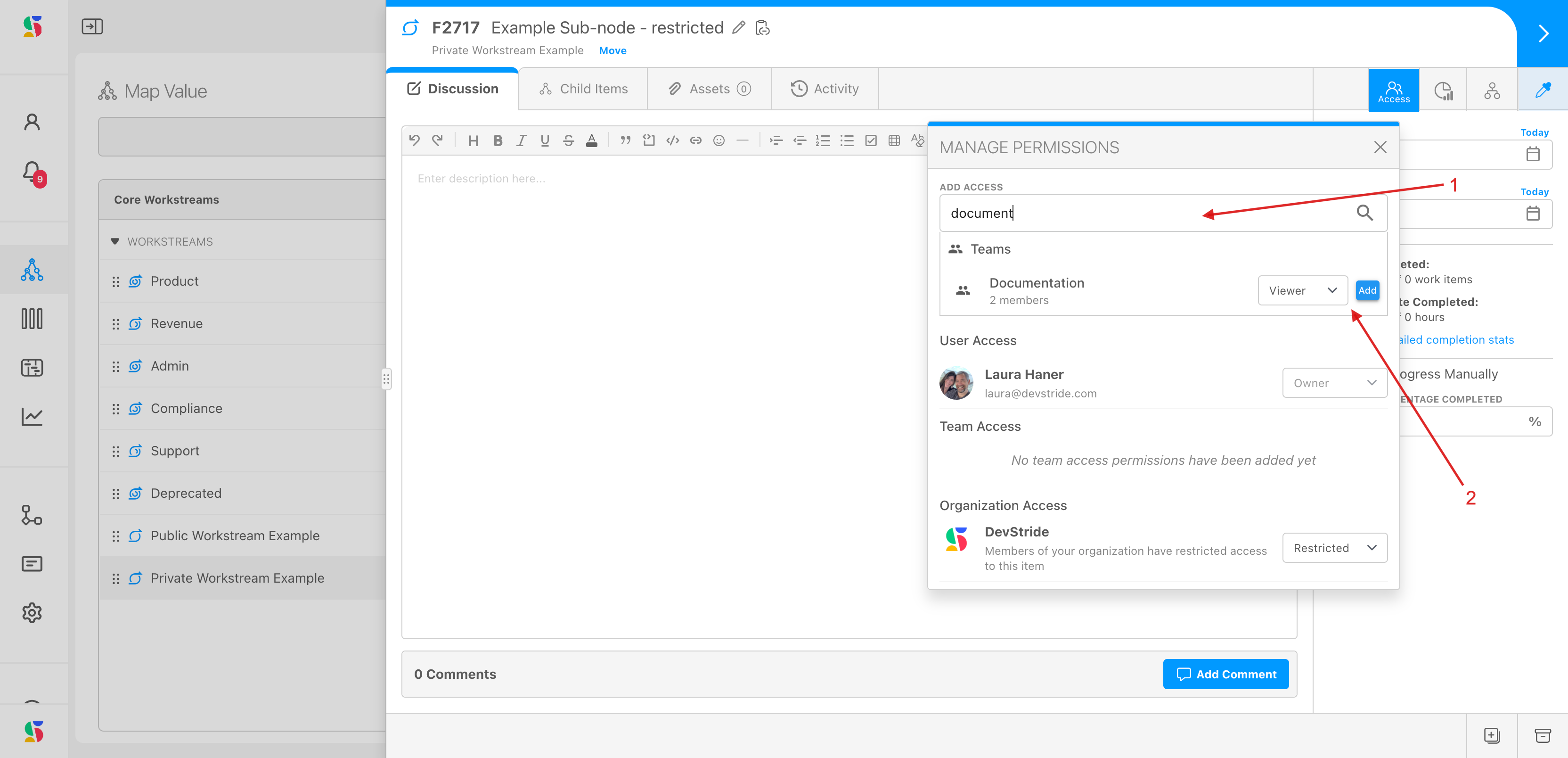
In the Manage Permissions dialog box, set expanded access to this workstream for teams and/or individuals by clicking in the search bar under "Add Access" (2). Search for the team or users for whom you wish to grant access. In this example, we are adding the Documentation team (3). We are making them editors on this workstream by selected Editor from the dropdown and clicking "Add" (4).
The result is that the organization as a whole has Viewer rights (1) to this workstream and the Documentation team has Editor rights (2). The workstream still shows as unlocked (3) because it is still publically viewable.
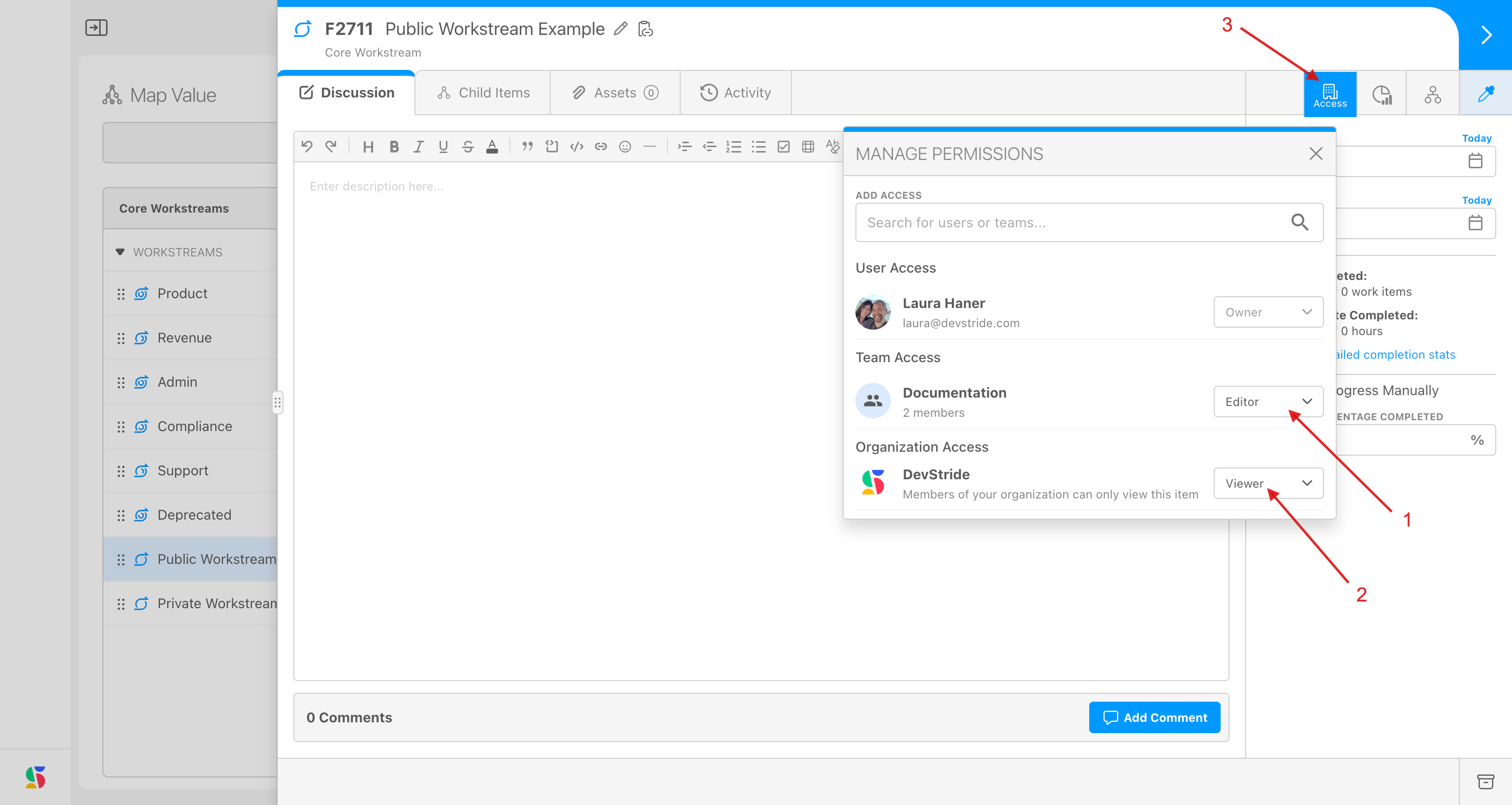
Access can be set on individual nodes of this public workstream in the same way.
This makes it easier to align access with roles, responsibilities, and team structures—helping everyone stay focused on the work that matters most.
How to Set up a Private Workstream
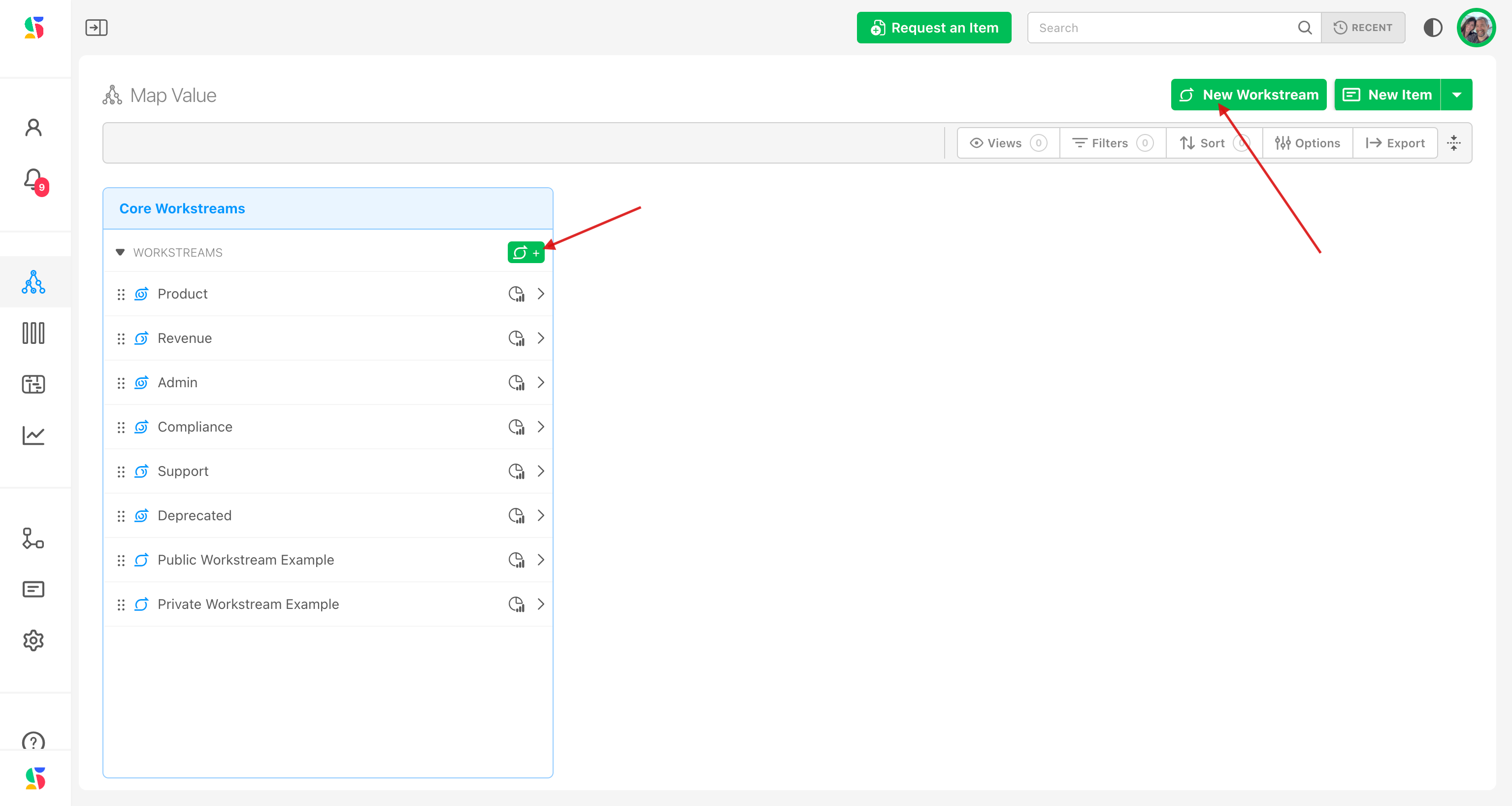
To create a new private workstream, click on the New Workstream button or icon.
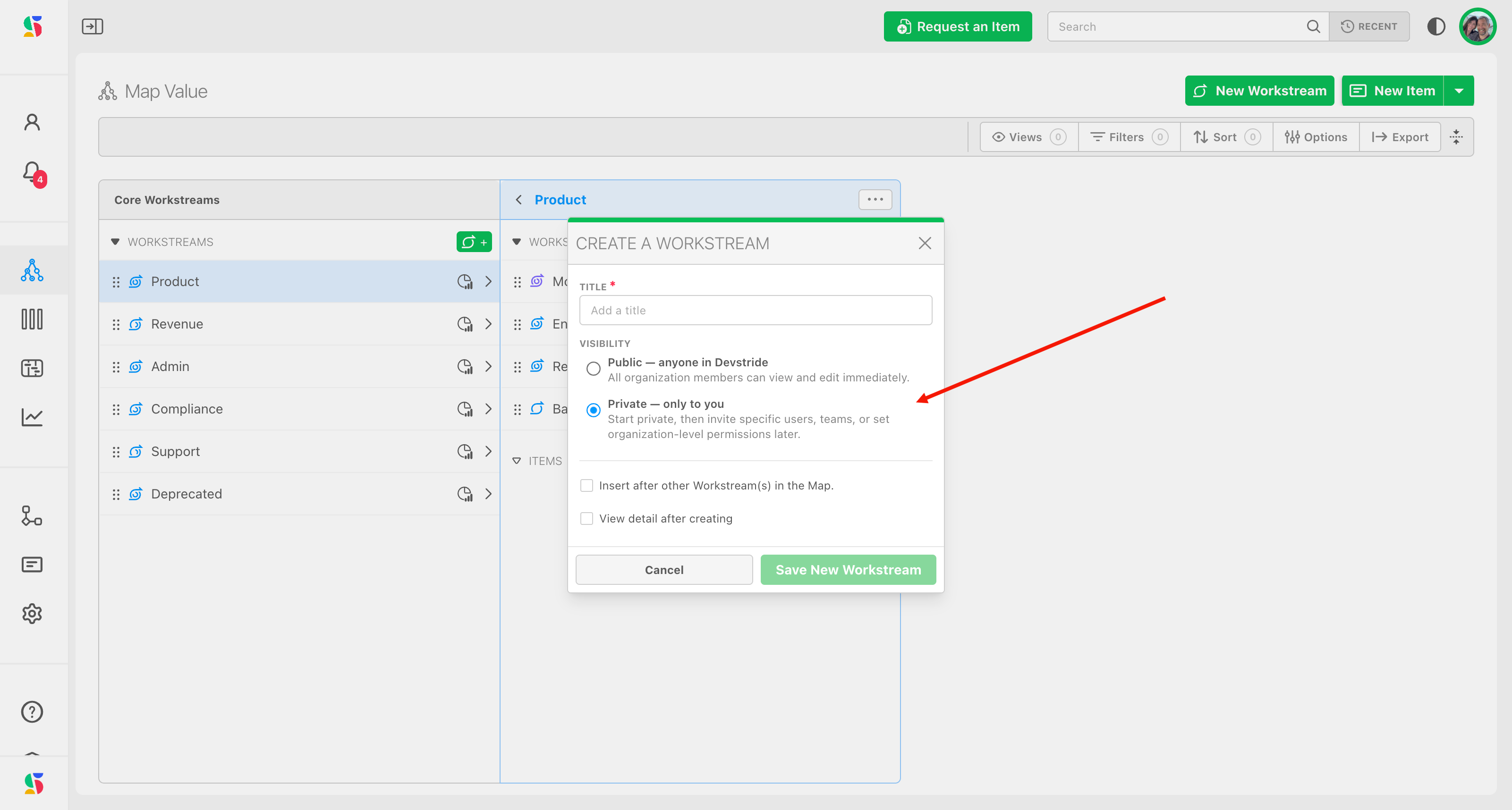
Then fill out the dialog box, and choose the "Private - only to you" radio button. Click Save New Workstream.
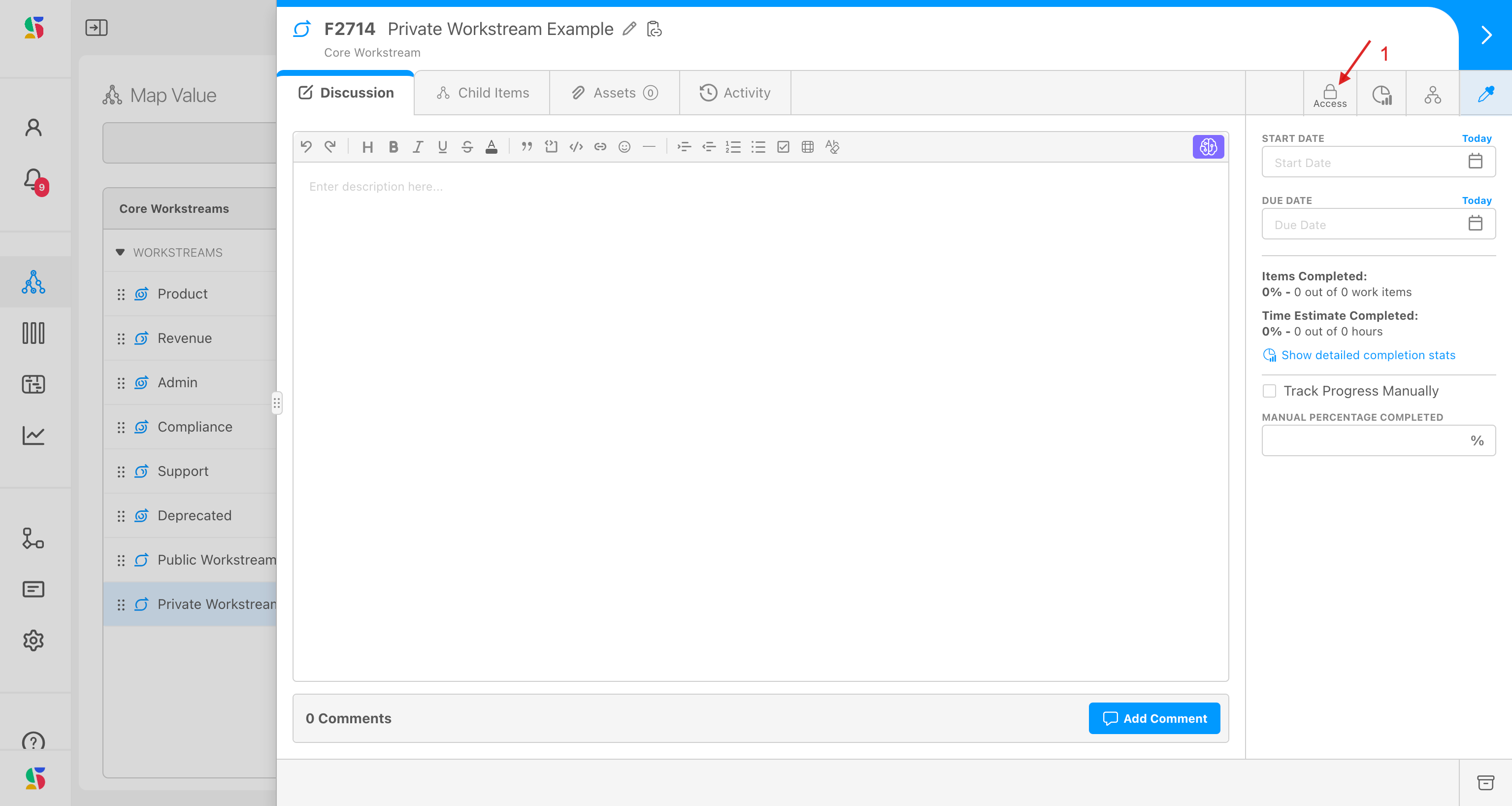
Now, you can see the access for this private displays as locked (1):
All child items and workstreams automatically inherit the parent’s permissions. These can be modified at any time after creation.
How to Change Permissions on a Workstream
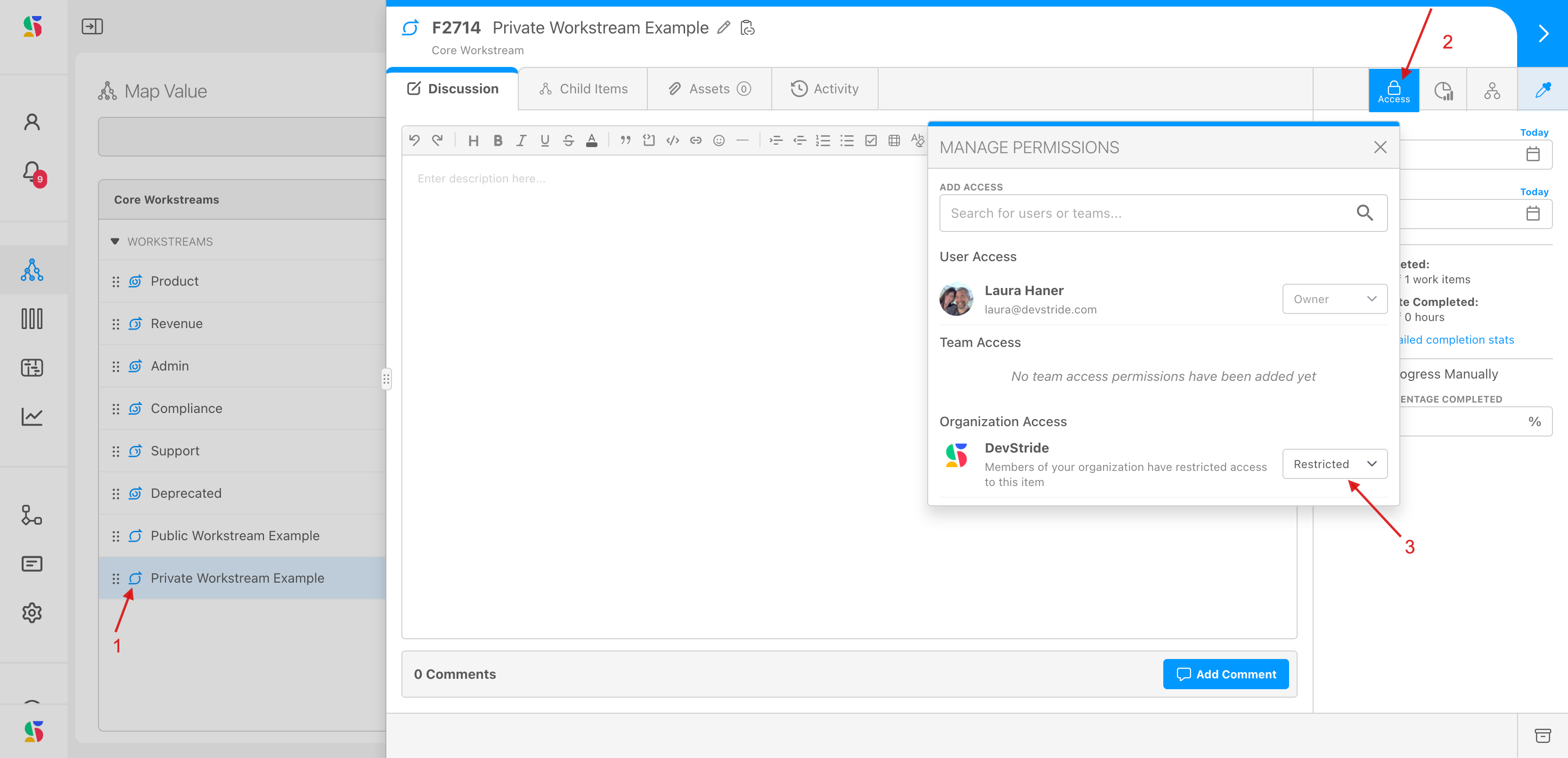
To change permissions, open the workstream or item drawer (1) and click the Access button in the top-right corner (2). Note that this button shows that the access is locked. This will open a popup where you can manage permissions.
The organization access (3) setting dictates the overall permissions on the workstream.
You can also add access to specific teams or individuals by looking up the user or team in the "Add Access" lookup. Enter the name(s) of the individuals or teams (1). Click add and set the access level on the desired individuals/teams (2).
NOTE: In addition, the designated owner of the entire organization (as identified in Settings -> Users -> Role) also has full access. This means that individual has permission to view, edit, comment, delete, or transfer ownership of all workstreams and items in the organization.
How to Publish Access to a Private Workstream
You can provide access to this workstream at any point after its creation. Access can be set on it by clicking the locked access button (1). In the dialog box that appears, select the team or individuals you wish to grant access, the access you are granting, and click "Add" (2).
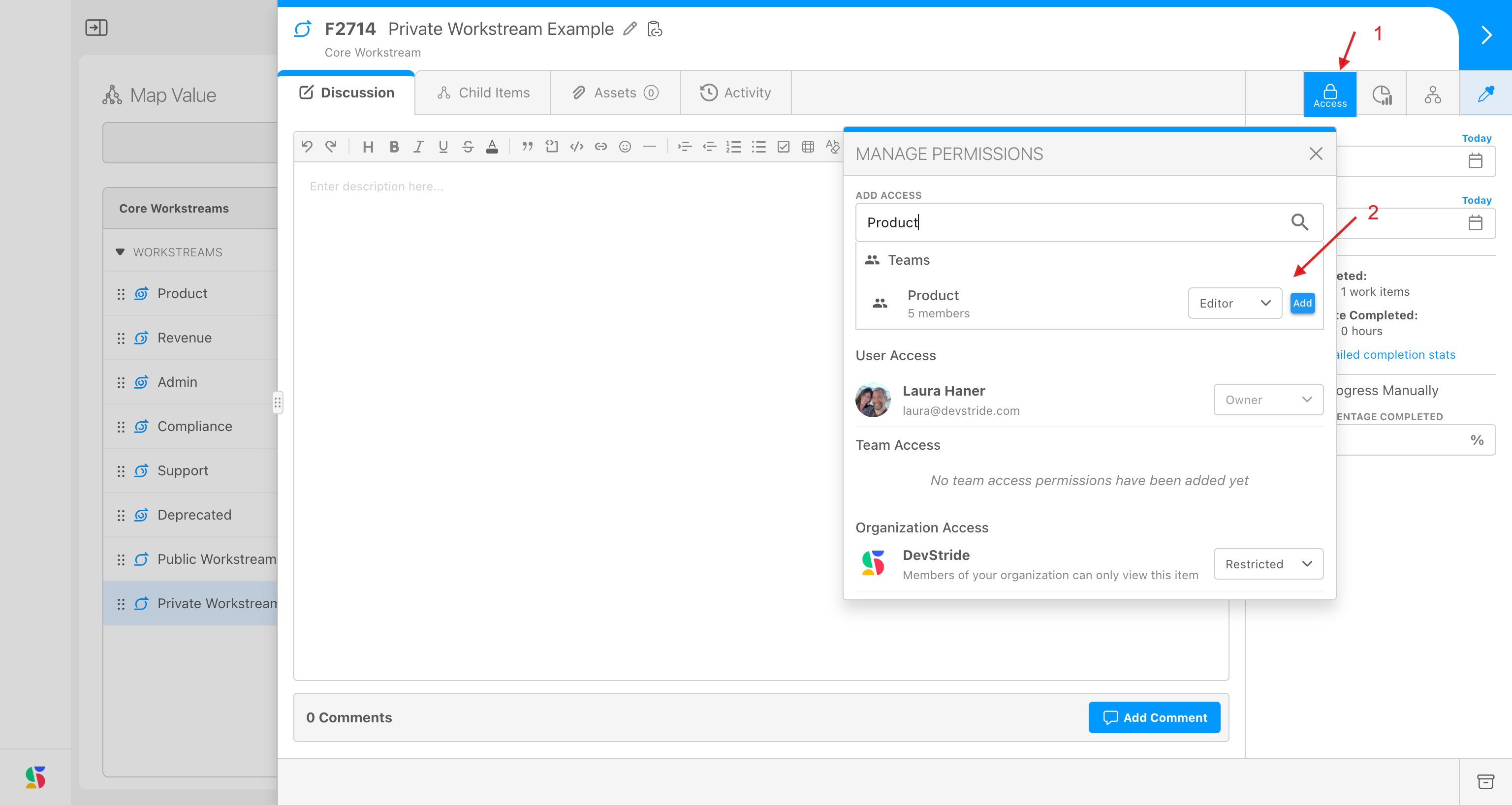
Once access is granted, the workstream is no longer fully locked down, and the permissions icon updates to indicate access has been granted at some level (3).
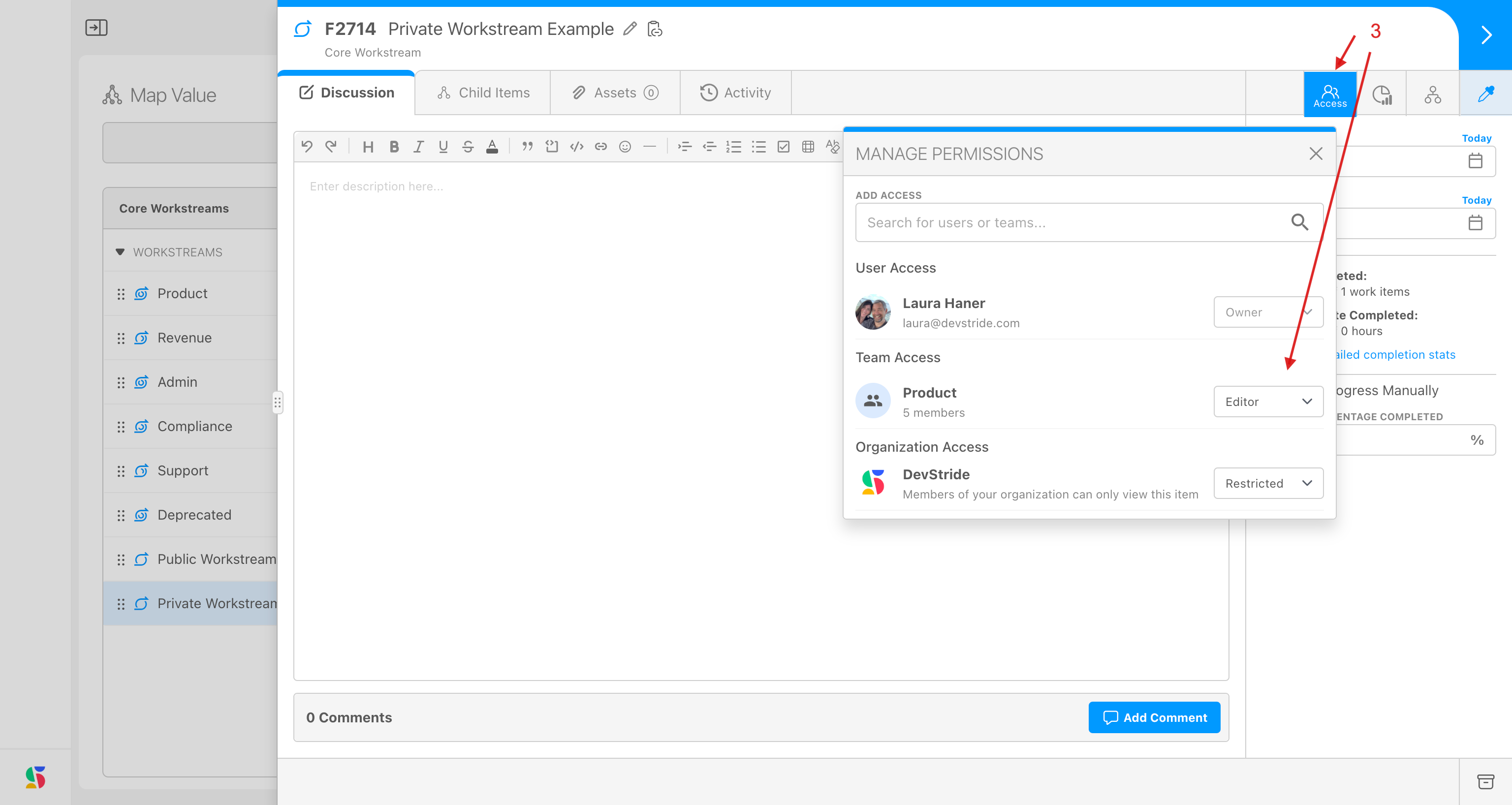
Only those users/team members who have been granted access (plus the workstream owner and the organization owner) can see this workstream.
**Logic:** The condition we have used for access permissions is OR (inclusive). This means if, for example, a user is restricted (to view or commenting) but the team he or she is on is allowed to edit, that user will still be allowed to edit the item. In this case, to remove an individual's access, either remove them from the team, or set the access by adding users individually and do not set access at the team level.
Owners and : Admin role is equivalent to Owner, so it can perform all actions that the owner can.
Deletions: Only the Owner/Admin and Inherited Owners can archive and delete items. Editors cannot delete items, since child items can exist that an editor does not have rights to access.
Item Request Forms: Forms and automations are subject to the permission set for them in their parent folder.
Assignees: The access permissions do not impact the team or assignee options that appear unless you make a specific team Viewer or Commenter. In that case, the assignees field (in order for a user to make changes to the assignees) would be disabled for those teams.
More New Features and Enhancements
Multiple Watchers Support
What’s New? You can now select multiple watchers for an item across the app. Added a Watchers filter to narrow items by selected watchers. Introduced a Watchers column in the Items Table for better visibility.
Why It Matters Some teams have central project managers or scrum masters who want to direct other users to pay attention to updates on certain items. This feature allows a central manager to view and edit the watchlist for a group. Everyone can easily see who is following work and filter items by team involvement.
Customizable Item Drawer Tabs
What’s New? A new setting lets you control the tab order in the Item Drawer and choose which tabs are visible on a per–item type basis.
Why It Matters Different item types are used for different purposes. For example, you might want to show a GitHub tab for a technical feature but hide that tab for a customer support request. This update helps you streamline the workspace for each item type to focus on what matters most.
Completion Date Filtering & Sorting
What’s New? Added a Completion Date filter. Introduced a Completion Date column in the Items Table. Enabled sorting by completion date.
Why It Matters We plan to complete things by the due date, but reality doesn’t always work out that way. The new filter enables workflows based on the actual completion date instead of the due date, for richer reporting and retrospectives.
AI-Powered Bulk Item Generation and Enhanced AI-Assisted Bulk Create Item UX
What’s New? You can now bulk-generate items from document content or plain text using AI.
Why It Matters This helps you capture and convert insights faster — ideal for capturing stories from, meetings, spec reviews, and idea dumps.
What’s New?
- Introduced an additional input field for AI instructions, allowing you to provide context and intent beyond the system prompt.
- Added the ability to save templates for guided input, enabling more structured and repeatable extractions.
- You can now add files and paste text simultaneously during bulk item creation.
- Bulk add items is now available inside maps and within the Item Drawer’s child items tab.
Why It Matters AI-assisted bulk creation is now smarter and more flexible. By combining user instructions, templates, and multiple input types, you can generate items that are more accurate, structured, and tailored to your needs.
For example: upload the transcript from a long call with a customer, then add a prompt such as:
This text is a transcript of a phone call between company X and company Y. Extract all the action items from this transcript, paying special attention to the business intent of each request.
Enable Link Mode
⚠️ Note: to use this feature enable it in the settings page, under Org Configuration -> Workflow Automation.
What’s New? A new organization-level setting allows you to enable “Link Mode”. When active, updating related item dates automatically adjusts the related item dates, similar to the Gantt chart behavior.
Why It Matters Keeps your timelines aligned without manual updates. Perfect for managing dependencies and keeping workstreams tight.
Jump to Board Control in Item Workspace
What’s New? We’ve added a Go button next to the cycle/board selector in the Item Drawer. Clicking it will take you directly to the selected board or cycle.
Why It Matters This reduces navigation steps and helps you quickly jump between planning and execution views, saving precious time.
Time Tracking Enhancements for Parent & Child Items
What’s New? Time entries are now disabled for non-leaf work types to maintain data accuracy. Clicking the Time Spent cell in the Items Table or on an Item Card now opens the Item Drawer directly in the Time Tracking tab, preloading the dialog to add a new time entry.
Why It Matters This improves consistency and streamlines time logging, making it easier to capture effort where it belongs.
Improved Link Handling in Text Editor
What’s Changed? Updated link handling in the editor to prevent links from opening multiple tabs in Windows 11 on Brave and Edge browsers.
Why It Matters Fixes a frustrating browser-specific behavior and ensures smoother navigation.
Better Asset Management
What’s Improved?
- Adding a LinkURL now automatically extracts and fills the document title.
- Downloaded assets now retain the correct filename.
Why It Matters URL Titles – Many URLs represent items such as Google Docs or Figma designs. DevStride now automatically extracts a reasonable title for these links.
This enhancement simplifies document management and ensures assets behave consistently.
Asset Downloads – If you’ve downloaded an asset from DevStride with a filename like 534cfcbd-ce9b-4001-aa36-25462431b6ef.pdf, you know the pain. From now on, files download with the same name they had when you uploaded them.
Updated Board Terminology
What’s Changed?
- Boards are now labeled Perpetual Boards.
- Cycles are now labeled Cycle Boards.
Updates apply across:
- Boards Module folder view.
- Single Board Selectors (e.g. Item > Choose a Board).
- Multi-Board Selectors (e.g. Filter > Boards).
Why It Matters These changes improve clarity by distinguishing ongoing planning spaces (Perpetual Boards) from time-bound cycles.
Reduced Deletion Friction
What’s Improved? The delete confirmation process has been simplified: We removed the text-based prompt that required typing the item number to confirm deletion.
Why It Matters Fewer steps mean moving faster, helping you clean up work items more efficiently.
Auto-Save on Editor Blur
What’s New? When you’re editing an item’s description, DevStride automatically saves your changes as soon as you click or tab away from the editor — no need to hit a “Save” button.
Why It Matters No more worrying about losing your work — just type and move on.
Activity Log Updates
What’s Improved? Pusher event handling for activity logs has been improved.
Why It Matters You'll now see the most up-to-date changes reflected in real-time — no refresh required.
Children Aggregations: Time & Effort
What’s New? We’ve added new columns to show child item time estimates and point efforts.
Why It Matters Better visibility into roll-up data improves planning accuracy and helps identify outliers faster.
Hide Empty Rows & Columns in 2D Boards
What’s New? You can now toggle visibility for empty rows and columns in 2D boards.
Why It Matters This enhancement keeps your workspace clean and focused, especially in high-dimension views.
Improved Visibility of ItemDrawer SidePane Toggle on Mobile
What’s Improved? On mobile devices, the SidePane toggle button in the Item Drawer is now more visible and easier to interact with.
Why It Matters Better accessibility and usability on smaller screens means a smoother mobile experience.
🐛 Bug Fixes
Lanes View
What Was Fixed? Fixed an issue where lanes in the Status View did not load more than 10 items.
Why It Matters Ensures you always see the full set of items in your workflows, not just the first handful.
Jira Subtasks Sync
What Was Fixed? Fixed synchronization issues with Jira subtasks. Changes to subtasks in Jira now reliably reflect in DevStride.
Why It Matters Keeps subtasks aligned across platforms.
Email Subject/Body Mismatch
What Was Fixed? Fixed an issue where the email subject and body for subtask completion status were not consistent.
Why It Matters Improves clarity and ensures communication is accurate and reliable.
Fixed Editor Crashes When Pasting Logs
What Was Fixed? Improved pattern matching for various input types. Enhanced safety checks to prevent crashes.
Why It Matters Stabilizes the editor and prevents unexpected errors when pasting logs or unstructured content.