My Work
Overview
My Work is your personal home base in DevStride. It gathers the work that's yours — across every workstream, board, and cycle — into one place, so you don't have to hunt through the portfolio to find what you're responsible for. Every member has a My Work view; there's nothing to set up.
You'll find it near the top of the left navigation. My Work is a single table (the same kind of table used in Manage Items), and you can shape it, work items directly from it, and save the setups you use most.
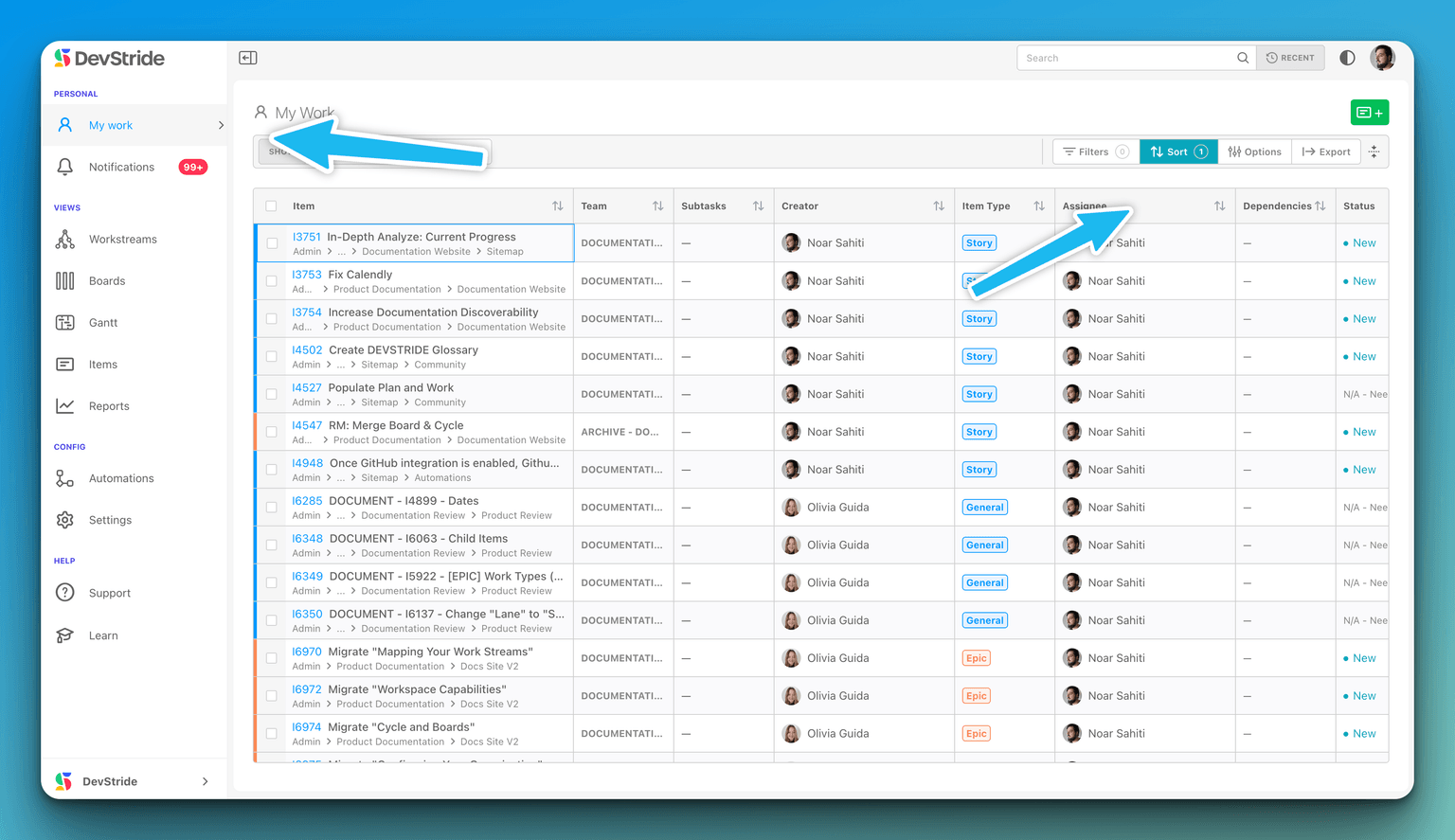
What appears here — the "Show" selector
By default, My Work shows Incomplete Items Assigned to Me. The Show selector at the top of the page lets you switch what the table lists:
- Incomplete Items Assigned to Me (default) — open work assigned to you.
- Completed Items Assigned to Me — work assigned to you that's reached a Done status.
- Incomplete Items I'm Watching — open items you follow as a watcher.
- Completed Items I'm Watching — watched items that are now done.
- All Items — everything assigned to you, complete or not.
A couple of things worth knowing:
- "Assigned to me" also surfaces parent items whose subtasks are assigned to you, so you keep the context around your work — not just the leaf tasks.
- The table is sorted newest first (by Date Added) until you choose a different sort.
Working from My Work
My Work isn't just a list to read — you can act on items without leaving the page:
- Open an item — click a row to open its Workspace.
- Select several at once — click to select, or Shift-click to select a range.
- Make changes — right-click an item (or use the Edit menu when items are selected) to change Status, move work to a Cycle or Board, reassign, or update team, priority, tags, estimates, and custom fields. The same actions work in bulk across everything you've selected, and you can add items to a Gantt, archive, or delete from here too.
Adding items
You can capture new work without leaving My Work. The green Add Item button at the top right is a split control:
- Click the button to open the Create an Item quick-add dialog. Because you're in My Work, it pre-fills the new item as Assigned to Me with your primary team — you just give it a title, a location (its parent), and an item type, plus any fields your organization requires.
- Use the dropdown for Create Items with AI — point DevStride at existing material (paste text, or upload a PDF, Word file, or image) and it extracts and creates several items at once.
The Add Item control appears when there's at least one workstream to add into and you have permission to create items.
Shaping your view
Three toolbar controls let you tailor what you see. Each is documented in detail on its own page:
- Filters — narrow the list by item type, team, priority, tag, custom field, cycle, board, status, creator, and more.
- Sort — order the table by fields such as Date Added, Start Date, or Due Date.
- Options — choose which table columns appear, and toggle view settings like Hide subtasks, Line wrap, and Show hierarchy (covered just below).
Your Show selection, filters, sort, columns, and toggles are remembered per organization, so My Work looks the way you left it the next time you open it.
Viewing work as a hierarchy
Turning on Show hierarchy displays your items as a nested parent–child tree instead of a flat list, with expand and collapse controls so you can drill into the work beneath an item — the same controls described in Item hierarchy. Two related choices appear once the hierarchy is on:
- Show Duplicates — when an item matches both as a top-level row and as a child of another item, choose how it appears: As Children Only (the default), As Primary Rows Only, or As Both.
- Show matching children only — limits the tree to the children that match your current filters, rather than showing every child beneath a matched parent.
Saving views
When you land on a setup you'll want again — a particular mix of filters, sort, columns, and toggles — save it as a named view so you can switch back to it in one click. See Creating & sharing views for how saved views work.
Exporting your work
Need your list outside DevStride? The Export button in the toolbar (next to Options) sends your current view to a CSV file.
- The export includes every item that matches your current filters and sort — the whole filtered list, not just the rows you've selected.
- In the Export Items to CSV dialog you name the export and choose which columns to include.
- Exports run in the background; when one finishes you'll find it under Measure Performance ▸ Exports, ready to download. See Measure Performance.
Custom fields in the export
Select Custom Fields in the column list and your export gets one column per custom field, so you can sort, filter and pivot on a single field instead of splitting a cell by hand.
- Only fields that are actually filled in on at least one exported item get a column. An organization with dozens of custom fields defined won't produce dozens of empty columns.
- Choice fields export their option labels rather than internal IDs, and file fields export their file names.
- The original combined custom-fields column is still there and unchanged, so a spreadsheet or script already reading it keeps working.
- A value that a spreadsheet would otherwise treat as a formula — one starting with
=,+,-or@— is written with a leading apostrophe so it displays as text. Ordinary numbers such as-5are left alone. - If you don't select Custom Fields, your export is unchanged.
Because it produces a report, the Export button appears only for members with reporting access.
When the list is empty
If nothing matches your current setup, My Work shows "No items found for the applied filters." Try broadening or clearing your filters, or switch the Show selector (for example, to All Items) to widen what's included.