Creating Items
This article assumes you have created an organized structure of Workstreams under Plan Value. If not, please go back to this module to find out more.
Create Items to add to Workstreams
What this is: Now that you have defined both your workstreams and your item hierarchy, you can add items to your workstreams.
How to do it - using an example: Returning to our example above, let's say we would like to identify work to be done in Product A, including a Login module with Capabilities and Tasks under it.
Do do this, following the steps below.
Step 1. Add item: from the panel with your Workstream name.
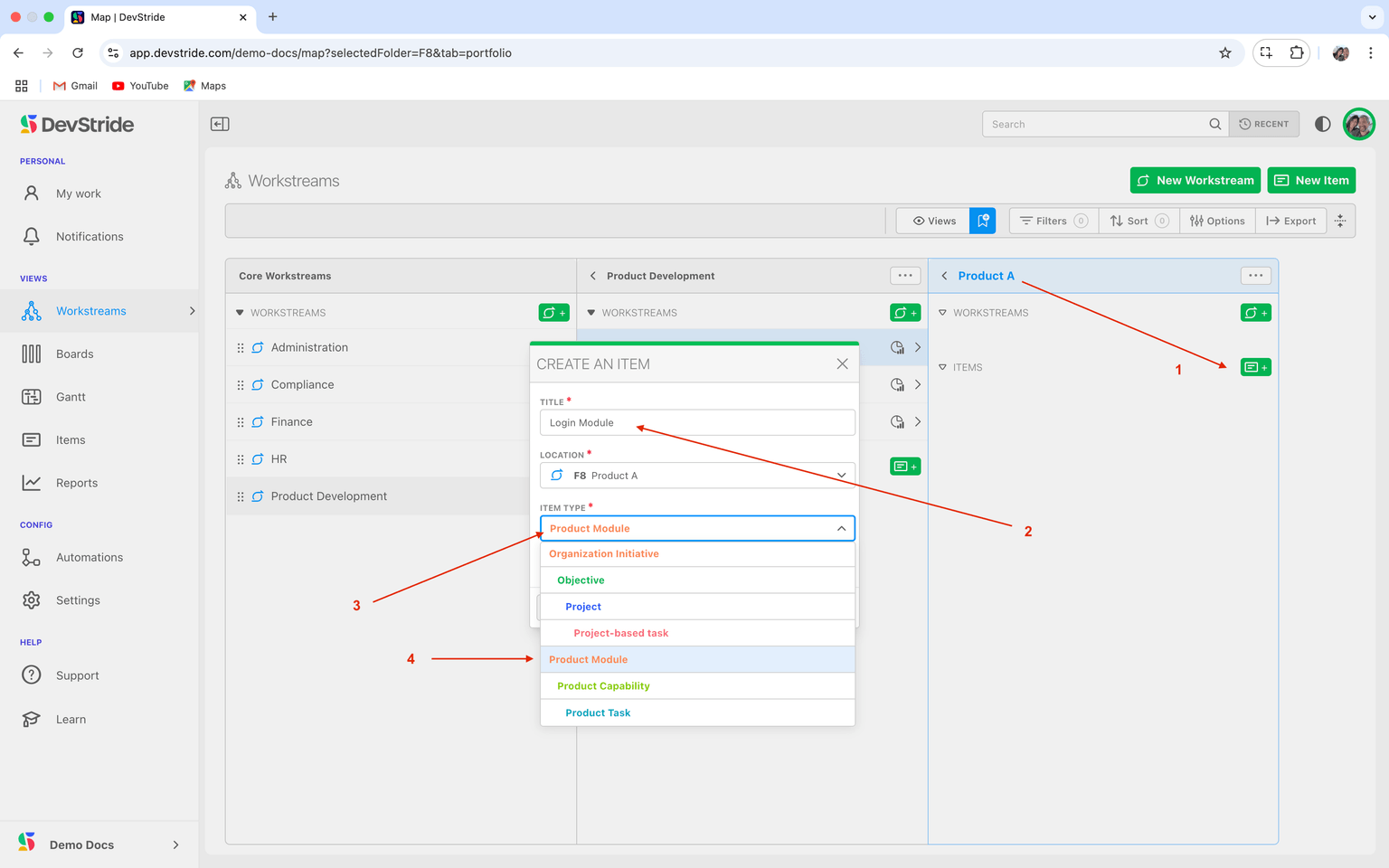
In this example below, it's Product A. Click on the Add Item icon. (1)
Step 2. Type in a title for your item.
For our example, we are creating a Login Module (2).
You can name it anything you want. Module does not have to be in the name.
Step 3. Choose the item type.
Because this is an item at the top of the product development hierarchy that we created, we will make the item type Product Module (3-4).
Now the other item types in our example - like Product Capabilities and Product Task items - can be nested underneath it.
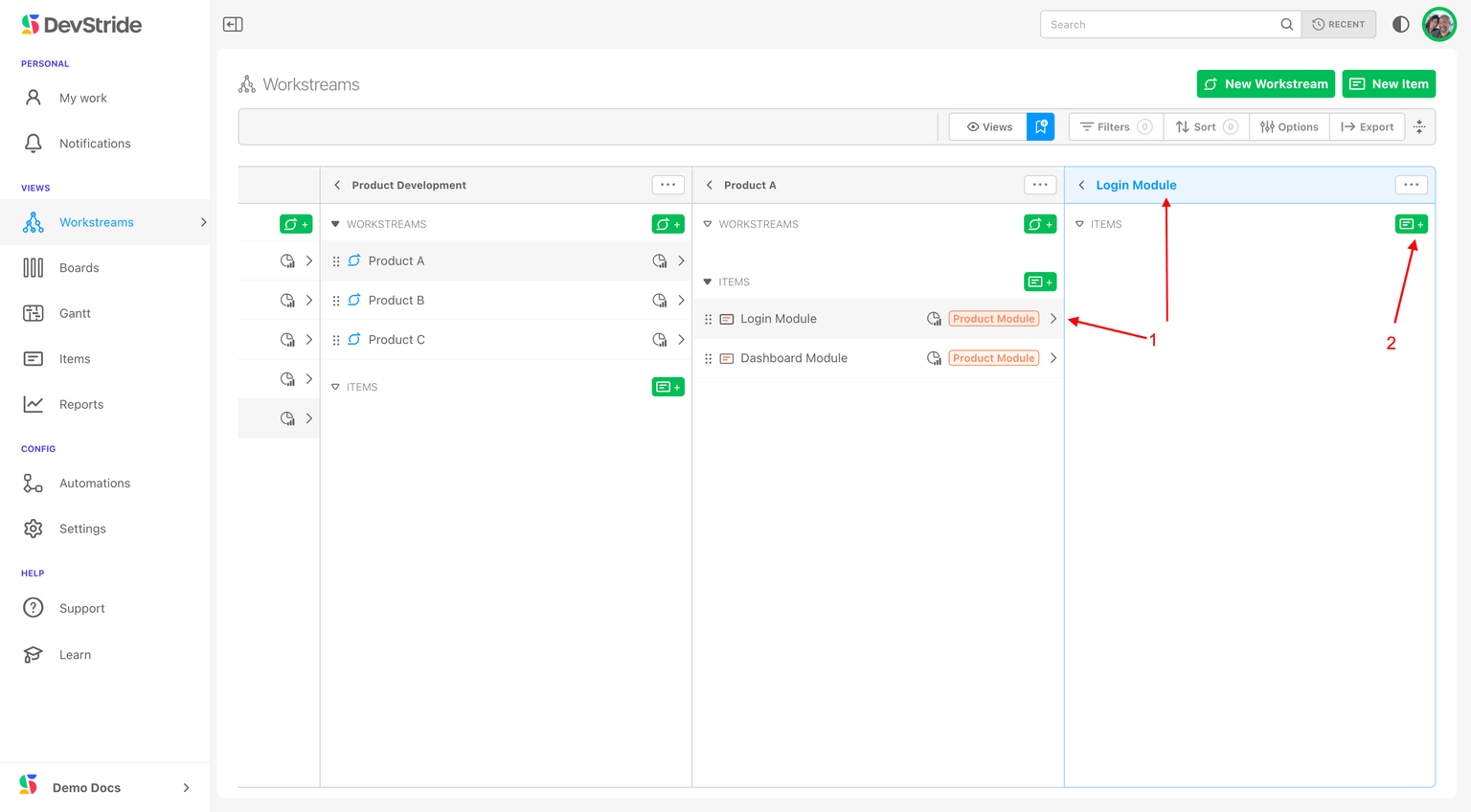
To do this, we can add the next level of granularity down. In our example, we will add an item under Login Module. Click on the "Login Module >" row (1). And then click on add item in the Login Module's panel to create a nested item (2).
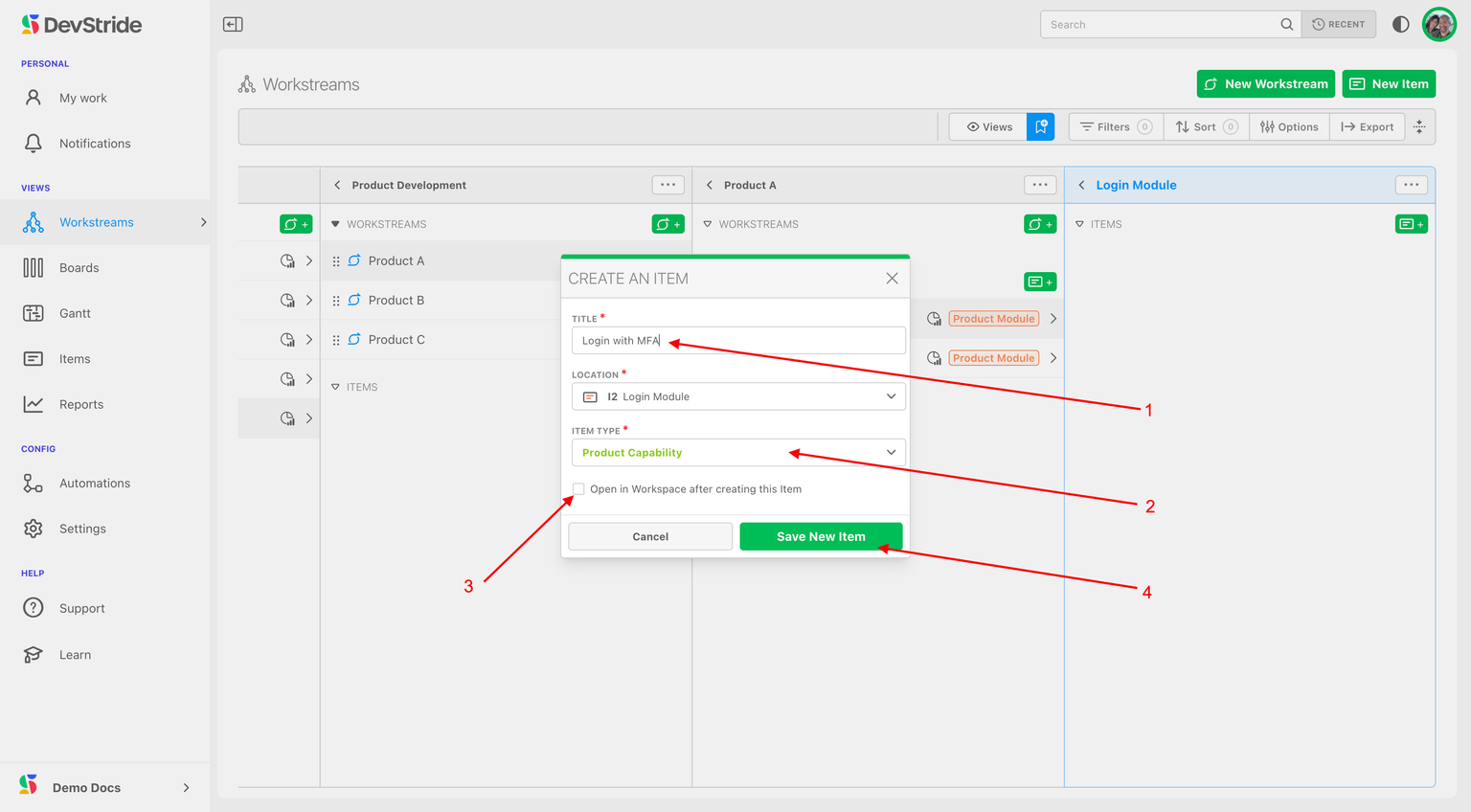
We will name the capability we want to track. In our example, we call it Login with MFA (1). Because we have added an item inside a module, the next item type down, Product Capability, is auto-populated (2).
Step 4. Auto-open the item workspace, if desired.
If you would like to detail the information for this item at this time, you can open this item's workspace by clicking on the available box (3). The workspace for this new item will open once you click Save New Item. You can also open the item any time to add information to its workspace.
Step 5. Save.
Click Save New Item (4).
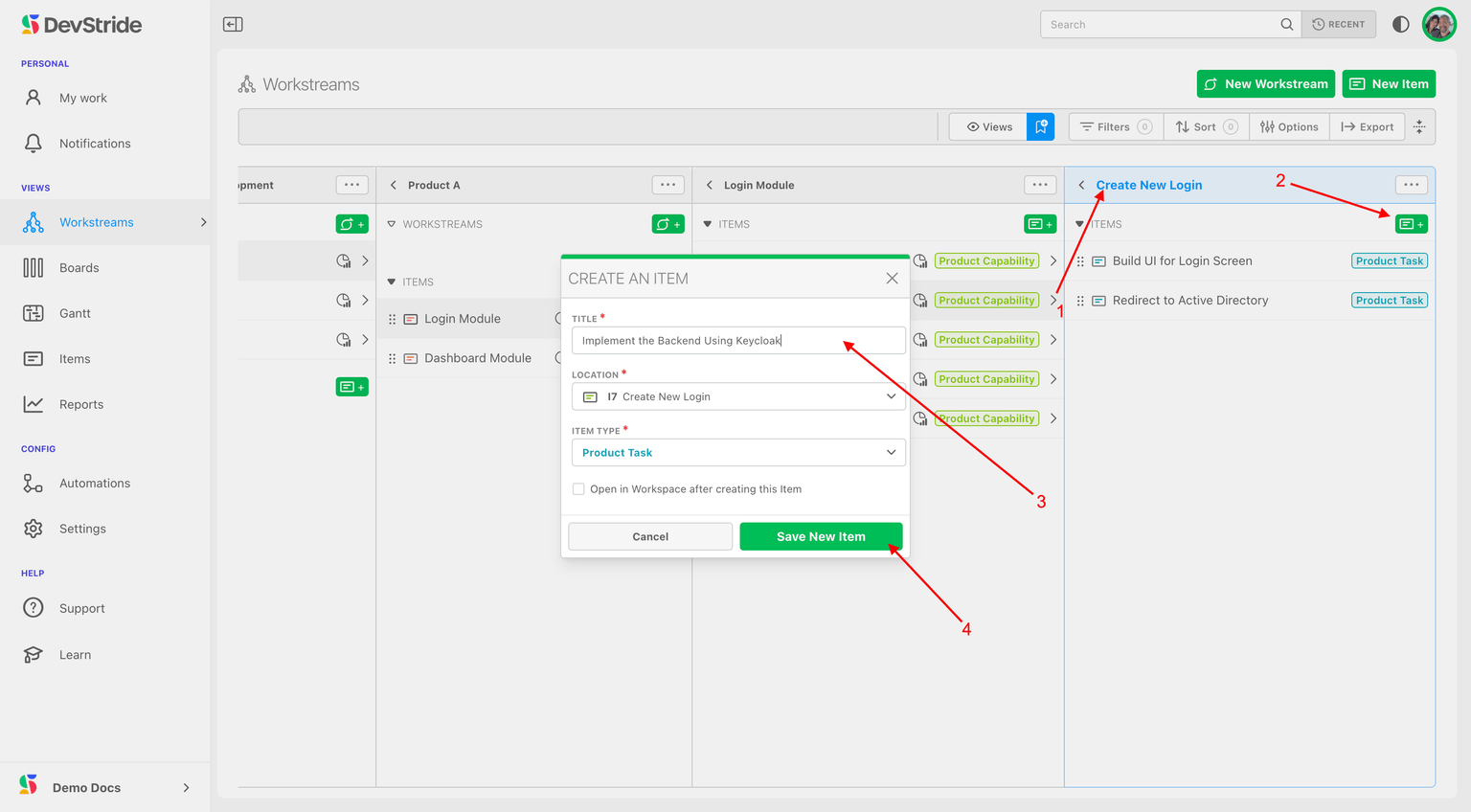
In our example, since Capabilities are right above tasks in our hierarchy, we are ready to add our individual tasks. To add tasks, go to any Capability (1) and click on Add Item (2) to add Tasks (3-4) to the Capability. Like this:
What this Gives You Now that we have set up a series of items, you can see how the hierarchy works for you. Look at the flow of information in your Workstream map here:
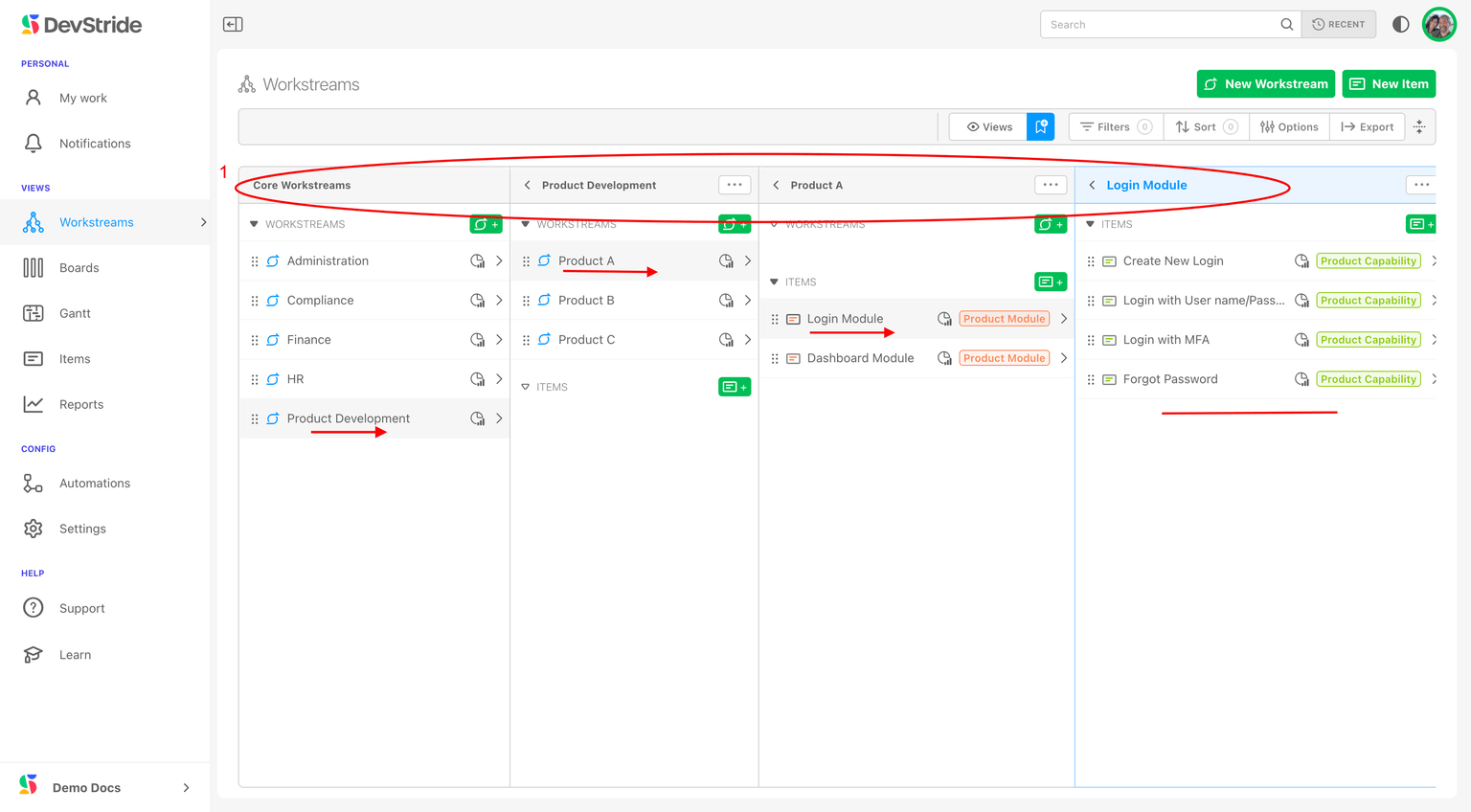
The advantage of a Plan Value workstream map is that you can see all the work that goes into Product A, for example. All of the things—or work—in Product A rolls up into it. You will be able to see estimates for all the work, the level of effort required, completion progress, defects, etc. for Product A. New items inherit access from the location they're created in — see Workstream & Item Permissions.
It is perfectly natural that your Workstreams and the items inside them will change as initiatives evolve.
DevStride easily accommodates these changes.
Example: In the example below, we have Tasks (3) under the Welcome Message Capability (2) that is currently housed under the Login module.
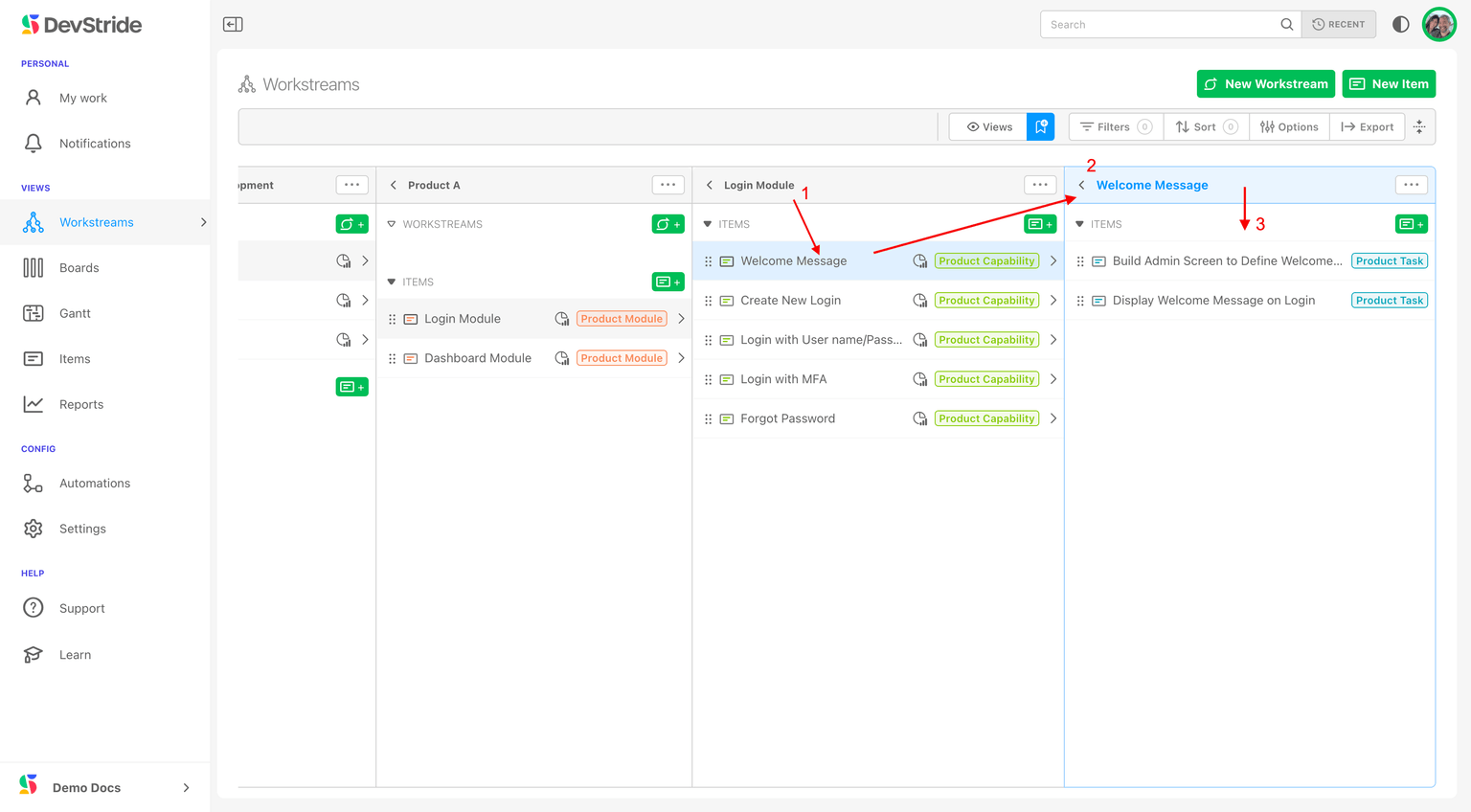
If we decide that we really want to manage the Welcome Message Capability under the Dashboard Module instead, we can simply drag the Welcome Message Capability under Dashboard. This automatically reorganizes our Workstream.
All the Tasks associated with the Capability will move with it, including all the data, reporting, and everything else associated with that Capability.
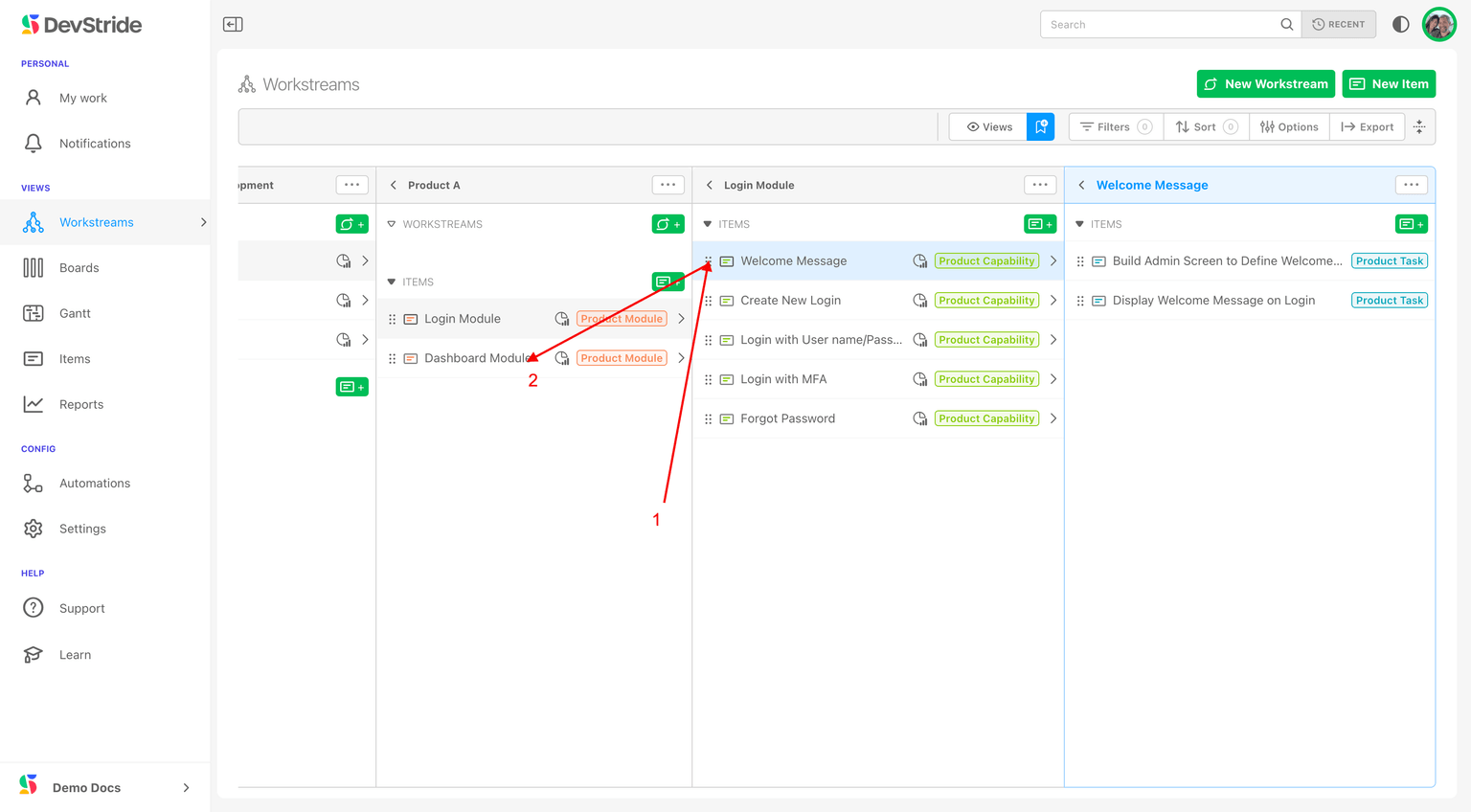
Click on the dotted grab bar (1) and drag it to the location you want it (2).
Like this:
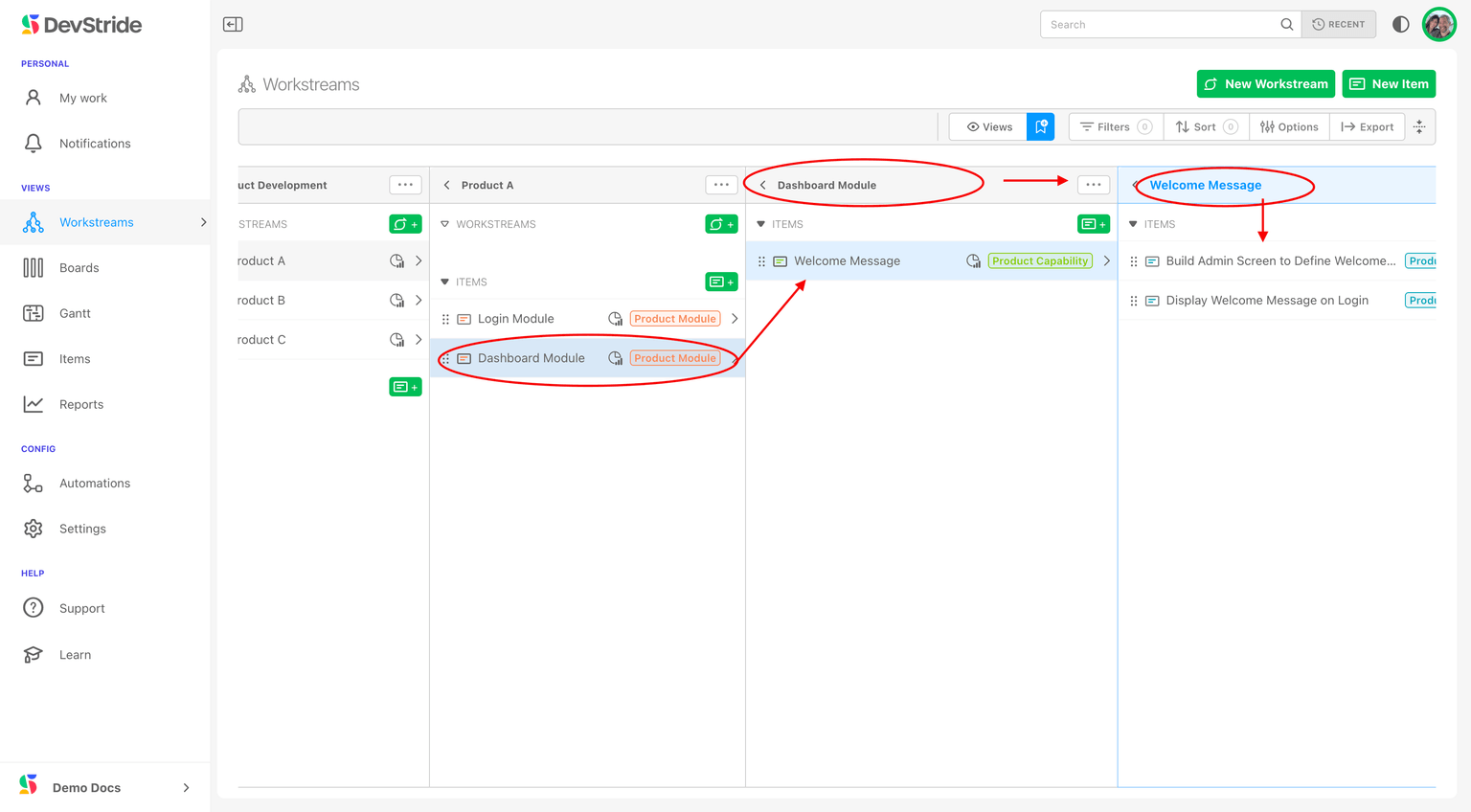
This reorganizes the Workstream. In our example, the Capability (Welcome Message) and its Tasks have been moved from the Login module to the Dashboard module.
DevStride decomposes work from the top-level portfolio down to individual tasks. The data model it uses enables visibility and predictability throughout the entire Workstream Map.
At the most granular level, work can be assigned to a team member or to a persona waiting for a person.
Assigning a person or persona
Assignment is optional when you create an item. Open its Assignee control later to choose from People or Personas. The same assignment choices are available for subtasks, item-table and Gantt columns, and bulk edits.
Choose a persona such as Engineer when you know what kind of work is needed but have not chosen the person. A persona-only item counts as assigned, while still showing that it is waiting for a person.
The person and persona stay compatible. Assigning Jane preserves a selected persona she holds; otherwise her first active persona is used. Choosing a persona Jane does not hold clears her from the assignment. Clear, beside the chooser title, clears both the person and persona.
Administrators define personas and each member's eligible personas in organization settings. Personas do not grant access to items or change existing permissions.
Next up: The Item Workspace Tour