What is Throughput?
Overview
Throughput refers to the rate at which a team completes and delivers work items over a certain period of time. It is a measure of the team's efficiency in delivering value to the customer.
Throughput is usually measured in terms of the number of work items completed per unit of time, such as per week or per cycle.
This measurement is often used to track the team's progress and to identify areas where improvements can be made.
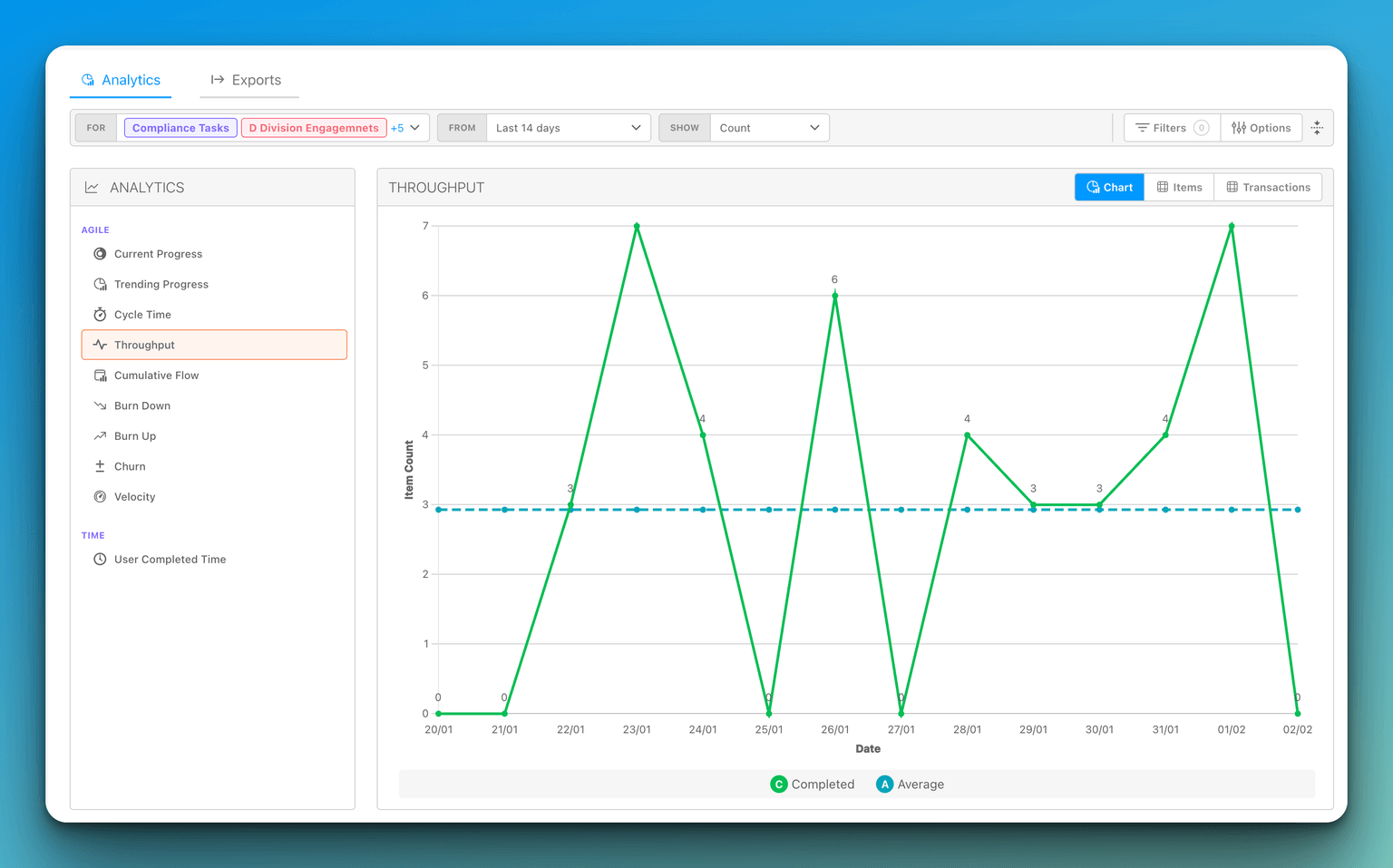
How Throughput Is Counted
The Throughput report counts the net number of items that reach the Done lane in each period. As work moves through your workflow, an item that enters the Done lane is counted, and an item that moves back out of the Done lane is subtracted. Because of this net model, an item that is completed, reopened, and then completed again is not counted multiple times — the moves cancel out so the item is reflected once.
The same net logic applies when you summarize by estimate or by time: removals are subtracted so reopened-and-recompleted work does not inflate the totals.
Summarizing Work with the "Show" Selector
The report's toolbar, above the chart, includes a Show selector that controls what the chart and the Items tab summarize in each period. Instead of only counting items, you can switch to summarize by estimate or by logged time.
Depending on how your organization configures its data model, the Show selector can offer the following options:
- Count — Summarizes by the number of items completed. This is the default.
- Time Estimate — Summarizes by the estimated time on completed items, shown in hours.
- Point Estimate — Summarizes by the point effort on completed items.
- Time Spent — Summarizes by the actual time logged against completed items, shown in hours.
The Y-axis label updates to match your selection: Item Count for Count, Time Estimate (hours), Point Estimate, or Time Spent (hours).
Your choice is saved with the report's stored views, so the chart keeps the same summary the next time you return.
Reading the Trailing Average
The Throughput chart plots two series that you can toggle on or off from the chart legend:
- Completed — The actual throughput for each period, shown as a solid green line.
- Trailing Avg — A rolling average shown as a gray, dashed line with a filled area beneath it.
The Trailing Avg is a rolling trailing average over the previous three periods. For each point on the chart, it averages that period together with the two periods before it. Because the window moves along with the chart, the Trailing Avg follows your recent delivery trend rather than showing a single flat line for the whole range. Near the start of the range, where fewer than three periods are available, the average is calculated from only the periods that exist.
The Trailing Avg applies to whichever unit you have selected in the Show selector, so it tracks the trend for count, estimate, points, or time alike.
Periods and Date Boundaries
The Throughput report groups completions into periods, and the granularity is chosen automatically from the date range you select:
- Daily for ranges up to 31 days
- Weekly for ranges of 32 to 92 days
- Monthly for ranges longer than 92 days
Period boundaries are aligned to UTC so that completions are attributed to the correct day, week, or month. This prevents an item completed close to a day or month boundary from being counted in the wrong period for teams in time zones west of UTC.
Related Reports
- What is Cycle Time? — Measures how long items take to move through your workflow.
- What is Velocity? — A related completion-based measure of delivered effort.
- Report Customization Options — Details the filters and display options shared across reports.